





User Permissions in Calendars
Appointments often involve sensitive information and high customer expectations. To give you more control, we've improved how permissions are managed, helping you maintain security and confidence in your scheduling.
⭐️How Will These Changes Affect You?:
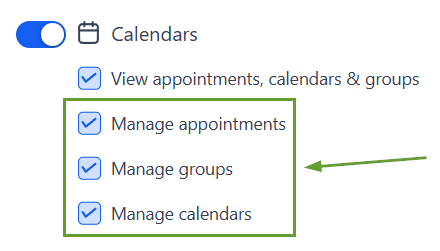
Granular Permissions: Assign your users distinct permissions to view or manage appointments, groups, and calendars.

Assigned Data Access: Restrict users to viewing only the appointments and calendars they are specifically assigned.

Independent Manage Permissions: Individually grant management permissions to Appointments, Groups, or Calendars, limiting what they can create, edit, and delete.
⭐️How To Manage User Permissions in Calendars?
To access the calendar granular permissions, you need to go to your Settings at the bottom left corner. To implement the changes, follow these steps.
Navigate to the My Staff tab of your Settings and click the pencil icon next to the user whose permissions you’d like to change.

Select Only Assigned Data from the Data Visibility Scope menu if needed.

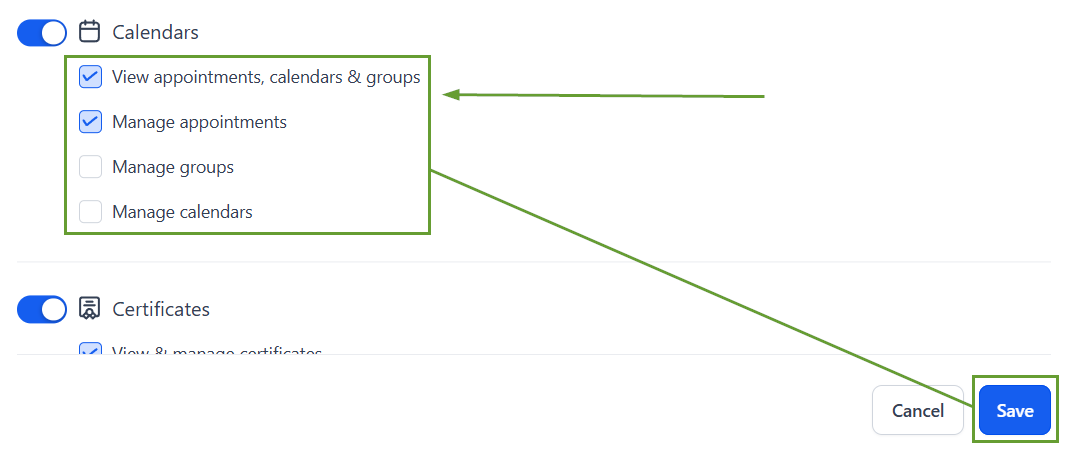
Click the Calendar icon on the left side section to get redirected to its permissions.

Check the box next to the sections you want to add/remove from the user's control, then click save at the bottom right to set your changes.
Applying these changes will help you ensure data safety and have a flexible approach to attending to business needs without compromising information security.








