





All-in-One Chat Filters: Route replies to Widget or Live Chat
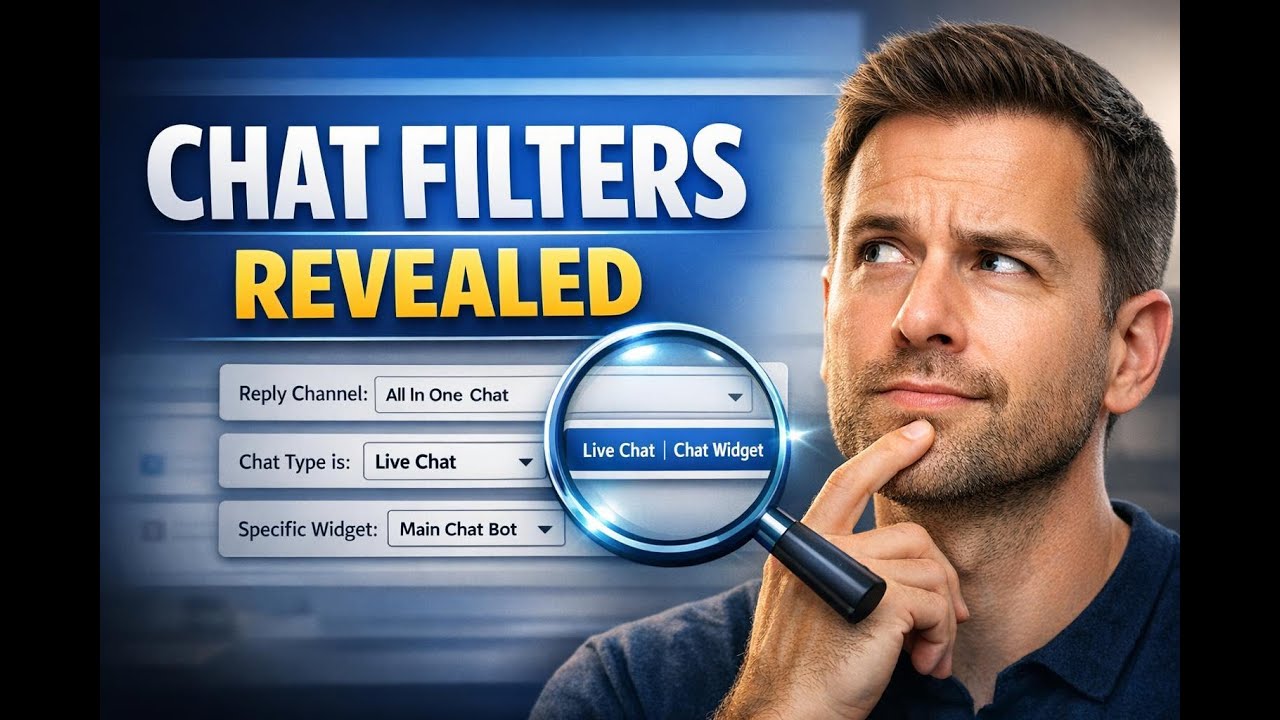
Unified chat setups are cleaner now. Previously, replies from an all-in-one chat were mixed with single-channel widgets. That made automations hard to configure and caused misrouted replies. We added an intuitive filter flow so teams can target replies from the full all-in-one widget or the live chat inside it.
Why this change matters
The new filters reduce confusion and make automations more precise. Instead of picking from a long list of widgets, you can:
- Choose All-in-One Chat directly from the Reply Channel dropdown.
- Decide the chat type — whether the reply came from the full chat widget or the live chat inside it.
- See only relevant items in the next filter so you can pick the exact widget or live chat configuration.
How the filters work
The filter flow has three clear steps:
-
Select Reply Channel → All-in-One Chat. This separates unified chat from single-channel widgets.
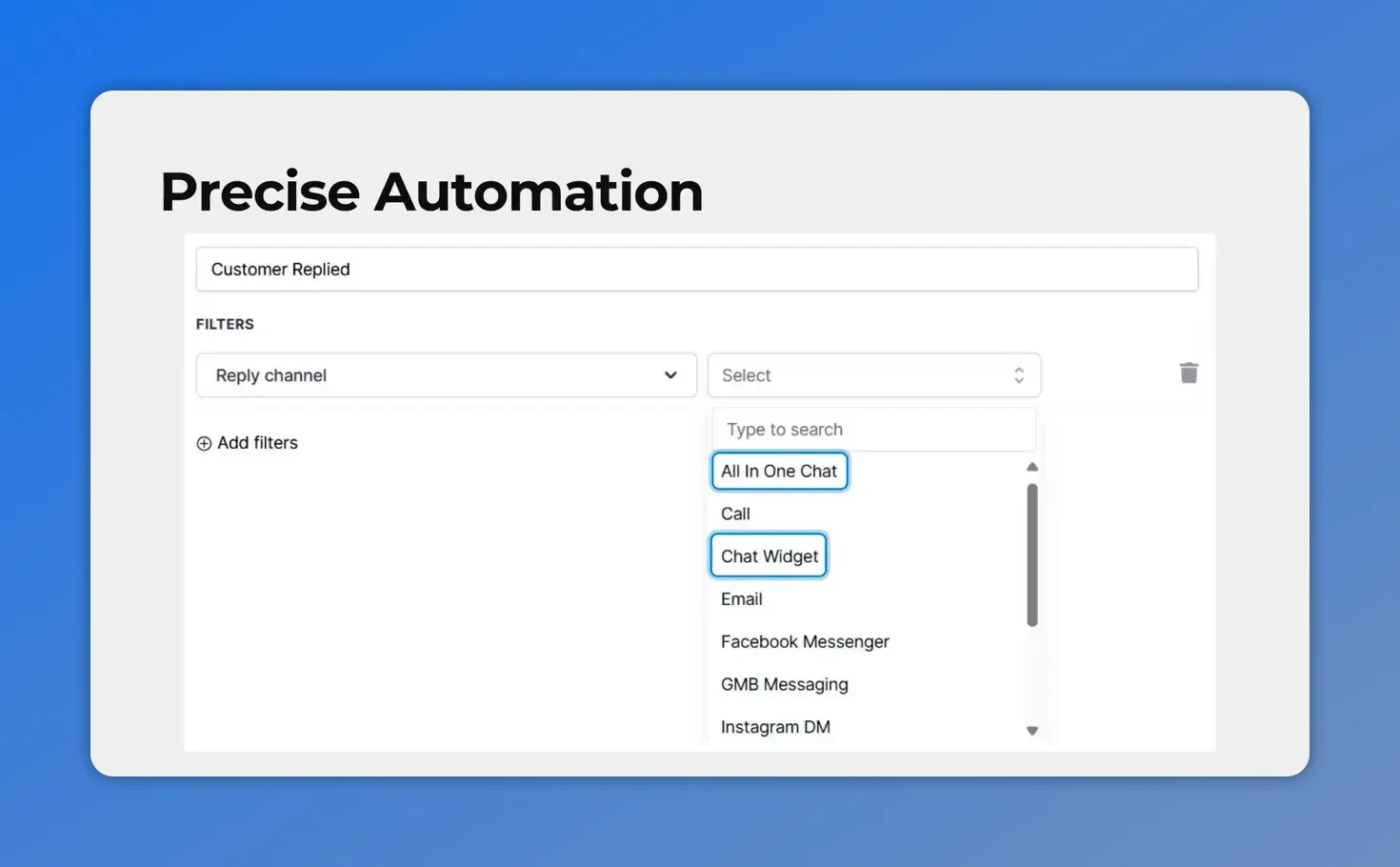
Select Reply Channel and choose All‑In‑One Chat from the dropdown.
-
Add Chat Type is. Choose either Chat Widget or Live Chat.
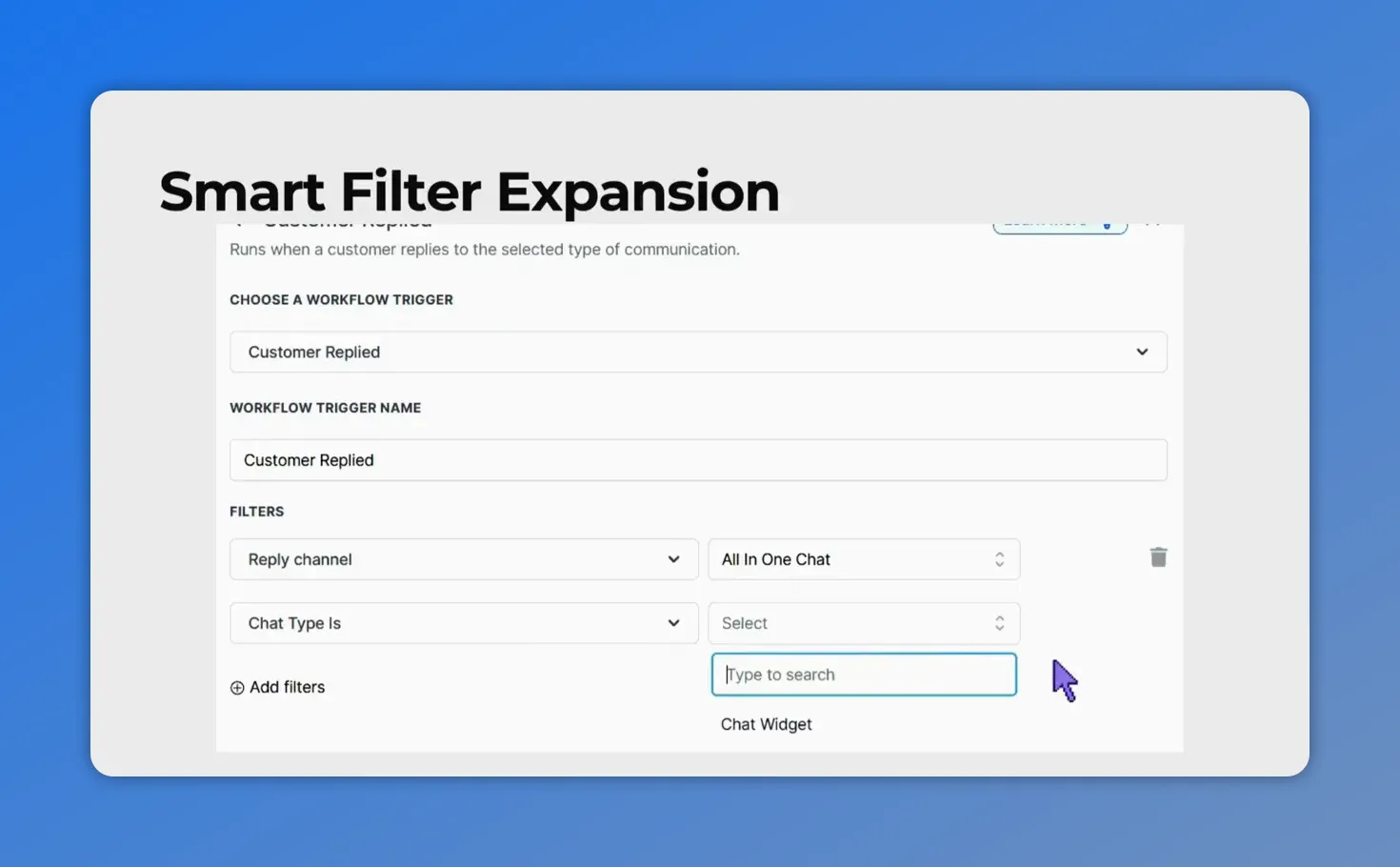
Set the Chat Type — choose between Chat Widget or Live Chat after selecting All‑In‑One Chat.
-
The next filter shows only the matching items. If you chose Chat Widget, you see only all-in-one chat widgets. If you chose Live Chat, you see only live chat configurations.
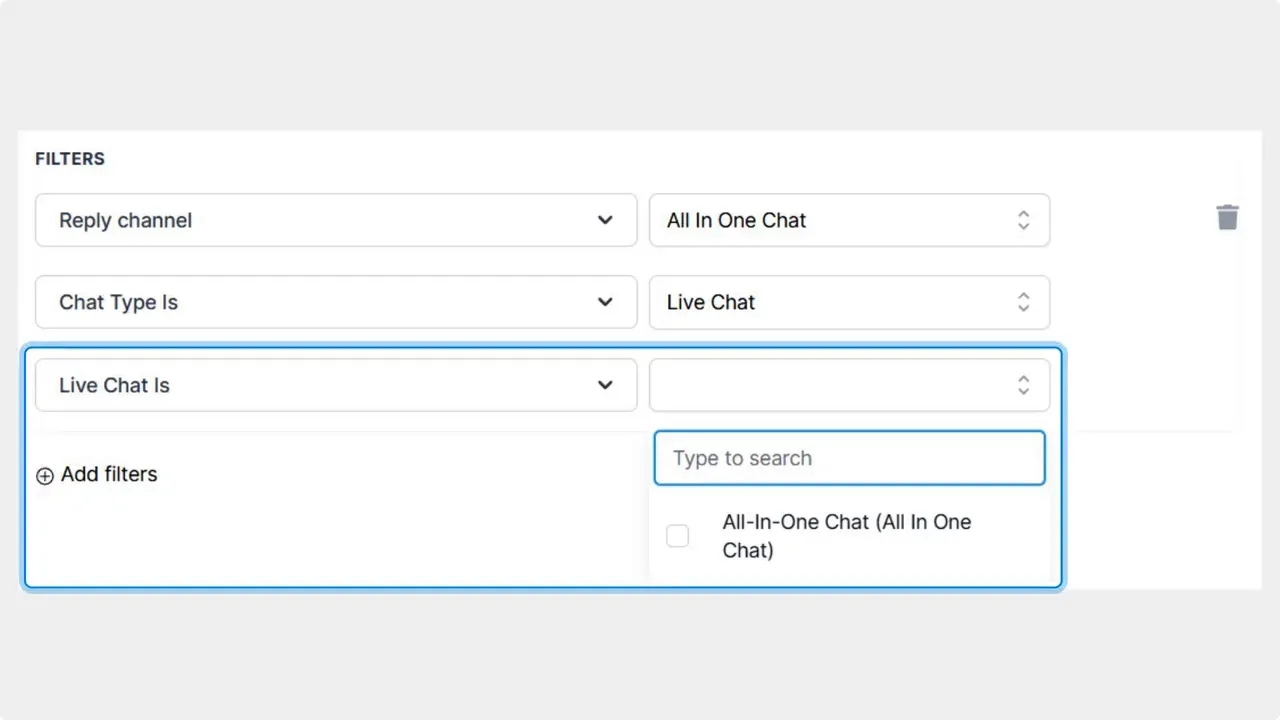
The Live Chat filter showing the matching live chat configuration after choosing All‑in‑One Chat.
Step-by-step setup
Follow these steps to create a clean Customer Replied workflow that targets the right chat source.
- Create a workflow and select the trigger Customer Replied.
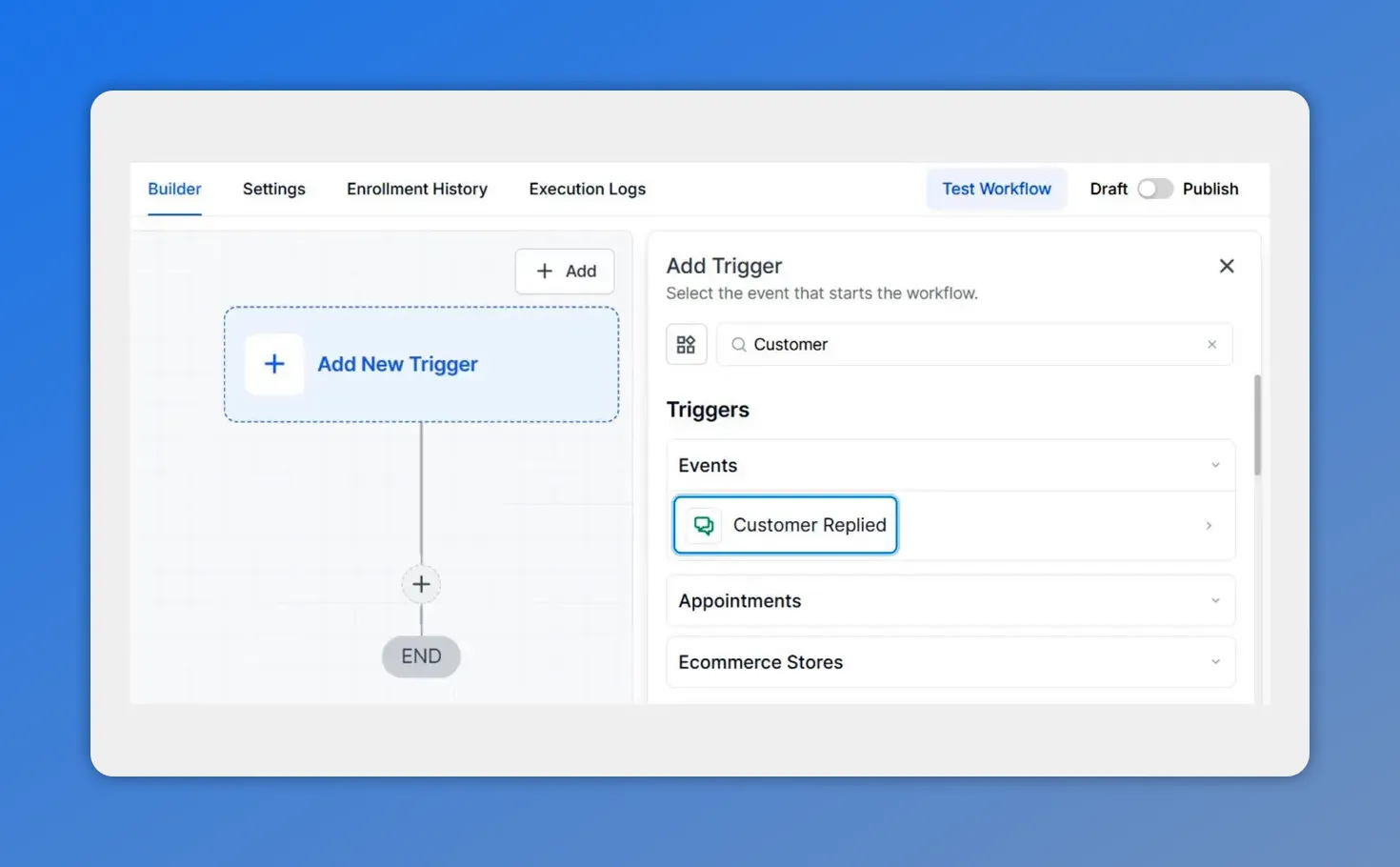
Add the Customer Replied trigger to start the workflow.
- Add the filter Reply Channel and select All-in-One Chat.
- Add the filter Chat Type is and select either Chat Widget or Live Chat.
- Choose the specific item under Chat Widget is or Live Chat is.
Practical tips and best practices
- Keep unified chat automations organized by using the new filter flow consistently.
- Use Chat Type to split handling between automated replies and live agent handoffs.
- Review reporting and handoff rules after switching filters to ensure metrics remain accurate.
- Test each workflow after changing filters to confirm replies go to the intended widget or live chat setup.
Migration checklist
When updating existing automations:
- Audit workflows using the Customer Replied trigger.
- Switch Reply Channel to All-in-One Chat where applicable.
- Set the appropriate Chat Type and pick the specific widget or live chat configuration.
- Run test replies to confirm routing and team handoffs.
FAQ
What does selecting All-in-One Chat in Reply Channel do?
Selecting All-in-One Chat separates unified chat from single-channel widgets. It tells the workflow to only consider replies coming from the unified chat system rather than from standalone widgets.
How is Chat Type different from Reply Channel?
Reply Channel chooses the broad source, such as All-in-One Chat. Chat Type narrows that source to a mode inside the unified chat: either the full chat widget or the live chat feature inside it.
Will this change break existing Customer Replied automations?
The change is minor but we recommend reviewing workflows. Switch the Reply Channel to All-in-One Chat and set the correct Chat Type. Then test each workflow to make sure replies route as expected.
Can we target multiple widgets or live chat configurations?
Yes. After choosing Chat Type, the next filter lists only relevant widgets or live chat options. Select the specific items you need or create separate workflows if you need different actions per widget.
Final note
These filters make automations cleaner and easier to scale. They reduce setup confusion and help prevent misrouted replies. Update your Customer Replied workflows to use All-in-One Chat, set the Chat Type, and pick the right widget or live chat configuration to keep routing accurate.
This article was created from the video All-in-One Chat Filters: Route replies to Widget or Live Chat








