





How to Set Up Conversation Views to Respond Faster

Managing customer expectations in one-on-one conversations takes focus. Conversation Views let us save frequently used filters as reusable views so we can switch focus instantly without rebuilding filters every time. This saves time, reduces context switching, and helps the team respond faster.
What Conversation Views do for your team
Conversation Views let us group the exact conversations we care about using filters. Once saved, a view becomes a persistent inbox slice that we can access instantly. That helps in three main ways:
Improve response rate — surface high-priority or unassigned threads quickly so no lead is left behind.
Manage multiple offers — separate conversations by product or campaign using tags and avoid reply confusion.
Channel-targeted approach — keep messaging consistent across SMS, email, social, and more with shared views for the team.
How to create a Conversation View
Follow these simple steps inside the Conversations tab to set up a reusable view.
1. Open the Views section
In Conversations, locate the Views section and select Create View. This opens the view setup screen where you define what this view should include.

Open Conversations and select Create view from the Views section.
2. Name the view and add filters
Give the view a clear name that reflects its purpose, such as High Priority — Unassigned or Product A Inquiries. Then add filters to include only the conversations you want — for example, priority status, assignment, tags, or channel.

Filter example with channels and direction selected and the Create view button highlighted.
3. Save the view
After setting your conditions, click Create View in the bottom right. The view is now available anytime, without rebuilding the filters.
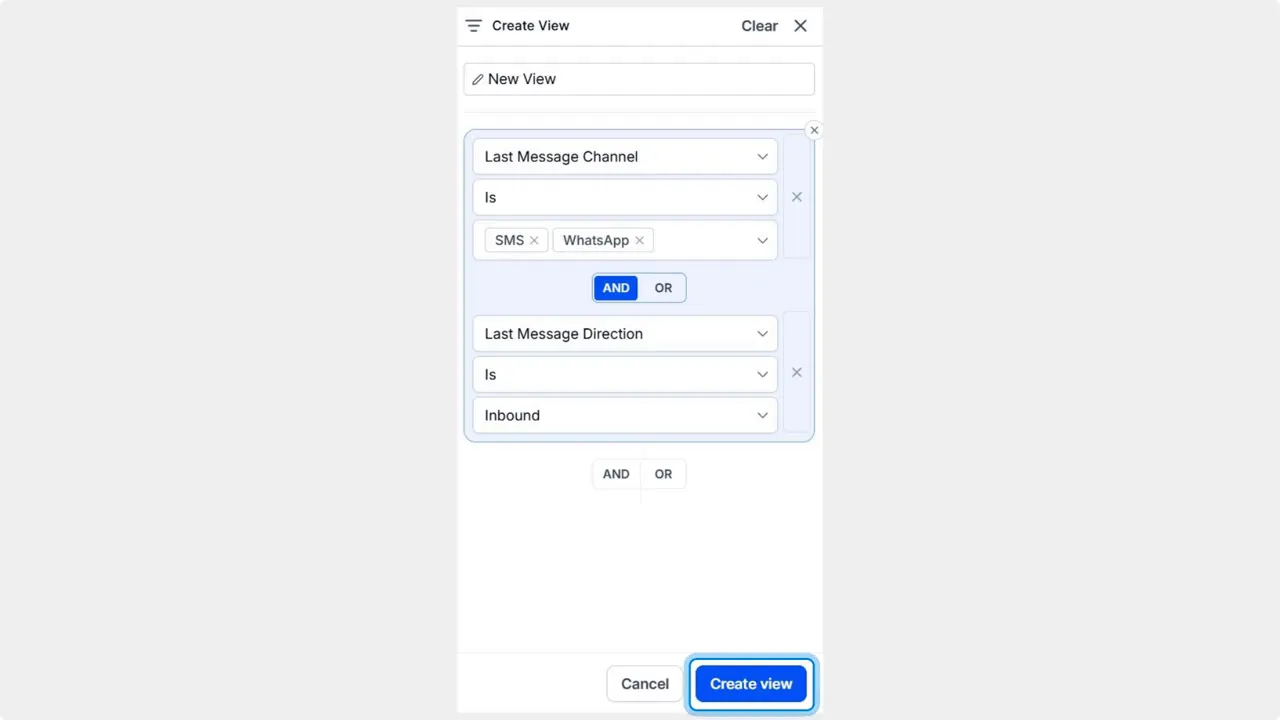
Click the Create view button to save your filters and persist the view.
4. Share with teammates
We can add team members to any created view. Click the three-dot icon and select Share, much like sharing smart lists. Shared views keep everyone aligned on priorities and reduce duplicated work.
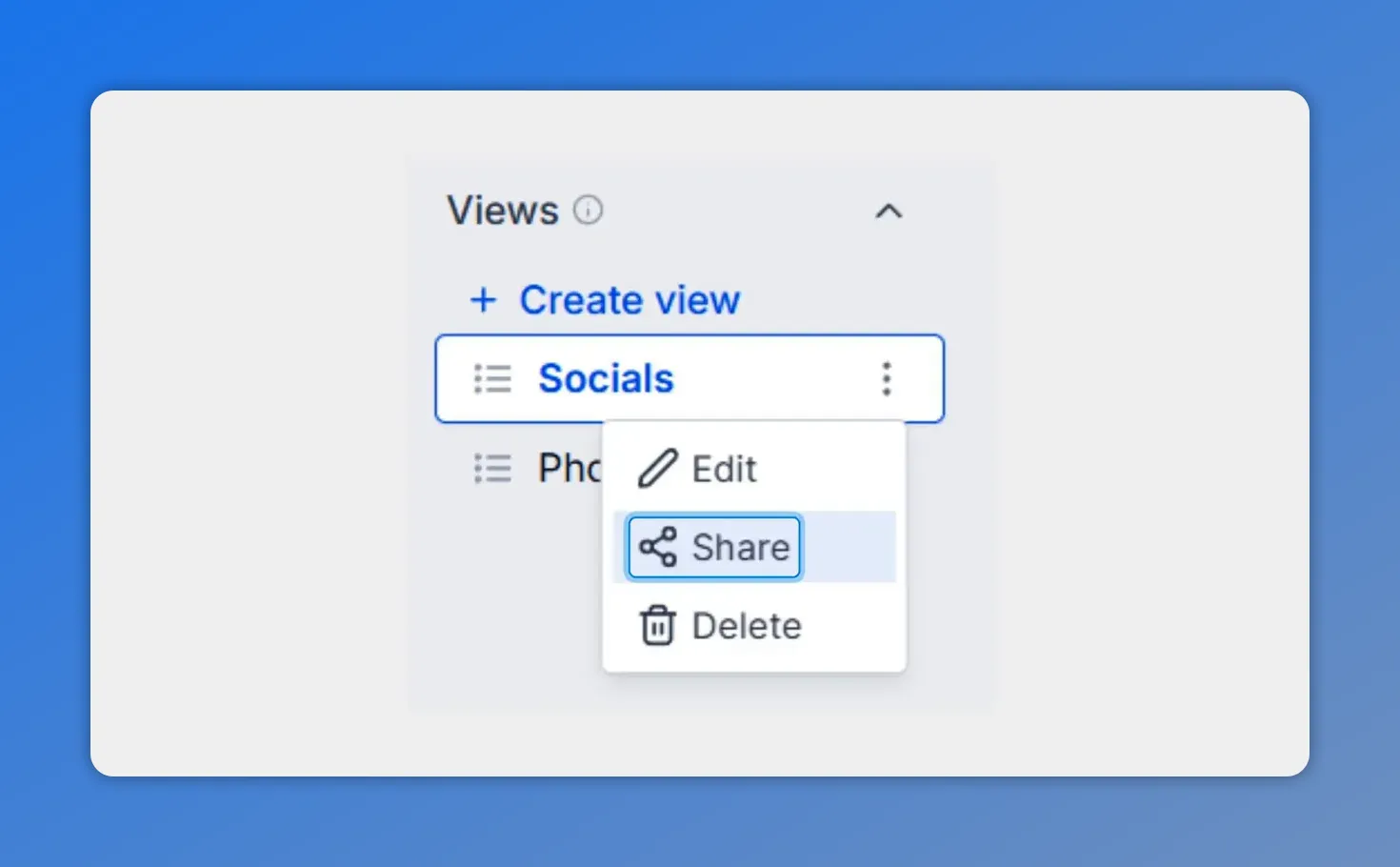
Choose Share from the three-dot menu to add teammates to a view.
Practical examples and use cases
Conversation Views work well for support, sales, and success teams that check the same sets of conversations daily. Here are practical setups to try.
High-priority and unassigned
Filter for high-priority threads that are unassigned. This creates a triage queue so team members can claim and respond quickly.
Product-specific tags
Tag conversations by product or offer, then save a view per product. This keeps responses targeted and prevents accidental cross-product messaging.
Channel-based views
Create views for SMS, email, social, or any other channel. That helps maintain consistent tone and response templates per channel.
Tips to get the most from Conversation Views
Use clear naming so teammates immediately know each view's purpose.
Limit filters to only what matters. Simpler views are faster to scan and maintain.
Share thoughtfully — give access to teams that need the view, and avoid cluttering others' inboxes.
Review periodically and update filters as campaigns or priorities change.
Final slide — create your first Conversation View to start responding faster.
FAQ
What is a Conversation View?
A Conversation View is a saved set of filters that shows only the conversations matching the conditions we define. It acts like a focused inbox slice we can open instantly.
Can we share views with the whole team?
Yes. Use the three-dot menu on a saved view and select Share to add teammates, similar to how smart lists are shared.
Which filters are most helpful?
Common filters include priority, assignment status, tags, and channel. Combine only the filters needed to surface the conversations you act on most.
How do Conversation Views improve response time?
They reduce repetitive filtering and context switching. By surfacing the conversations that matter, the team can respond faster and more consistently.
Who should use Conversation Views?
Support, sales, and customer success teams who repeatedly check the same conversation sets will get the most value. Any team that wants to reduce busywork and stay organized can benefit.
Start by creating one view that solves your biggest pain point—like unassigned high-priority threads—and iterate from there. This simple step helps the Pinnacle Ai team stay organized and respond faster.
This article was created from the video How to Set Up Conversation Views to Respond Faster








