





Connect Multiple Calendars for Each Integration Type
The best way to manage your life events is by ensuring you can write them down on your calendar. However, with your CRM keeping work and life separate used to come at a price, missing overlaps. So, we’ve made a few improvements to prevent this! Check them out!
⭐️How Will These Changes Affect You?
Multiple Account Integration: You can connect multiple accounts of the same integration type (e.g., Outlook, iCloud) to a single user’s account.
Video Conferencing: You can connect the same account across multiple users (for Zoom, MS Teams, or Google Meet).
User Integration: You can connect the same calendar account to multiple users for conflict calendars.
⭐️How Can You Connect Multiple Calendars To A Single User?
Start by navigating to the Connections tab inside the Calendar settings, and click +Add New

Click Connect next to the third-party calendar you want to connect, then log in to your calendar.

Scroll down to the Calendar Configuration section and click Add to select the conflict calendars.

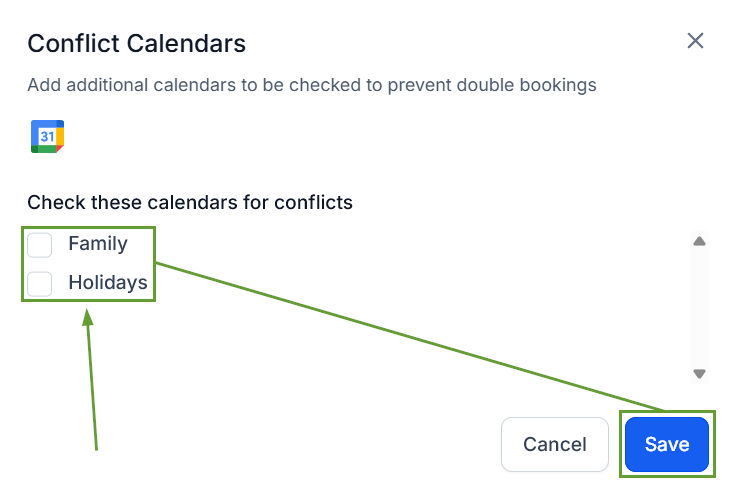
Check the box next to the calendars you’d like to add, then click Save.
You can follow the same steps to set the new calendar as the Syncing calendar. Helping you manage all your appointments in one place with minimal interference, maximizing your time-management efficiency!








