





Smart Lists for Custom Objects
Custom Objects help you manage processes specific to your business, keeping relationships clear and simplifying organization. This new tool will help you be even more effective when using your Custom Objects by creating shareable lists that filter results.
⭐️Why Is This Feature Beneficial To Your Company?
Improved Efficiency: This allows you to easily find specific results that match your filters, minimizing the time you spend searching and letting you invest that time in what matters most.
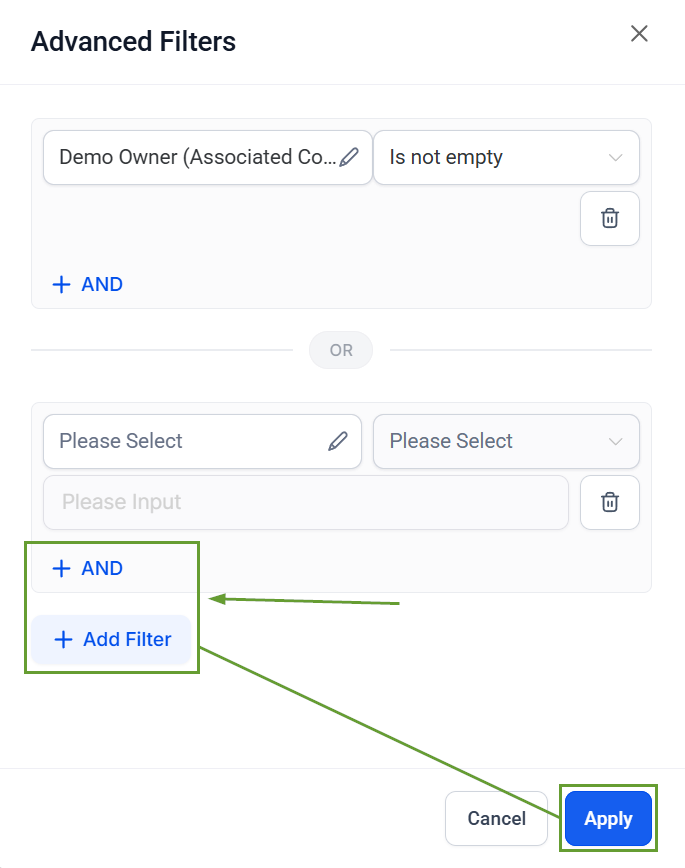
Advanced Filtering: This creates an advanced filtering system allowing you to use AND/OR logic to mix and match qualities to fit your specific needs.
Easy Sharing: Just like with your contact smart lists, you can share the created parameters with your teammates, ensuring everyone sees the most relevant information clearly and consistently.
⭐️How To Create Smart Lists for Custom Objects?
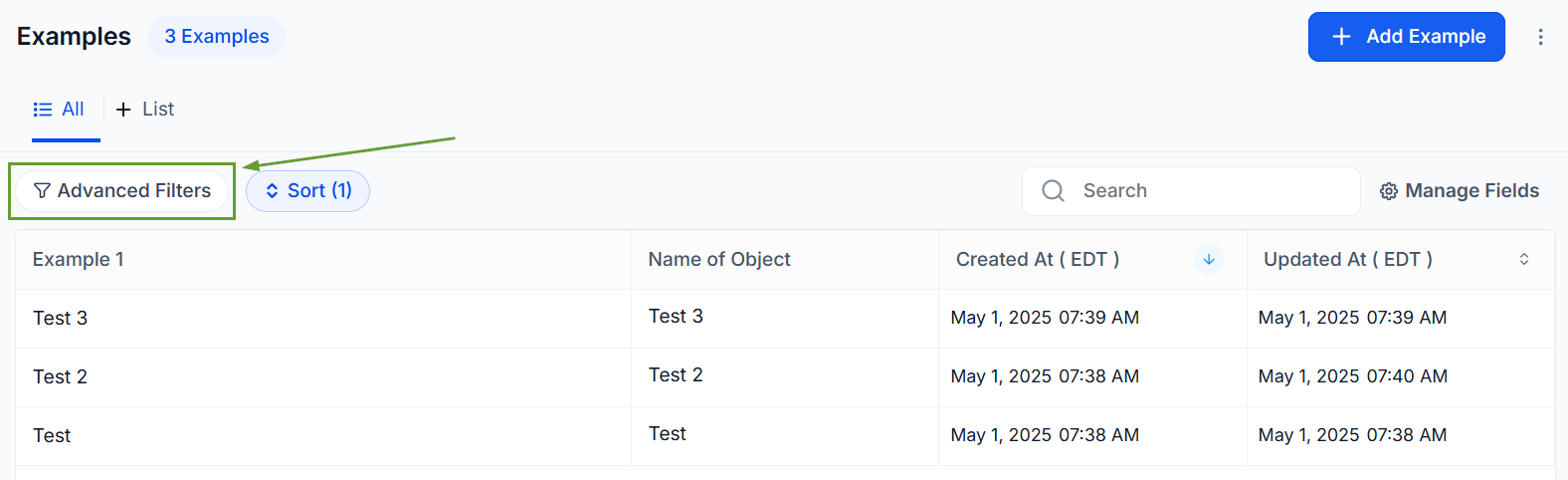
Navigate to the Custom Objects Section and click Advanced Filters.
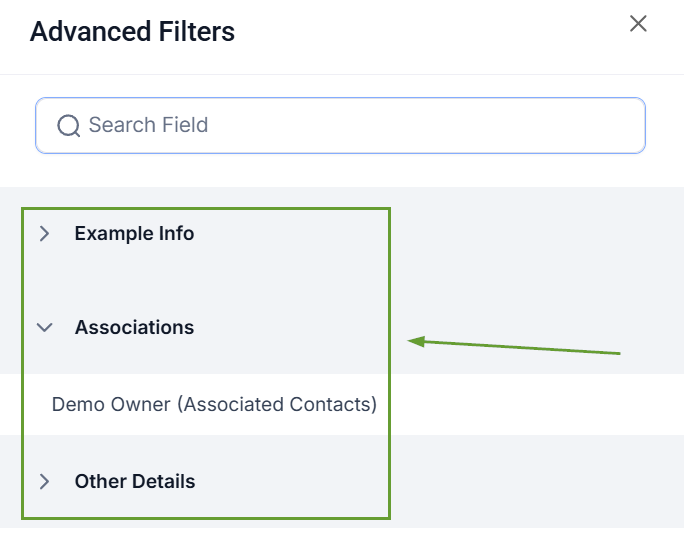
Select a filter from the main fields to set your conditions.
Click +AND for conditions that have to be met as a group. Click + Add Filter for conditions that don’t have to be met as a group. Then click Apply to save your changes.
Open the Unsaved Changes menu, select Save as a Smart List, give it a Name, and click Create to save it.
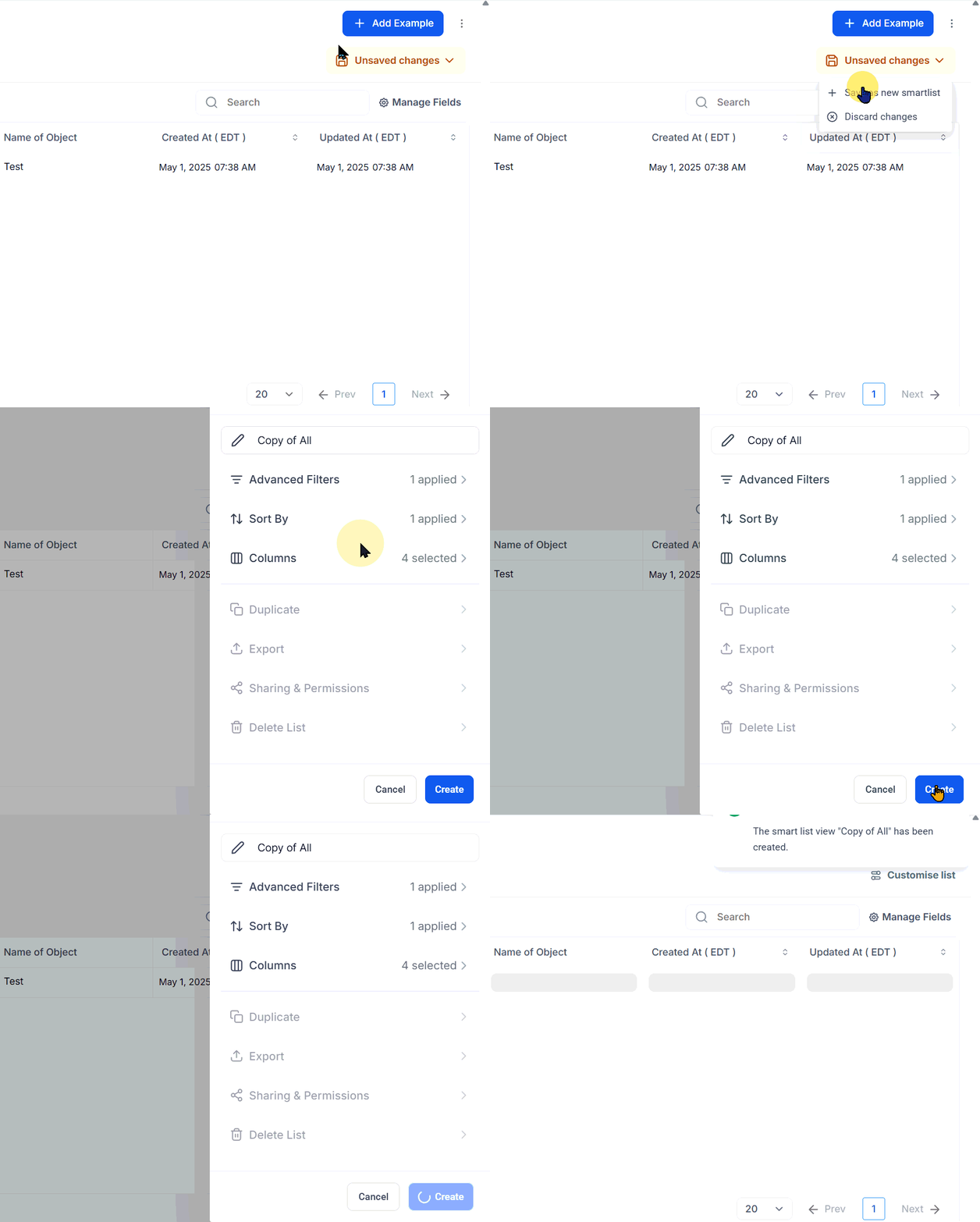
These Smart Lists can be shared directly during the creation process or by clicking Customize Lists once saved, ensuring you can give the best information to your team. Enhancing efficiency and lowering search times.








