





If/Else Action
The If/Else action allows you to separate contacts who trigger a workflow based on conditions you want them to meet, this helps you fine-tune your workflow and automate common actions that your customers perform. This action got a major revamp for your convenience, from prebuilt templates to a new image, let’s check out these changes!
⭐️What Changes Can You Expect?
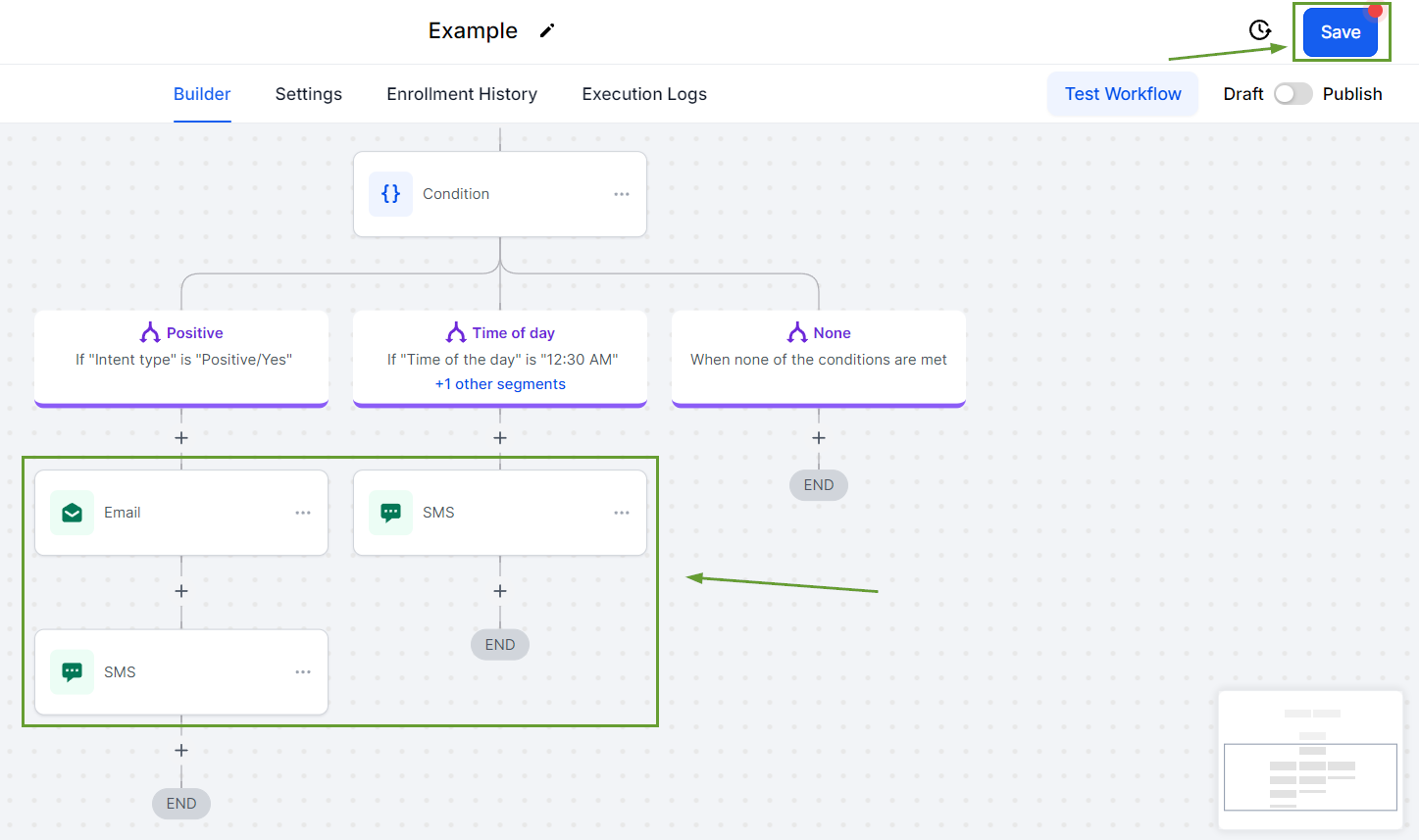
Text Summary: Branches will now include a brief description of the branch condition if a branch has multiple conditions click the “+X more conditions”.

"Time of the Day": This condition allows you to select specific times up to 15-minute intervals for granular control.

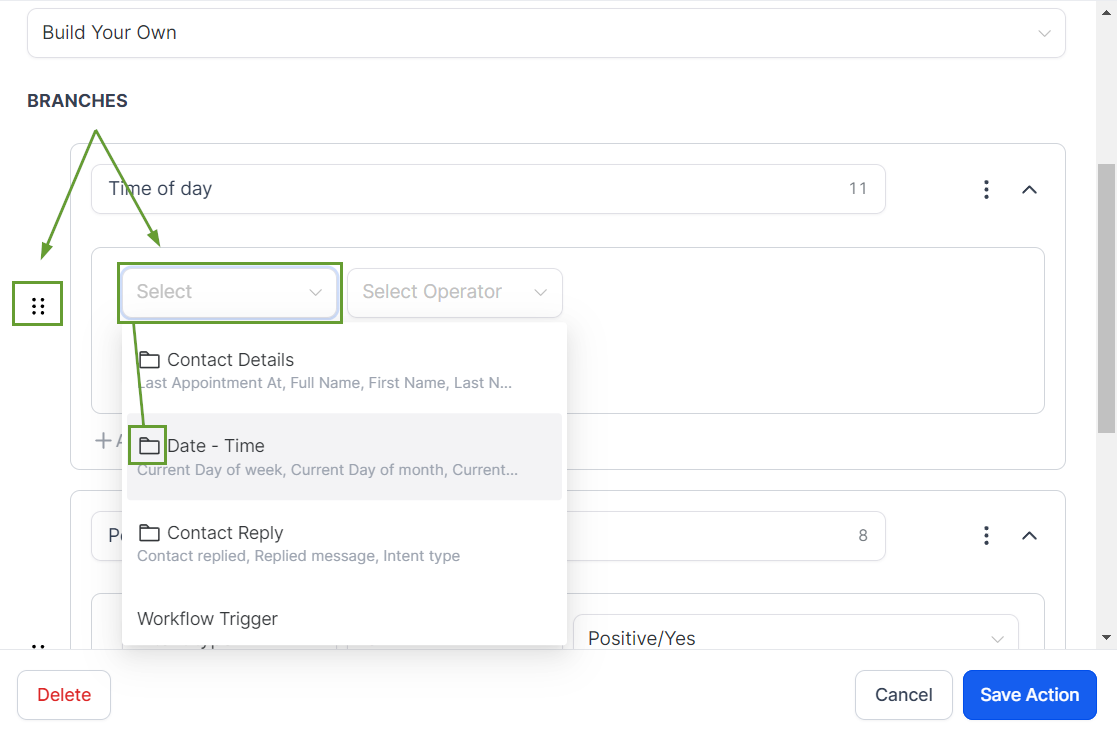
Configuration Screen: The options inside the condition dropdown menu have been organized into categories. And, you can drag and drop branches to reorganize them.
⭐️Scenario Recipes and How To Use Them?
These will be prebuilt If/Else action templates to simplify the set-up process. To use it create or edit a Workflow and add an If/Else action.

Select the prebuilt template you want to use, by default Build Your Own will be selected meaning the branches will be blank.

If there are any prerequisites for a recipe they will be displayed under its name, you want to add them before using these recipes.

Once you’ve selected your preferred Scenario add the next steps to follow in the automation then click Save.
And there you have it, we hope you enjoy the enhancements to the If/Else action and can use them to boost your productivity and customer retention.








