





How to Use the Notification Sound Toggle in Chat Widget for Better Retention
A chat widget keeps conversations on your site without sending visitors away. To make those conversations work, messages need to be noticed quickly. We added a notification sound toggle so you can capture attention with a single ping and keep customers engaged.
Why add a notification sound?
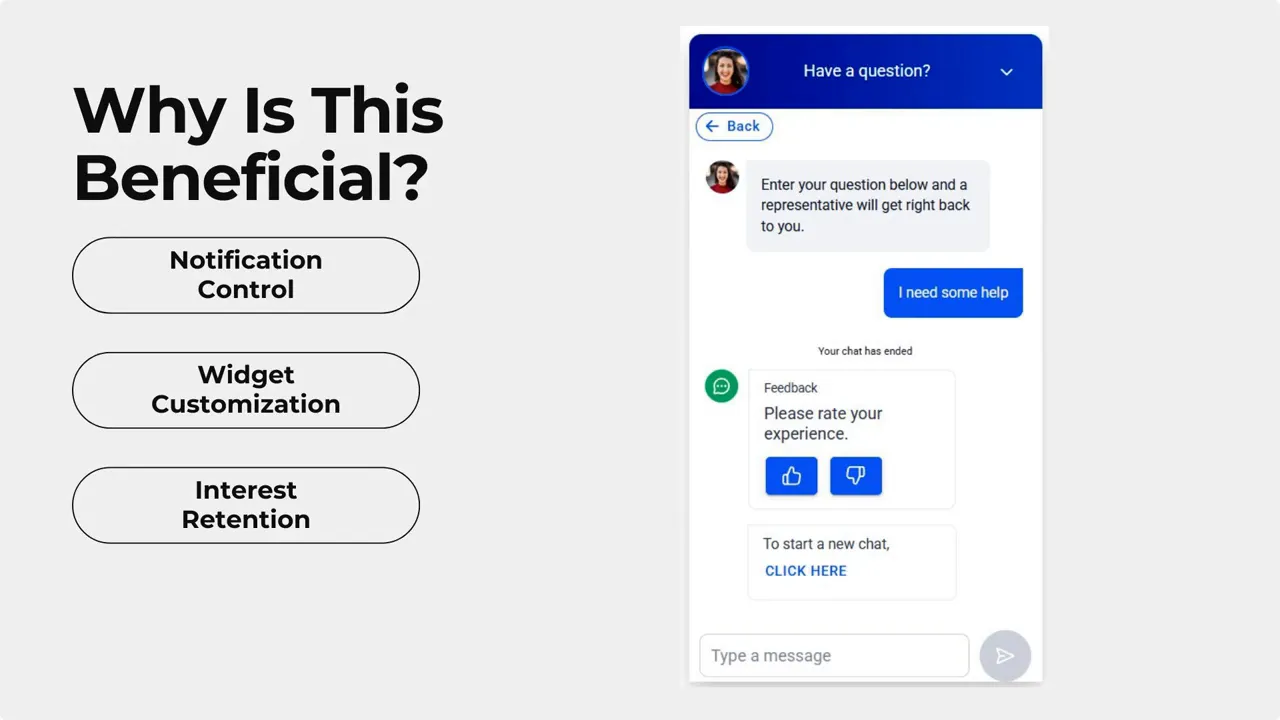
A short sound helps visitors notice incoming messages. That reminder increases the chance of a reply and keeps the conversation moving. It is especially useful when:
- Pages are content-heavy and visitors may miss visual cues.
- Support is time-sensitive and quick responses matter.
- Engagement matters during promotions or live events.
Where to find the toggle
Here’s how to enable or disable the notification sound in your chat widget:
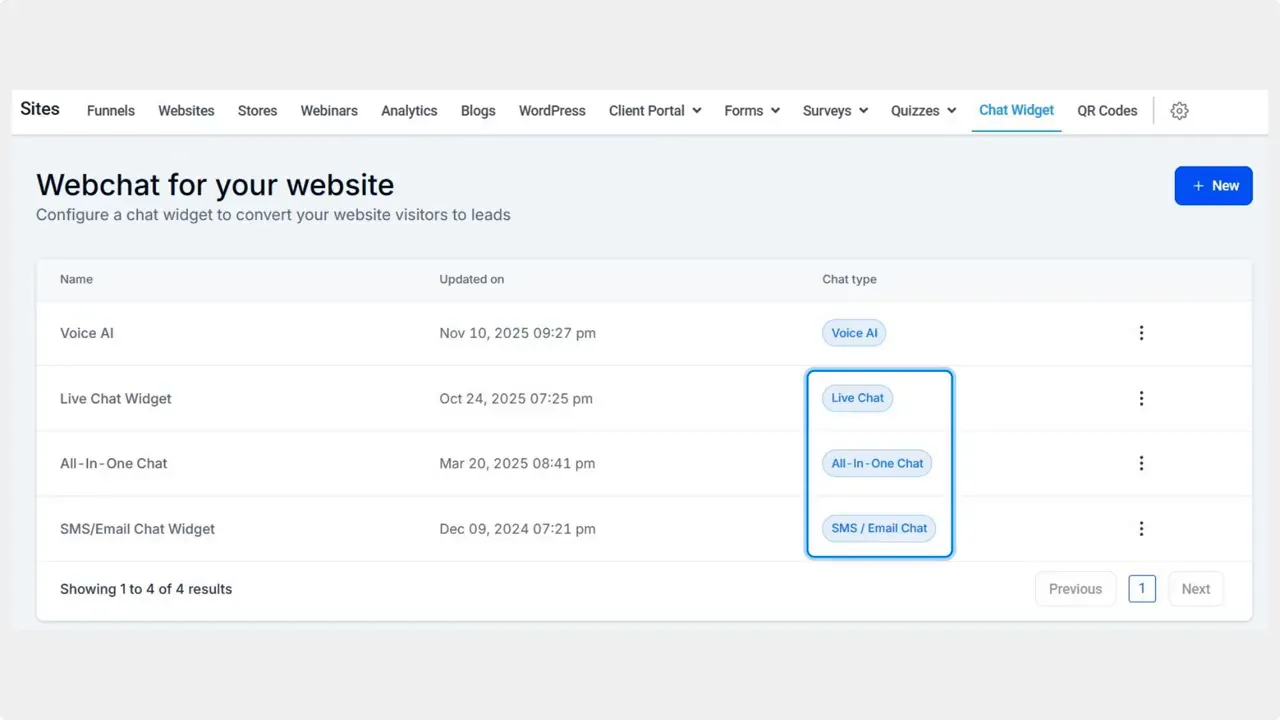
- Go to the Chat Widget tab inside the Sites section and create or edit any widget type except Voice AI.
- Switch to the Chat Window tab.
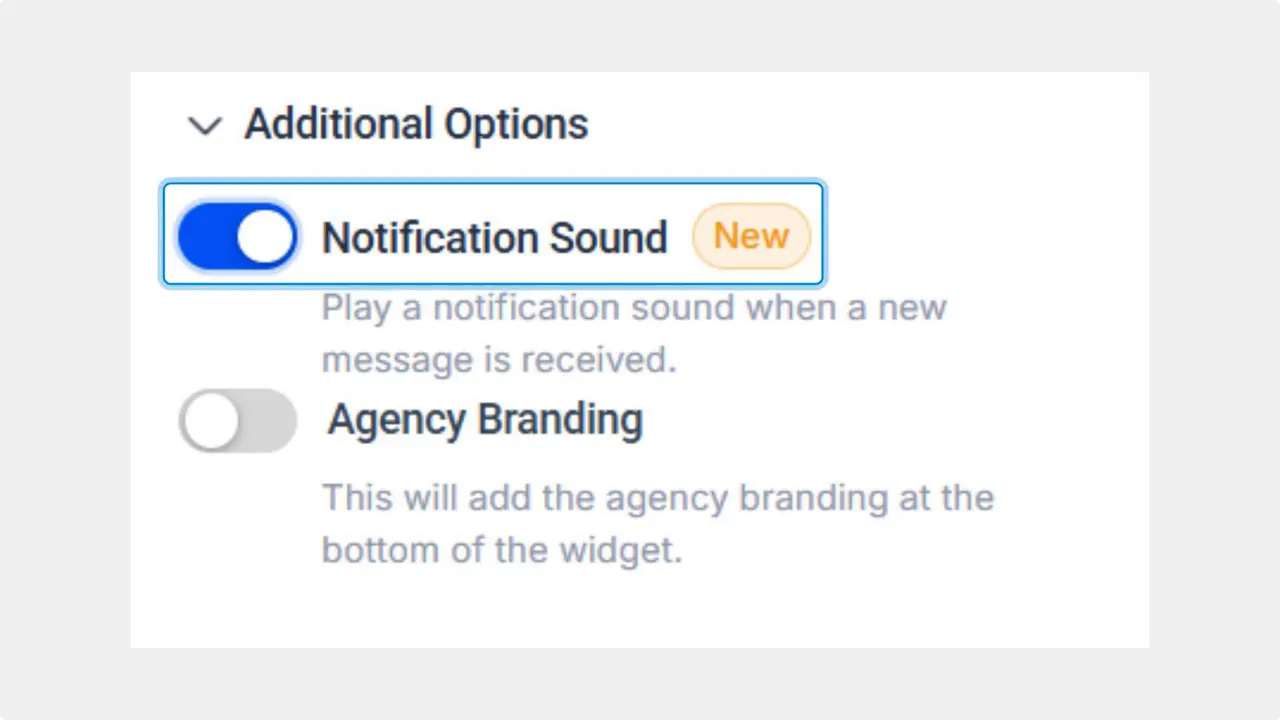
- Open the Additional Options area and toggle the notification sound on or off.
- Click Save in the top right corner to apply your change.
Practical tips for using the sound toggle
- Enable the sound for live support hours and important campaign pages.
- Disable the sound on quiet pages where surprise audio could annoy visitors.
- Match the chat behavior to your brand voice. The toggle gives control without extra setup.
- Respond quickly once a ping is sent. The sound is most effective when paired with timely replies.
How this improves retention and flow
A small ping can prevent messages from going unnoticed. That keeps visitors in the conversation and reduces missed opportunities. The toggle lets us tailor notification behavior to the page context and user expectations without complicating the widget.
Quick checklist before publishing
- Confirm the widget type is not Voice AI.
- Decide whether sound suits the page audience.
- Test the toggle in a live environment to confirm behavior.
- Monitor engagement and adjust as needed.
FAQ
Where exactly is the notification sound setting located?
The setting is in the Chat Widget tab under Sites. Edit your widget, go to the Chat Window tab, open Additional Options, and toggle the notification sound.
Does the notification sound work with Voice AI widgets?
No. The notification sound toggle is available for all widget types except Voice AI.
Will the sound annoy visitors?
It can if used in the wrong context. Enable the sound where quick attention is helpful and disable it on pages where visitors expect silence. Testing different pages helps find the right balance.
Can we change the notification sound to a custom tone?
The current control lets you enable or disable the built-in notification sound. Custom sounds are not part of the toggle option at this time.
Final notes
The notification sound toggle is a simple control with a clear purpose. It helps align notifications with the experience we want to create and keeps conversations productive. Use it thoughtfully and match it to how customers use your site.
This article was created from the video How to Use the Notification Sound Toggle in Chat Widget for Better Retention








