





Widget Reorder For Calendar
When you create an appointment scheduling system, you can set the date and time selector first to quickly engage your customers, followed by a form to gather necessary information, and finally a payment step if applicable.
Widget Reorder For Calendar: This feature allows you to customize the order of the steps in the calendar widget, providing flexibility in how appointments are scheduled.
⭐️ Why Does It Matter To Your Business?
Customizable Flow: Your business can choose the order of the calendar steps, tailoring the booking process to your specific needs.
Enhanced User Experience: By prioritizing the most important steps first, you can streamline the booking process for your customers.
Increased Conversions: Optimizing the order of steps can lead to higher booking rates by reducing friction in the scheduling process.
⭐️ How To Use Widget Reorder For Calendar:
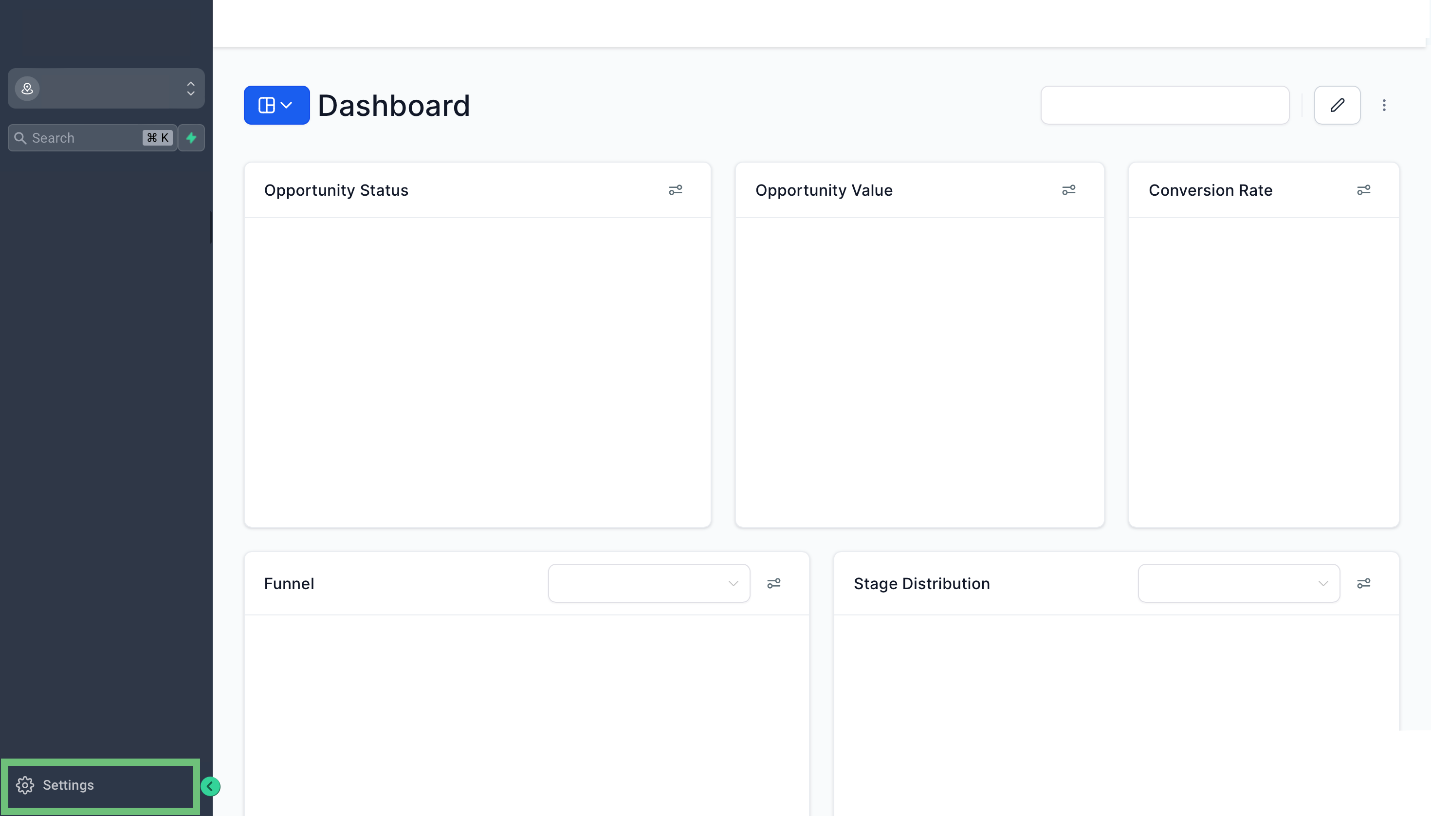
Access Settings in your Account.
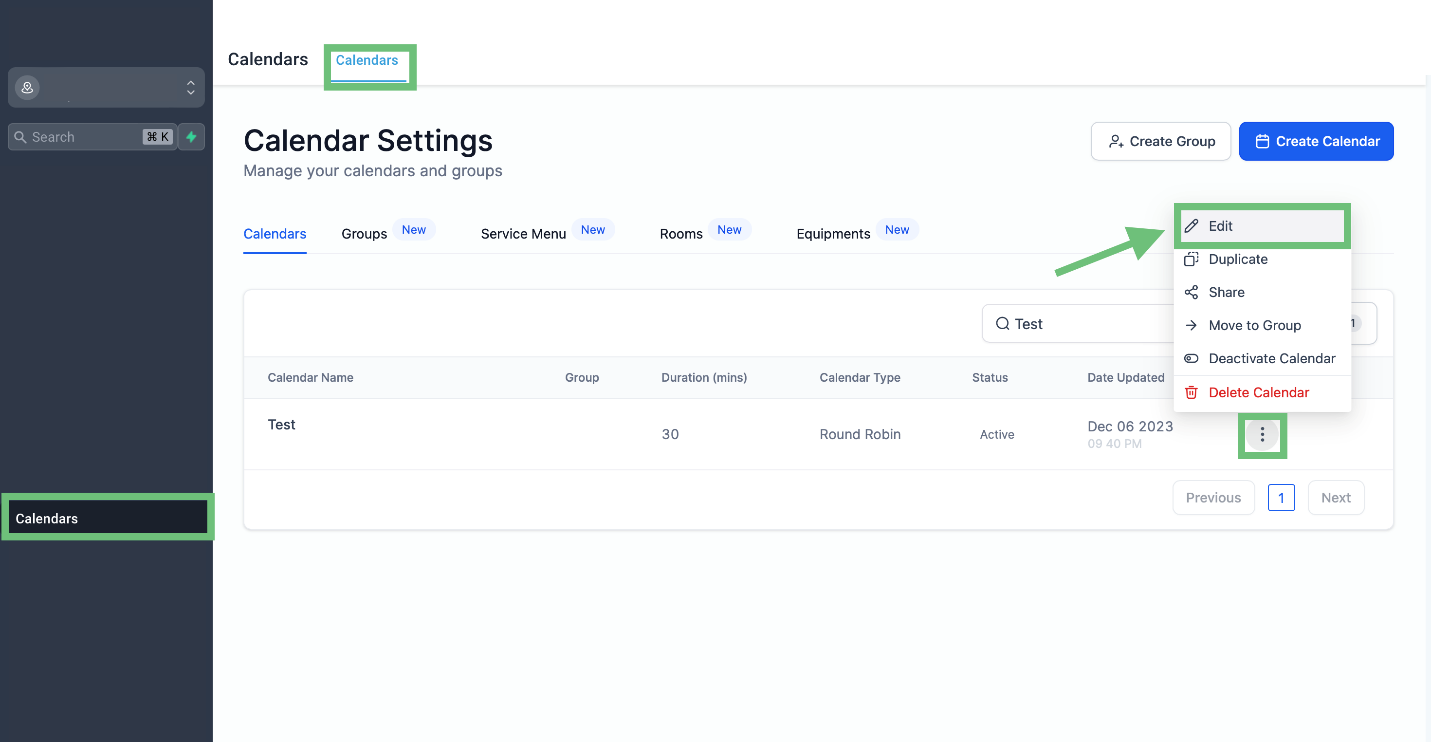
Access the “Calendars” tab from the left navigation menu. Click on Calendars from the upper navigation menu and then create new or edit existing one by clicking on three dots > Edit.
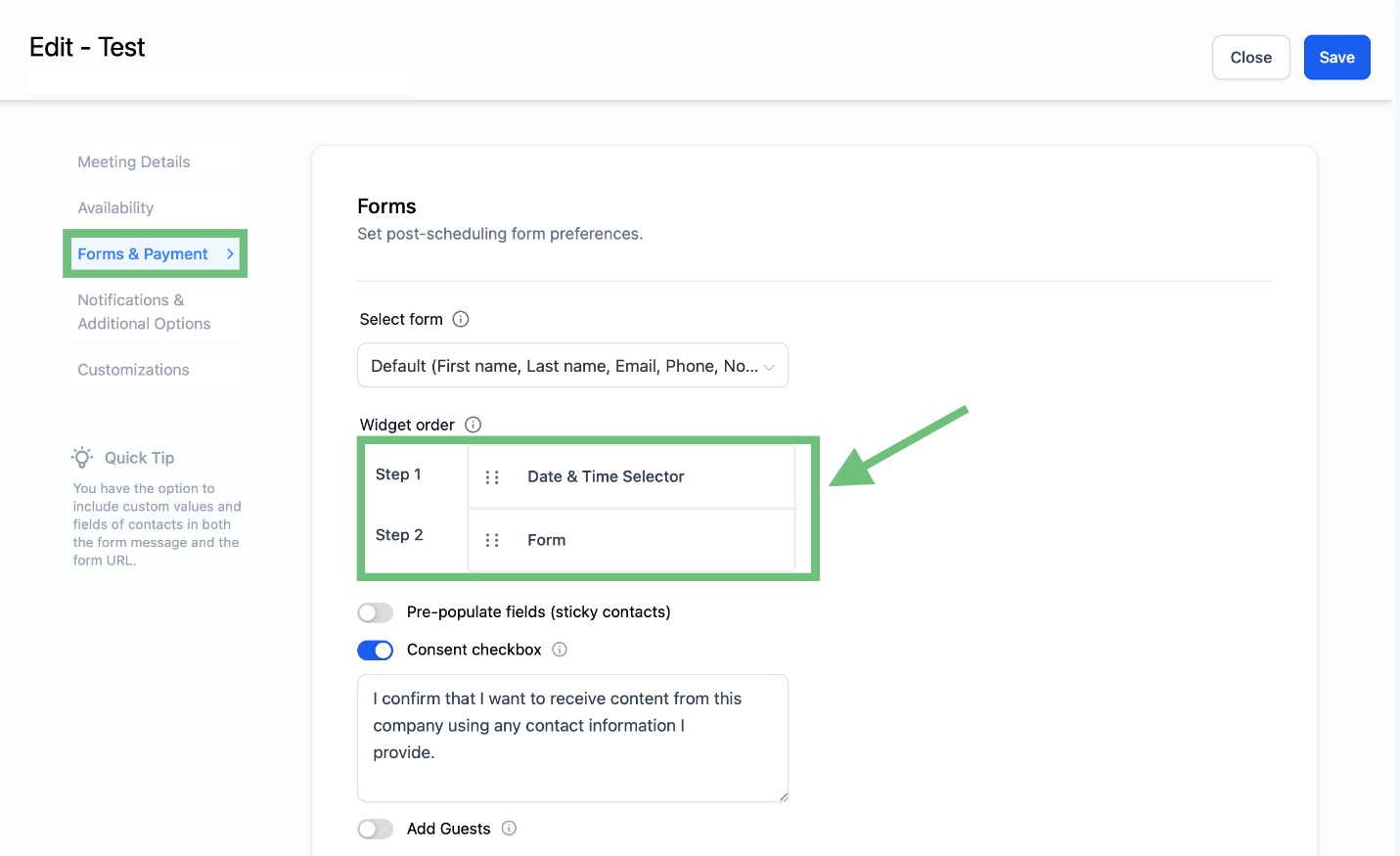
Go to Forms & Payments. Drag and reorder the Date & Time Selector and Form to your desired sequence and click Save to apply your changes.
This feature significantly enhances the flexibility and effectiveness of the scheduling process within the CRM, improving user experience and increasing booking efficiency.








