





How to Track Deleted Site Assets in Audit Logs

Managing a large team means we need clear records of who changed what and when. We added deleted site assets to the audit logs so teams can track permanent removals and improve accountability.
Where to find deleted asset logs
Open your account settings and go to the Audit Logs section. Use the module filter to narrow results to the type of asset you want to inspect.
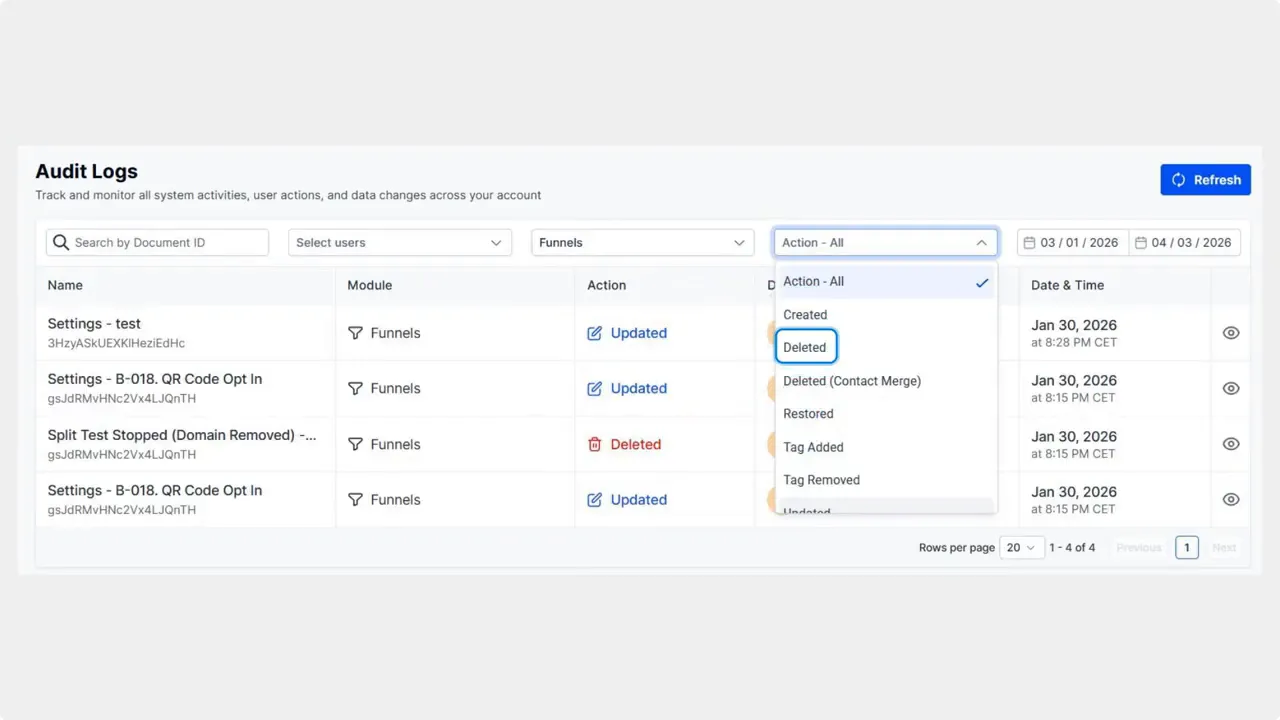
Use the Module and Action filters in Audit Logs to surface deleted site assets.
Step-by-step: Filter for deleted assets
- In Account Settings, open Audit Logs.
- Set the Module filter to the asset type: Funnels, Websites, Stores, or Webinars.
-
In the Action filter choose Deleted.
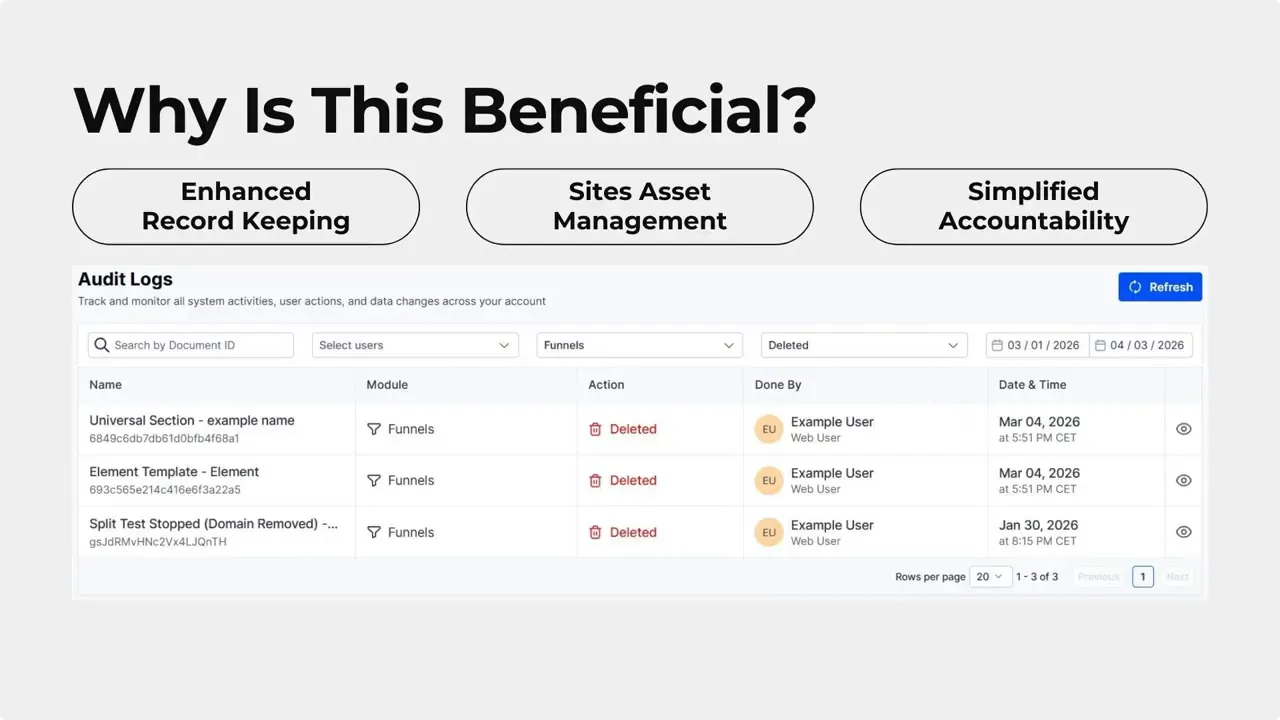
Set the Action filter to “Deleted” to surface permanently removed assets in Audit Logs.
- Set the time frame you want to review.
- Review the results. Each entry shows the asset name and ID so you can investigate quickly.
What is now recorded in audit logs
Audit logs now include deletion entries for:
- Global Sections and Universal Sections
- Section Templates
- Element Templates and Universal Element Templates
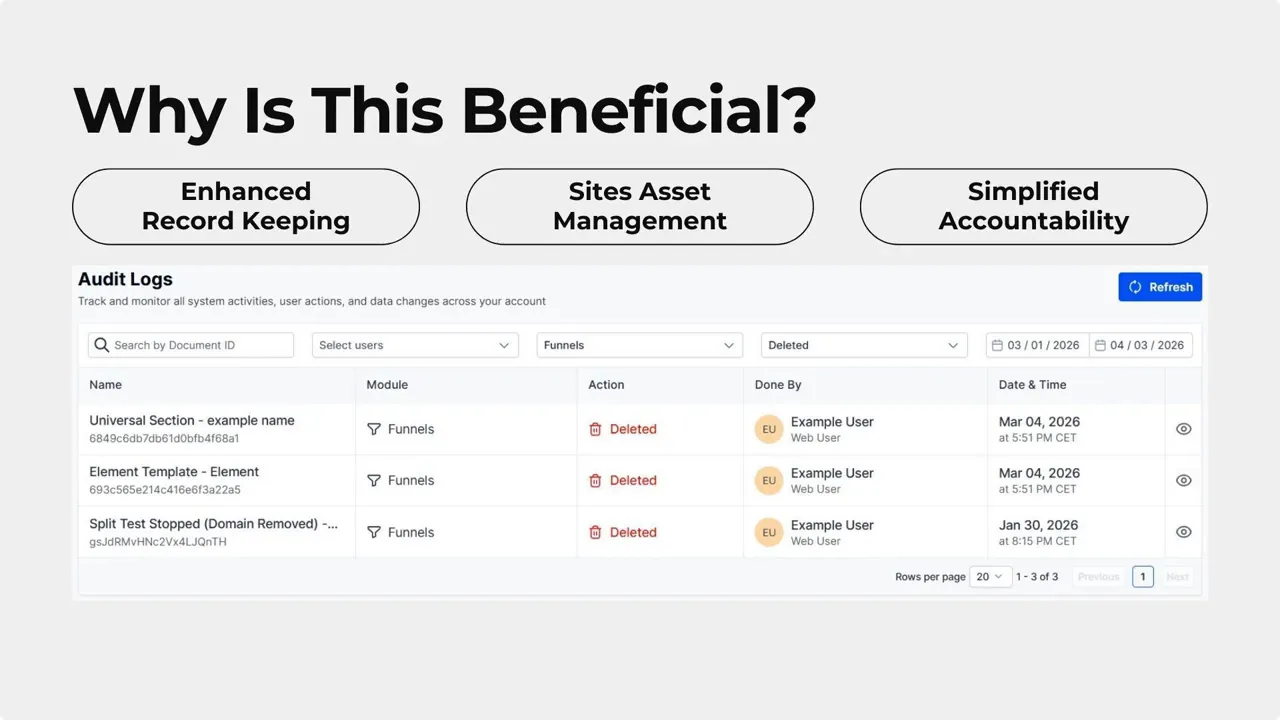
Deleted entries show asset name, module and who removed it for quick review.
Whenever any of these assets are permanently deleted, the system creates a Deleted log entry. That entry captures the asset name and ID to make review straightforward.
Why this matters
Clear deletion records improve accountability. Teams can:
- See who deleted an asset and when
- Quickly locate missing assets using name and ID
- Maintain a reliable change history for audits
Best practices for teams
- Restrict deletion permissions to a small set of users.
- Regularly review Deleted entries after major updates or cleanups.
- Record context for large deletions in a shared log or ticket.
- Use time filters to narrow searches after incidents.
FAQ
How far back can we filter audit logs?
Time-frame options depend on your account retention settings. Use the time filter to narrow results to the period you need. If a longer retention window is required, check account settings or contact support.
Do audit logs capture permanent deletions only?
The deletion entries record permanent removals of sections, templates, and elements. Each Deleted entry includes the asset name and ID to help with recovery steps or investigations.
Who can access the audit logs?
Access is controlled by account permissions. Administrators and users with audit log permissions can view entries. We recommend limiting access to reduce accidental exposure.
What details are included in a Deleted log entry?
A Deleted entry captures the asset type, asset name, asset ID, the action (Deleted), and a timestamp. This gives enough context to trace what was removed and when.
Next steps
Use the Audit Logs filters to review deletions after updates or when an asset goes missing. This feature gives teams clear visibility and helps keep site operations audit-ready.
This article was created from the video How to Track Deleted Site Assets in Audit Logs








