





Smart Notifications for Disconnected Calendar and Video Integrations
Photo by Claudio Schwarz on Unsplash
Missed meetings, missing video links, and booking confusion often trace back to a single cause: a disconnected calendar or video conferencing integration. We built a simple, reliable notification flow to reduce those interruptions and keep bookings on track.
Why this matters
When an integration disconnects, meetings can still appear on the schedule but lack the correct links or details. That creates friction for hosts and guests. Our goal is to surface the issue quickly and nudge users to reconnect before a booking breaks.
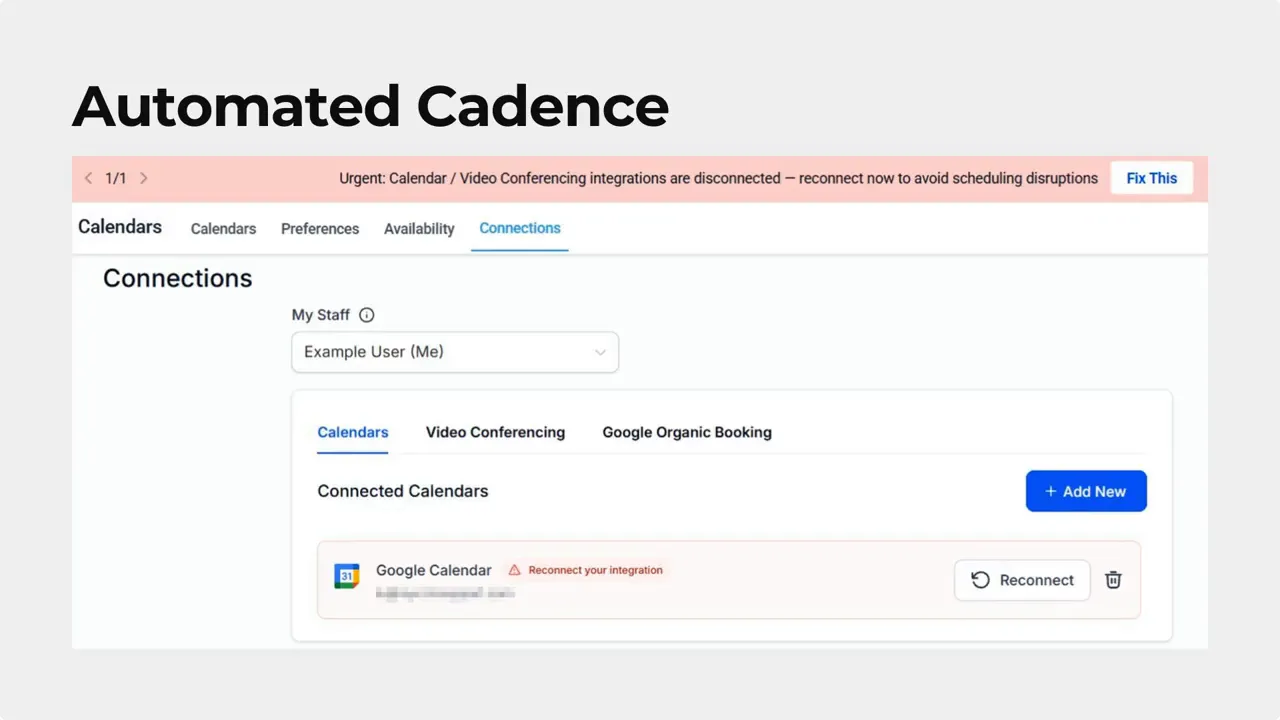
What changed: a clear, automated cadence
We now send a series of smart reminders whenever a calendar or video conferencing integration disconnects. The cadence is simple and predictable:
Day 1 — First prompt to reconnect
Day 3 — Gentle reminder if still disconnected
Day 7 — Stronger prompt to take action
Day 14 — Final prompt; notifications stop after this day
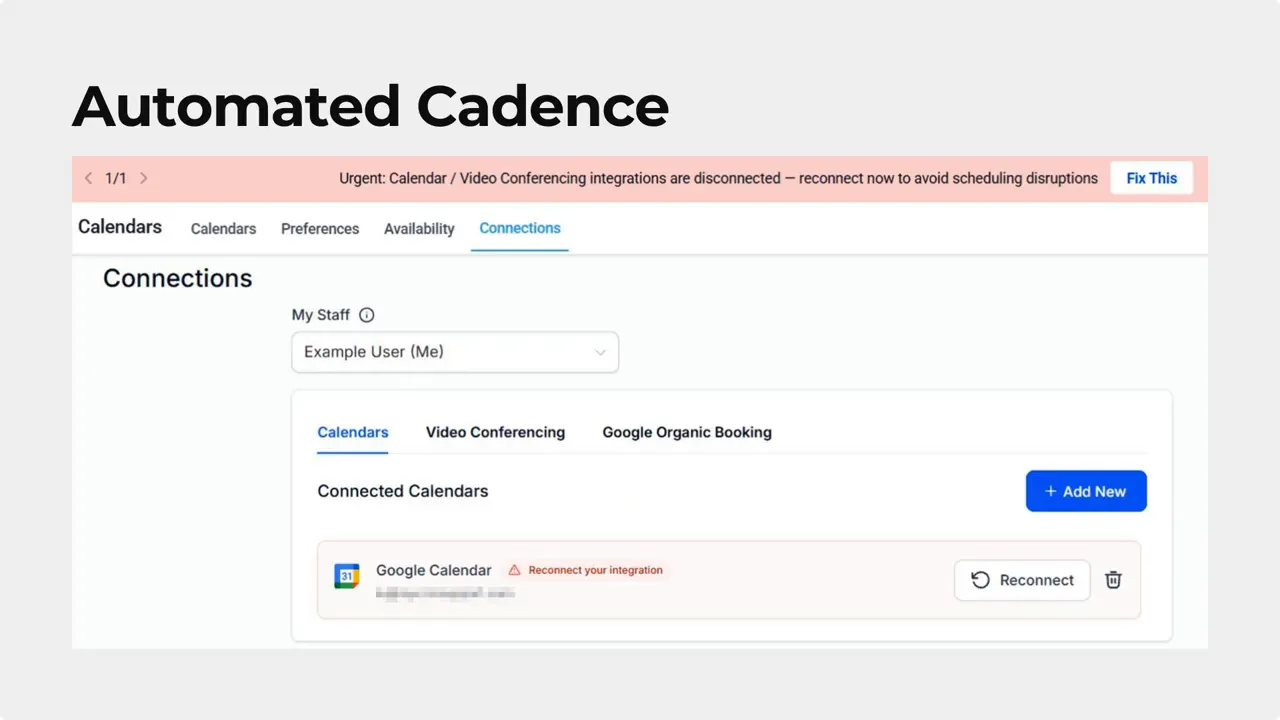
After day 14, notifications end automatically. This avoids long-running alerts that no one acted on and keeps notification noise low.
Notification channels follow your settings
The channel used to deliver these reminders depends on each user’s notification preferences. If someone prefers email, SMS, or push notifications, the prompts will use those channels. The channel choice affects how quickly someone reconnects. For example, an SMS is often noticed faster than an email.
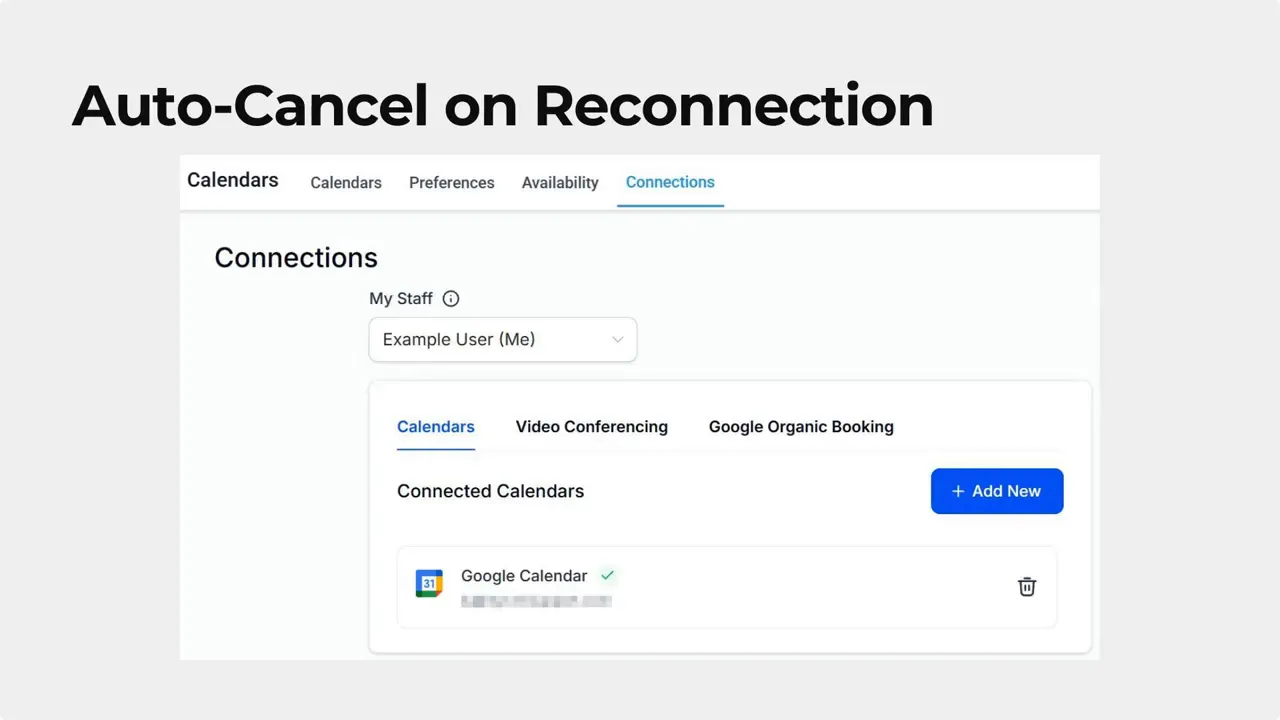
Automatic cancel on reconnect
As soon as a user reconnects the integration, any pending reminders are cancelled. That prevents unnecessary follow-ups and restores normal booking behavior immediately.
How to customize which channels you receive
Control is in your profile. To change which channels receive calendar or video integration alerts, follow these steps in your settings:
Open My Profile and go to the Notifications tab.
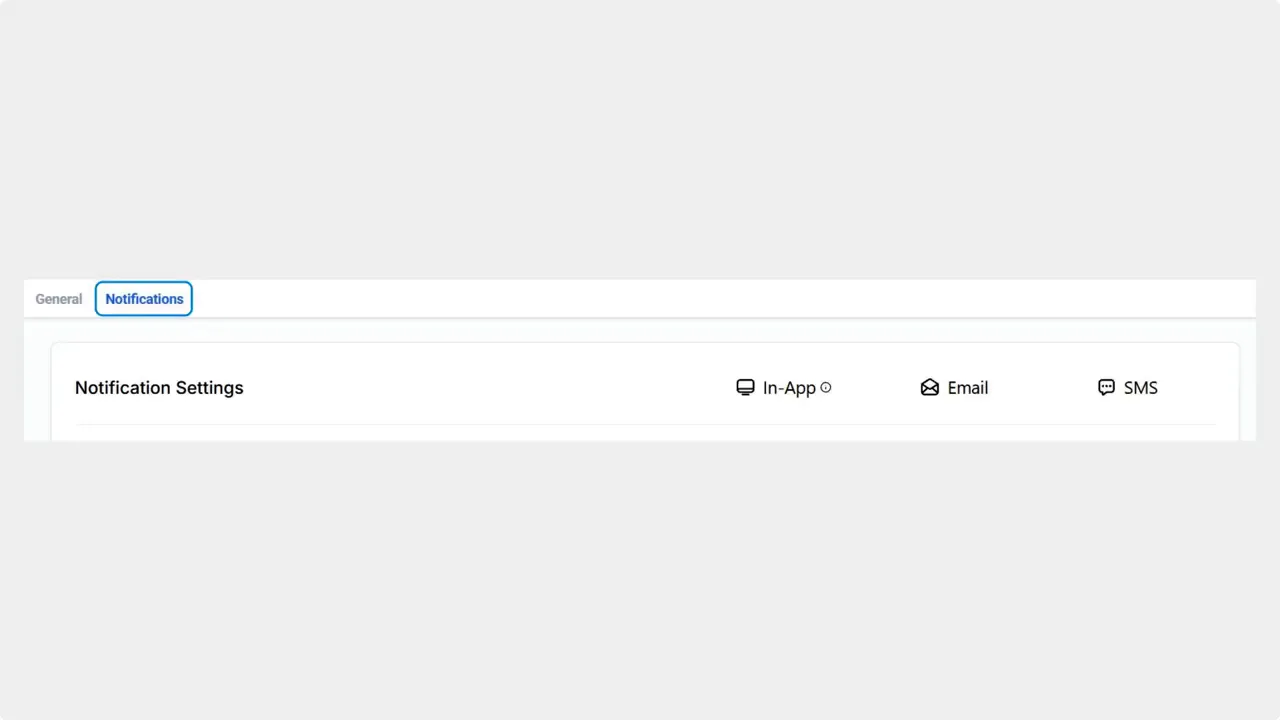
Find the Calendar Notifications section.
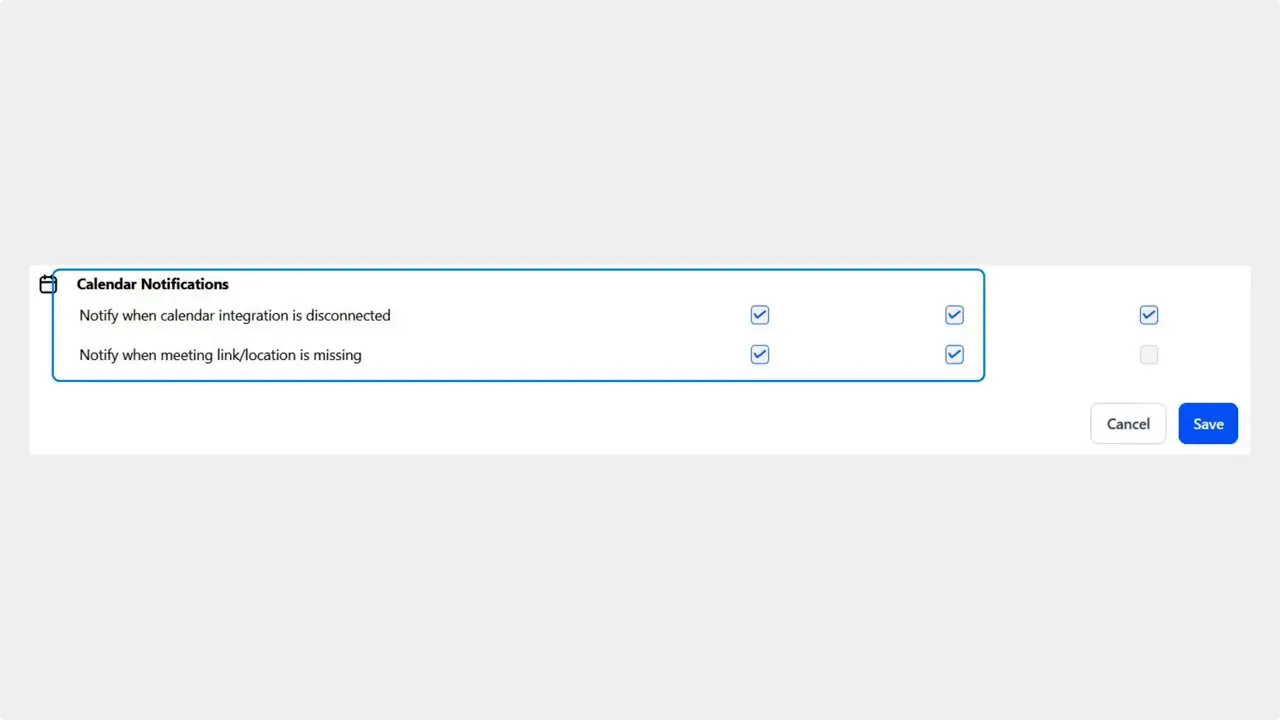
Check the boxes for the channels you want to use for these alerts. Options include email, SMS, and push notifications.
Click Save at the bottom right to apply changes.
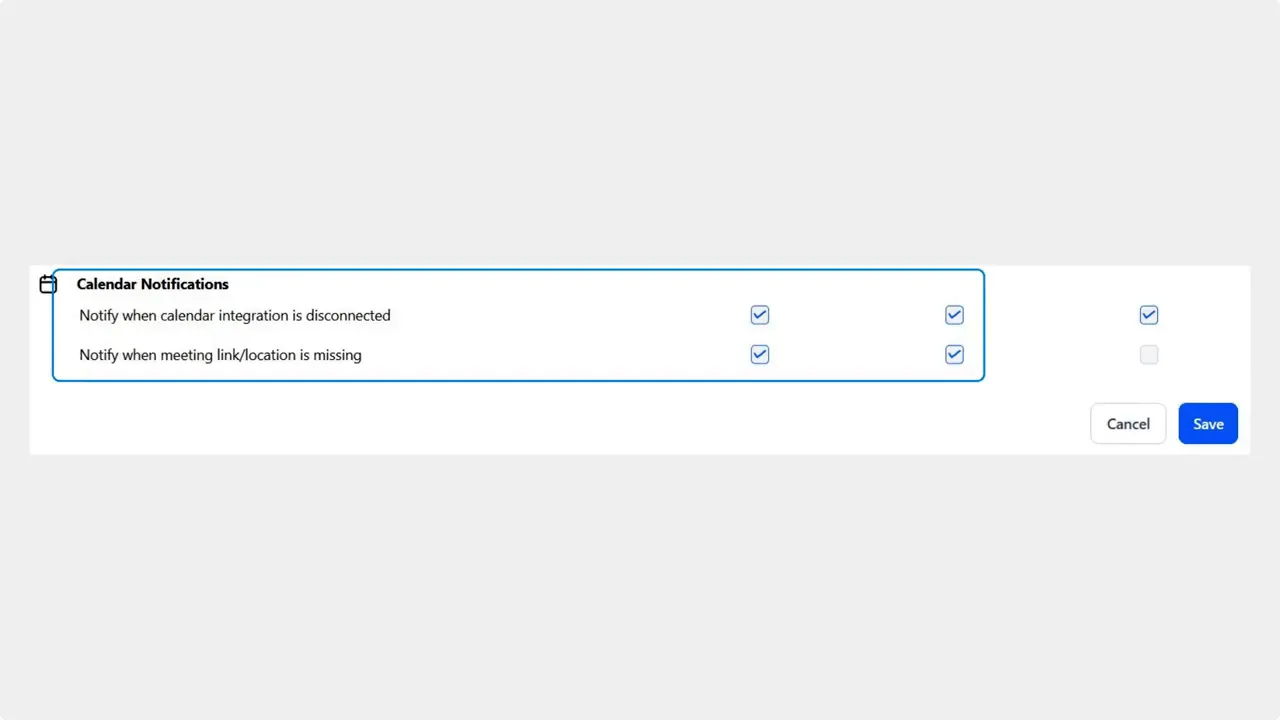
Choosing faster channels for urgent alerts helps reduce downtime and keeps bookings flowing smoothly.
Best practices to avoid missed bookings
Enable multiple channels — If you rely on bookings heavily, enable both SMS and email so reminders reach you quickly.
Check integrations regularly — Periodic checks catch expired credentials or permissions that can cause disconnections.
Train your team — Make sure everyone who manages calendars knows where to update notification settings.
Frequently asked questions
What is the reminder schedule when an integration disconnects?
Reminders go out on day 1, day 3, day 7, and day 14 after the disconnection. Notifications stop automatically after day 14.
Which notification channels are used for these reminders?
The reminders follow each user’s notification settings. They can be sent via email, SMS, or push depending on which channels are enabled for calendar notifications.
What happens to pending reminders when an integration is reconnected?
All pending reminders are cancelled immediately when the integration is reconnected. That stops any further prompts and prevents redundant messages.
How do we change the channels that receive reminders?
Go to My Profile, open the Notifications tab, locate Calendar Notifications, check the channels you want, and click Save.
Do notifications continue indefinitely if no one reconnects?
No. Notifications stop automatically after the day 14 reminder to avoid unnecessary long-term alerts.
Wrap-up
These smart reminders are designed to reduce missed bookings and cut down on confusion from disconnected integrations. We recommend enabling at least one fast channel, such as SMS, and confirming notification settings in My Profile so your team gets the right prompts at the right time.
Keeping calendar and video integrations active makes scheduling reliable. Our reminders help make that simple.
This article was created from the video Smart Notifications for Disconnected Calendar and Video Integrations








