





How to Set Cost Price and Margin to Track Profit per Product

Keeping clear visibility into product-level profitability helps us run healthier businesses. We at Pinnacle Ai built a simple internal tool that lets you define a cost price and margin for every product price or variant. With those values in place, profit is calculated automatically and flows into exports, invoices, and calendars.
Quick overview
Use the Products tab inside Payments to add cost and margin to any product. You can enter the selling price, then choose to calculate margin as either a fixed net amount or a percentage. Enter one value and the system computes the other.
Step-by-step: Add cost price and margin
-
Open the Products tab in Payments. Create a new product or edit an existing one.
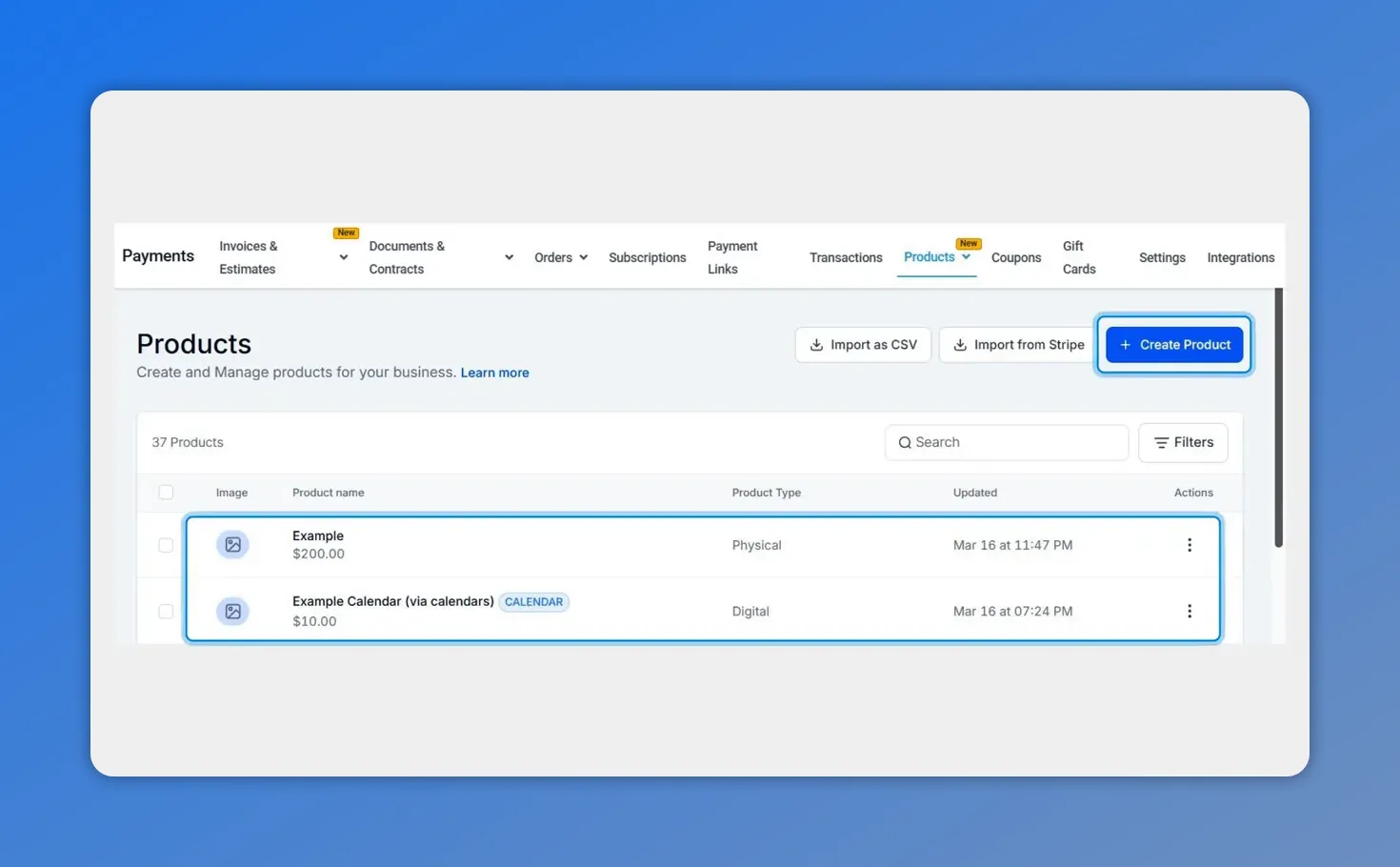
Open the Products tab in Payments to create or edit a product.
-
Enter the product selling price.
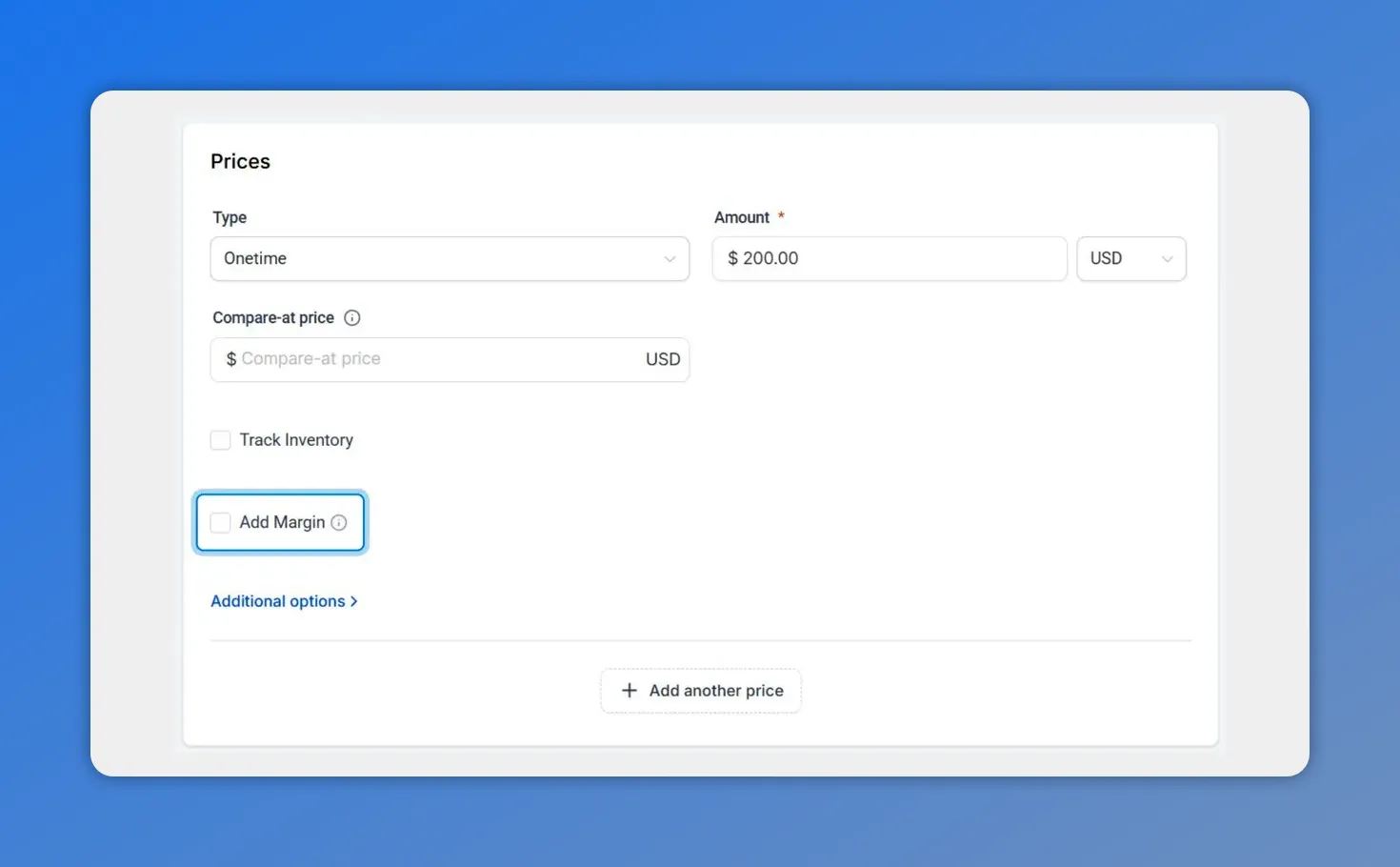
Enter the selling price and enable 'Add Margin' to reveal cost fields.
-
Enable margin entry. Check the box labeled "Add Margin" to reveal cost and margin fields.
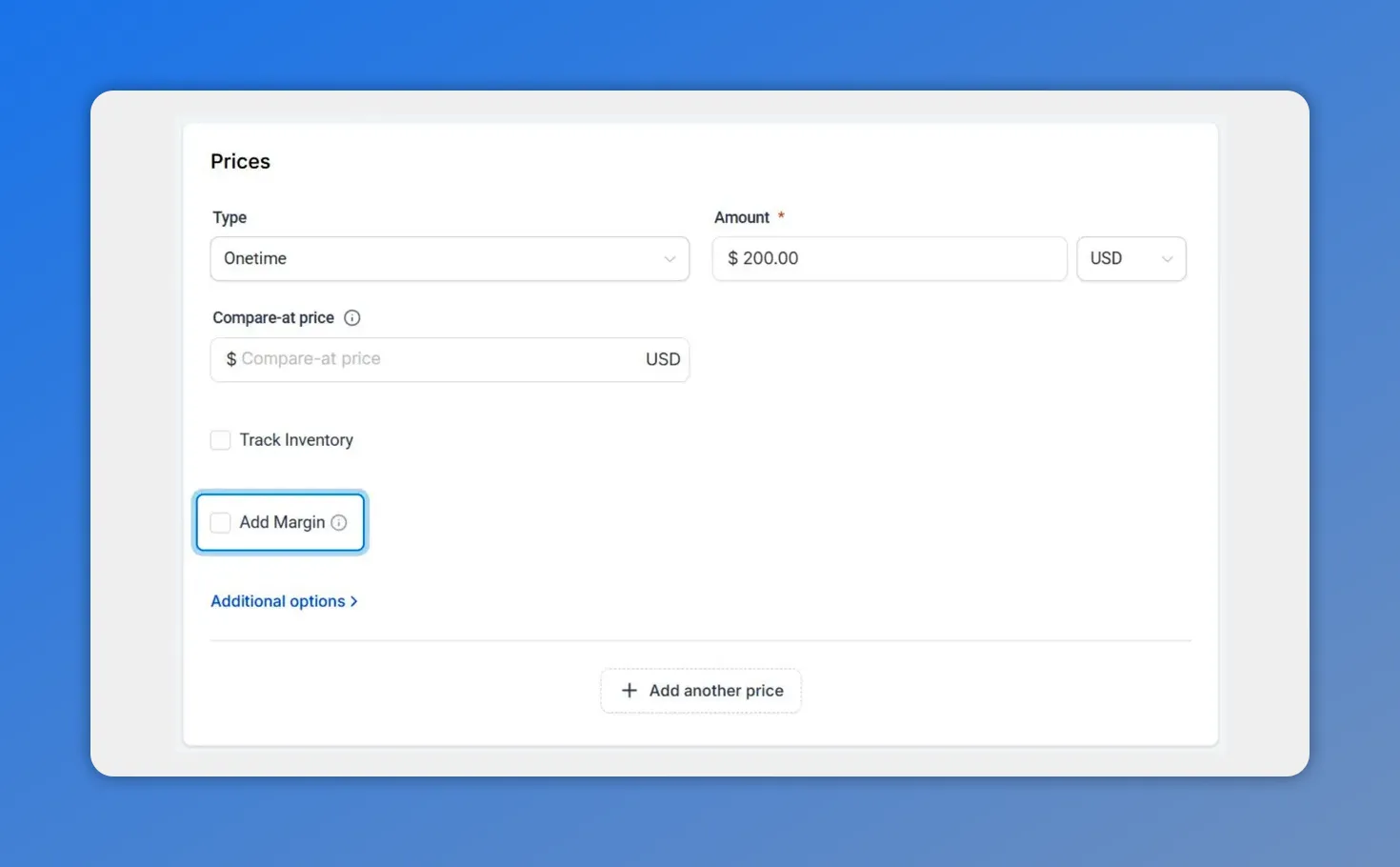
Enter the product selling price and optionally enable Add Margin.
-
Choose how to calculate margin. Select whether margin should be a net amount or a percentage.
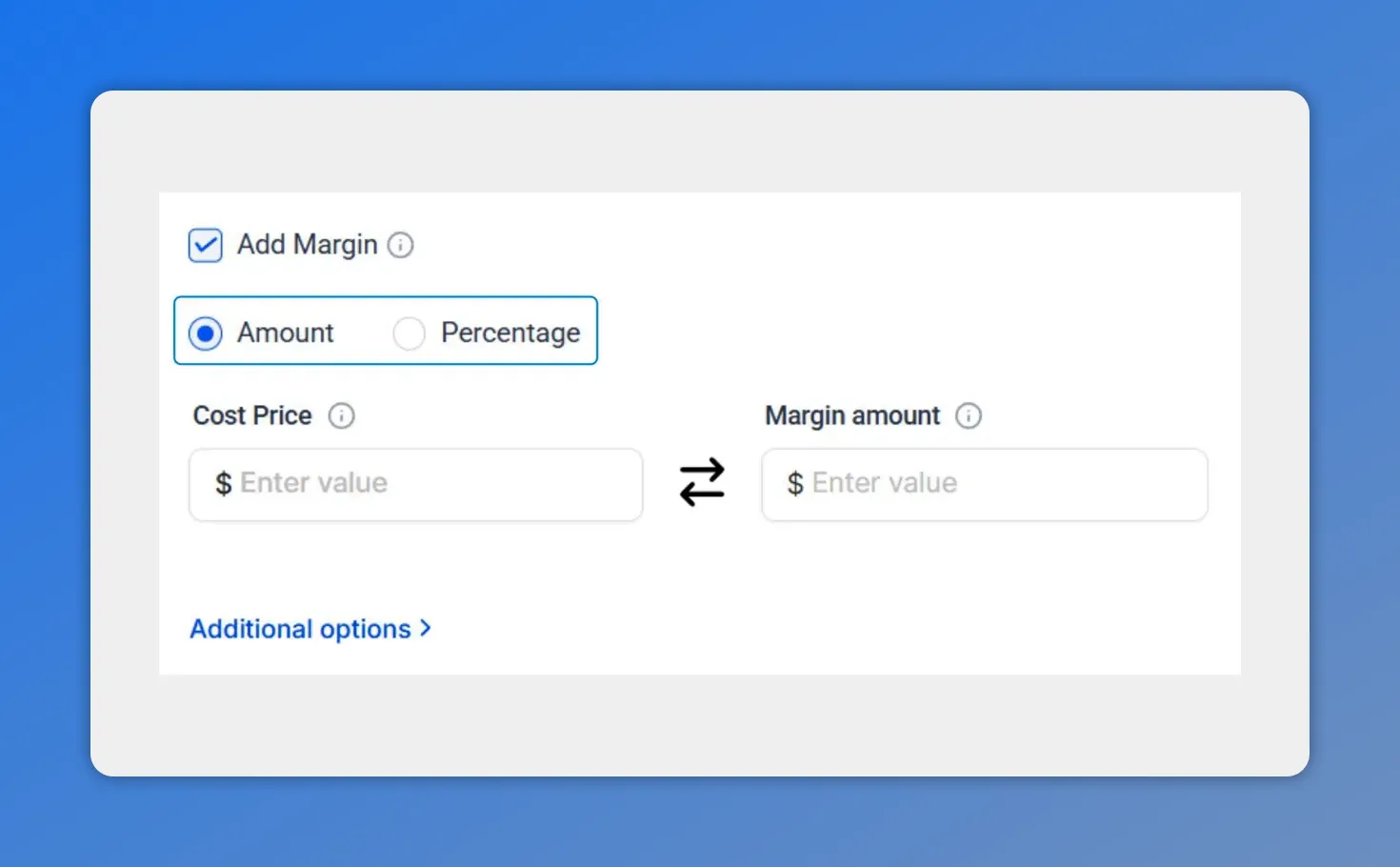
Select Amount or Percentage to calculate margin.
-
Enter either Cost Price or Margin. Type a cost price or a desired margin. The system will calculate the other value automatically.
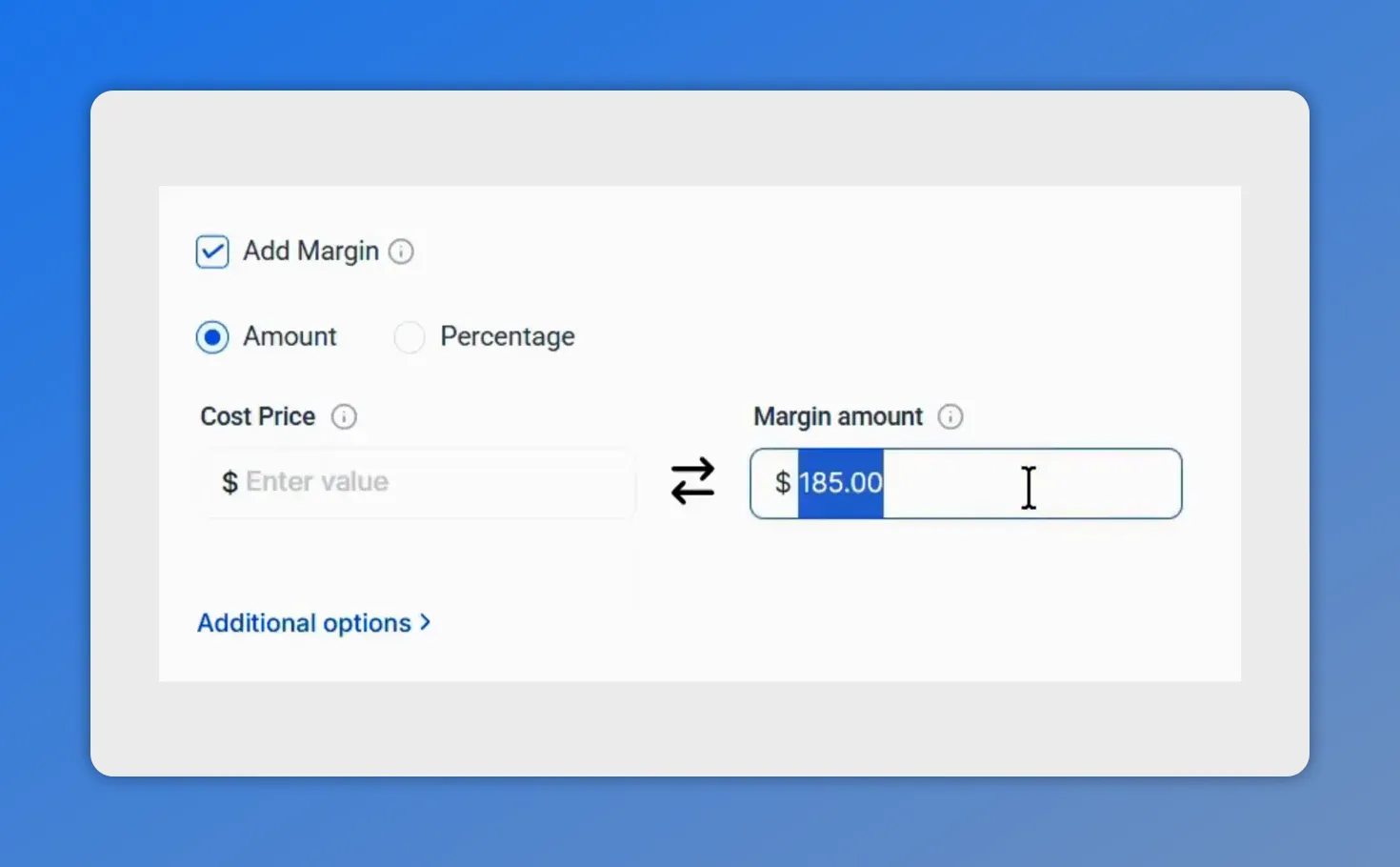
Type a margin amount — the system will compute the matching cost value.
-
Save and use. Once saved, the cost data travels with the product and appears in transaction exports, invoices, and calendars.
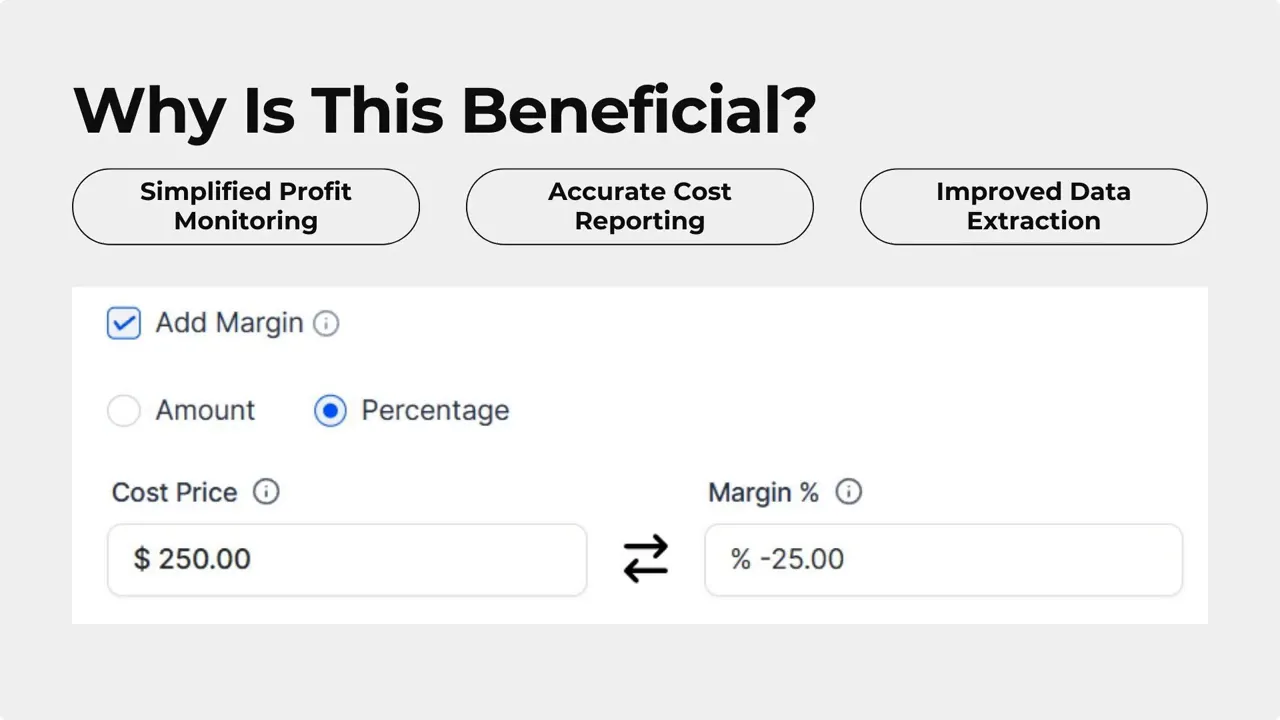
Why this matters — Add Margin shows a negative margin when cost exceeds price.
What this gives you
- Simplified profit monitoring. Set a single value and let the system show profit per sale.
- Accurate loss visibility. If Cost Price exceeds the selling price, the system displays a negative margin so losses are clear.
- Export-ready data. A Line Item Cost Price column is available in the Transactions CSV export for transaction-level analysis.
Where the cost data appears
- Transaction exports (CSV) include line item cost price for each sale.
- Invoices carry the cost data from the original product, even if the invoice price is manually overridden.
- Calendars that show scheduled payments also reflect cost information so you always know what each sale contributes.
Best practices
- Start by adding cost price and margin to your top-selling products. That gives immediate visibility into your biggest revenue drivers.
- Keep cost prices up to date when supplier costs change. That prevents misleading margin figures.
- Use CSV exports for deeper analysis in spreadsheets or BI tools.
Frequently asked questions
Where do we enable cost price and margin?
Open the Products tab inside Payments, then create or edit a product. Check the "Add Margin" box to reveal cost and margin fields.
Can margin be a percentage or a fixed amount?
Yes. Choose whether to calculate margin as a net amount or as a percentage. Enter one value and the other is calculated automatically.
What happens if the cost price is higher than the selling price?
The system shows a negative margin. That makes losses easy to spot in the product view and in exports.
If we change an invoice price, does the cost data still come from the product?
Yes. Even when an invoice or calendar price is manually overridden, the cost price is taken from the original product unless otherwise updated at the product level.
Where can we analyze cost and margin data externally?
Use the Transactions CSV export. It includes a Line Item Cost Price column for transaction-level profitability analysis.
Next steps
Add a Cost Price and Margin to your top products inside Payments today. Consistent cost data gives clearer margins and better-informed decisions.
We at Pinnacle Ai hope this makes tracking profitability easier across your catalog, invoices, and reports.
This article was created from the video How to Set Cost Price and Margin to Track Profit per Product








