





Advanced Builder: Selection-Based Actions Improve Large-Canvas Editing

Working on a large canvas should feel fast. We improved the Advanced Builder so selection-based actions make editing smoother and more efficient. These changes help keep canvases organized, speed up bulk edits, and make labeling and formatting specific areas simple.
What selection-based actions let you do
Selection-based actions focus editing where it matters. Use them to:
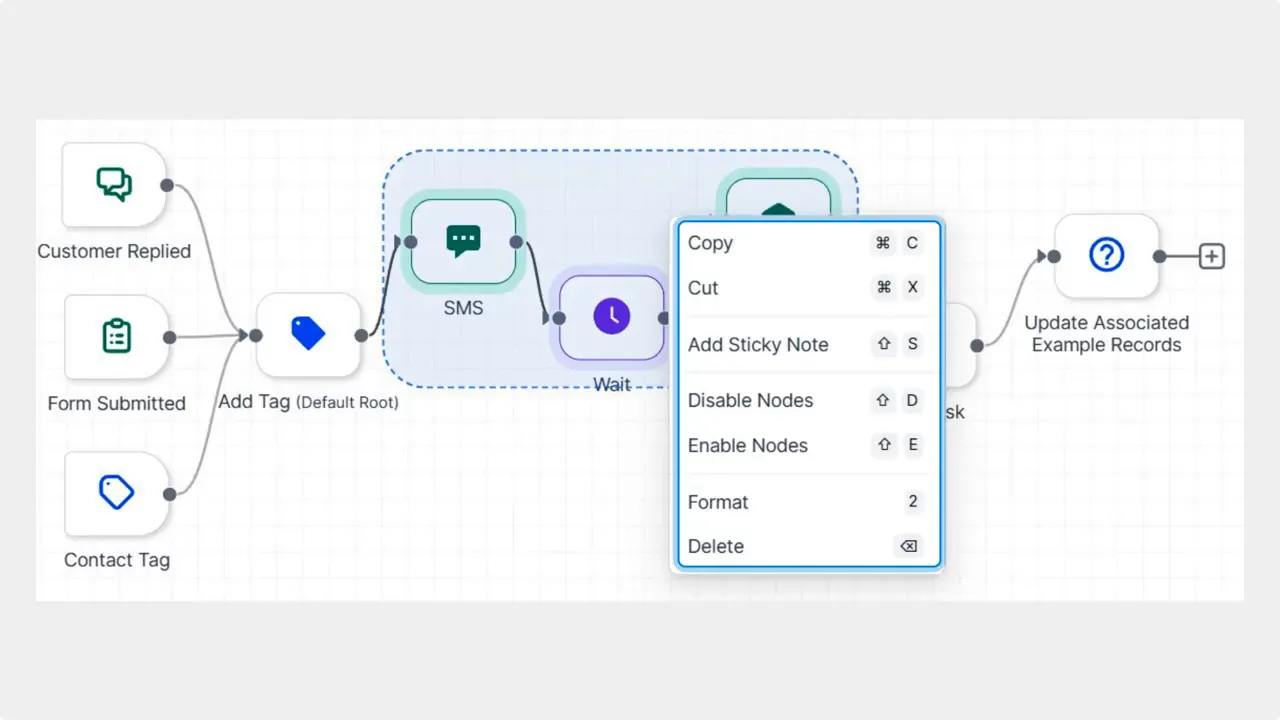
Toggle entire sections on or off — disable or enable branches inside the selected area to test different paths quickly.
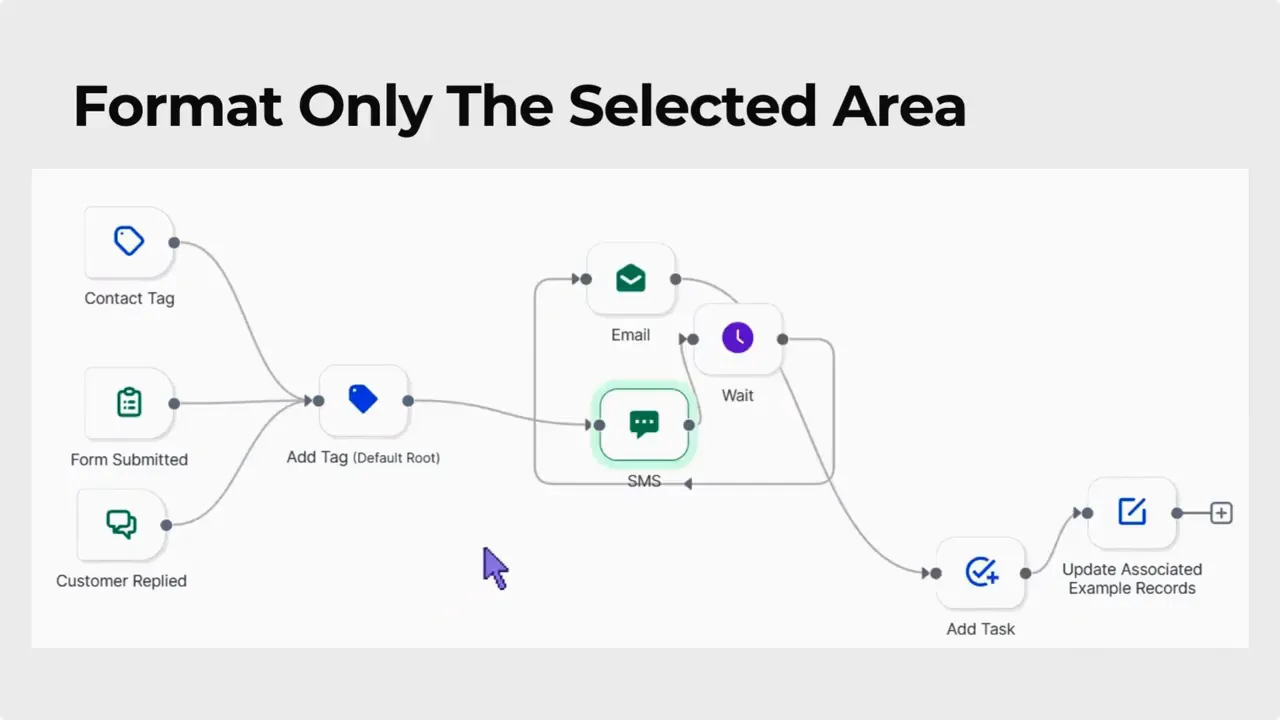
Format only the selected area — snap spacing and align connections for cleaner layouts without touching the whole canvas.
Add sticky notes behind a selection — label groups of nodes instantly with a right-click.
Right-click Quick Actions — access common commands for the selection, like tidy or label, with a single menu.
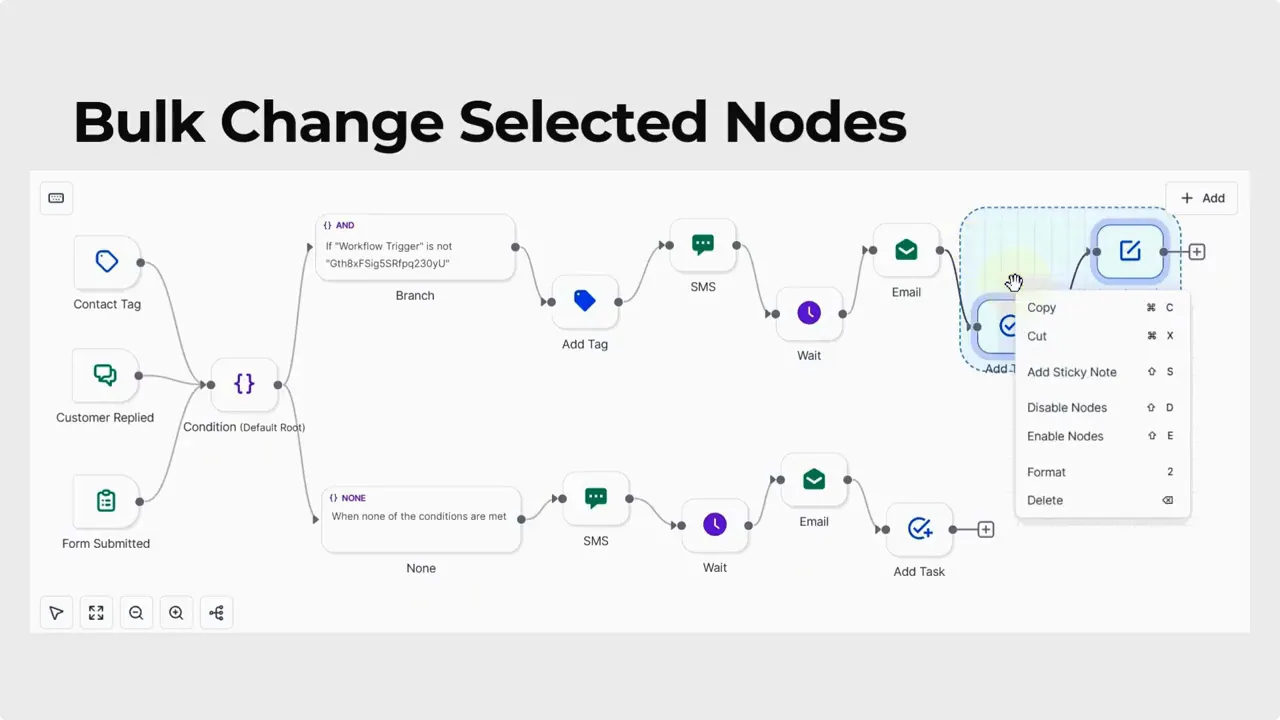
How to access and use selection-based Quick Actions
Here is a short, step-by-step workflow to get started.
Open the Workflows tab inside the Automations section and create or edit a workflow.
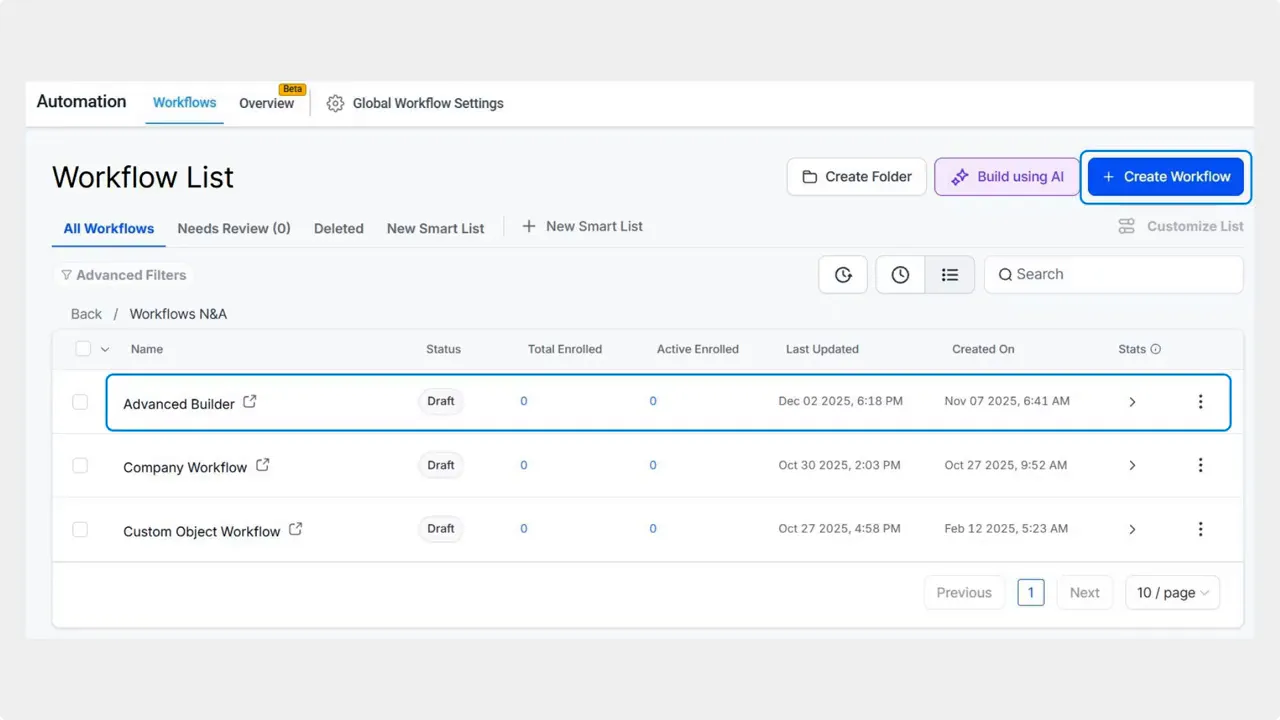
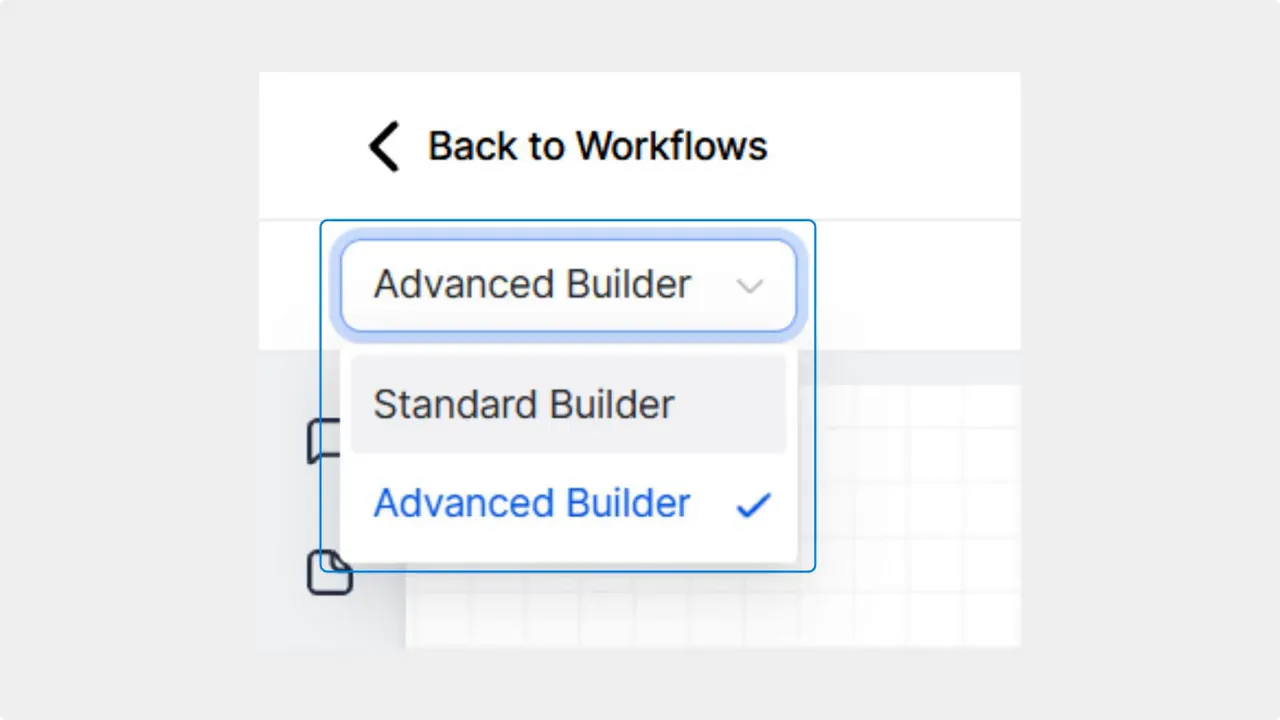
Set the workflow to use the Advanced Builder by choosing it from the dropdown in the top-left corner.
Click and hold the left mouse button. Drag to draw a selection around the nodes you want to work with.
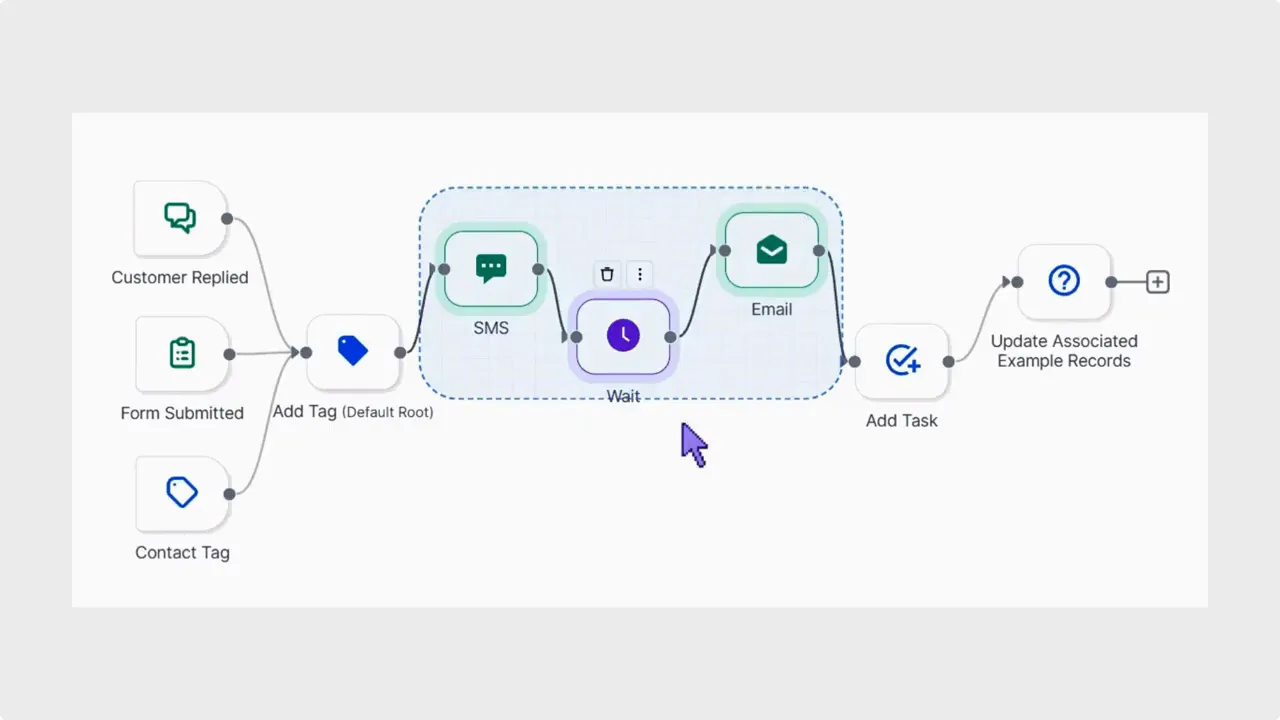
Right-click the selection to open the Quick Actions menu. Choose toggles, alignment, spacing, sticky notes, or cleanup options.
Practical examples and use cases
Selection-based actions work best when you need targeted edits without disturbing the entire canvas. Try these common uses.
Disable a branch for testing. Select the branch and toggle it off while you test other paths.
Clean up a crowded area. Select the messy region and apply snap spacing and alignment to make it readable.
Label a group. Add a sticky note behind a selection to document intent or next steps for teammates.
Format incrementally. Work section by section to keep large workflows performant and organized.
Toggle entire sections on or off from the chosen area. Snap spacing, align connections, and clean up just the portion you selected for an organized canvas.
Tips for faster canvas editing
Select before you format. That way alignment and spacing only affect relevant nodes.
Use sticky notes to explain complex branches. It helps later maintenance and handoffs.
Disable branches to isolate behavior. This makes debugging quicker.
Keep selections small when testing. Small, frequent edits reduce accidental wide changes.
Pinnacle workflow consistency
These selection-based actions are built to fit existing workflows. They reduce friction when scaling automations. Use them to keep workflows tidy and easy to maintain.
FAQ
How do selection-based actions improve editing speed?
They let us format, toggle, and label only the nodes we choose. That avoids global changes and reduces the time spent cleaning up unrelated parts of the canvas.
Can we disable an entire branch at once?
Yes. Select the branch area and use the toggle action to turn that section off without affecting the rest of the workflow.
Will alignment and spacing affect nodes outside the selection?
No. Snap spacing and align connections apply only to the selected area, so the rest of the canvas stays intact.
How do we add a sticky note to a selection?
After selecting nodes, right-click and choose the sticky note option. The note is placed behind the selection so labels stay organized and visible.
Where do we find the Advanced Builder?
Open Workflows inside Automations, edit a workflow, and pick Advanced Builder from the dropdown in the top-left corner.
Who benefits most from these updates?
Teams managing large or complex workflows benefit the most. These actions reduce manual cleanup and make iterative edits faster.
This article was created from the video Advanced Builder: Selection-Based Actions Improve Large-Canvas Editing








