





Bulk Delete Opportunities Safely: Restore Within 60 Days

Keeping opportunity pipelines clean is essential for accurate forecasting and focused sales work. We built a safe, fast bulk delete workflow so teams can remove large volumes of stale or invalid opportunities without losing visibility or control. Deletions run in the background, are tracked in audit logs, and can be restored within a 60-day window.
Why bulk delete matters
- Save time. Remove hundreds or thousands of stale opportunities in seconds instead of deleting one by one.
- Keep working. Bulk deletions run asynchronously so users can continue other tasks while the cleanup runs.
- Stay confident. Each bulk action is tracked with audit-friendly details and requires an explicit confirmation before it runs.
- Recover easily. Deleted items can be restored as a whole or individually within a 60-day recovery window.
How the bulk delete workflow works
Here’s the straightforward flow our team designed for safe and auditable cleanup.
Select the opportunities
Go to your opportunities list, hover over the rows you want to remove, and check the box next to each record.
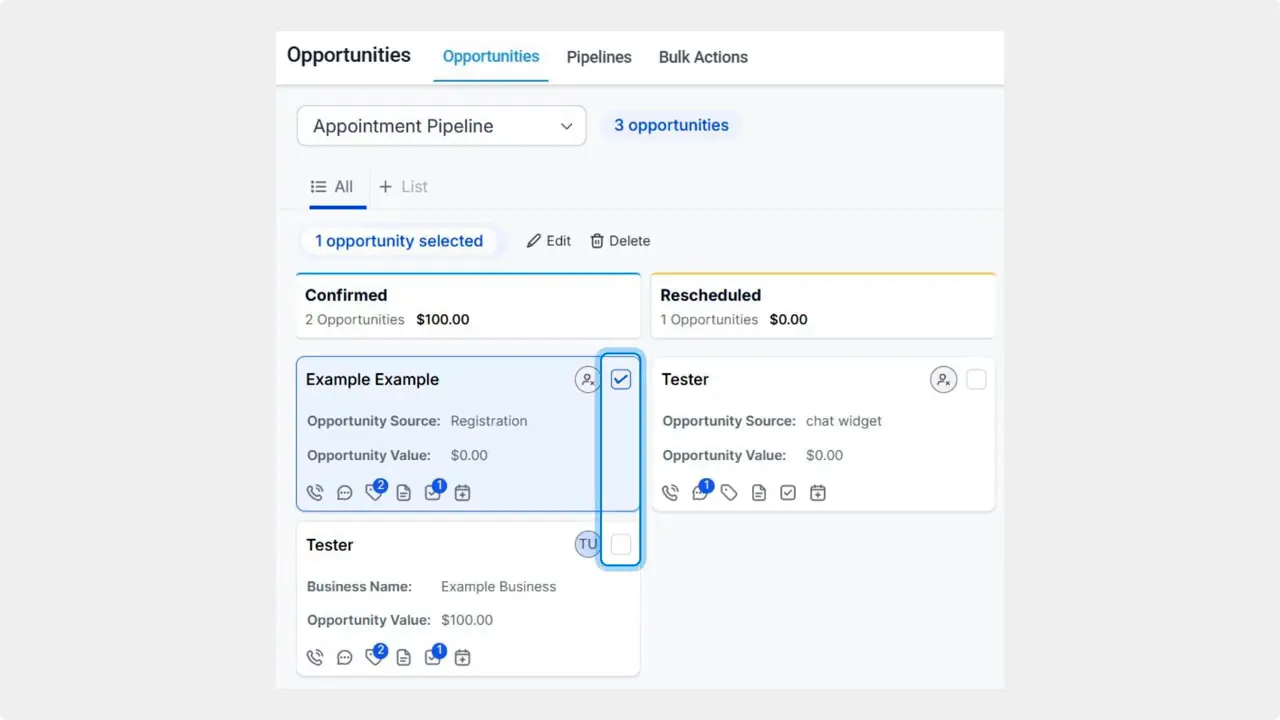
Select the opportunities you want to remove by checking the box on each card.
Initiate delete
Click the delete option marked by a trash can icon. You will be asked to confirm the action for safety.
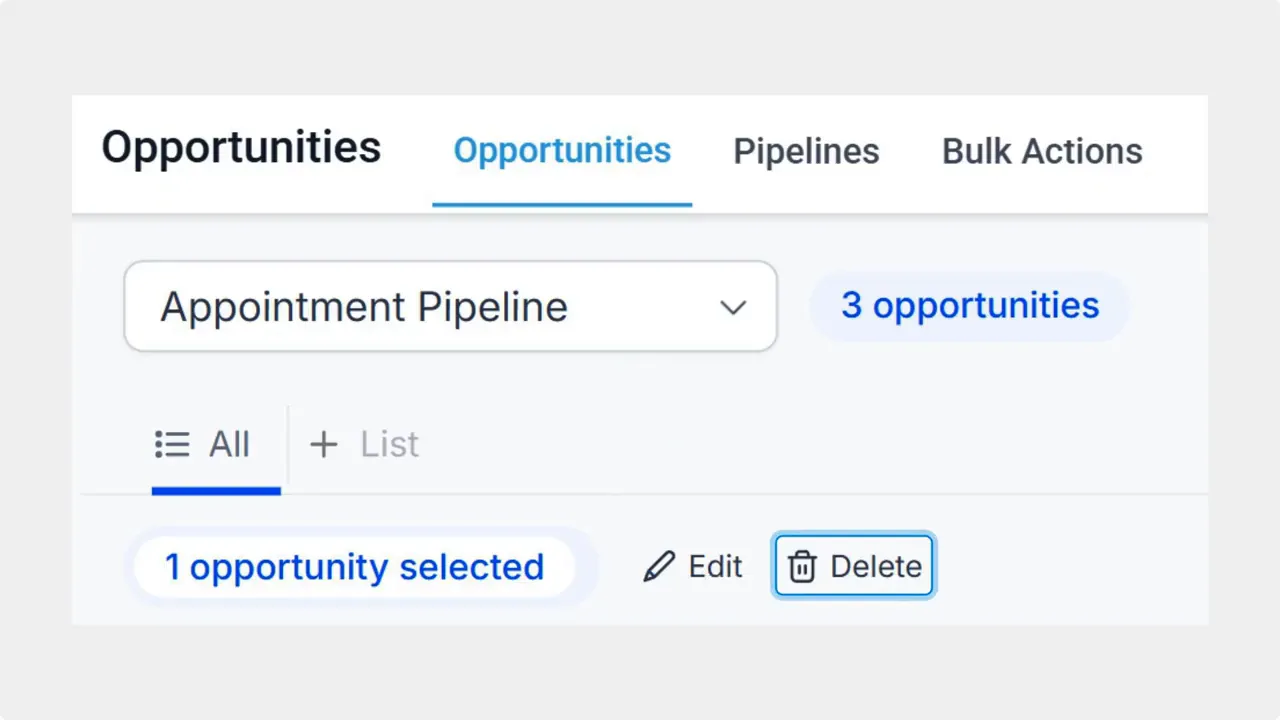
Select rows then click the trash‑can Delete button to begin a bulk delete.
Confirm deletion
Type DELETE to confirm, then click the final Delete button. This explicit step reduces accidental removals.
Asynchronous processing
Once confirmed, the bulk deletion runs in the background. This means the system processes records without blocking ongoing work. You’ll still see full visibility into the action and its results.
How to restore deleted opportunities
If you need to reverse a deletion, restoring is simple and clearly tracked.
- Open the Bulk Actions tab.
- Find the deletion action in the list.
- Click the three dots next to that action and select Restore.
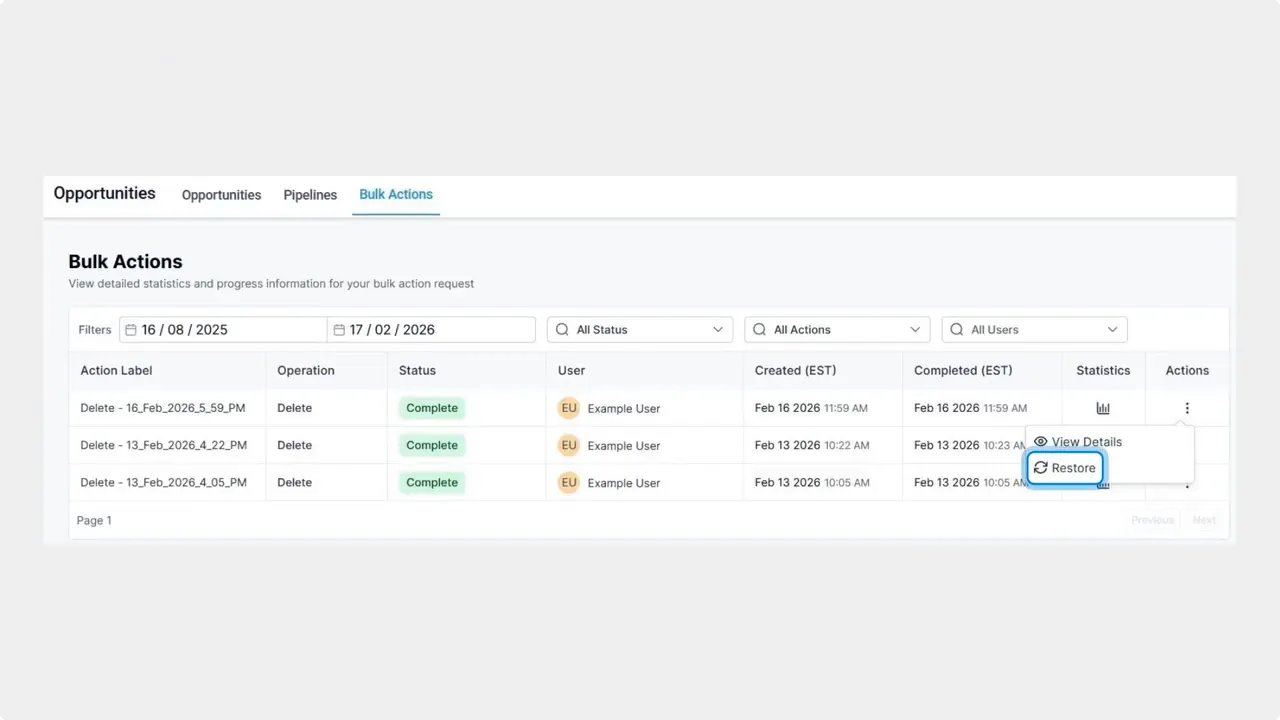
Open the Bulk Actions list and choose Restore from the action menu to recover a delete.
You can restore an entire bulk action or restore individual opportunities from the results, whichever fits the situation.
Audit details and the 60-day recovery window
Every bulk delete action includes audit information so team members can review what happened. Audit details show:
- Who initiated the action
- When the action ran
- Success and failure counts
- Per-opportunity results for deeper investigation
Deleted opportunities remain recoverable for 60 days. After that period, records are permanently removed, so use the recovery window to correct mistakes or confirm permanent cleanups.
Best practices for safe cleanup
- Filter carefully. Build tight filters to target only truly stale or invalid opportunities.
- Preview results. Export or review selection samples before deleting large sets.
- Use confirmation steps. Keep the explicit DELETE confirmation enabled for high-risk actions.
- Document bulk actions. Add notes in the audit entry so teammates understand why the cleanup ran.
- Restore when needed. Use the 60-day window to recover any records removed by mistake.
FAQ
Can deleted opportunities be restored?
Yes. Deleted opportunities can be restored from the Bulk Actions tab. You can restore an entire bulk action or individual opportunities from the action’s results.
How long do we have to recover deleted records?
There is a 60-day recovery window. After 60 days deleted records are permanently removed.
Will bulk deletion interrupt other work?
No. Bulk deletions run asynchronously in the background so users can continue working while cleanup completes.
Does the system track who performed the deletion?
Yes. Each bulk action includes audit-friendly tracking that shows who initiated the action, when it ran, and counts of successes and failures.
Can we delete and restore only specific opportunities from a bulk action?
Yes. You can restore the entire bulk action or restore specific opportunities as needed using the per-opportunity results view.
What should we do before running a large bulk delete?
Filter and preview the records, add an audit note explaining the reason for cleanup, and keep the confirmation step enabled to avoid accidental deletions.
This article was created from the video Bulk Delete Opportunities Safely: Restore Within 60 Days








