





Automate RSS Feeds: Schedule Across Platforms in Social Planner
Overview
Pinnacle's Social Planner now makes RSS publishing more flexible and reliable across networks. We added controls so teams can automate a consistent posting cadence while adapting each post to different platform limits. The result is less manual editing and clearer posts that keep links and ending text whenever possible.
Overview — what changes you can expect from the RSS updates.
What changed
We focused on three practical updates:
- Choose how much content to share — publish title-only or include the item description for richer posts.
- Platform-aware content generation — each social network gets its own generated post that respects that platform's character limits.
- Preview multiple items — review up to five feed items at once to check formatting and truncation before automating.
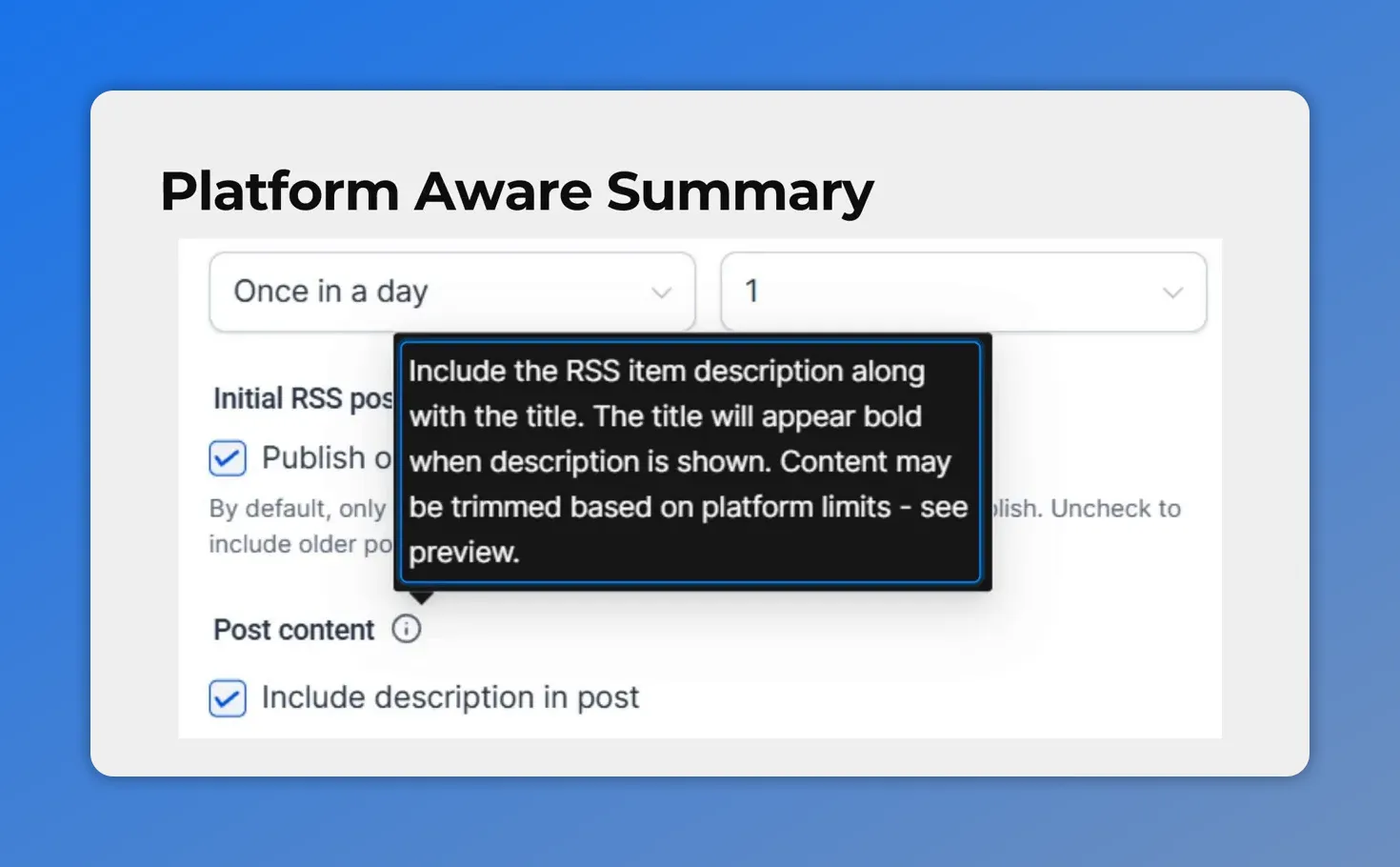
Platform-aware note: descriptions may be trimmed to fit each network's limits.
How platform-aware summaries work
When a feed item is published to several accounts, we generate the post content separately for each platform. That means:
- Each network's character limit is applied independently.
- Links and ending text are preserved whenever possible.
- Truncation is handled per platform so posts read naturally without manual fixes.
This approach keeps a consistent schedule while making sure each post fits the platform it publishes to.
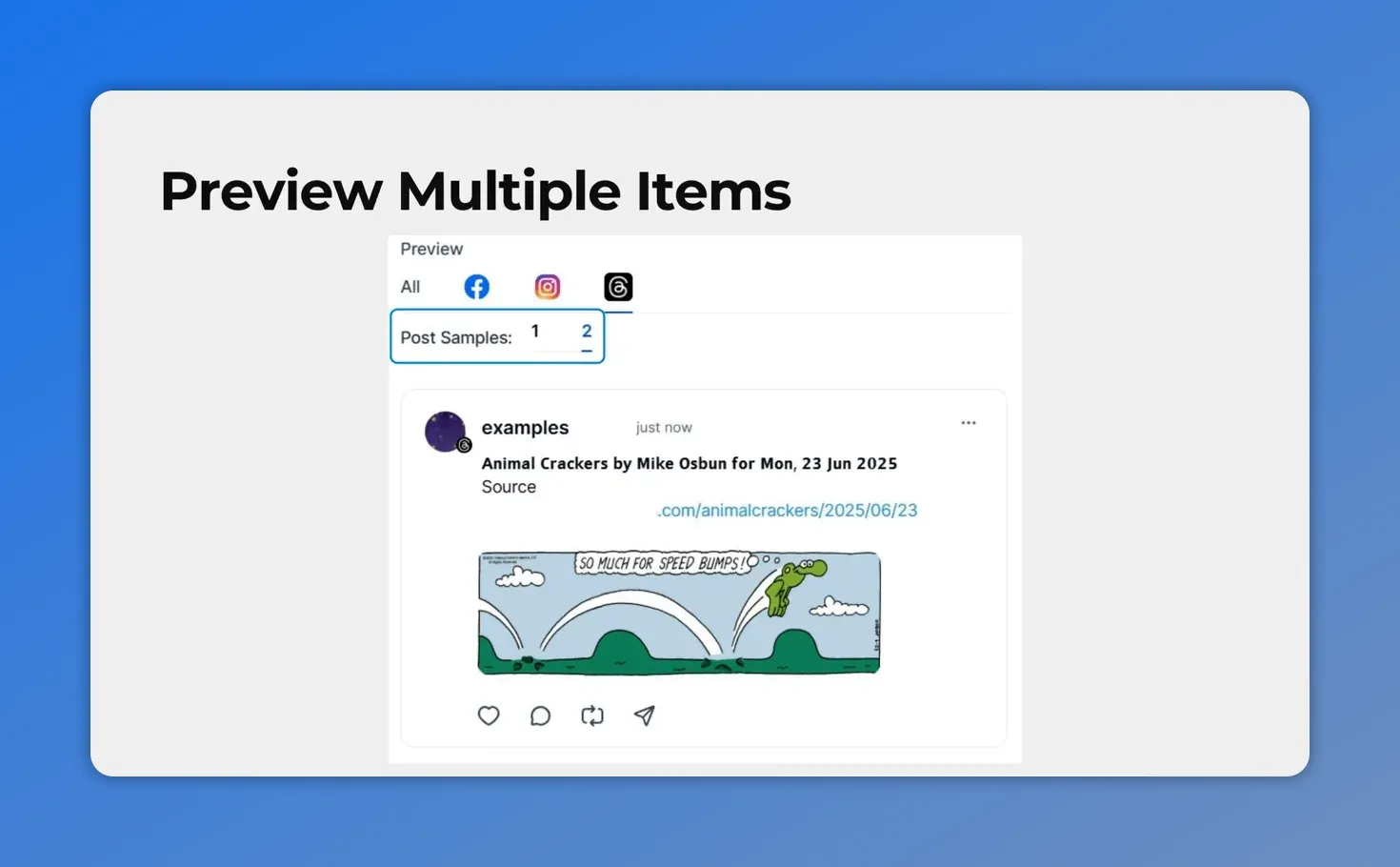
Use the Preview to inspect up to five feed items across platforms before automating.
Previewing items — what to look for
Previewing up to five RSS items at once helps you evaluate:
- How text is truncated on each platform
- Whether links remain intact
- Whether the item description improves clarity or creates clutter
Use the preview to decide if you want title-only posts or richer descriptions.
Step-by-step: Schedule an RSS post
- Open Social Planner in the Marketing section of Pinnacle.
- Create an RSS post and paste your RSS feed URL.
- Select the social accounts you want to post to.
- Toggle Post content on to include item descriptions, or leave it off to publish titles only.
- Review the preview — check up to five items for formatting and truncation.
- Save and automate — once it looks right, enable automation to publish on schedule.
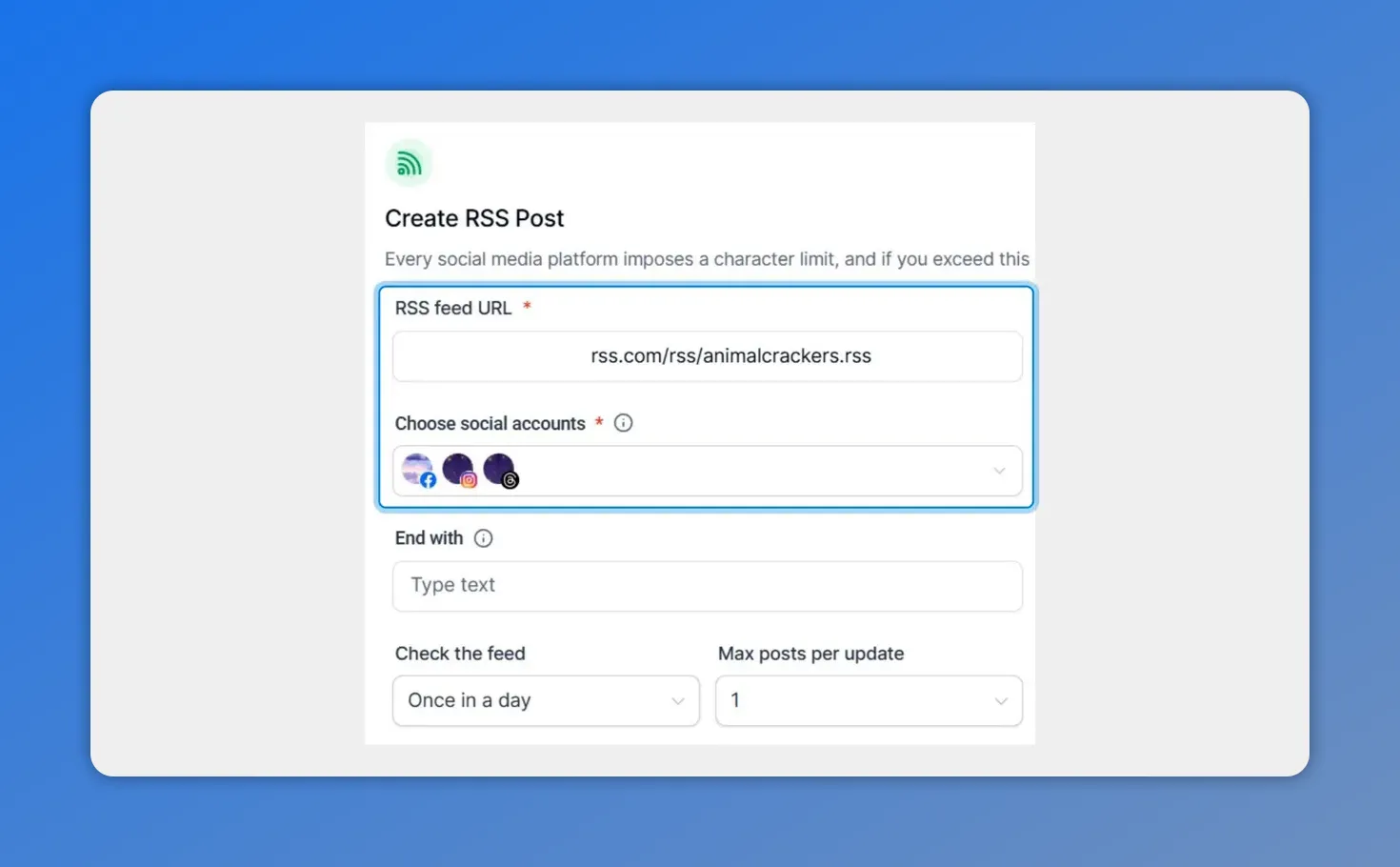
Paste your RSS feed URL and choose accounts to create an RSS post.
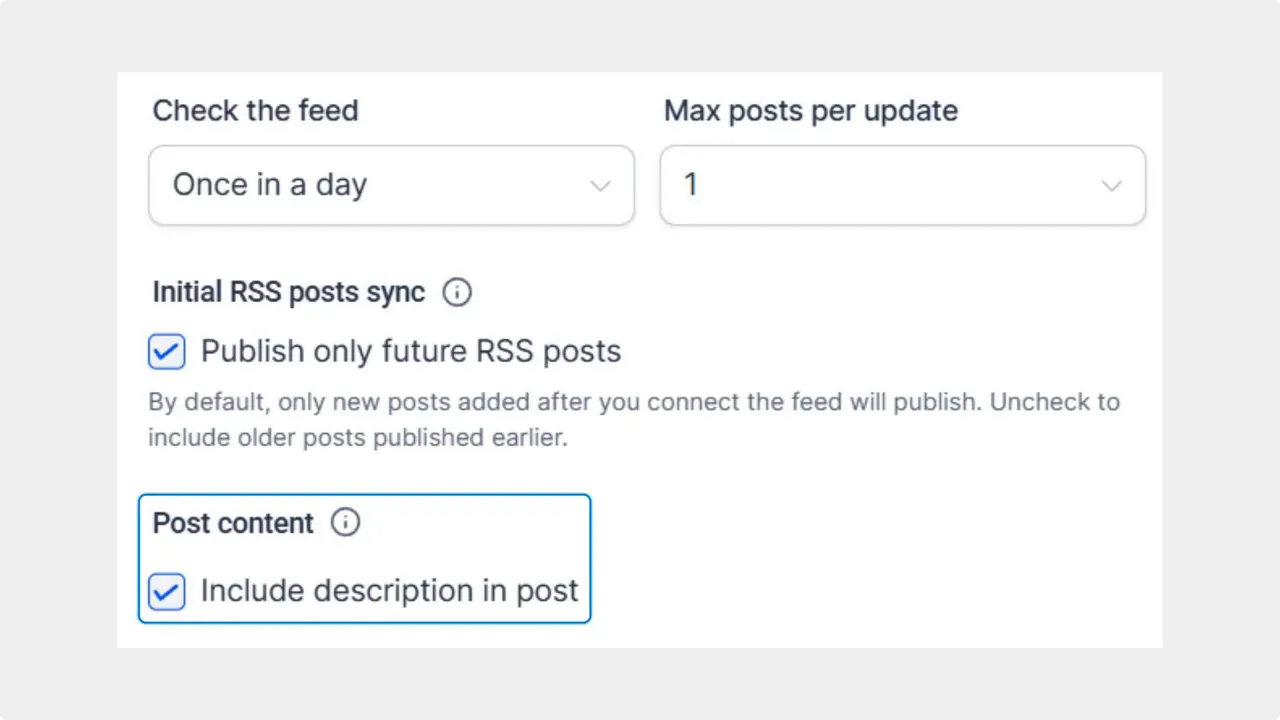
Turn on “Post content” to include item descriptions when automating an RSS feed.
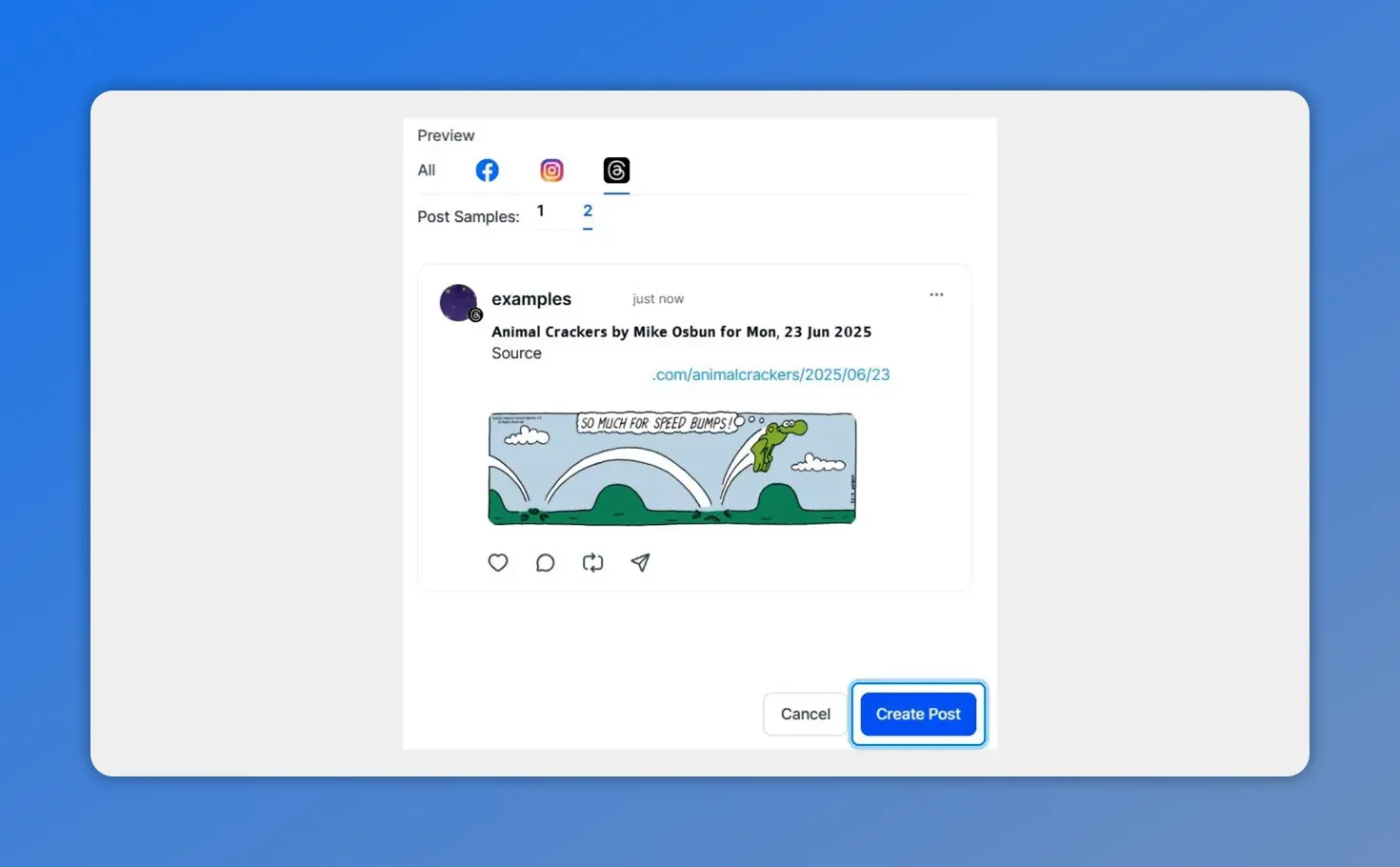
Preview a generated post and click Create Post when ready.
Tips and best practices
- Start with title-only posts for high-volume feeds, then switch to descriptions if you want richer context.
- Use the preview to catch links that might get cut off on short-form platforms.
- Test a few items across your accounts to confirm the platform-aware truncation reads naturally.
- Keep descriptions concise. Short, focused text reduces the chance of awkward truncation.
Embedded example
Below is the embedded post player for quick reference.
FAQ
Can we publish title-only posts?
Yes. You can leave the Post content toggle off to continue publishing only the item title.
Can we include item descriptions?
Yes. Turn the Post content toggle on to include each feed item's description in the published post.
How many items can we preview at once?
You can preview up to five RSS feed items at once to evaluate formatting, truncation, and content flow.
Will links be preserved when posts are truncated?
We preserve links and ending text whenever possible. Each platform's limits are applied independently to reduce broken links and awkward endings.
Do different platforms get different post lengths?
Yes. Content is generated per platform so each network receives a version that respects its character limits.
Where do we set this up?
Open Social Planner in the Marketing section, create an RSS post, add your feed, select accounts, toggle Post content if needed, review the preview, then save and automate.
Final notes
These updates make RSS automation more flexible for teams publishing across multiple networks. We built the changes to reduce manual work and keep posts clear and link-safe. Try setting up a feed and use the preview to fine-tune your cross-platform schedule.
This article was created from the video Automate RSS Feeds: Schedule Across Platforms in Social Planner








