





Find Review Requests Fast With Search, Channel, and Status Filters

Review requests can come in from different places, and they bring real customer insights along with them. The tricky part is what happens next: once replies start stacking up, sorting through them manually becomes time-consuming and easy to get wrong.
To make request management faster and easier, we improved the Review Request page with search and filtering that helps you locate the right contact quickly, focus on the right channel, and triage by status.
What changed on the Review Request page
Instead of scrolling through a long list or paging back and forth, the page now gives you three ways to narrow down what you need:
- Search by contact details (name, email, phone)
- Sent via filtering to focus on the channel (WhatsApp, email, or phone)
- Status filtering to zero in on where each request stands (queued to read)
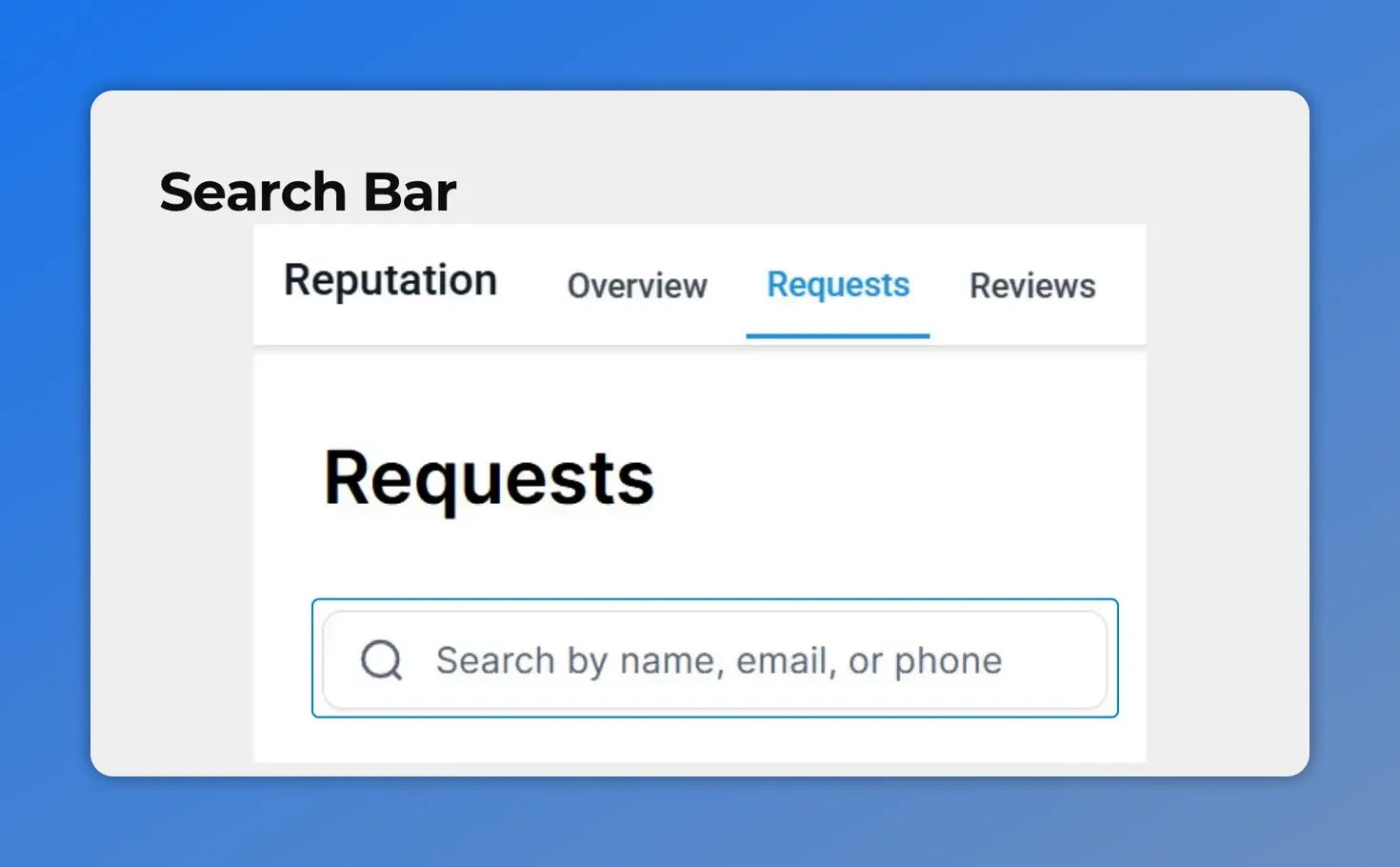
1) Use the search bar to find the right contact instantly
At the top of the Review Request page, there’s now a search bar that supports result polling for:
- Contact name
- Phone number
This is especially useful when a customer is asking for an update, or when you already have partial info. You can stop hunting through the list and go straight to the request that matters.
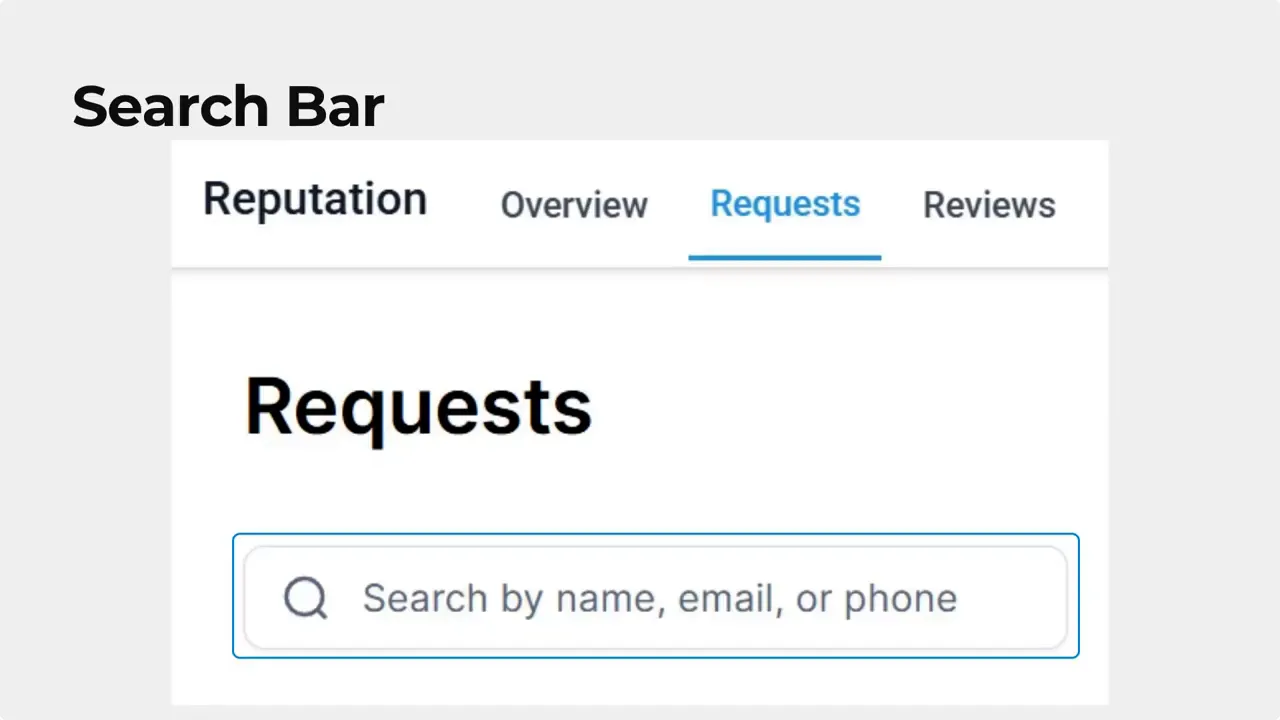
The new search bar on the Review Requests page lets you find a specific contact quickly using their name, email, or phone number.
2) Filter by “Sent via” to match how your team works
Not all review requests are created equal. The updated page includes a sent via selector so you can limit results to reviews requested specifically from:
- Phone
This helps you slice your queue by channel, which makes it easier to assign work to the right team member and follow a consistent process.
Example
If most of your WhatsApp follow-ups are handled by one person (or one workflow), filter to WhatsApp so the rest of the list doesn’t distract from the next best action.
3) Filter by status to triage quickly
When the volume increases, triage matters. The new status selector lets you filter what’s shown by choosing from statuses like:
- Queued
- Undelivered
- Failed
- Sent
- Delivered
- Opened
- Read
Instead of manually scrolling and paginating through every request, you can focus on what needs attention now. For example, “Undelivered” and “Failed” often call for immediate troubleshooting, while “Opened” and “Read” can help guide timely follow-ups.
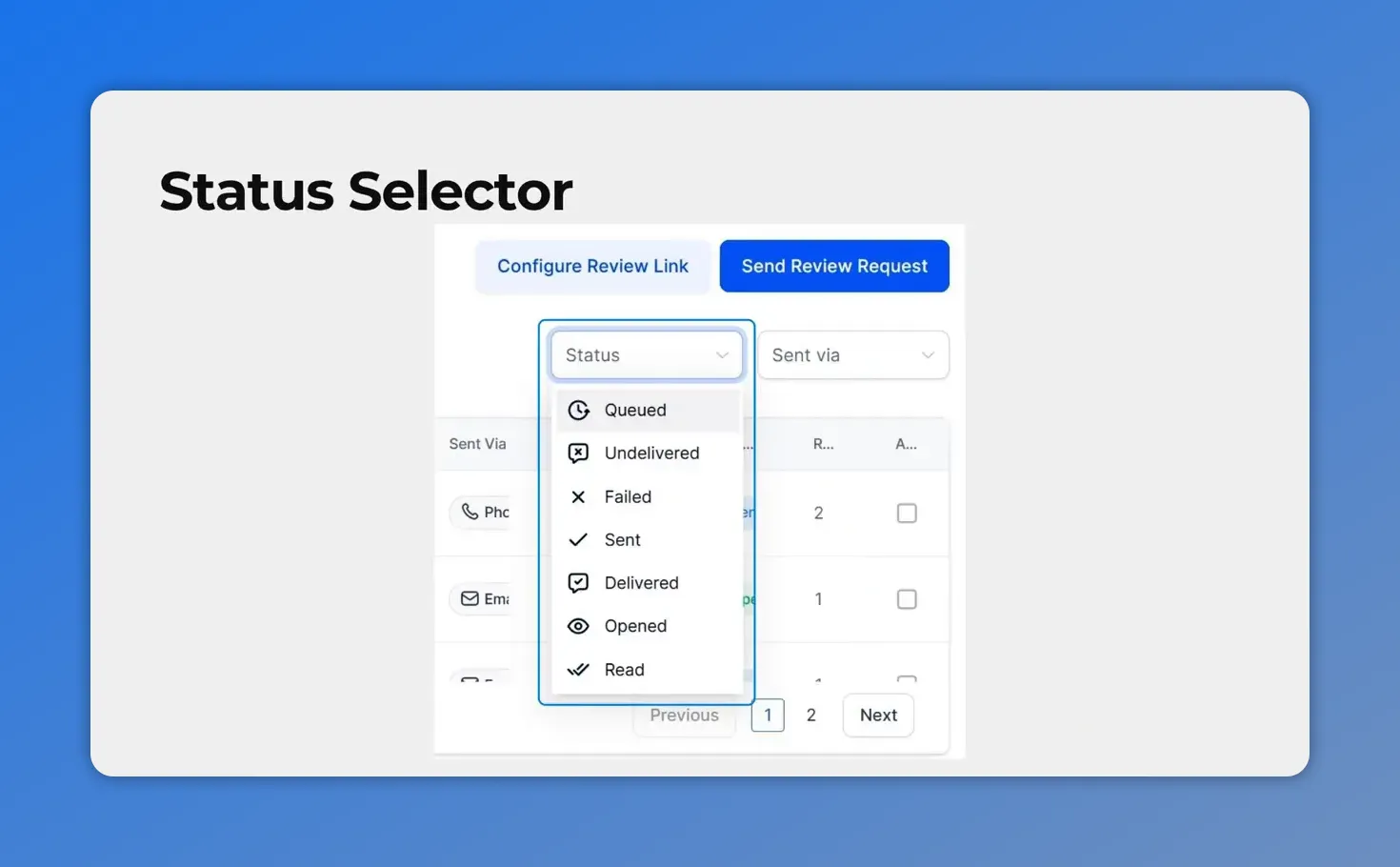
The status selector lets you triage fast by choosing where requests are in the process—like Queued, Failed, Delivered, or Read.
Why this improves response management
The point of better search and filtering is simple: less time navigating and more time responding.
- Faster review location: Find the right request without manual scrolling or pagination.
- Timelier responses: Narrow results by status so follow-ups do not get delayed.
- Clearer insights: When data is separated by channel and status, patterns are easier to spot.
- Fewer missed customers: A focused queue reduces the risk of leaving requests unattended.
Practical workflow for handling review requests
- Start with search when a customer’s details are known (name, email, or phone).
- Filter by sent via to match the right channel workflow.
- Filter by status to prioritize what needs action first.
- Respond and close the loop while the request is still fresh, based on where it sits in the status flow.
FAQ
What can we search for on the Review Request page?
We can search by contact name, email, or phone number using the search bar at the top of the page.
How do the “sent via” filters help?
They let us limit results to requests sent from a specific channel, such as WhatsApp, email, or phone, so our queue matches how we handle each workflow.
Which statuses can we filter by?
We can filter by statuses including queued, undelivered, failed, sent, delivered, opened, and read.
Does filtering reduce the need for manual scrolling?
Yes. With search, sent via, and status filters, we can quickly narrow results instead of scrolling or paging through long lists.
Next step
Open your Review Request page and try the new search, channel (sent via), and status selector. The goal is straightforward: respond faster, keep customers happy, and prevent avoidable issues from slipping through.
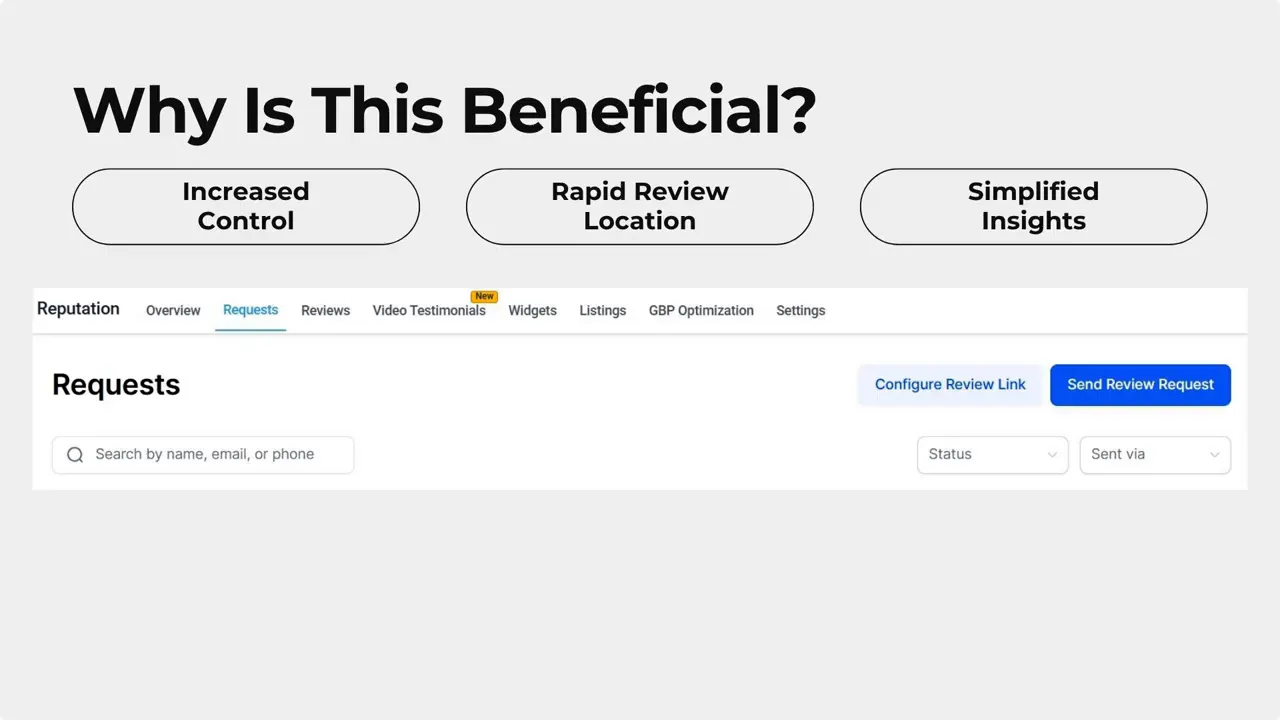
This is the new Review Requests view with search and filter controls—so you can narrow down results by contact and review status without manually scrolling.
This article was created from the video Find review requests fast with search, channel and status filters








