





Stop Re-Uploading: Reuse Media from Your Library in Workflows

Previously, repeating work inside workflows meant repeating the media work too. We had to re-upload files, or paste media links by hand into each workflow action that needed the same attachment.
Now we can keep attachments consistent automatically. When an action supports media, you can choose an asset from your media library or upload a new file, and the attachment stays with duplicated actions and workflows.
What changes with media storage in workflow actions
If a workflow action supports attachments, you can add one directly from:
- Upload a file (add a new attachment)
- Choose from media storage (reuse an existing asset from your library)
This matters because it removes the extra, repetitive steps that used to slow teams down: re-uploading the same file again and again, or copying and pasting media URLs into each action that needed it.
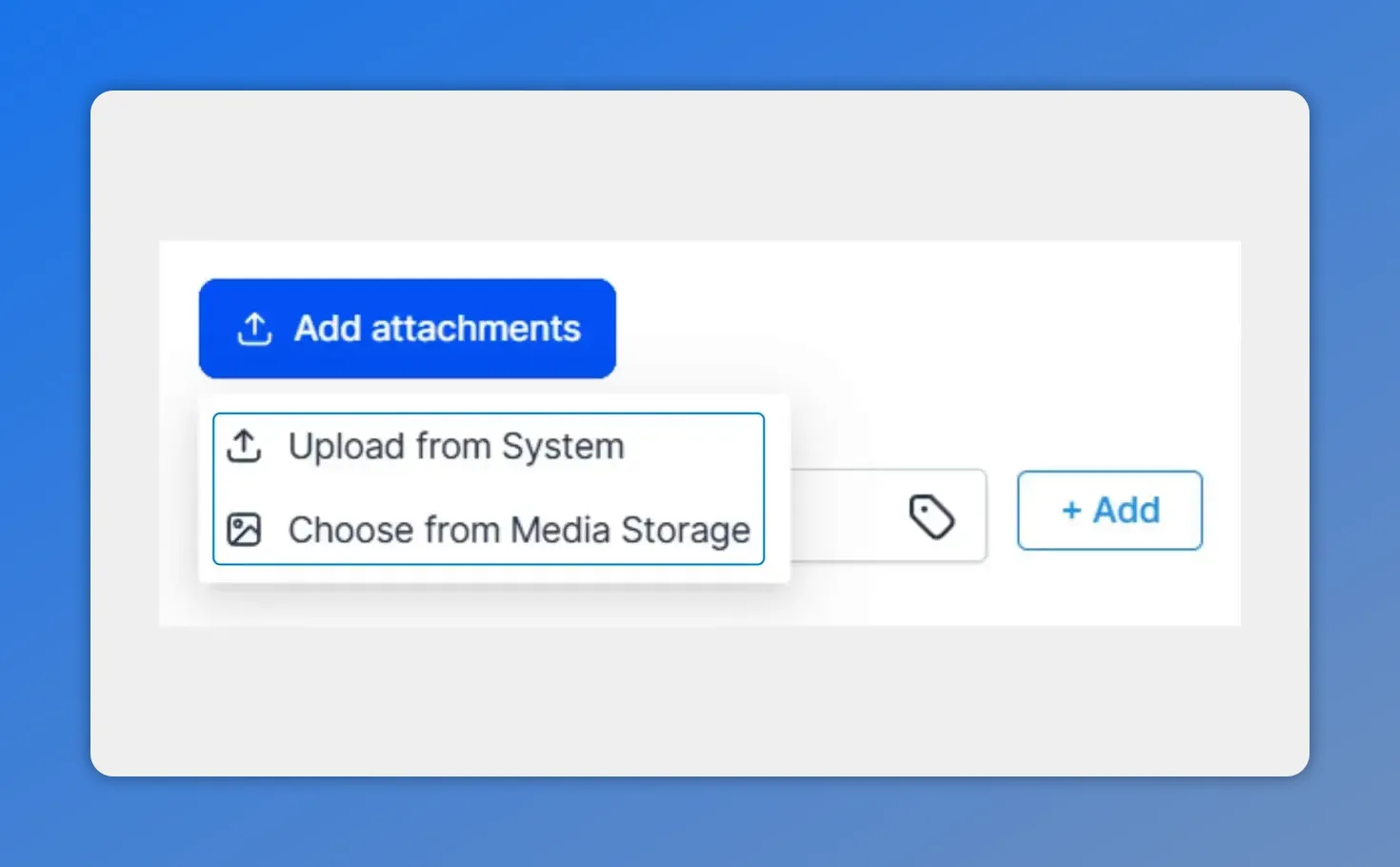
Use the Add attachments option in a media-supported action to either upload a new file or choose an existing asset from media storage.
How to add an attachment to a media-supported action
Here’s the workflow we use to attach media and keep it reusable across actions.
-
Open a media supported workflow action.
-
Click Add Attachment.
-
Choose one of the options:
- Upload a file
- Choose from media storage
-
Select your file (or asset), then save the action once validation passes.
After that, the attachment is part of the action itself, so it can carry forward when you duplicate steps.
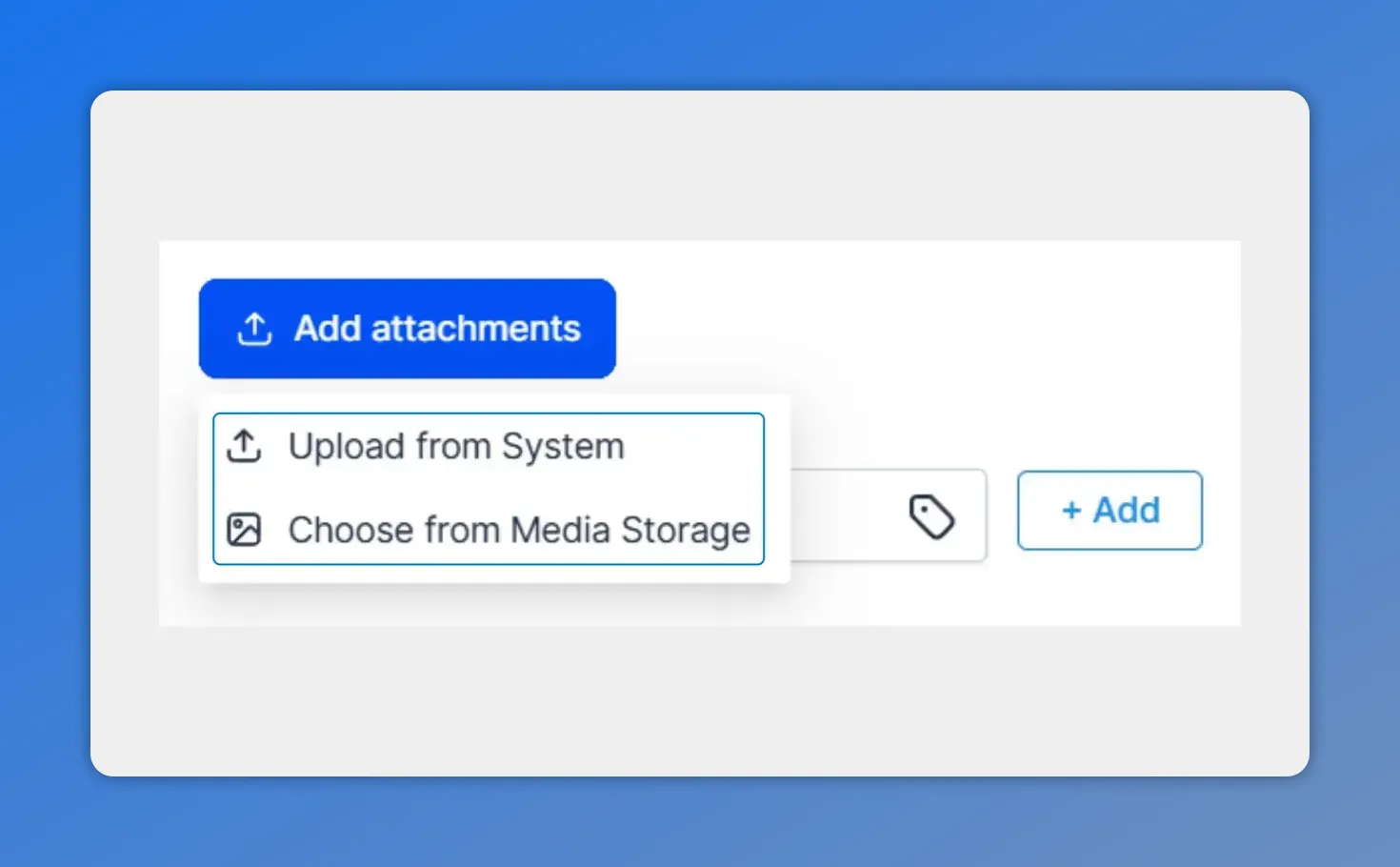
In a media-supported action, you can add an attachment by either uploading from your system or choosing an existing file from media storage.
What to expect: validation, persistence, and copy behavior
1) File type and size validation
Validation applies based on the action’s requirements. That means:
- Metrics remaining unchanged (the action’s limits still work the same way).
- Unsupported or oversized files show an inline error.
So instead of waiting for later failures, you get immediate feedback right in the action when something doesn’t meet the file type or size rules.
2) Duplicating an action keeps its attachment
If you copy an action, its attached media carries over. The duplicated action continues to build with the previously uploaded media.
This reduces the manual work of repeating uploads across duplicate actions.
3) Existing workflows continue to work as expected
Workflows that already have previously uploaded media remain functional. If an action gets copied as part of building or updating a workflow, attached media continues to work as expected.
In practical terms: we don’t need to “repair” every duplicated step with new uploads or pasted links.
Why this is a big deal for workflow maintenance
Even when a workflow is small, attachment handling adds friction. Each repeated action becomes another place for mistakes: the wrong file, a missing link, or inconsistent versions.
With reusable media storage in action attachments, we can:
- Eliminate repetitive uploads and stop pasting media URLs by hand
- Keep assets consistent across duplicated actions
- Reduce errors through clear inline validation for file type and size
- Simplify maintenance when workflows evolve and actions are copied
Quick checklist for using media storage
- Open a media supported action.
- Use Add Attachment.
- Pick upload a file or choose from media storage.
- Save only after validation passes.
- When copying actions, confirm the attachment carries over (it should).
FAQ
How do we reuse the same attachment across multiple workflow actions?
We add the attachment once inside a media supported action, then use media storage to reuse the same asset. When actions are duplicated, the attachment carries over to the copied action.
What happens if we upload an unsupported file type or a file that is too large?
Validation happens for the specific action. Unsupported or oversized files show an inline error, and we’ll need to select a valid file before saving.
Does the attachment stay attached when we copy an action?
Yes. If we copy an action, its attached media carries over, and the duplicated action continues to build with the previously uploaded media.
Will existing workflows with previously uploaded media still work?
Yes. Workflows that already have previously uploaded media continue to work as expected, including when actions are copied and their attachments are reused.
Next step
Try adding an attachment from your media storage in your next workflow. You’ll likely feel the difference right away: fewer uploads, less manual link handling, and cleaner maintenance as your workflows grow.
This article was created from the video Stop re-uploading: Reuse media from your library in workflows








