





Find and Replace in Workflows: Update Tags, Text, and Values Faster

Large workflows can get hard to manage fast. When one custom value, one tag, or one piece of text shows up in several places, even a simple update can turn into a slow manual search.
That is exactly why Find and Replace in Pinnacle workflows matters. It gives us a faster way to scan a single workflow, jump to matching steps, and make updates without opening every action one by one.
With this feature, we can search for:
- Custom values
- Tags
- Plain text
And from there, we can move through results, review each match in context, and replace supported values with more confidence.
Why Find and Replace is useful in large automations
As workflows grow, finding one specific item inside the builder gets harder. A single tag might be used across multiple branches. A custom value could appear in several actions. A short text string may be repeated in different steps.
Without a search tool, the usual process is slow. We have to click through actions one at a time and hope we do not miss anything.
Find and Replace solves that problem by making updates more targeted and easier to review.
It helps with:
- Faster updates across one workflow
- Less manual hunting through each node
- Cleaner workflow management with less confusion
- Contextual review by moving the canvas to the selected match
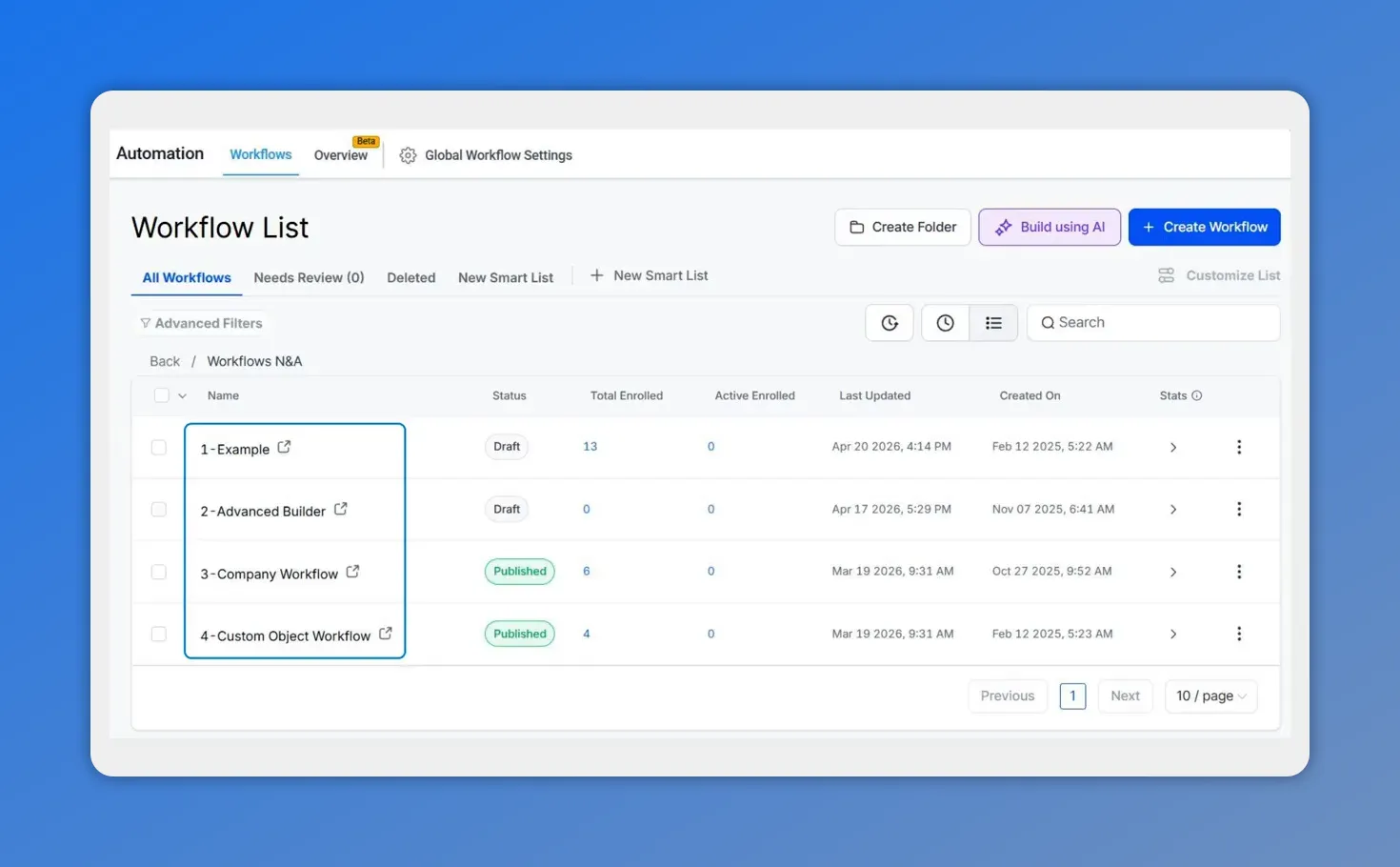
In Pinnacle’s workflow area, you start from the Workflows list—then you can open a workflow and use Find to target repeated values or text.
Where to find it in Pinnacle
To use the feature, go to the Automation section and open the Workflows tab. Then access any existing workflow where you want to search or update content.
Once inside the workflow builder, click Find.
You can also open it with a keyboard shortcut:
- Alt + F on Windows
- Option + F on Mac
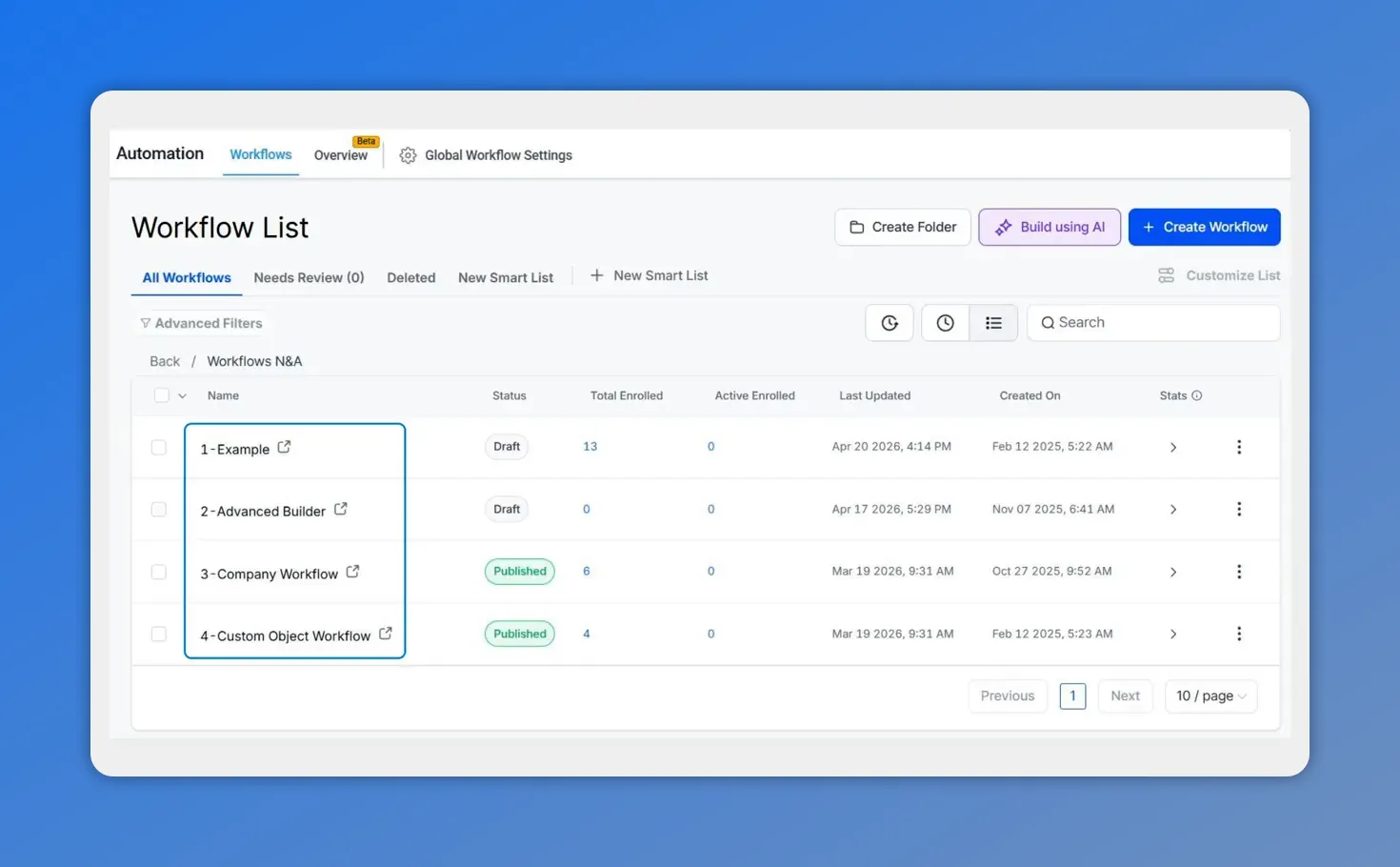
From the Automation area, open the Workflows tab to select the workflow you want to search and update.
What you can search for
The search tool gives us three search types, depending on what we need to locate inside the workflow.
1. Custom values
Use this when a custom value appears in multiple steps and needs to be reviewed or updated. This is especially useful when the same value is used throughout a build and consistency matters.
2. Tags
Use this when a workflow adds, removes, checks, or otherwise references tags in more than one place. If a tag name changes or needs to be standardized, this can save a lot of time.
3. Text
Use text search when you are looking for a specific phrase, word, or snippet used in actions across the workflow.
Search is designed to help us quickly narrow in on matching actions inside a single workflow, which keeps results focused and relevant.
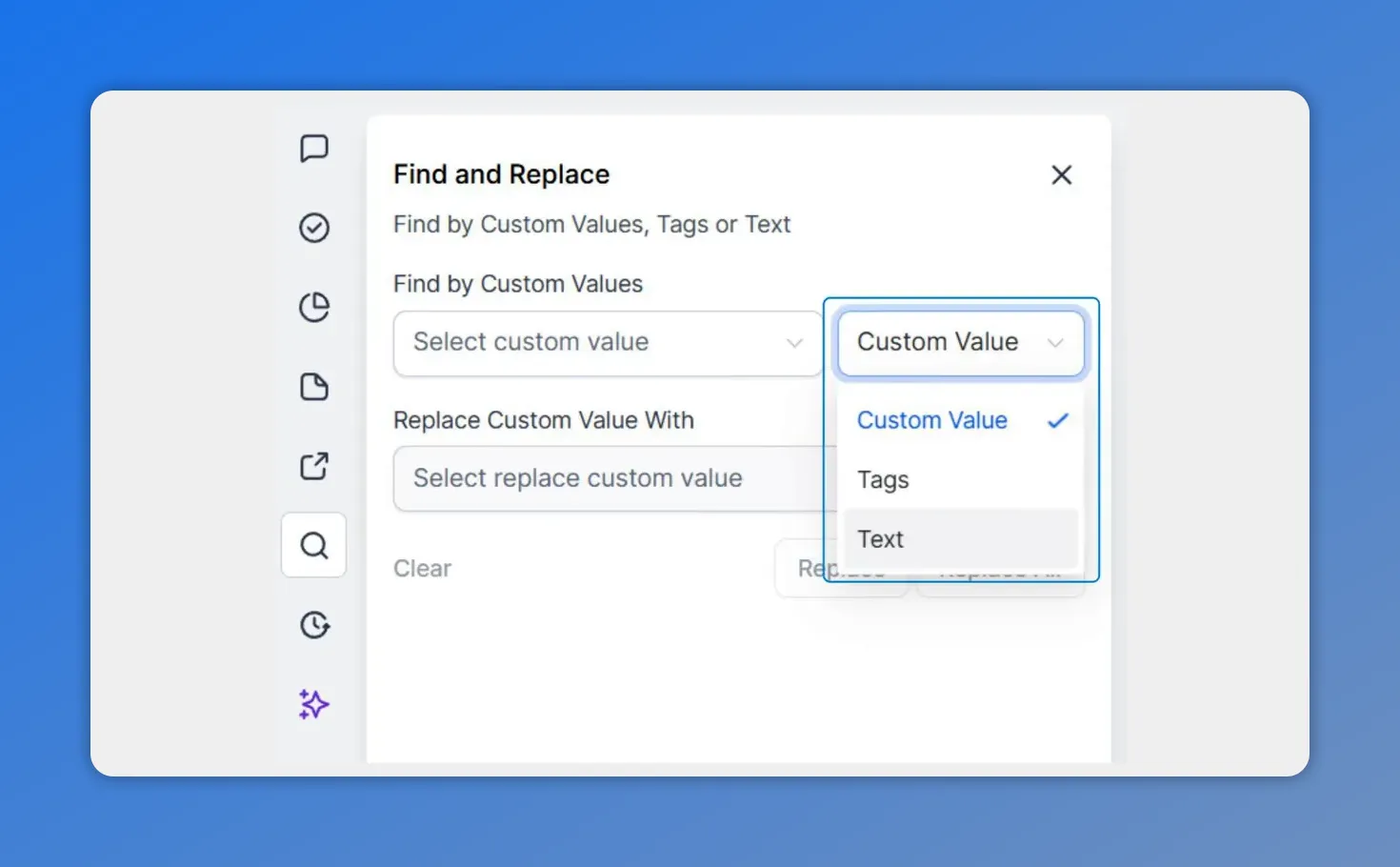
The Find and Replace panel lets you choose what to find—custom values, tags, or text—so you can target repeated items across the workflow.
How to use Find and Replace step by step
-
Open an existing workflow in Pinnacle.
-
Click Find or use the keyboard shortcut.
-
Choose whether you want to search for custom values, tags, or text.
-
Enter the value, tag, or text you want to find.
-
Move through the results to review each match.
-
Make the needed update, including replace options where supported.
As you move through matches, the builder automatically shifts the view to the selected node. That gives us context right away, so we can see where the match appears before making a change.
That small detail matters. Instead of just listing a result, Pinnacle helps us review the matching action in place, which makes editing more accurate.
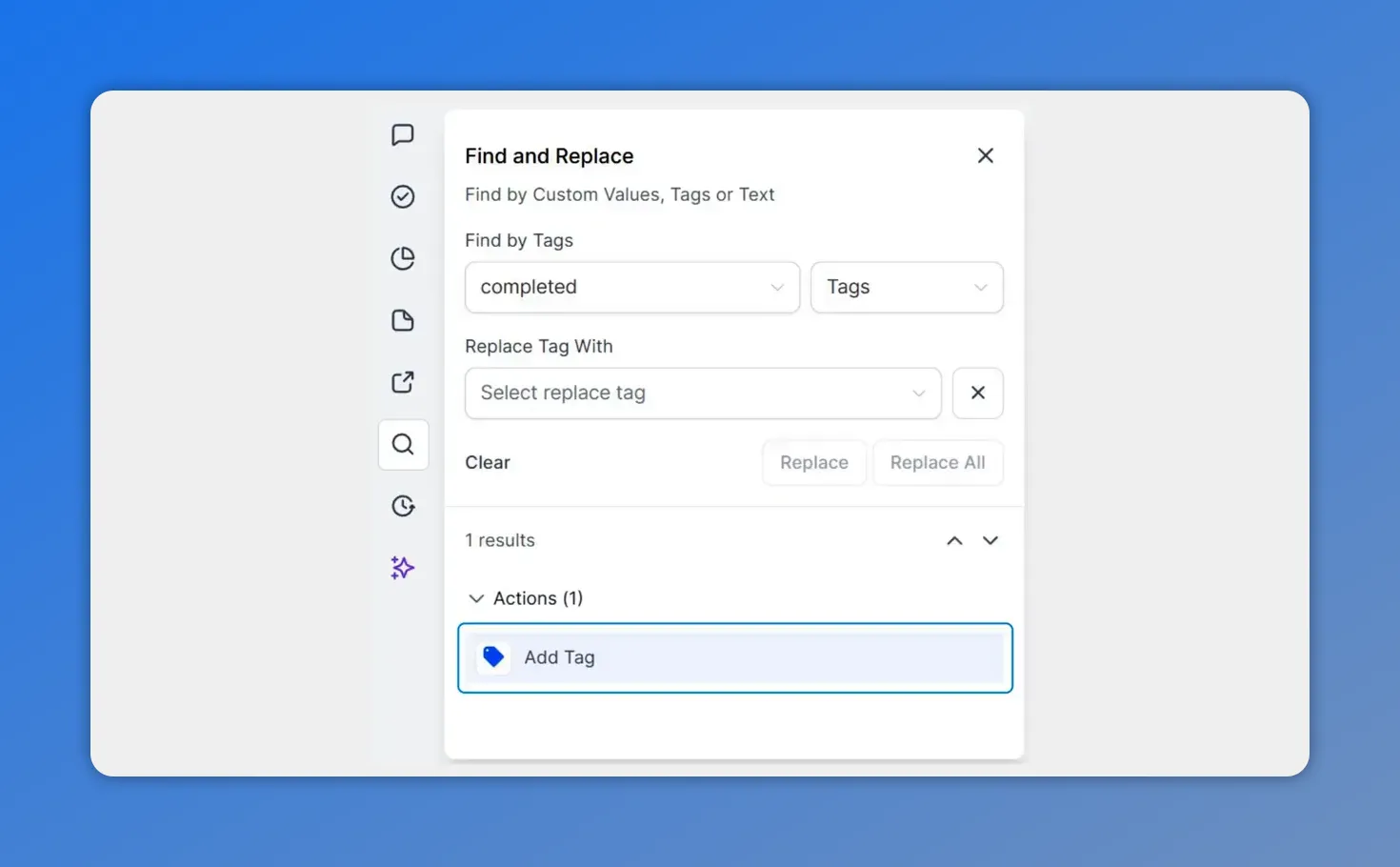
Here’s an example of searching by tags inside a workflow, including selecting the tag to replace and reviewing the resulting matches in context.
What you can update once you find a match
After locating the right step, we can work directly from there. Depending on the action and what was found, this makes it easier to:
- Add actions
- Edit actions
- Remove actions
- Replace custom values
- Replace tags
The main benefit is simple: we do not have to manually inspect every step just to find one repeated item.
And where supported, Replace or Replace All can speed things up even more, especially when the same custom value or tag appears across several points in the workflow.
Why contextual search makes workflow editing easier
One of the best parts of this feature is that results are not disconnected from the workflow canvas. When we select a match, the view moves to that node automatically.
That means we can review:
- Where the match appears
- What action it belongs to
- How that step fits into the rest of the automation
This reduces mistakes and cuts down on second-guessing. We are not editing blind. We are reviewing each result in context.
What makes this feature practical for day-to-day workflow management
Find and Replace is not just about speed. It also helps keep workflows cleaner and more consistent.
When a build gets large, even small naming changes can become tedious. A tag might need to be updated. A custom value may need to be swapped out. A phrase in multiple actions may need to be found quickly.
Using search points like custom values, tags, or text gives us a straightforward way to manage those updates without creating extra confusion.
It is especially useful when we want to:
- Check where something is used before changing it
- Update repeated items inside one workflow
- Reduce missed edits
- Work faster inside complex automations
Helpful details to keep in mind
There are a few practical details that make the tool more useful in real workflows:
- Search runs within a single workflow
- Results are targeted to that workflow, which keeps them relevant
- Search supports partial matches
- Search is case-insensitive
- Replace options are available where supported
These details make it easier to find what we need without overcomplicating the process.
A faster way to keep workflows consistent
If we are managing large automations, this feature removes a lot of repetitive work. Instead of hunting through every branch and every action, we can search, jump to the right node, review it in context, and update it quickly.
That leads to faster edits, fewer missed changes, and a cleaner workflow-building experience inside Pinnacle.
If you have a workflow that needs updates, open it, press Alt + F on Windows or Option + F on Mac, and start with the value, tag, or text you need to find.
FAQ
Where do we access Find and Replace in Pinnacle workflows?
Go to the Automation section, open the Workflows tab, and select an existing workflow. Inside the builder, click Find.
What keyboard shortcut opens Find in a workflow?
Use Alt + F on Windows or Option + F on Mac.
What can we search for with Find and Replace?
You can search for custom values, tags, or plain text inside a single workflow.
Does the tool show results in context?
Yes. When you move through results, the workflow view automatically shifts to the selected node so you can review the match in context.
Can we replace values directly from the search results?
Yes, where supported. You can use Replace or Replace All for supported custom values or tags.
Does search work across all workflows or just one?
It works within a single workflow, which keeps the results precise and focused on the build you are editing.
Is search case-sensitive?
No. Search is case-insensitive and also supports partial matches.
This article was created from the video Find and Replace in Workflows: Update tags, text, and values








