





Nested Folders (5+ Levels): Organize Campaigns and Templates
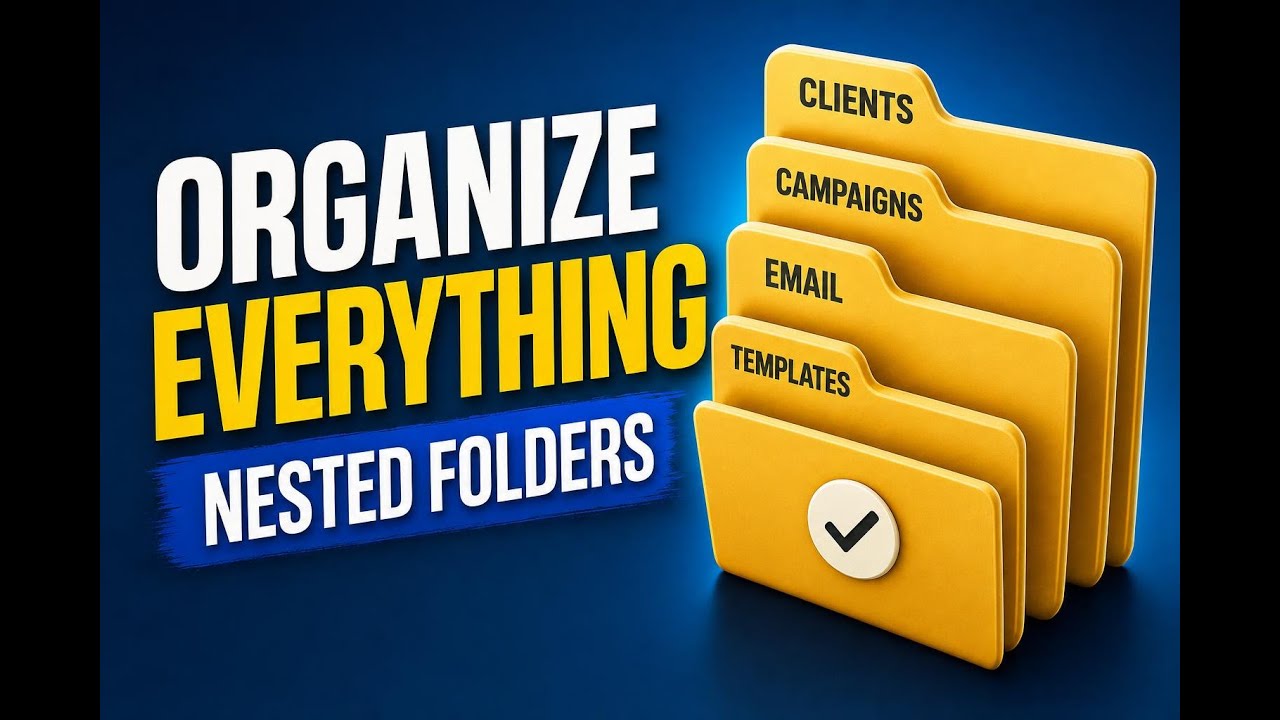
Managing a large volume of email content gets messy fast. When campaigns, templates, clients, and content types all start stacking up, a flat folder structure is not enough.
That is why Pinnacle now supports nested folders with more than five levels for email campaigns and templates. This gives us a cleaner way to structure assets, keep related work together, and scale organization across busy accounts.
If we manage multiple clients, run a high number of campaigns, or keep a large template library, nested folders make it easier to stay neat and find what we need faster.
Why nested folders matter
Folders already help with structure and maintenance. But once content volume grows, a single folder layer often creates clutter instead of reducing it.
Nested folders solve that by letting us build a hierarchy inside existing folders. That means we can organize by:
- Client
- Campaign type
- Brand or offer
- Content category
- Template purpose
And because Pinnacle supports more than five layers, we are not limited to a shallow setup. We can mirror more complex account structures without losing control of where assets live.
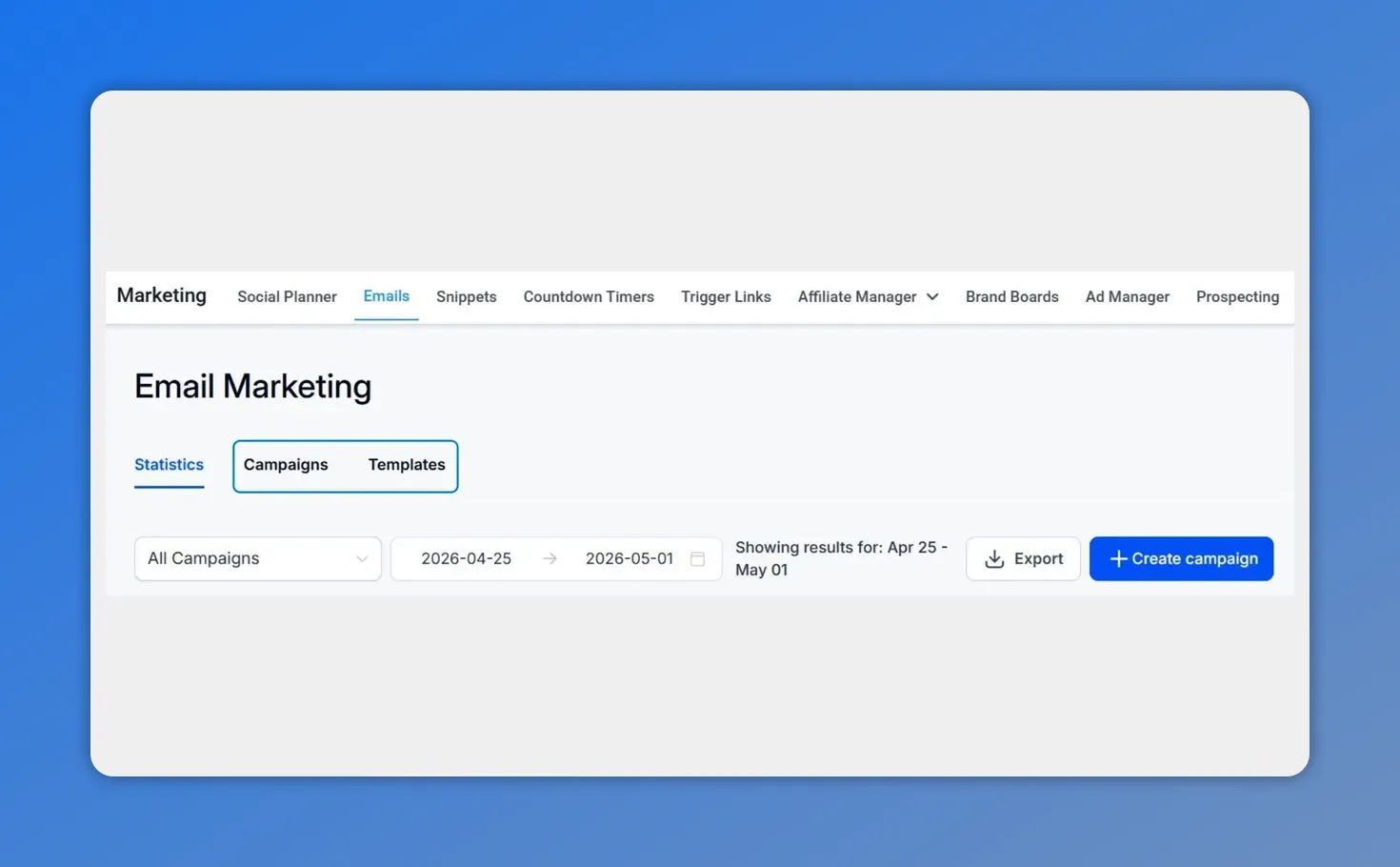
From Marketing > Email, you can work with campaigns and build the folder hierarchy that nested folders support.
Where nested folders work in Pinnacle
This folder structure applies to both:
- Email Campaigns
- Email Templates
That consistency matters. We can use the same logic across both areas instead of organizing campaigns one way and templates another way. When the structure matches, setup is easier and day-to-day management feels more predictable.
For teams handling large content loads, that small change can make a big difference.
How to create a nested folder and move an asset into it
Here’s how the process works inside Pinnacle.
- Go to the Email tab inside the Marketing section.
- Open either Campaigns or Templates.
- Click the three dots next to the asset you want to organize.
- Select Move to Folder.
- Choose your main folder.
- Click New Folder.
- Enter the name of the nested folder.
- Click Move Here to place the asset into that new sub-folder.
This is a simple workflow, but it gives us a lot more control over how email assets are stored.
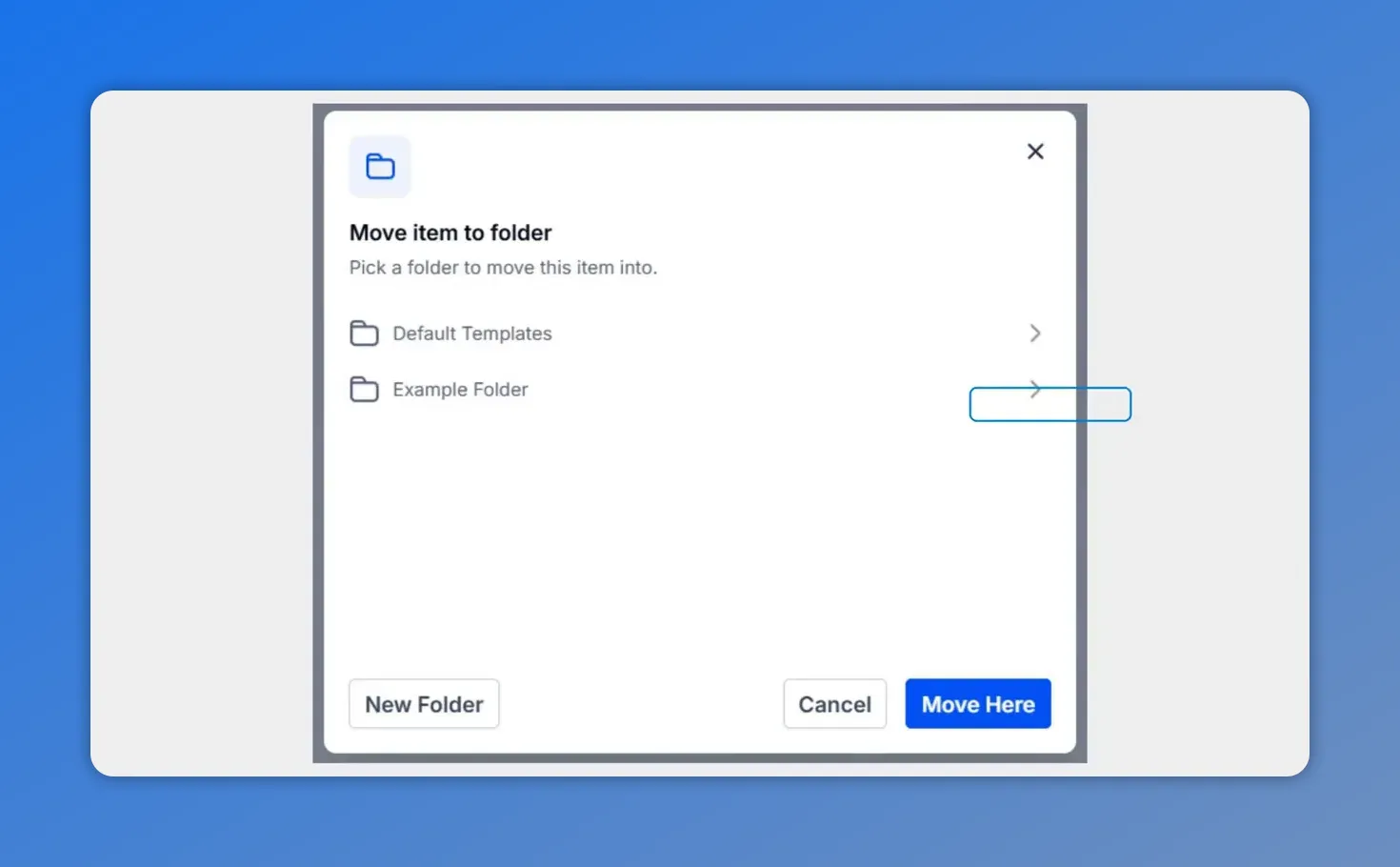
When the “Move item to folder” dialog opens, you can select an existing folder or use “New Folder” to create the nested destination.
A practical way to think about folder hierarchy
Nested folders are most useful when we apply a clear structure on purpose. The goal is not to create layers just because we can. The goal is to make assets easier to find and easier to manage.
A solid approach is to build from broad to specific. For example:
- Main folder for a client
- Sub-folder for campaigns or templates
- Sub-folder for a product, service, or brand
- Sub-folder for a specific campaign type or audience
That kind of hierarchy helps reduce clutter and keeps related assets grouped in a way that makes sense.
Create a nested folder directly from inside an existing folder
There is also another quick way to build the structure.
Once we are already inside an existing folder, we can click New Folder there to create a sub-folder directly. This is helpful when we already know where a new branch of content belongs and want to keep building the hierarchy in place.
It also makes it easier to apply the same folder logic across campaigns and templates as the account grows.
Benefits for teams managing multiple clients and campaigns
For smaller accounts, a basic folder system may be enough. But as volume increases, nested folders become a practical tool for keeping work under control.
They help us:
- Reduce clutter by separating content into logical layers
- Speed up setup by keeping starting points and assets easy to find
- Scale account organization across multiple clients and content types
- Stay consistent between templates and campaigns
- Maintain clarity even with deeper folder hierarchies
When email marketing operations grow, that structure matters. A clear system saves time and reduces confusion, especially when multiple people are working in the same account.
Use the same logic across templates and campaigns
One of the most useful parts of this update is consistency.
Instead of thinking about template organization separately from campaign management, we can use the same hierarchy in both places. That means less guesswork and a more reliable process.
If a team organizes by client, then by offer, then by content type, that same pattern can carry across the full email workflow. Templates stay structured. Campaigns stay structured. And assets are easier to locate when it is time to build, duplicate, or update.
A simple next step
If our Email section is starting to feel crowded, nested folders are a good place to clean things up.
Open Marketing > Email, choose Campaigns or Templates, and create the first sub-folder where it makes the most sense. From there, we can build a structure that fits the way our team works.
FAQ
What are nested folders in Pinnacle?
Nested folders are folders created inside other folders. In Pinnacle, they help organize email campaigns and templates in a deeper hierarchy so assets are easier to manage.
How many levels of nested folders are supported?
Pinnacle supports more than five levels of folder nesting for improved email marketing organization.
Where can we use nested folders?
Nested folders can be used in the Email area under Marketing, specifically in both Campaigns and Templates.
How do we move a campaign or template into a nested folder?
Open Campaigns or Templates, click the three dots next to the asset, select Move to Folder, choose the main folder, click New Folder, name it, and then click Move Here.
Can we create a sub-folder while already inside a folder?
Yes. Once inside an existing folder, we can click New Folder to create a nested folder directly.
Why should teams use nested folders for email management?
They help reduce clutter, keep assets grouped logically, support larger account structures, and make it easier to manage multiple clients, campaigns, and templates with a consistent system.
This article was created from the video Nested folders (5+ levels): organize campaigns and templates








