





4 New Image Layouts for Forms & Surveys: Slide-Level Control

Images can do more than look good. They help keep attention focused and can make forms and survey slides feel cleaner, easier to scan, and more polished. That is why we are adding new image layout controls inside Pinnacle for Forms and Surveys.
With these updates, you can control how images sit next to your form fields and survey content. Even better, you can override layouts on a slide-by-slide basis for surveys, so each step can match what is happening on that screen.
Image layout controls help you place visuals alongside your form fields and survey content without fighting for attention.
Why image layout matters in forms and surveys
When images are placed thoughtfully, they support the content instead of competing with it. The result is usually:
- Better focus on the current question or input area
- Improved readability by keeping spacing consistent
- A more on-brand look without needing workarounds
- Visually interesting builds that feel intentional
The goal is simple: align visuals with the UI elements people need to interact with.
Four new image layouts for Forms and Surveys
You can now use four new image layouts in Forms and Surveys. These layouts give more flexibility in how images display alongside your form fields and survey content.
In practice, this means you can choose a layout that fits your design, then apply it where it makes the most sense in the user flow.
Survey slide-level overrides: main layout, but flexible
By default, all survey slides use the main survey image layout. But now you can override that at the slide level.
This lets you:
- Apply a different image layout on individual slides
- Use a different image on specific slides
- Keep the overall survey consistent while still tailoring key steps
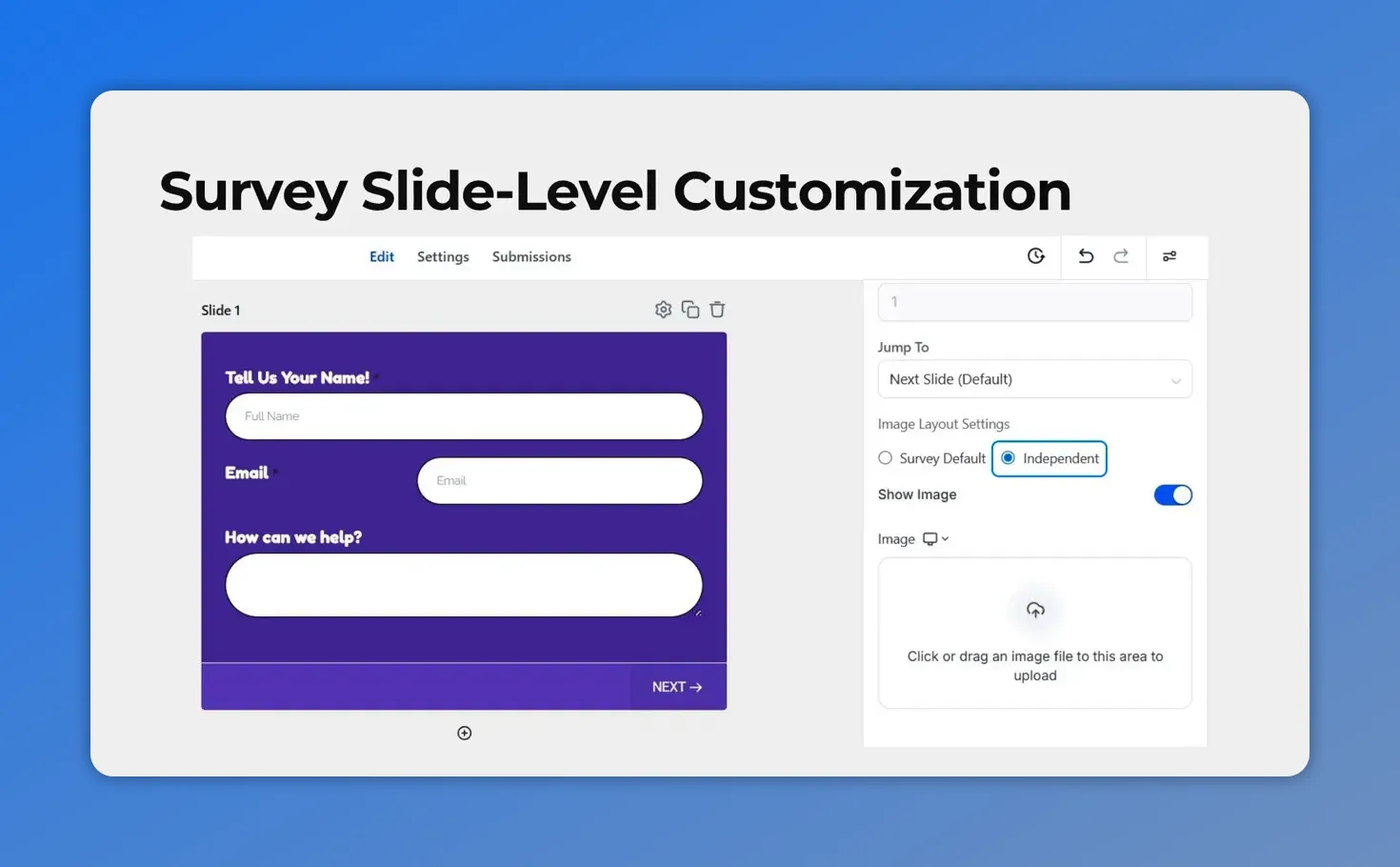
In survey styling, you can override the default image layout on a single slide by switching to Independent.
Centered layouts: control corner radius and spacing
If you choose any of the centered layouts, we added extra controls for the details that often make or break the visual feel.
You can adjust:
- Corner radius of the image
- Spacing between the image and the form fields
These small adjustments help your build look intentional, not “close enough.”
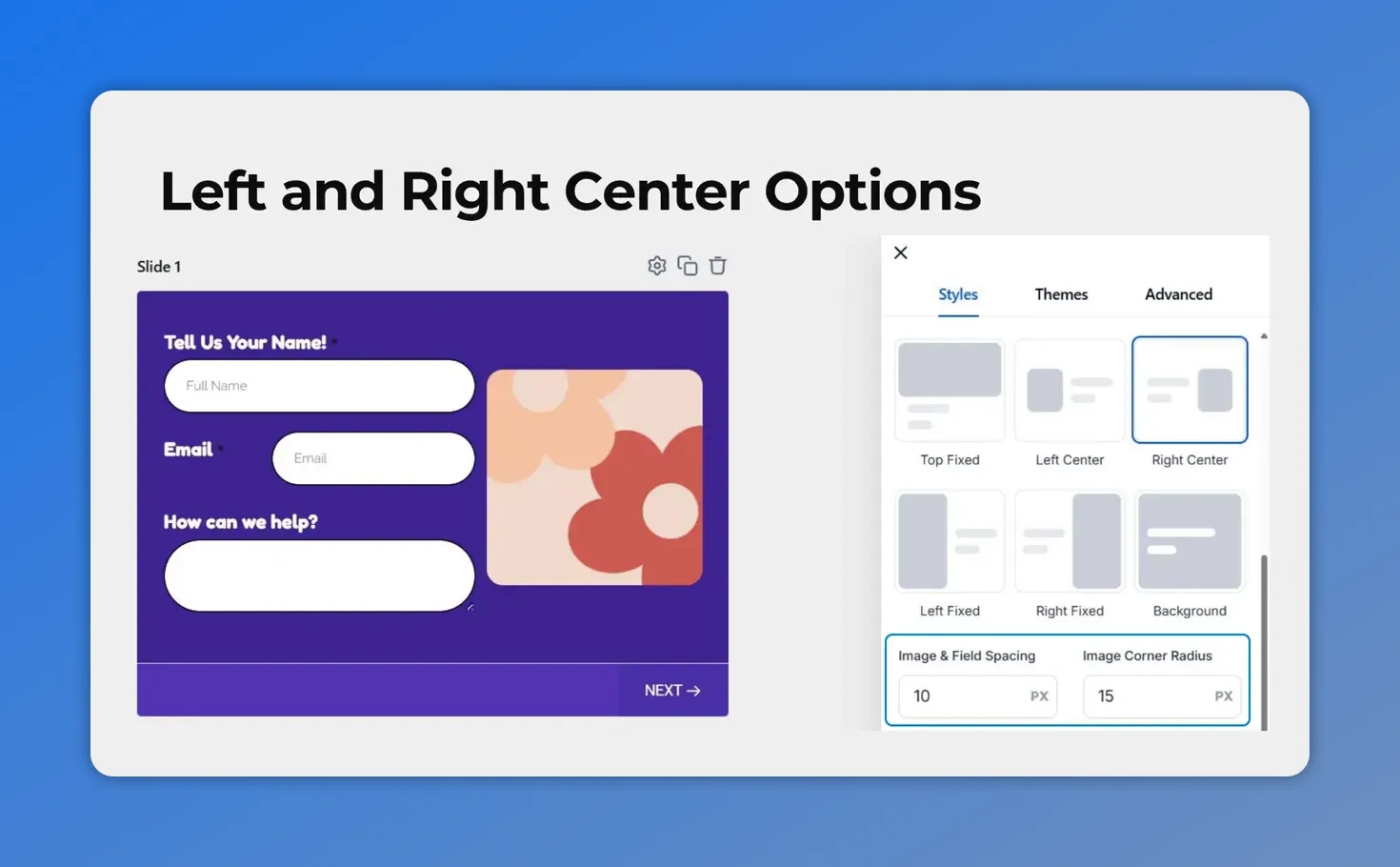
Centered image layout options, including controls for image spacing and image corner radius to fine-tune the look beside your form fields.
Where to find the settings
Image customization lives in the style settings, so the controls stay grouped with the design tools you already use.
Here is the path:
- Go to the Forms or Surveys tab inside the Site section.
- Create a new build or edit an existing one.
- Open the Style Settings by clicking the icon in the top right corner.
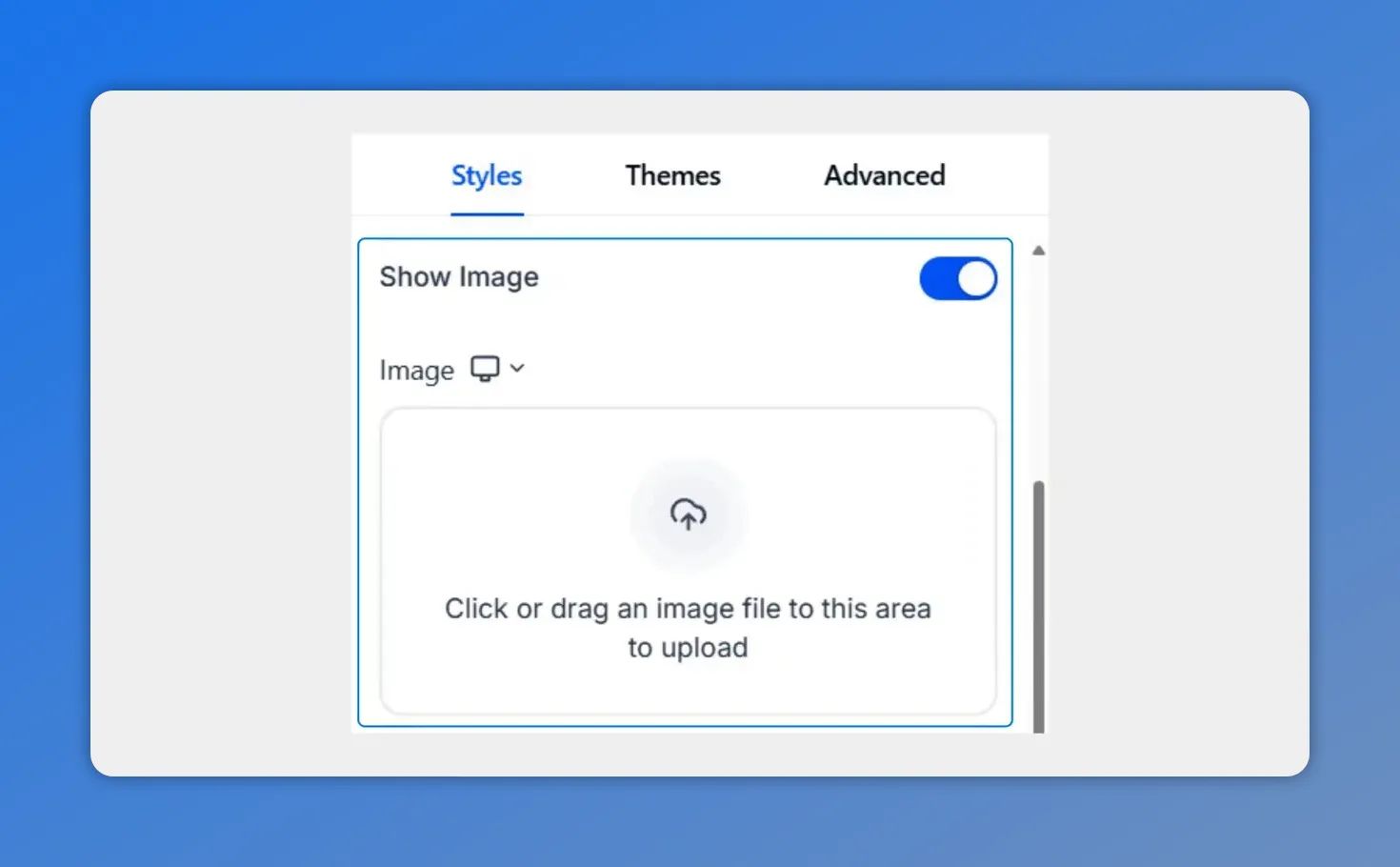
In Style Settings, toggle “Show Image” and then choose your image upload.
How to use the new image layout controls (quick walkthrough)
- In Style Settings, toggle Show Image on.
- Add your image.
- Choose the layout that fits your form or survey.
- If you are using a centered layout, adjust corner radius and spacing to match the look you want.
Once the settings are saved, your build will reflect the updated image layout styling directly alongside your inputs and questions.
Best practices for using images effectively
Controls make it easy to experiment, but a few habits help results look clean and readable:
- Use spacing intentionally: if the image feels too close, increase spacing so fields remain easy to scan.
- Match corners to your brand: set corner radius to align with other rounded elements in your design.
- Override only when it adds meaning: for surveys, switch layouts or images on slides where the content truly changes.
- Keep contrast in mind: readable form fields matter more than visual flair.
FAQ
Can we change image layouts on individual survey slides?
Yes. Surveys default to the main survey image layout, but you can override the layout and even the image at the slide level for individual slides.
Do image controls only apply to forms, or do they also work for surveys?
They work for both. The new image layout options are available in Forms and Surveys.
What extra controls are available for centered image layouts?
For centered layouts, you can adjust the image corner radius and the spacing between the image and the form fields.
Where do we find these image layout settings?
Open or create a build in the Forms or Surveys tab under the Site section, then go to Style Settings (top right icon). From there, toggle Show Image and choose the layout.
Try the new layouts in your next build
If you have forms or surveys that look a bit “generic,” these new image layout controls are a quick way to make them feel more deliberate. Cleaner spacing, better visual balance, and slide-level flexibility can all be handled directly through styling.
Open a build and choose the layout that matches your design. Then, for surveys, consider whether any slides should use a different image layout or image to better fit the moment.
This article was created from the video 4 new image layouts for Forms & Surveys: slide-level control








