





Smarter Drip Scheduling for Workflows: Live Preview and Insights

The Drip Action is built to regulate the flow of contacts through a workflow. That matters because without pacing, too many contacts can move through too many steps at the same time. The result is messy execution, poor timing, and unnecessary guesswork.
With the latest update in Pinnacle, the Drip Action is clearer, easier to configure, and more reliable in day-to-day workflow automation. The goal is simple: help teams control batching with more confidence and better visibility.
Why drip scheduling matters in workflow automation
When contacts all hit the same sequence at once, workflows can become hard to manage. Messages may send in big spikes. Operational steps may pile up. And teams can lose confidence in when actions will actually run.
The Drip Action solves that by controlling how many contacts execute per batch and how often those batches run. Instead of sending everyone through at once, it spaces out execution over time.
That makes automation more predictable, especially for:
High-volume marketing workflows
Operational automations that need controlled throughput
Any process where timing and pacing need to stay consistent
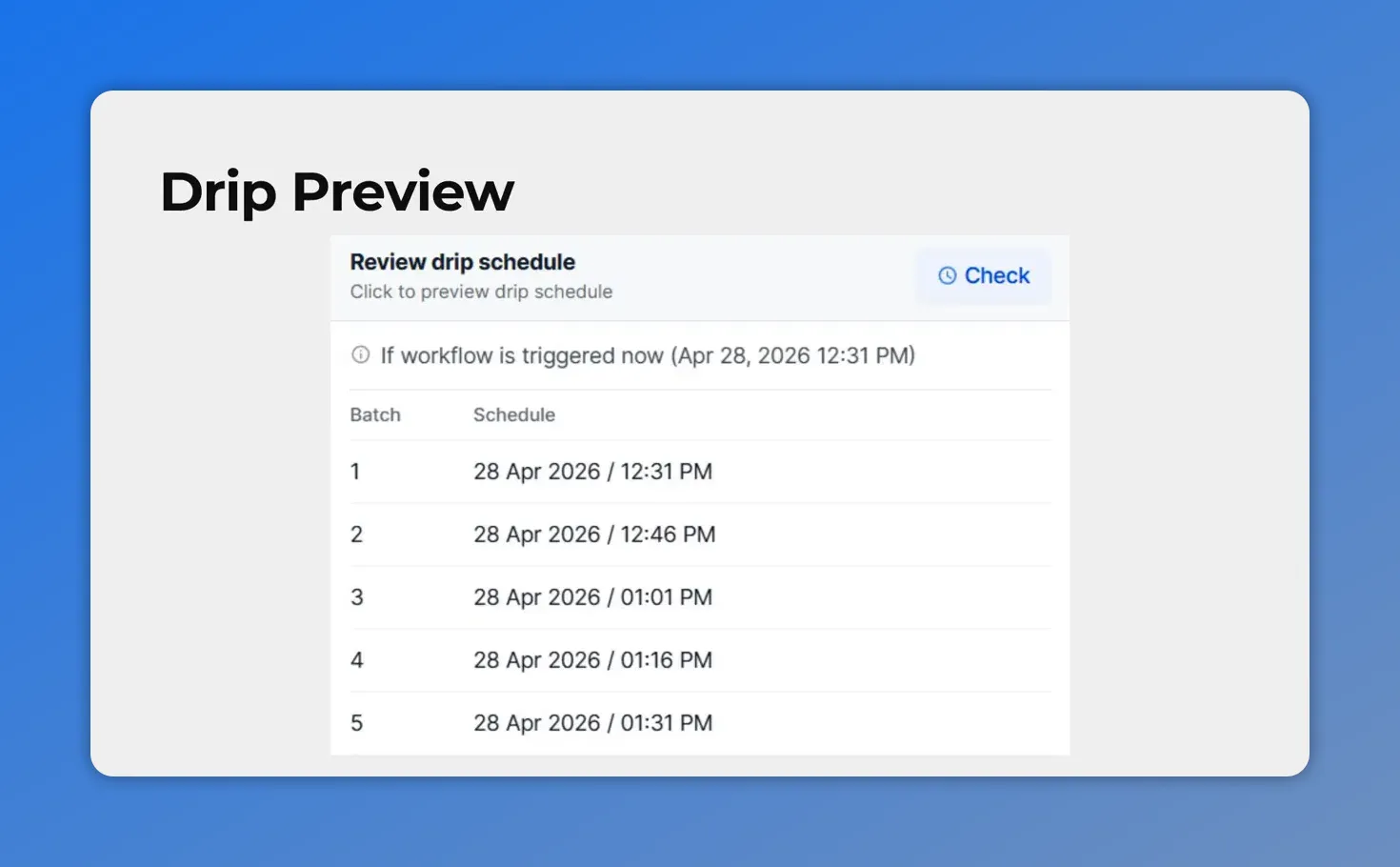
Pinnacle’s live drip schedule preview shows the next batches and their scheduled send times before the Drip Action goes live.
What changed in the Drip Action
This update focuses on transparency and reliability. Instead of making teams guess how the drip is scheduled or dig around for details, the key information is surfaced directly inside the workflow builder.
1. Live schedule preview during configuration
One of the most useful improvements is the new live drip preview.
While configuring the action, Pinnacle now shows a preview of the schedule, including:
Batch number
Scheduled send time
Up to 10 batches previewed
This makes scheduling much easier to understand before the action goes live. Instead of estimating how the timing will play out, teams can check the actual pacing right in the setup flow.
That is especially helpful when working with larger contact volumes, where even a small mistake in batch size or interval can create major timing issues.
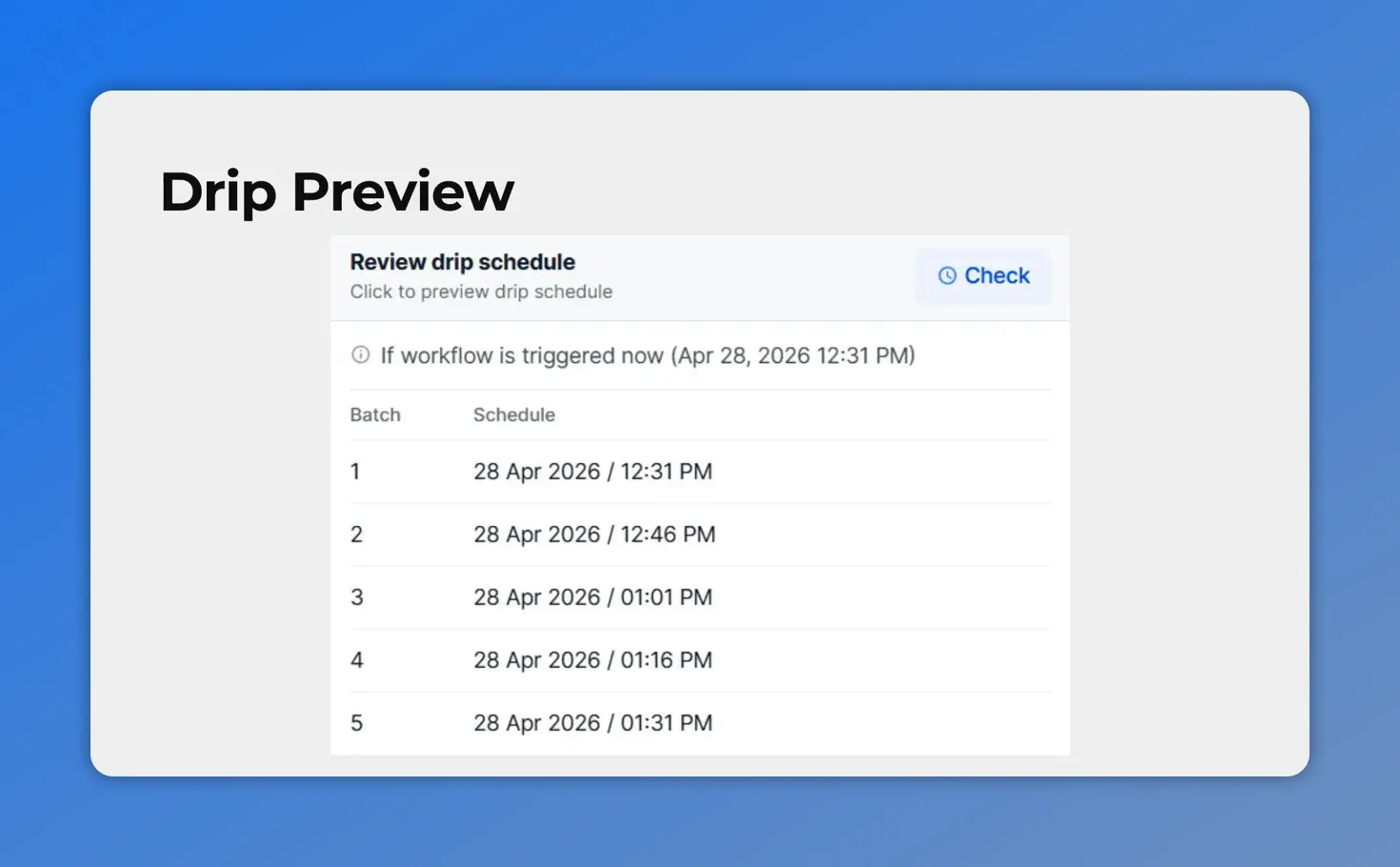
Pinnacle shows a schedule preview so you can verify batch pacing (batch number and scheduled send time) before saving the Drip Action.
2. Full configuration on hover
The Drip Action now includes a tooltip on hover that shows the full configuration without opening the action.
This is a small change, but it removes friction in a big way. When reviewing a workflow, teams can quickly understand how a drip is set up without clicking in and out of each action.
That improves workflow readability and makes audits faster. If a team member needs to confirm the drip settings, the information is already there.
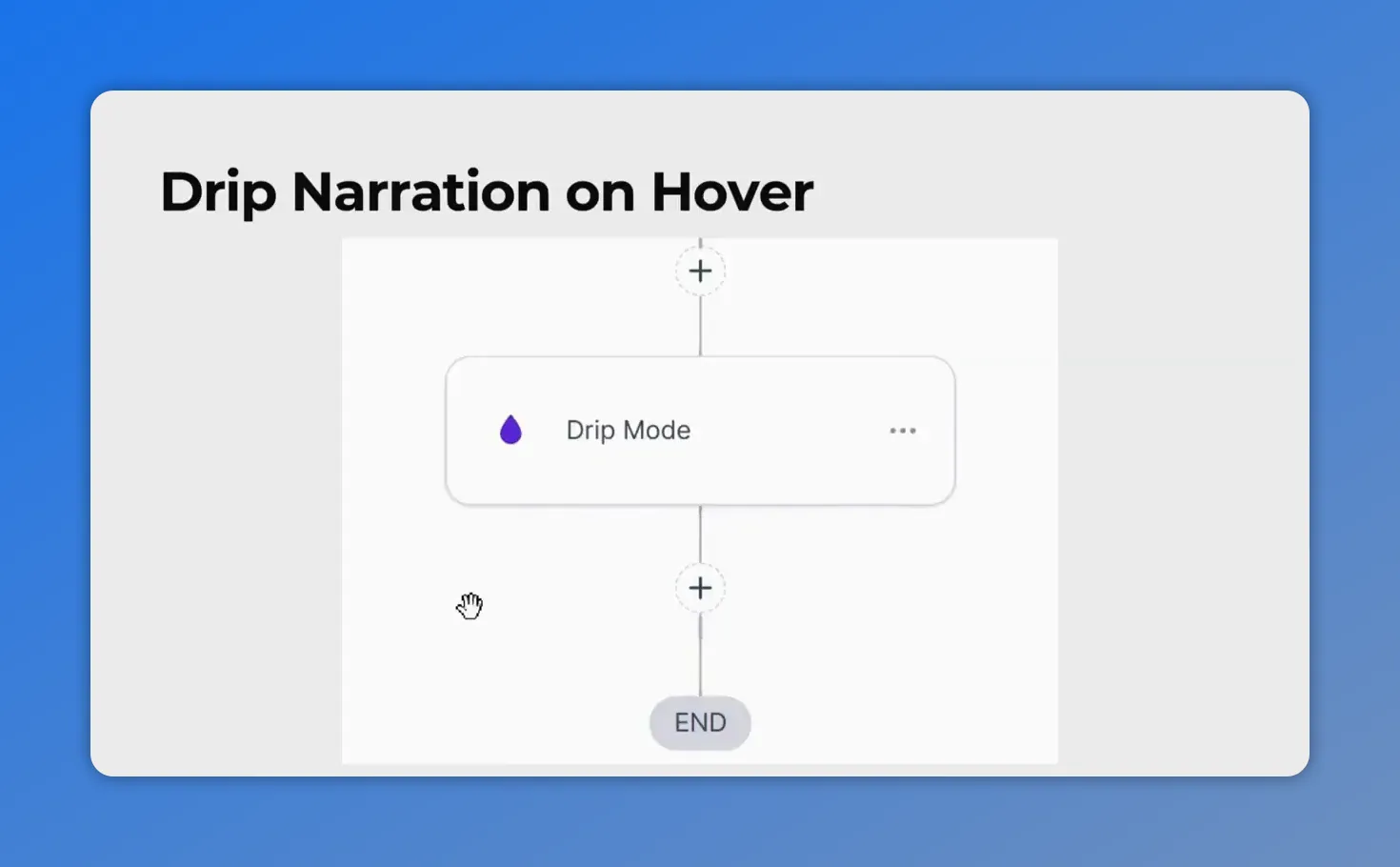
This is the workflow’s “Drip Narration on Hover” concept—hovering reveals drip behavior without requiring you to open the action.
3. A clearer statistics and insights button
The statistics icon has also been redesigned into a proper, more discoverable button.
Clicking it opens a detailed view of what is happening inside the drip. This gives teams better insight into the action itself rather than treating it like a black box.
In practice, that means it is easier to inspect performance, understand behavior inside the drip, and stay informed about how contacts are moving through the schedule.

The new Action Statistics view gives clear visibility into what the drip is doing—down to contacts in the schedule.
How to add and configure the Drip Action in Pinnacle
Here’s how the setup works.
Select the Drip Action
Start by choosing the Drip Action from the available workflow actions in Pinnacle.
Once it is added, the main configuration comes down to two settings: batch size and time interval.
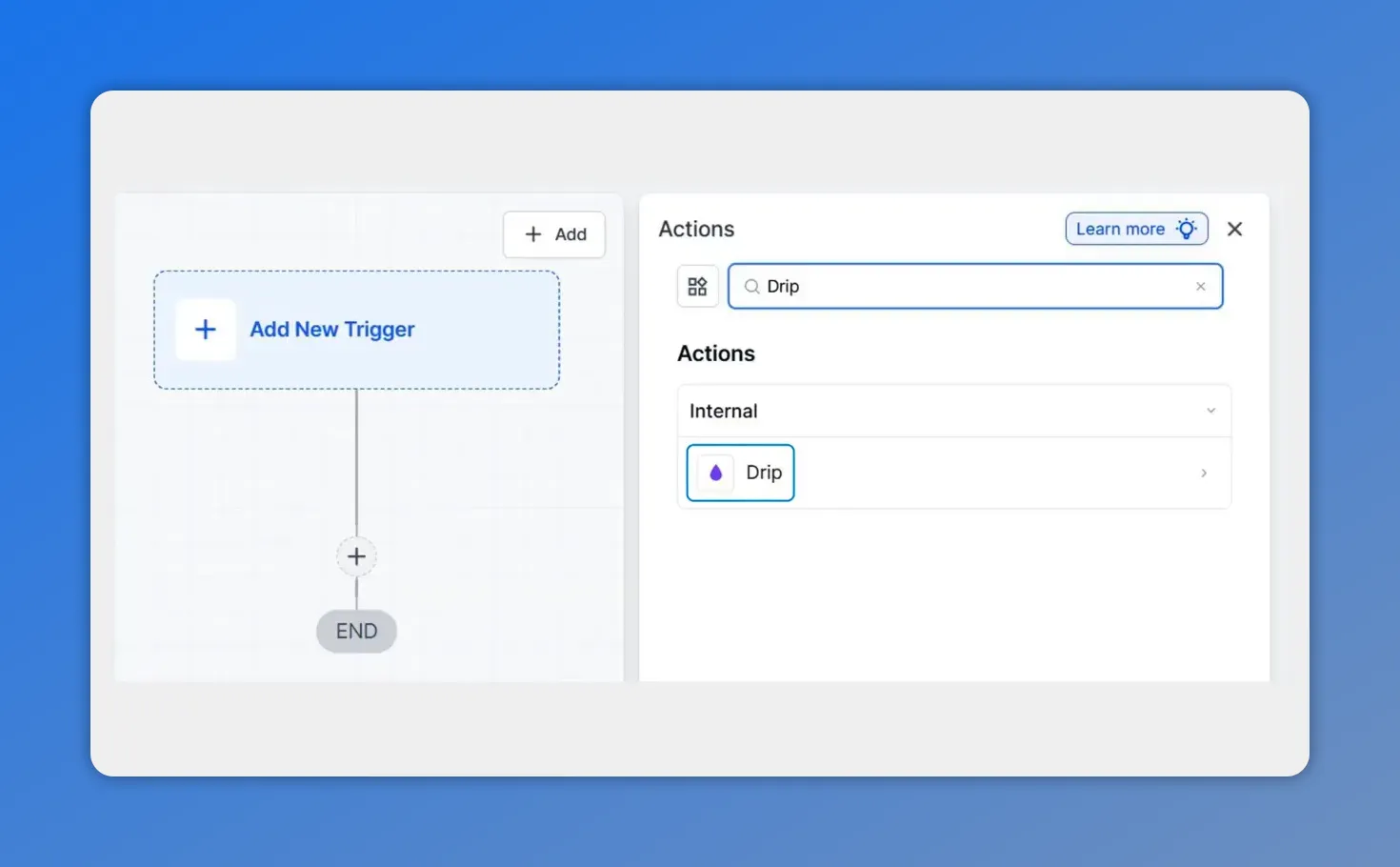
In Pinnacle, you first add the Drip Action from the workflow builder actions list.
Set executions per batch
First, define how many executions are allowed per batch.
The supported range is:
Minimum: 1 contact per batch
Maximum: 10,000 contacts per batch
This setting controls how many contacts are allowed to move forward each time the drip runs.
Smaller batch sizes create tighter control and a slower pace. Larger batch sizes increase throughput and move contacts through the workflow faster.
Choose the time interval
Next, set the time interval between batches.
Pinnacle supports intervals in:
Minutes
Hours
Days
The available range is:
Minimum: 1 minute
Maximum: 7 days
This flexibility makes the action useful for both rapid automation and slower scheduled release patterns.
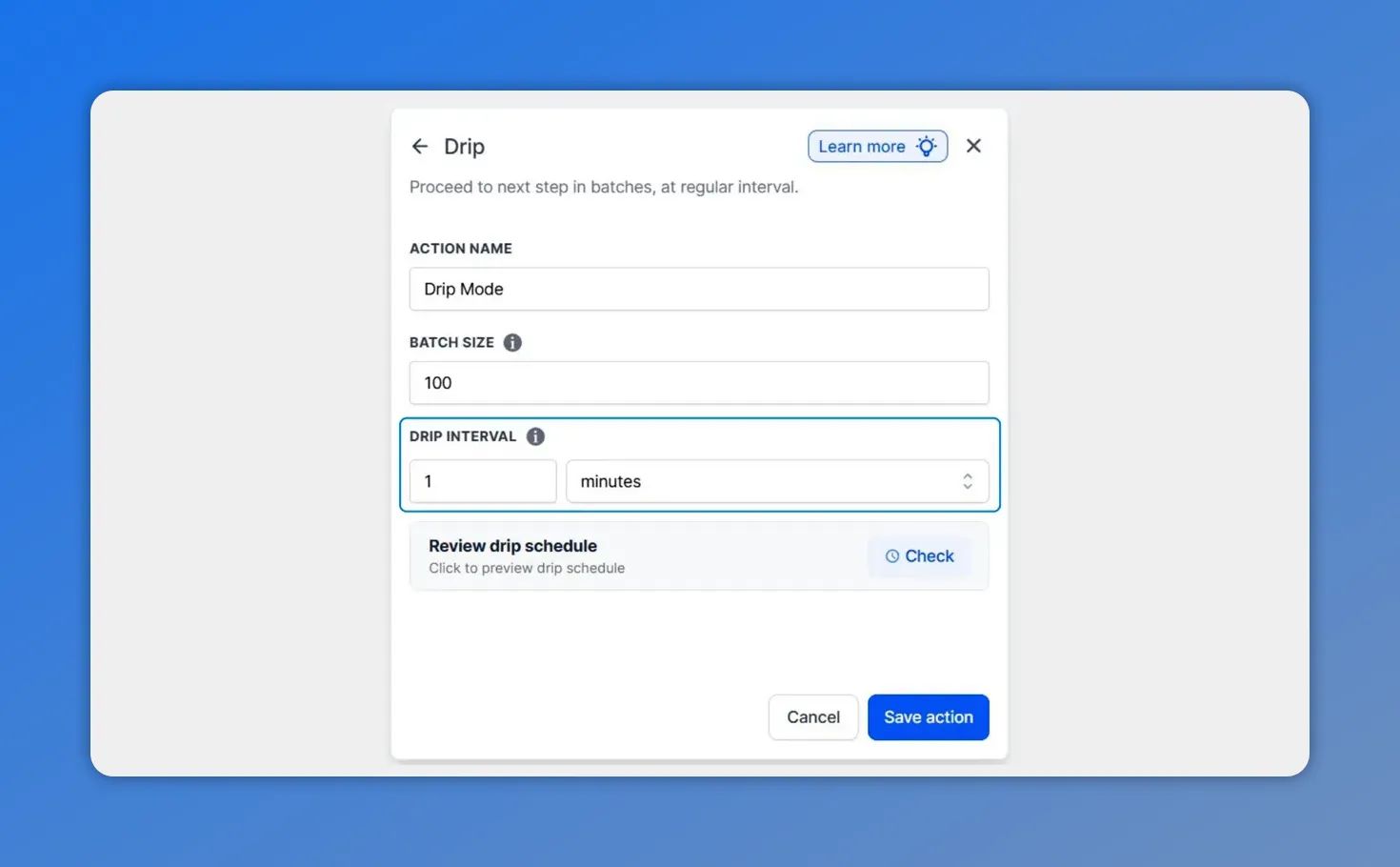
The Drip Action configuration focuses on batch pacing—set the interval, then use the schedule preview to validate timing.
Check the schedule preview
After setting the batch size and interval, click Check to generate the preview.
Pinnacle will show up to 10 upcoming batches along with their scheduled times. This step gives teams a chance to confirm the pacing before saving the action.
Once the schedule looks right, save the action and add it to the workflow.
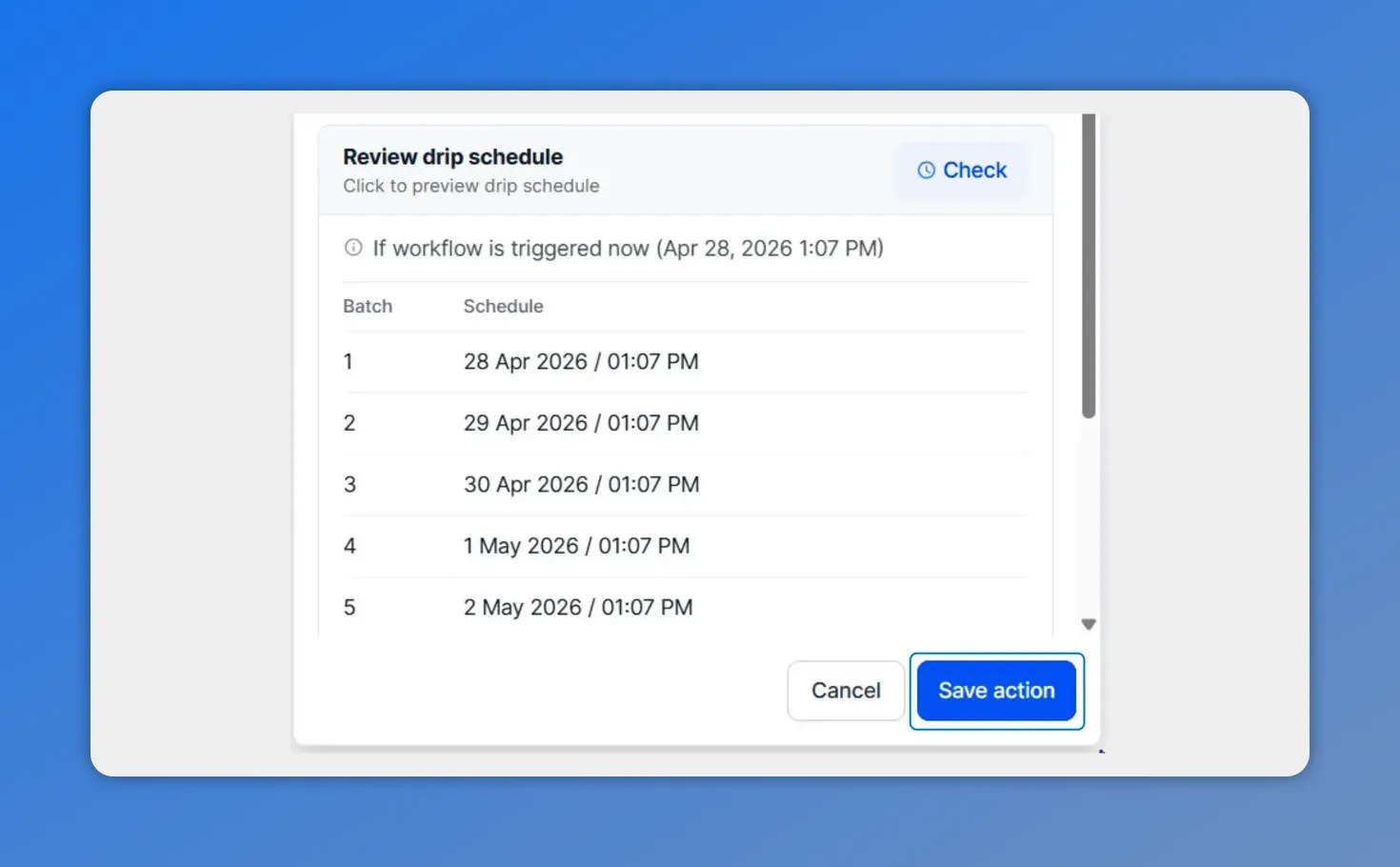
After clicking Check, Pinnacle generates a reviewable drip schedule—showing upcoming batch numbers and their scheduled send times.
What these improvements solve
The update is not just about making the interface look better. It solves real workflow problems.
Less confusion during setup
By surfacing constraints directly in the product, Pinnacle reduces the back-and-forth that often happens when teams are unsure what values are allowed or how a schedule will behave.
Instead of relying on assumptions, teams can configure with visible limits and instant schedule feedback.
More predictable pacing
The update also helps preserve drip pacing across published state changes. That means the intended rhythm of the workflow is better maintained, even as teams make changes and manage live automations.
Predictability is a core part of reliable automation. If the pacing shifts unexpectedly, downstream steps can become difficult to manage.
Less guesswork around scheduling
The live preview is the clearest example of this. Teams no longer need to estimate when each batch will run. The schedule is visible during configuration, which makes it easier to catch issues early and build with confidence.
Best use cases for the updated Drip Action
The updated Drip Action is especially useful when a workflow needs controlled release instead of immediate execution.
Common use cases include:
Staggering contacts into a follow-up sequence
Controlling load in high-volume workflow automation
Preventing multiple steps from firing at once
Managing operational capacity with timed batches
Keeping automation behavior consistent and easier to review
In each case, the value is the same: better control over contact flow.
Why this update matters for operations and marketing teams
Operations and marketing teams often need automation that is not just powerful, but predictable. A workflow can be technically correct and still create problems if it runs too fast, too broadly, or without clear visibility.
That is why these improvements matter. Pinnacle now gives teams:
Clearer scheduling during setup
Faster access to configuration details
Better visibility into action-level insights
More confidence when managing high-volume workflows
And that leads to more controlled automations, fewer surprises, and better workflow hygiene overall.
FAQ
What does the Drip Action do in Pinnacle workflows?
The Drip Action regulates the flow of contacts through a workflow by limiting how many contacts execute at a time and spacing those executions out on a schedule. This helps prevent too many workflow steps from running at once.
How many contacts can be included in each drip batch?
You can set the batch size from 1 to 10,000 contacts per batch.
What time intervals are supported for drip scheduling?
The Drip Action supports intervals in minutes, hours, or days, with a range from 1 minute up to 7 days.
What does the live drip preview show?
The live preview shows the batch number and scheduled send time while you configure the action. Pinnacle can preview up to 10 batches.
Can we see the drip configuration without opening the action?
Yes. Hovering over the Drip Action now displays a tooltip with the full configuration, so you can review settings without opening the action.
What changed about drip statistics and insights?
The statistics icon has been redesigned as a dedicated button. Clicking it opens a detailed view of everything happening inside the drip.
Why is this update useful for high-volume workflows?
It reduces guesswork, surfaces scheduling constraints directly in the product, and helps preserve consistent drip pacing. That makes high-volume workflow automation easier to manage and more predictable.
This article was created from the video Smarter Drip Scheduling for Workflows: Live Preview and Insights








