





Automate Appointment Reminders for Contacts and Guests

Appointment workflows used to be limited to the primary contact. That created a real problem for multi-participant appointments. Reminders, confirmations, and follow-ups could be automated for one person, but not for everyone involved.
That gap is now closed in Pinnacle.
Appointment workflows can now support contacts and guests, which makes it much easier to automate communication for group bookings and shared appointments. If your team needs to send reminders, onboarding details, status updates, or cancellation notices to more than one attendee, this update gives you the control to message the right people automatically.
What changed in appointment workflows
The key improvement is simple: when setting up certain appointment workflow triggers, you can now choose who gets enrolled.
Instead of being limited to the primary contact, you can decide whether the workflow should run for:
- Contact only
- Contact and guests
- Guests only
This matters for any business that handles appointments with multiple participants. That could include group sessions, shared consultations, team meetings, or any booking where more than one person needs timely communication.
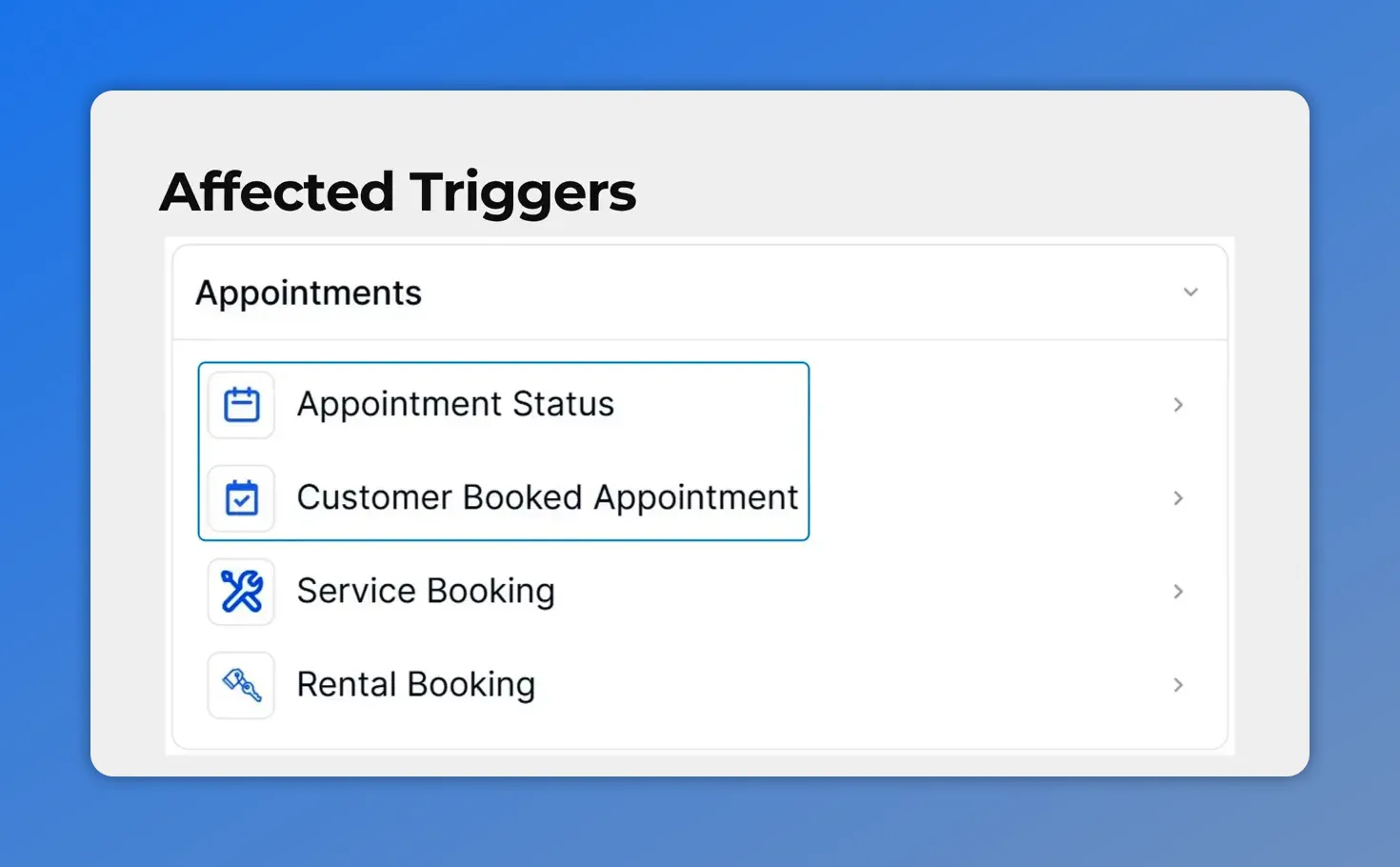
The “Affected Triggers” list shows which appointment triggers support the new contacts and guests enrollment behavior.
Which triggers support contacts and guests
This update applies to two appointment workflow triggers only:
- Customer Booked Appointment
- Appointment Status
If you are using one of those triggers, you can now define whether the workflow should include the main contact, the guests, or both.
That distinction is important because it affects who receives automated messages and when the workflow runs.
How enrollment works for each option
Contact only
Choose this option when communication should go just to the primary contact attached to the appointment.
This is the best fit when one person is responsible for the booking and there is no need to send separate messages to guests.
Contact and guests
Choose this when everyone associated with the appointment should be included.
When you select Contact and Guests, the workflow runs:
- Once for the primary contact
- Once for each guest
That means each person is enrolled separately. This is especially useful when everyone needs the same reminder, confirmation, update, or follow-up.
It also helps reduce no-shows, because you are not relying on the main contact to pass along details to everyone else.
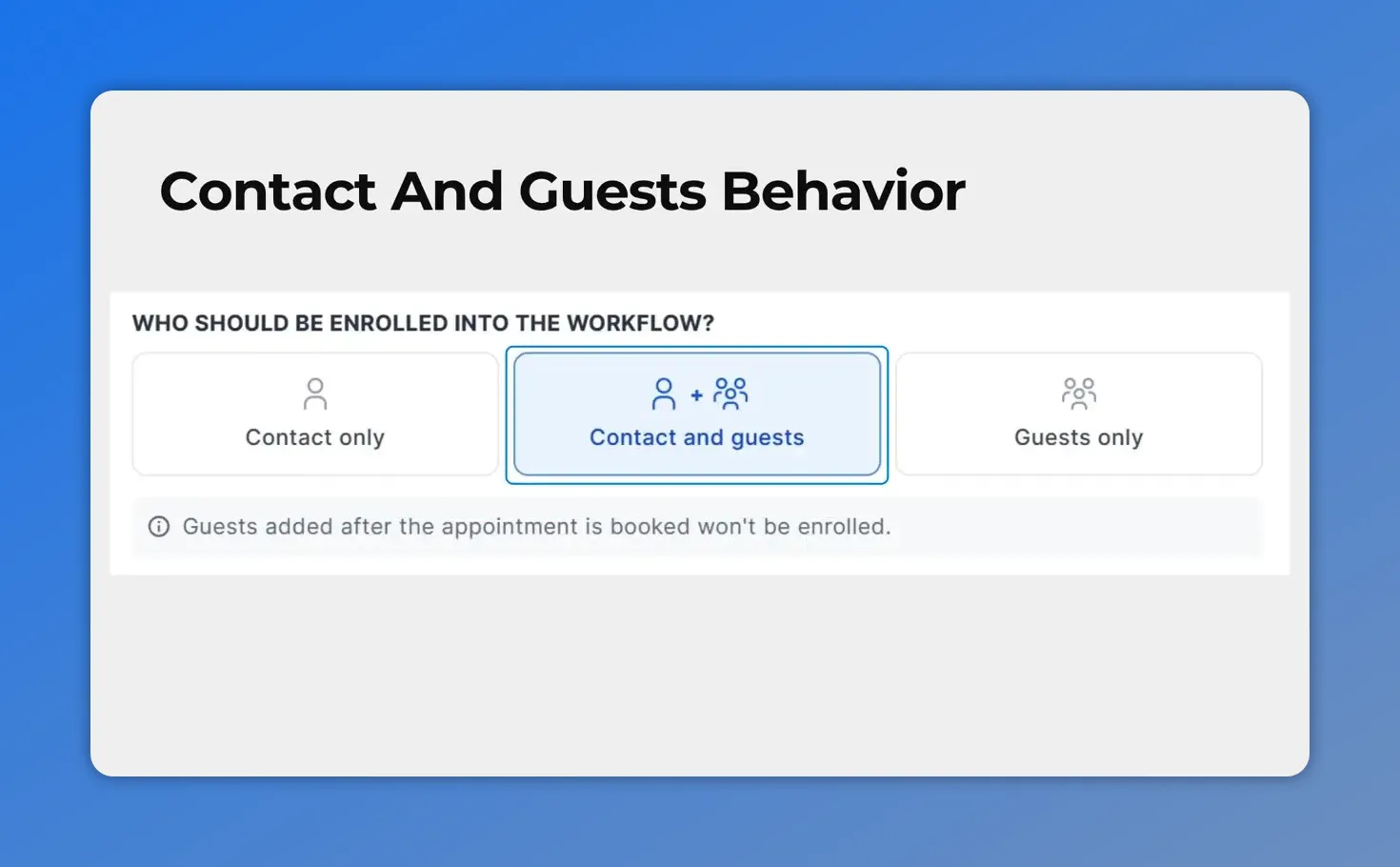
When you select Contact and guests, Pinnacle enrolls the primary contact and also runs the workflow for each guest tied to the appointment.
Guests only
Choose this option when the main contact should be excluded and only the guests should receive the workflow.
When you select Guests only, the primary contact is skipped entirely.
This can be useful when the person making the booking does not need the same messages as the attendees, or when guest communication needs to be handled separately from contact communication.
One important behavior to know about late-added guests
There is one detail that teams should keep in mind when using the Customer Booked Appointment trigger.
If a guest is added after the appointment has already been booked, that guest is not enrolled by the earlier trigger event.
In other words, the workflow enrollment is based on who was associated with the appointment at the time that trigger fired. Guests added later do not get pulled into that already-triggered workflow automatically.
This is a practical detail, but it matters. If your booking process often involves guests being added after the initial appointment is created, you will want to test carefully and make sure your workflow logic matches that behavior.
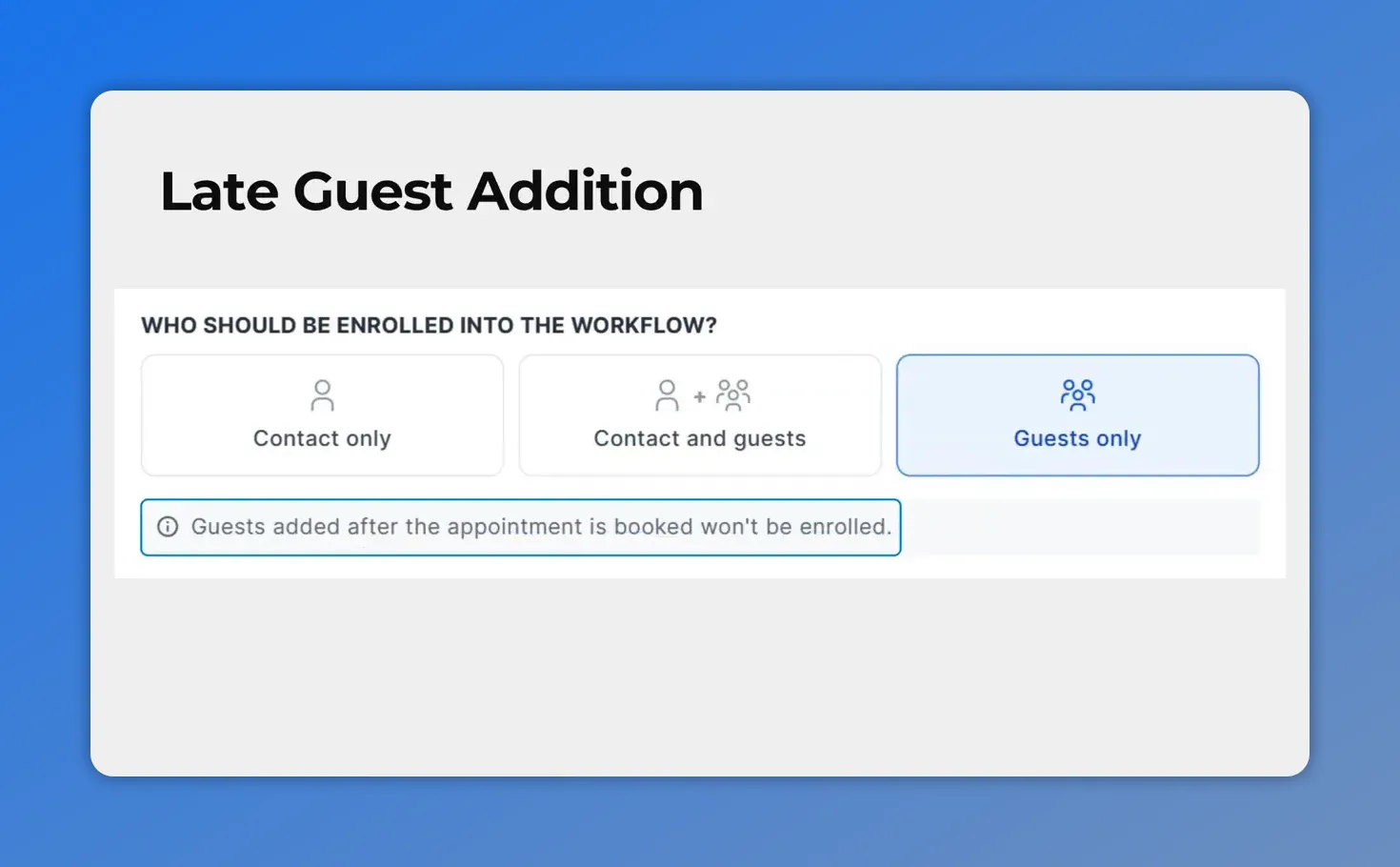
This screen highlights the **late guest addition** behavior—guests added after the appointment is booked won’t be enrolled into the workflow.
How to set it up in Pinnacle
The setup is straightforward.
-
Add a Customer Booked Appointment trigger or an Appointment Status trigger to your workflow.
-
Find the setting for Who should be enrolled into the workflow.
-
Choose one of these options:
- Contact only
- Contact and Guests
- Guests only
-
Save the trigger.
-
Add any extra workflow actions you want, such as reminders, confirmations, follow-ups, or status-based messages.
-
Publish the workflow.
That is the full setup. Once published, your workflow can automatically target the people tied to the appointment based on the option you selected.
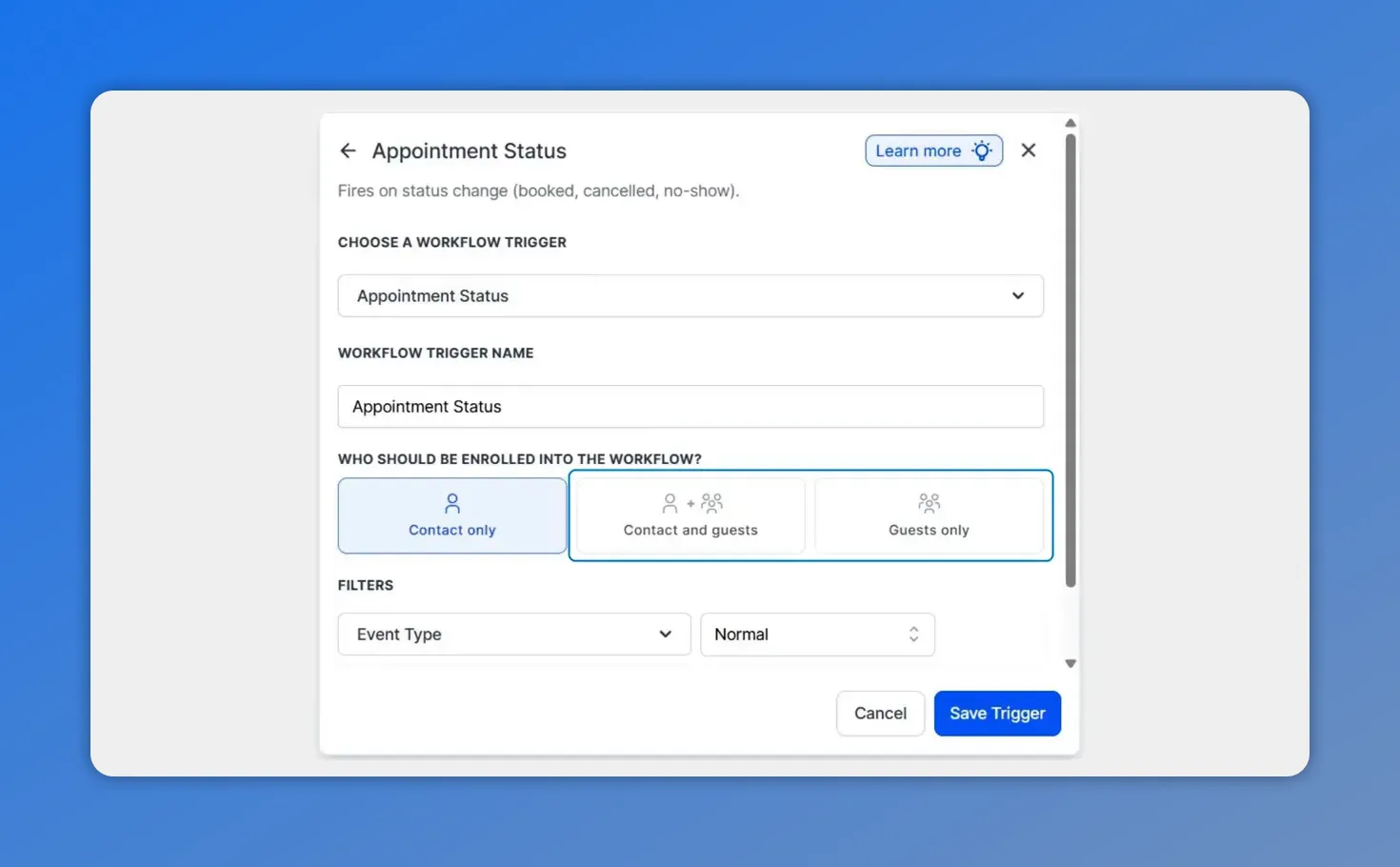
Choose who should be enrolled into the workflow—Contact only, Contact and guests, or Guests only—then save the trigger.
When to use each enrollment option
The right choice depends on who actually needs the message.
Use Contact only when:
The primary contact is the only person who needs communication
The booking is managed through a single point of contact
Guests do not need separate reminders or updates
Use Contact and Guests when:
Everyone attending needs reminders or confirmations
You want all participants informed about updates or cancellations
You are handling multi-participant appointments and want fewer manual follow-ups
Use Guests only when:
The attendees need communication but the booker does not
You want separate workflows for the contact and the guests
The primary contact should be excluded from that specific automation
Why this update matters
This is a small change in setup, but a meaningful improvement in workflow automation.
It helps teams:
- Send reminders to the right attendees automatically
- Improve confirmations and follow-up communication
- Support multi-participant appointments without manual work
- Keep all necessary contacts informed about changes, updates, and cancellations
- Streamline customer onboarding tied to appointments
And that last point is especially useful. Appointments often start a process, not just a calendar event. If onboarding steps, instructions, or next actions need to go to more than one person, this update makes that much easier to automate cleanly.
A smart next step for existing workflows
If you already use appointment workflows in Pinnacle, it is worth reviewing them now.
Check whether any current automation should be updated to include guests, or whether some workflows should target guests only. Then test with a sample appointment to confirm that the correct contacts are enrolled.
That quick review can prevent missed reminders, reduce confusion, and help make sure every participant gets the right message at the right time.
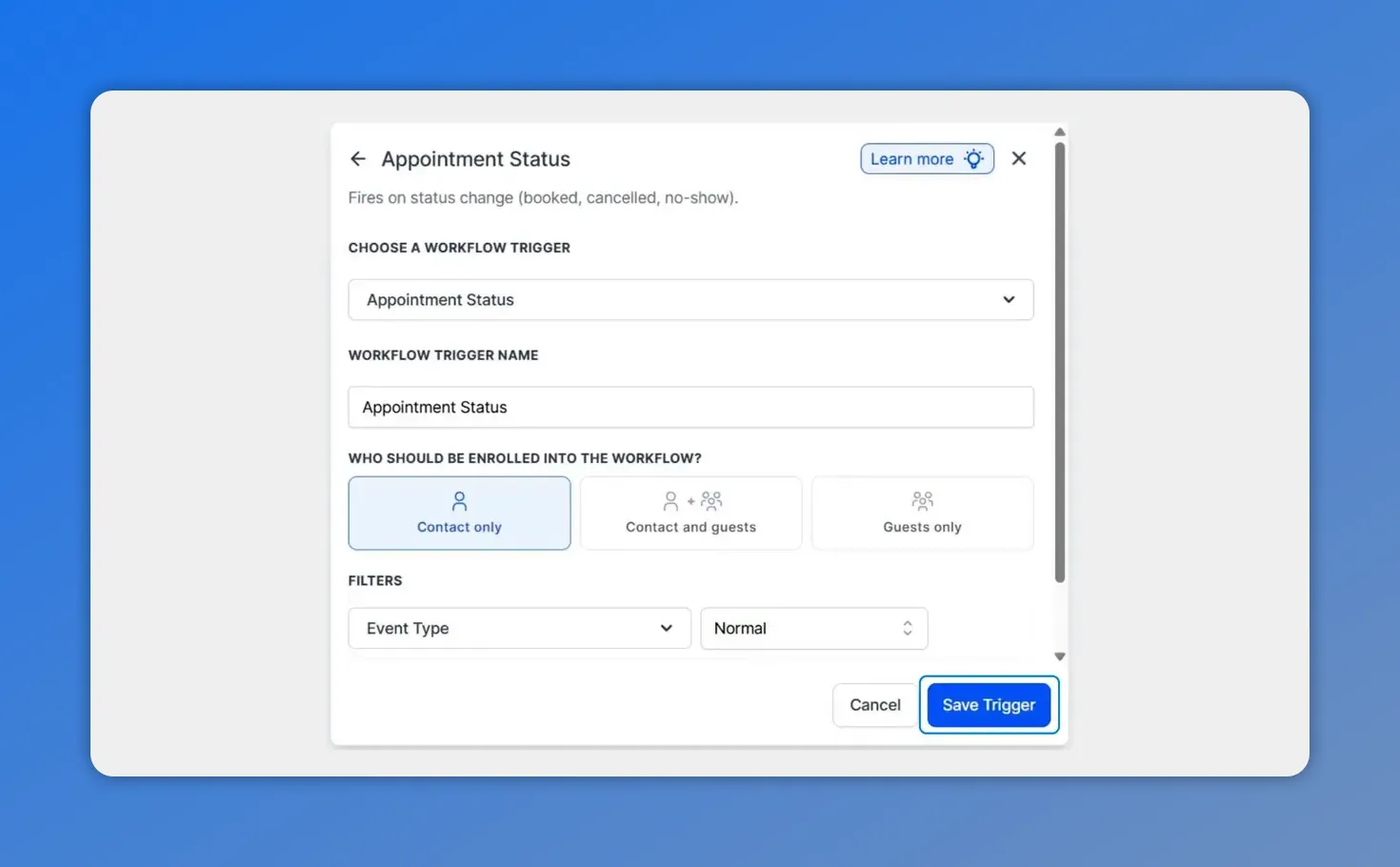
When you configure the “Appointment Status” trigger, you choose the enrollment audience (Contact only, Contact and guests, or Guests only) and then save the trigger to apply it to the workflow.
FAQ
Which appointment workflow triggers support contacts and guests?
The update applies to Customer Booked Appointment and Appointment Status triggers.
What happens if we choose Contact and Guests?
The workflow runs once for the primary contact and once for each guest associated with the appointment.
What happens if we choose Guests only?
The primary contact is skipped, and the workflow runs only for the guests.
Will guests added after the appointment is booked be enrolled automatically?
No. Guests added after the original booking event are not enrolled by that earlier trigger.
What is the basic setup process?
Add a Customer Booked Appointment or Appointment Status trigger, choose who should be enrolled into the workflow, save the trigger, add your workflow actions, and publish.
Why is this useful for group bookings?
It allows teams to automate reminders, confirmations, follow-ups, and status updates for all the people involved in an appointment, not just the main contact.
This article was created from the video Automate appointment reminders for contacts and guests








