





Persistent date ranges and filters for dashboards and reports
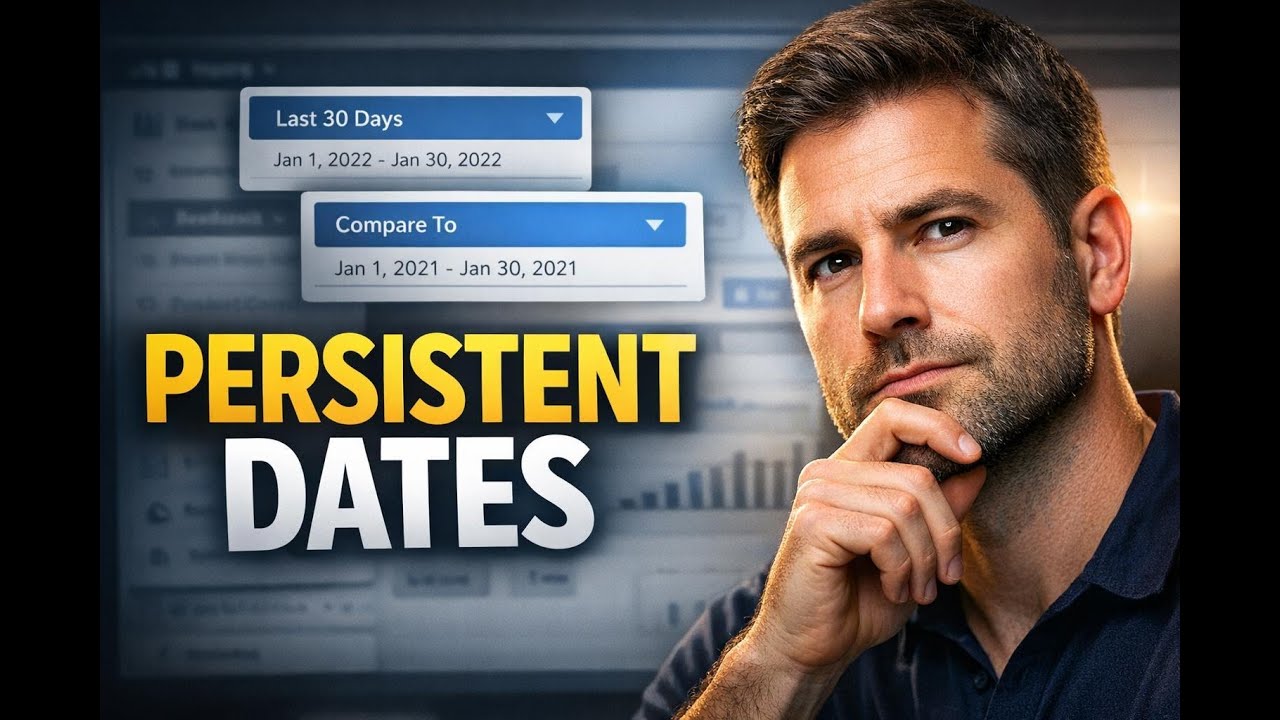
Consistent date ranges and filter selections are crucial for reliable analysis. We updated dashboards and custom reports so your chosen date ranges and dropdown filters persist per user. That means fewer clicks, repeatable reports, and more reliable historical snapshots.
What changed
Dashboard date ranges and widget dropdown values now persist based on each user's preference. Selections remain saved until manually changed. You can also manually set a comparison date range either on the dashboard or inside the custom report builder.
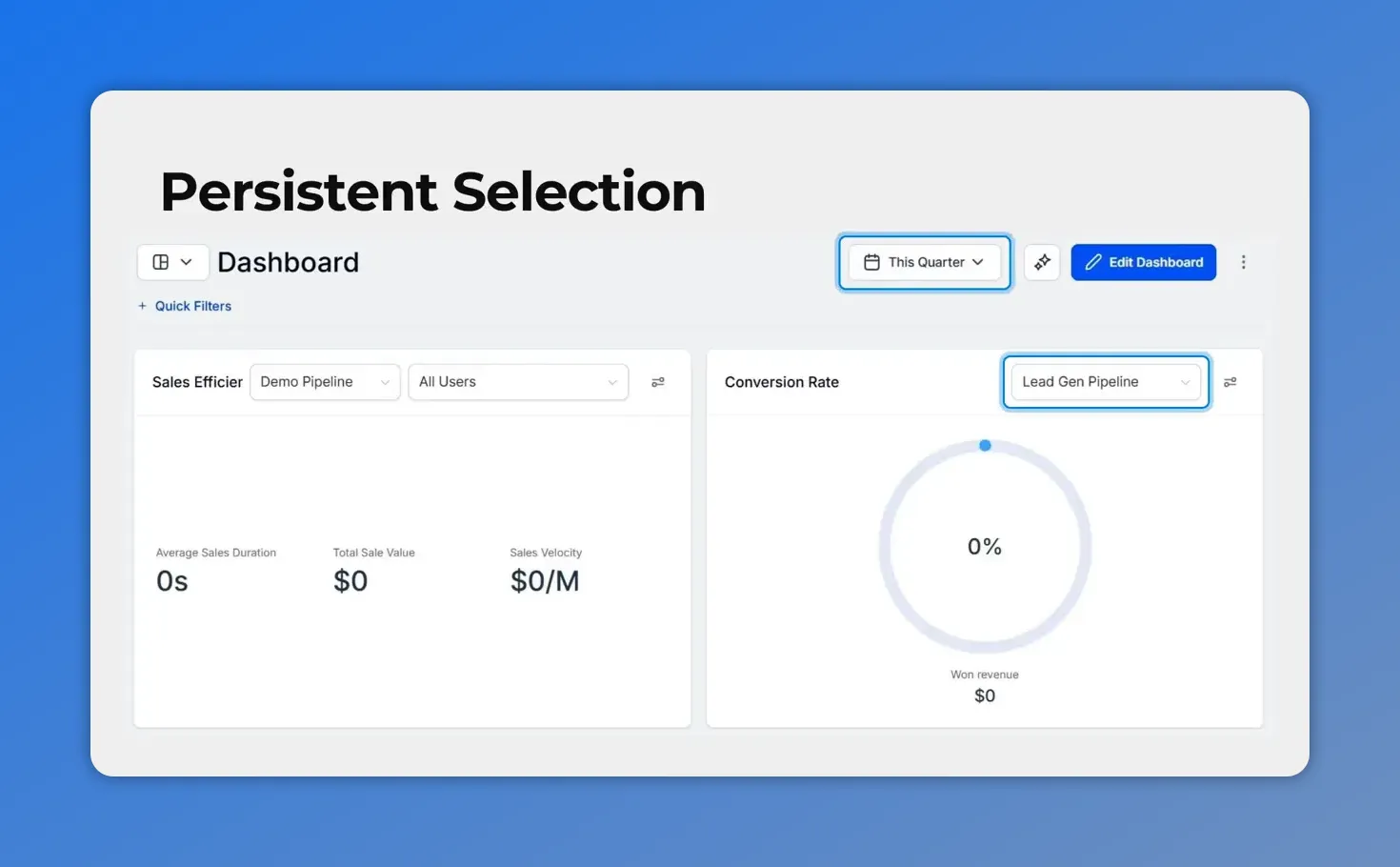
Saved dashboard date and pipeline selections highlighted.
How persistence works
Persistence is applied per user. When a user adjusts the dashboard date range or a widget dropdown, the system saves those values for that user only. This prevents accidental changes to other users' views and keeps each person's analysis stable.
Widget-level vs dashboard-level control
Widgets can be configured with their own date-comparison settings. If a widget has an explicit date-comparison configured, that setting takes preference over the dashboard-level selection. In other words, widget-level comparison overrides dashboard-level comparison when it is explicitly set during configuration.
Creating a custom report that keeps your selections
The custom report workflow itself is unchanged, but imported reports now retain the dashboard's date range and pipeline filters. That makes reports repeatable and predictable.
Step-by-step
- Open the Reporting section and select the Custom Reports tab.
- Click New Report.
- Select the dashboard you want to base the report on.
- Click Import to generate the report.
- The date range and pipelines selected on the source dashboard will be maintained in the imported report.
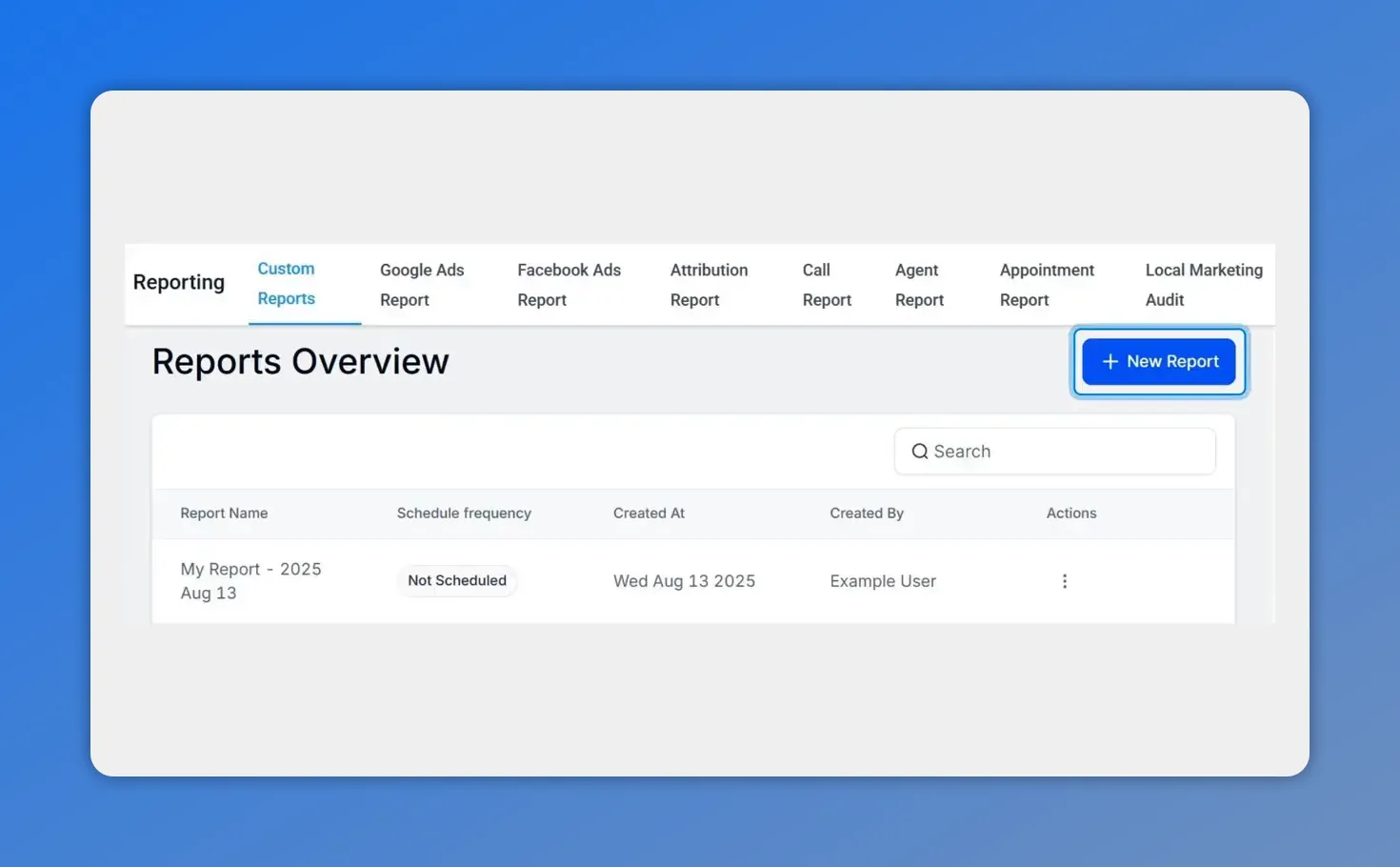
Open Reporting → Custom Reports and click the New Report button to start a report.
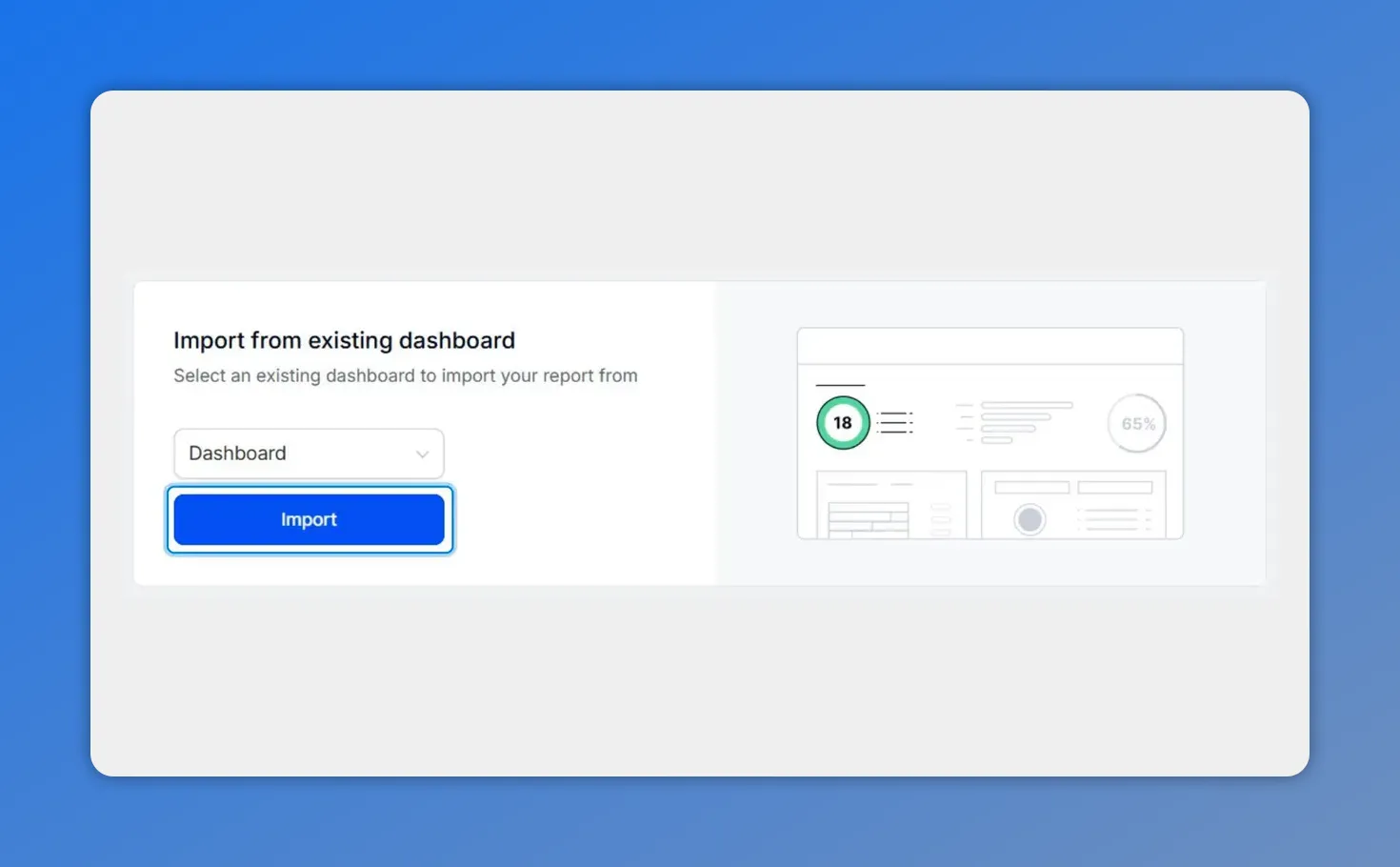
Import from an existing dashboard — click Import to generate the report that preserves your dashboard selections.
Why this matters
- Less setup time — No need to reset filters every time a dashboard opens.
- Consistent reporting — Scheduled reports and team shares preserve the original selections.
- Stable historical records — Previously sent emails and exports remain unchanged even if filters are updated later.
Best practices and quick checklist
- Set your preferred dashboard date range and pipeline filters before building reports.
- Configure widget-level comparisons only when you need them to differ from the dashboard.
- Use clear naming for dashboards and reports so teammates know which persistent view they contain.
- Confirm scheduled report recipients understand that the report reflects the saved selections at the time of sending.
FAQ
Do date ranges and filters persist per user or for everyone?
They persist per user. Each user’s dashboard date range and dropdown selections are saved for that user only.
Can a widget override the dashboard's date comparison?
Yes. If a widget has an explicit date-comparison configured, it will take precedence over the dashboard-level comparison.
Will previously sent report emails change if filters are updated later?
No. Previously sent emails remain unchanged. Scheduled or already-sent reports keep the selections that were applied when they were generated.
How do I create a custom report that preserves my dashboard choices?
From Reporting, open Custom Reports, select New Report, choose the dashboard to base the report on, and click Import. The dashboard's date range and pipelines will be kept in the new report.
What should we do if multiple teammates need the same persistent view?
Have each teammate set their own dashboard selections, or create a shared dashboard with recommended defaults and instruct teammates to import that dashboard as their starting point.
This article was created from the video Persistent date ranges and filters for dashboards and reports








