





Monday.com + CRM Integration: Sync Items and Statuses (No Zapier)

We added a native Monday.com integration so teams can sync items, statuses, and updates between Monday and our CRM without relying on external tools. This direct connection keeps project boards and customer workflows aligned. It also reduces maintenance and makes automation more reliable.
Why connect Monday.com to our CRM?
Connecting Monday.com gives visibility across teams. Project updates on Monday.com can automatically trigger notifications, notes, or workflow actions in the CRM. That helps teams respond to status changes faster and keeps customer-facing teams informed.
Key benefits:
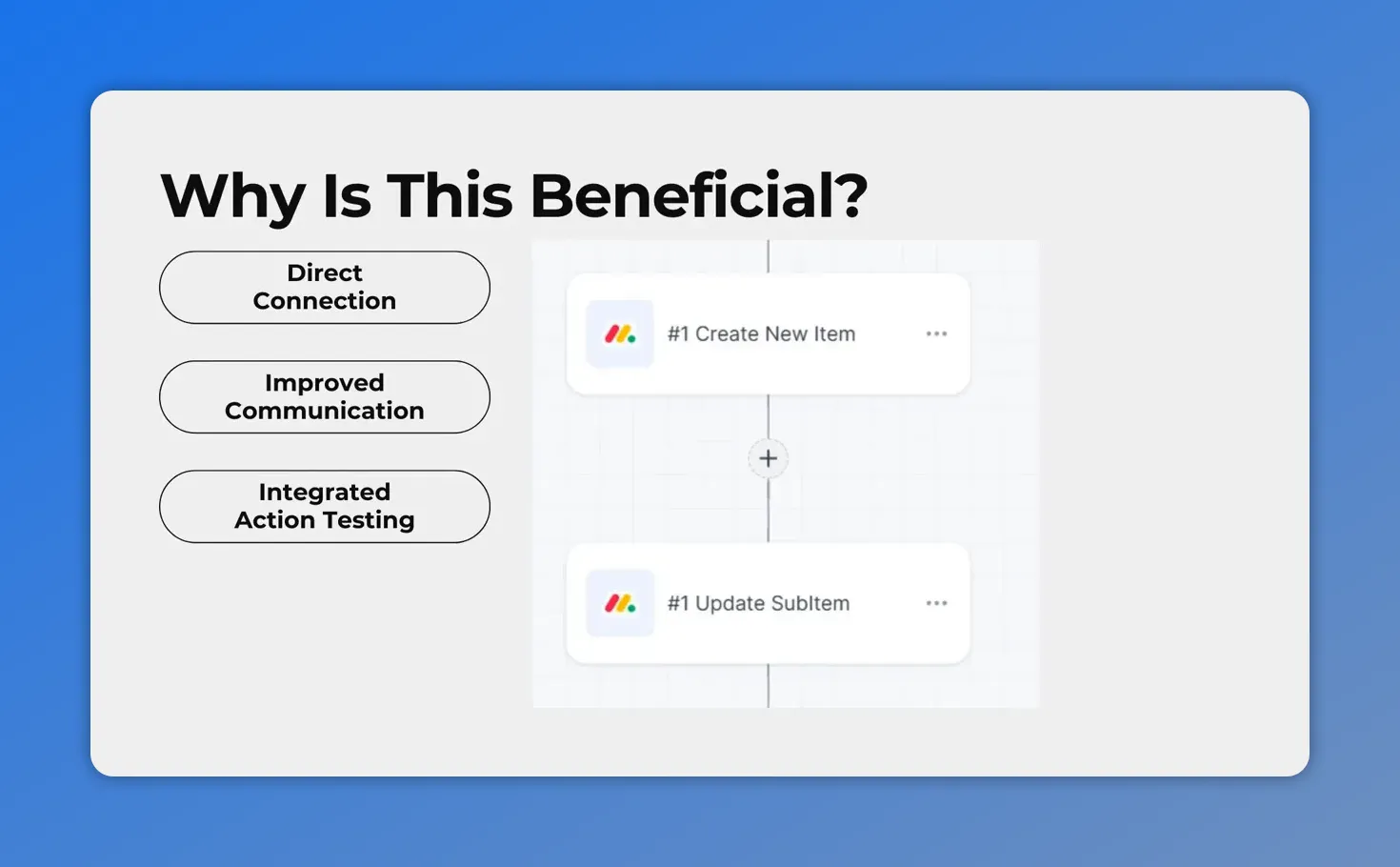
- Direct sync of items and statuses without Zapier or other middleware.
- Improved communication between project and customer teams with timely alerts.
- Preserve existing work — you do not need to migrate boards to run CRM automations.
- Built-in testing so each action is validated before it goes live.
Setup overview
Here is a concise checklist to get connected.
- Open CRM account settings and go to Integrations.
- Click Connect under Monday.com.
- Retrieve your Monday.com API key from your Monday account.
- Enter the API key in the CRM and save.
- Add Monday.com actions or triggers to your workflows from the apps section.
- Use the Test Action feature to validate each integration step.
Step-by-step: Connect Monday.com to the CRM
1. Open Integrations in your CRM
Go to account settings and select the Integrations tab. Find Monday.com and click Connect.
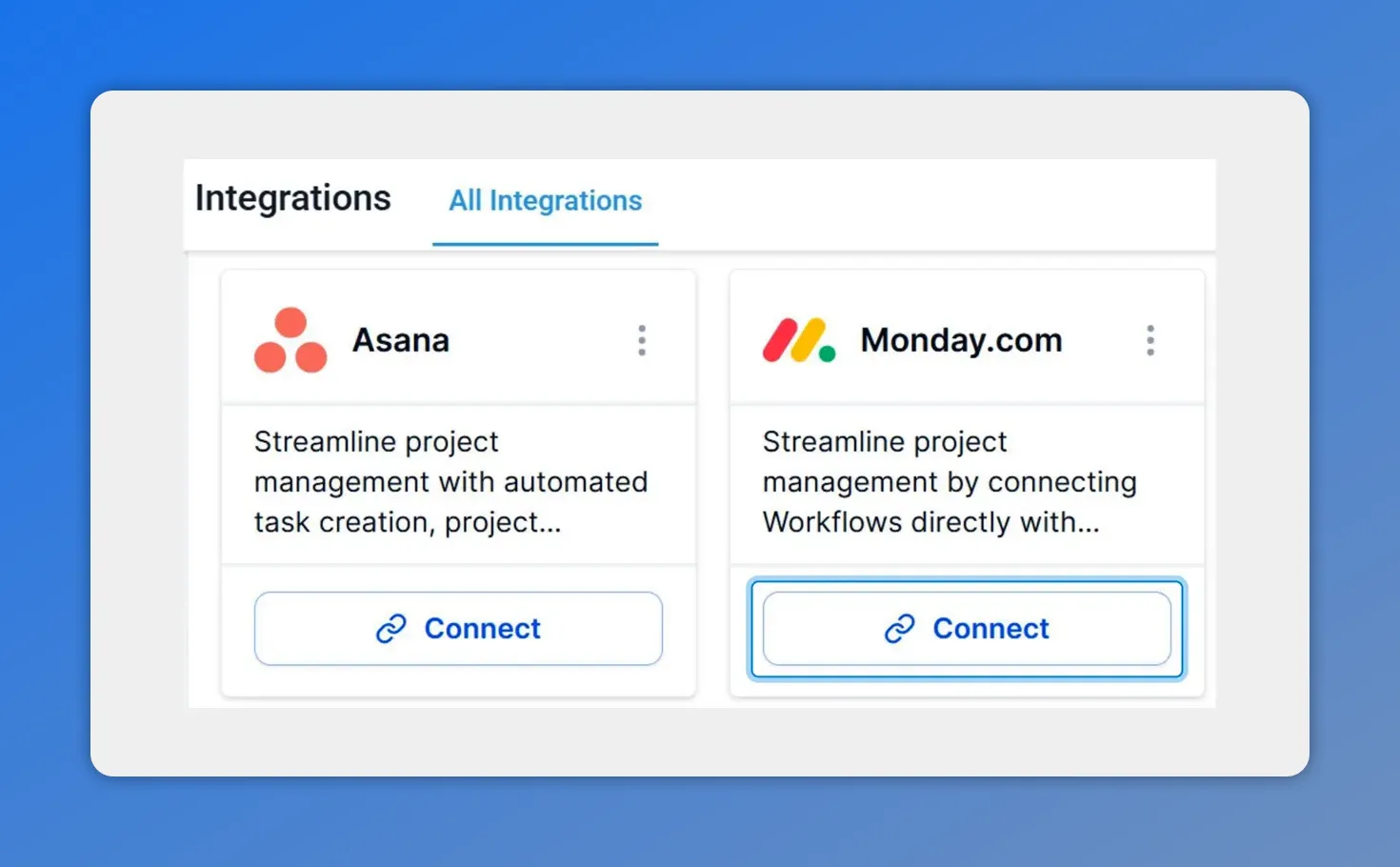
CRM Integrations page showing the Monday.com card with a Connect button.
2. Get your Monday.com API key
In Monday.com click your profile picture, choose Developers, and copy the API key shown there. Keep this key secure. Treat it like a password.
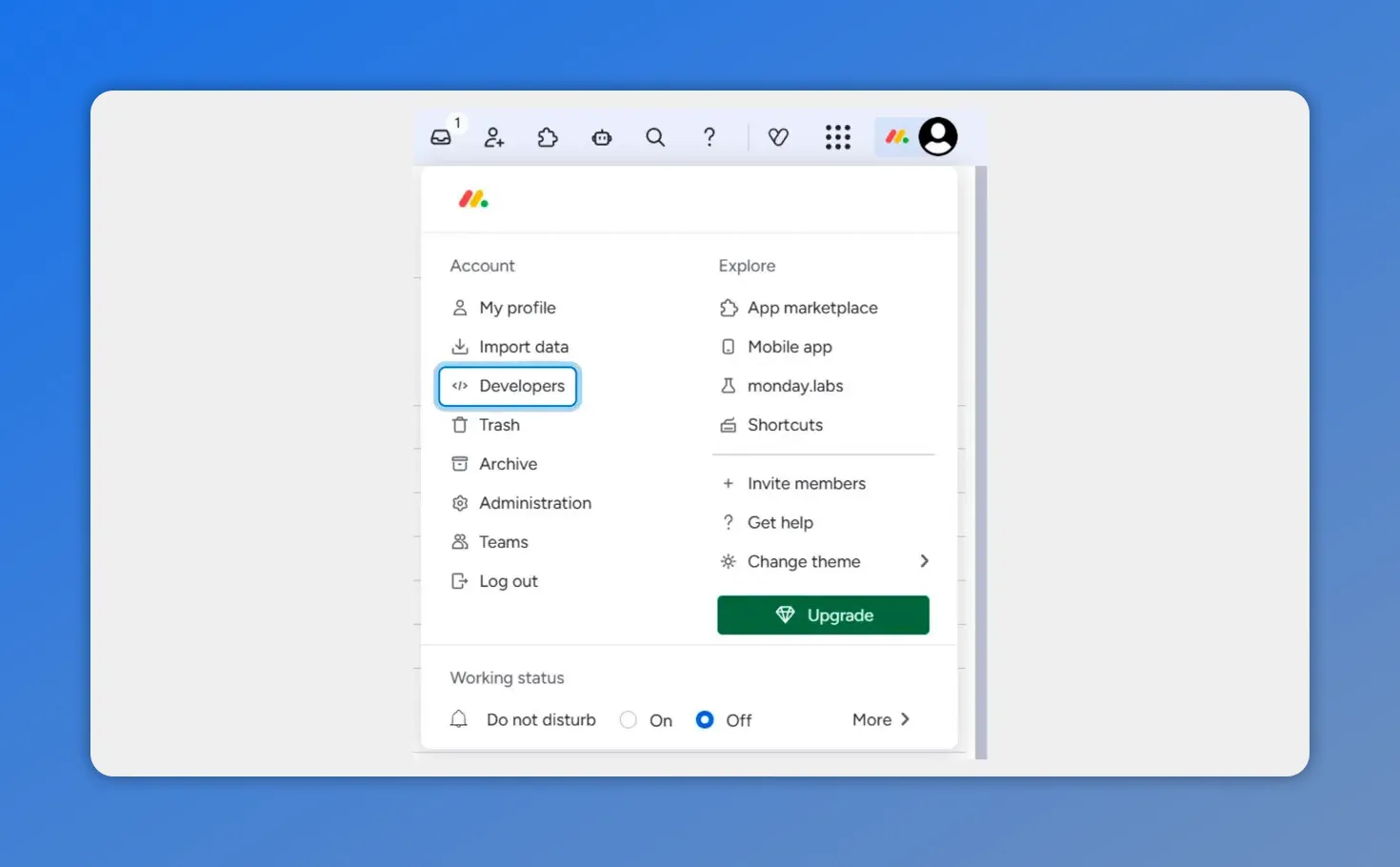
Open your profile menu and select Developers to access API tokens.
3. Enter the API key in the CRM
Paste the API key into the CRM integration form and click Save. The connection is now authorized.
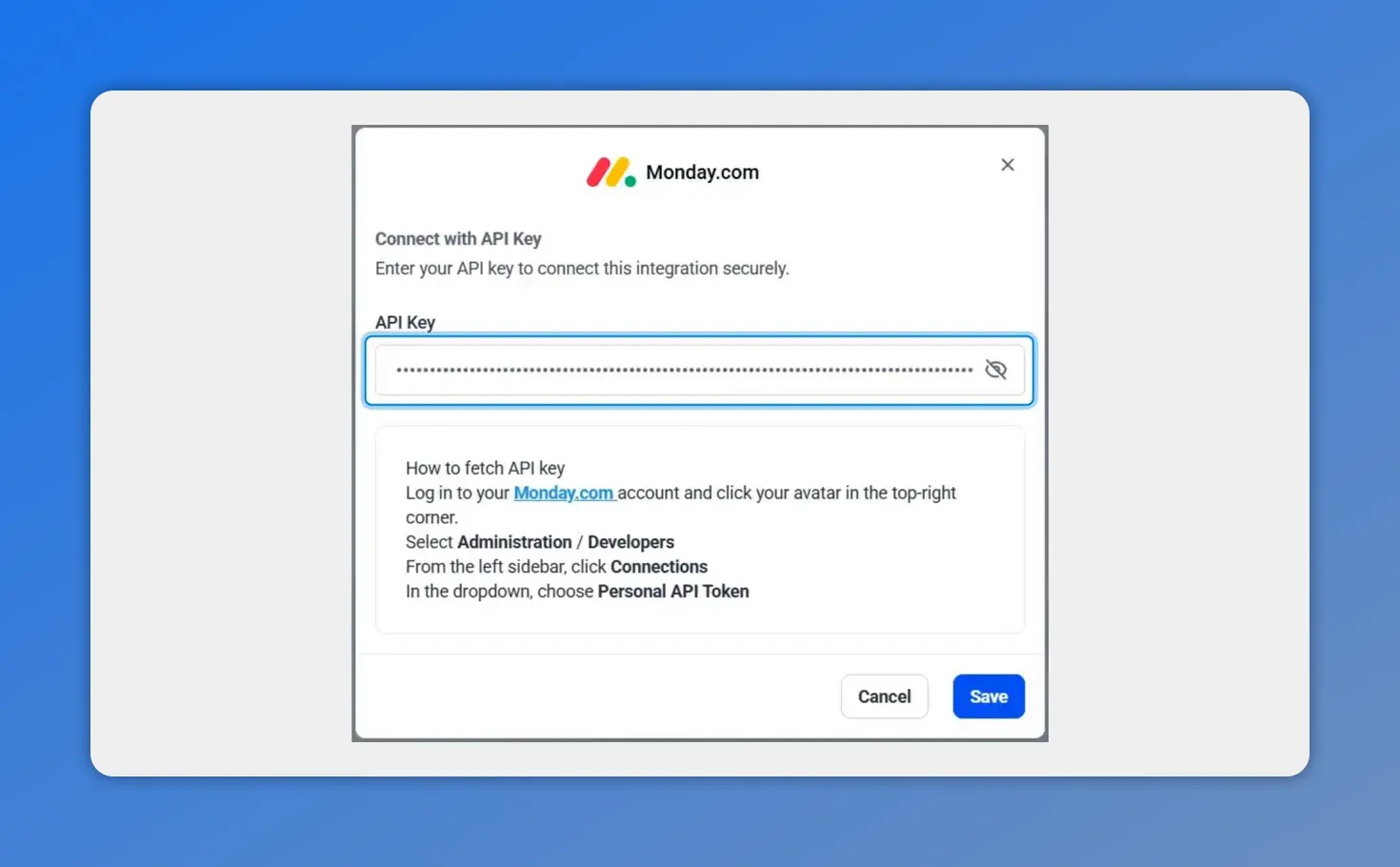
Paste your Monday.com API key into the CRM integration modal and click Save.
4. Add Monday.com actions and triggers to workflows
Open your workflow builder and add an action or trigger. Look under the apps section for Monday.com actions. You can map Monday items, statuses, and fields to CRM fields and actions.
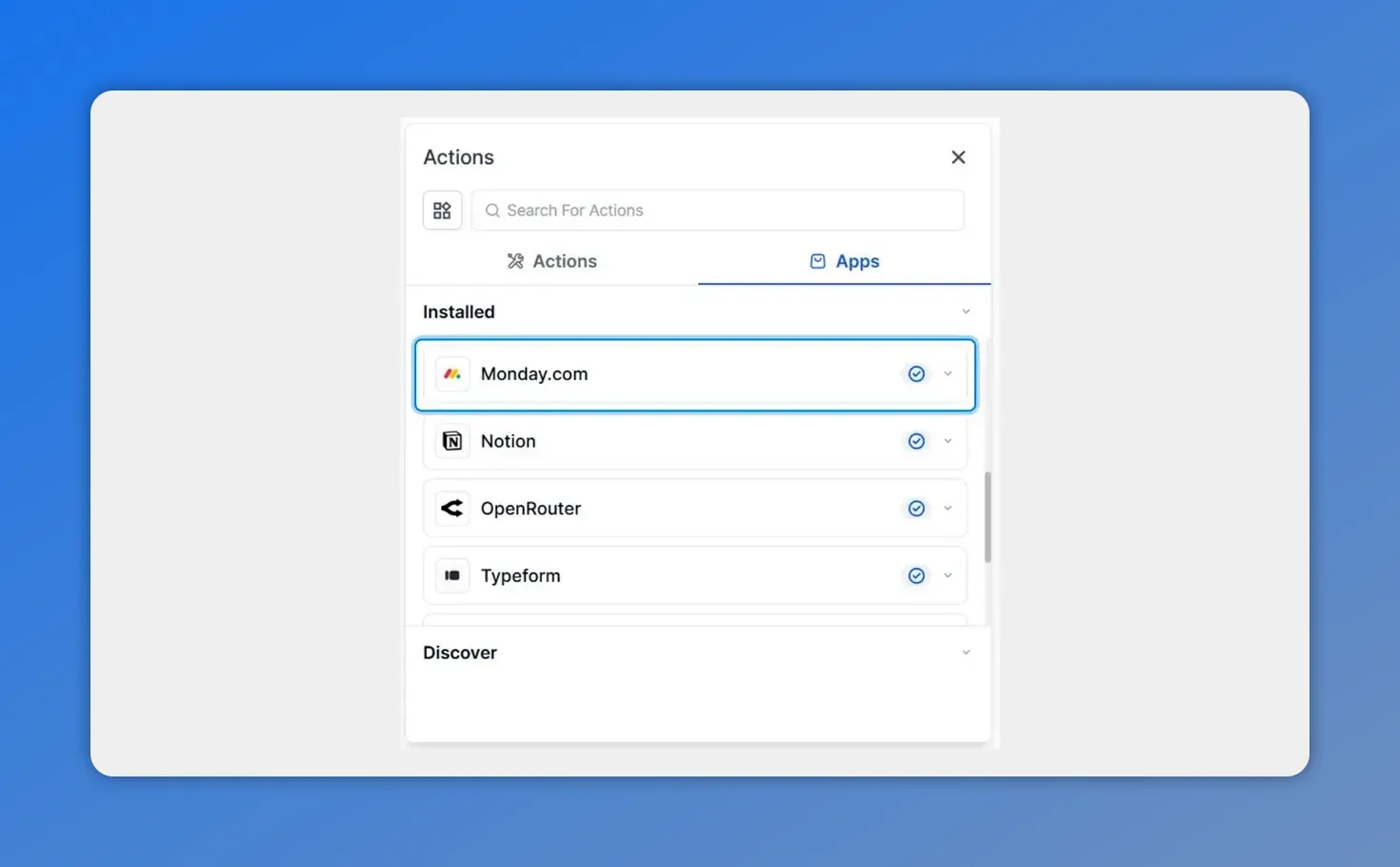
Open the Apps tab and select Monday.com to add actions or triggers to your workflow.
5. Test each action before going live
Use the integrated Test Action to validate that items and statuses sync correctly. This helps avoid surprises when automation runs in production. Save the schema after testing so you can reuse custom values across actions.
Use the integrated Test Action to validate mappings and confirm item/status sync before going live.
Practical use cases
- When a Monday.com item status changes, trigger an email to a customer or an internal Slack alert.
- Sync new Monday items to create CRM records for customer projects.
- Keep cross-system references so support and project teams can see the same item IDs and statuses.
Best practices and troubleshooting
- Permission checks — ensure the API key has access to the boards and items you plan to sync.
- Field mapping — map Monday columns to CRM fields deliberately to avoid mismatches.
- Use Test Action — always validate an action after mapping and before saving the workflow.
- Keep boards intact — you do not need to move or duplicate existing Monday boards to use automations.
- Audit logs — check integration logs if updates do not appear as expected.
What to expect after connecting
Once connected, status changes and item updates flow between systems reliably. Automations trigger faster and require less maintenance. Teams gain visibility without migrating existing project work.
Frequently asked questions
Do we need Zapier or other middleware to sync Monday.com with the CRM?
No. The native integration eliminates the need for Zapier, Make, or custom webhooks. That reduces latency and maintenance.
Can we keep our existing Monday boards?
Yes. You can use the integration with your current boards. There is no requirement to migrate or duplicate boards to run CRM workflows.
How do we get the Monday.com API key?
In Monday.com click your profile picture, select Developers, and copy the API key. Then paste it into the CRM integration screen and save.
What types of actions or triggers can we use?
You can trigger emails, Slack notifications, notes, or CRM updates when a Monday.com item or status changes. Actions are available in the apps section of the workflow builder.
How can we verify the integration works?
Use the Test Action feature to validate mappings and data flow. After a successful test, save the schema and reuse custom values across actions.
Final checklist before you go live
- Confirm API key access and permissions.
- Map Monday columns to the correct CRM fields.
- Run Test Action for each workflow step.
- Save schemas for reuse.
- Monitor logs for any sync issues after launch.
Next steps
Open your CRM, go to Integrations, connect Monday.com, enter the API key, and add Monday actions to your workflows. This setup improves cross-team communication and keeps projects on schedule with fewer moving parts.
We are here to help if you need assistance with configuration or best practices.
This article was created from the video Monday.com + CRM Integration: Sync Items and Statuses (No Zapier)








