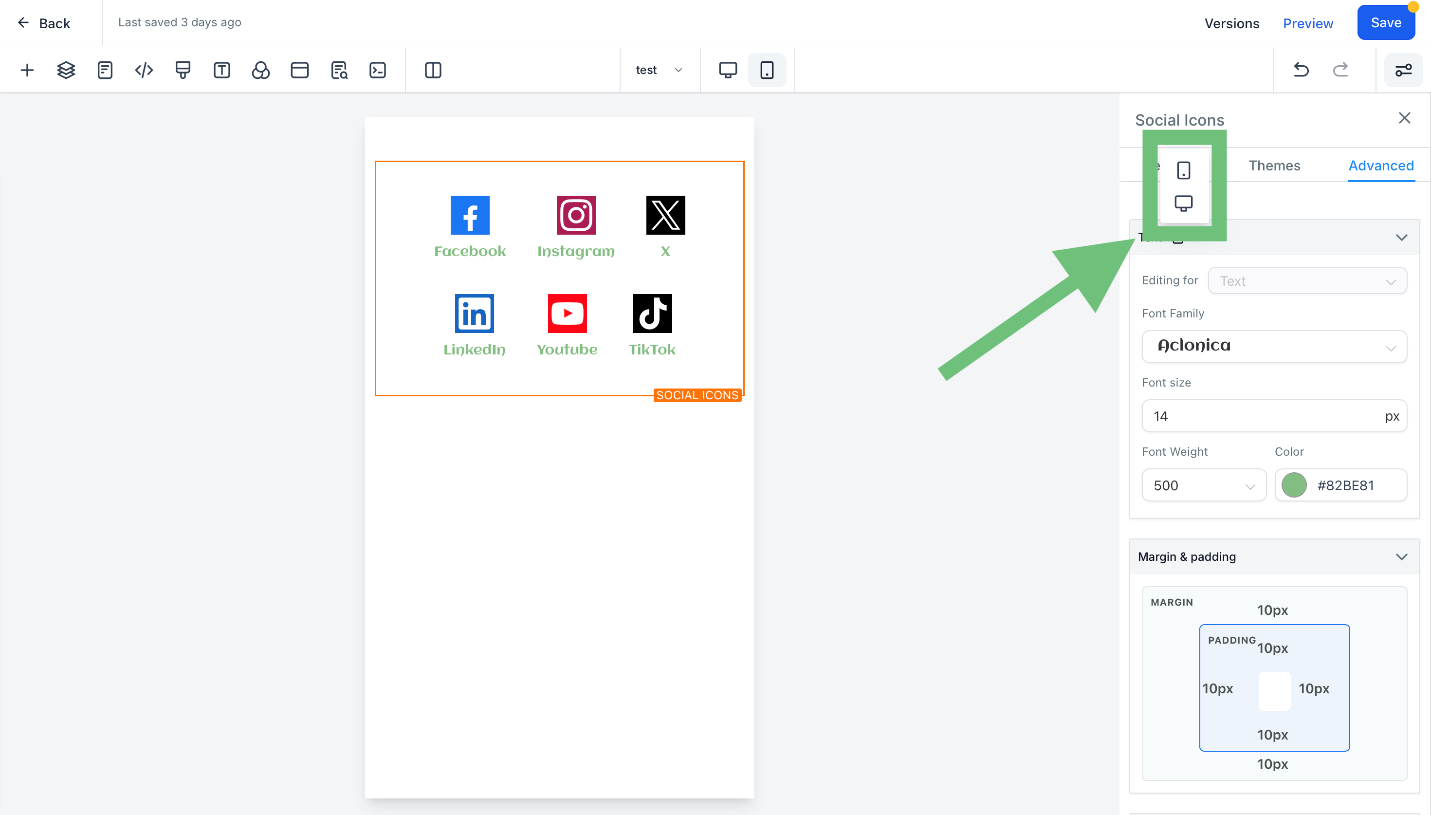
Mobile Responsive Editing in Funnel & Website Builder for Social Media Icons
Exciting news for our CRM users! We've just unleashed a powerful upgrade – Mobile Responsiveness in Funnels and Website Builder. Now, effortlessly customize your social media icons for optimal viewing on mobile and desktop, providing a tailored user experience that's both visually appealing and efficient.
Mobile Responsive Editing in Funnel & Website Builder for Social Media Icons: It tailors your funnel and website elements specifically for mobile or desktop viewing, offering enhanced customization options at the element level. 👇🏻
⭐️ Why does it matter to your business?
Optimized User Experience: Ensure a seamless and visually appealing experience for mobile users with elements designed specifically for mobile viewing.
Efficient Customization: Easily adjust text styles, font sizes, font weights, colors, and font families at the element level, catering to the unique needs of both mobile and desktop layouts.
Enhanced Design Control: Take charge of your design strategy by having granular control over how your social media icons appear on different devices.
⭐️ How To Use Mobile Responsive Editing in Funnel & Website Builder for Social Media Icons:
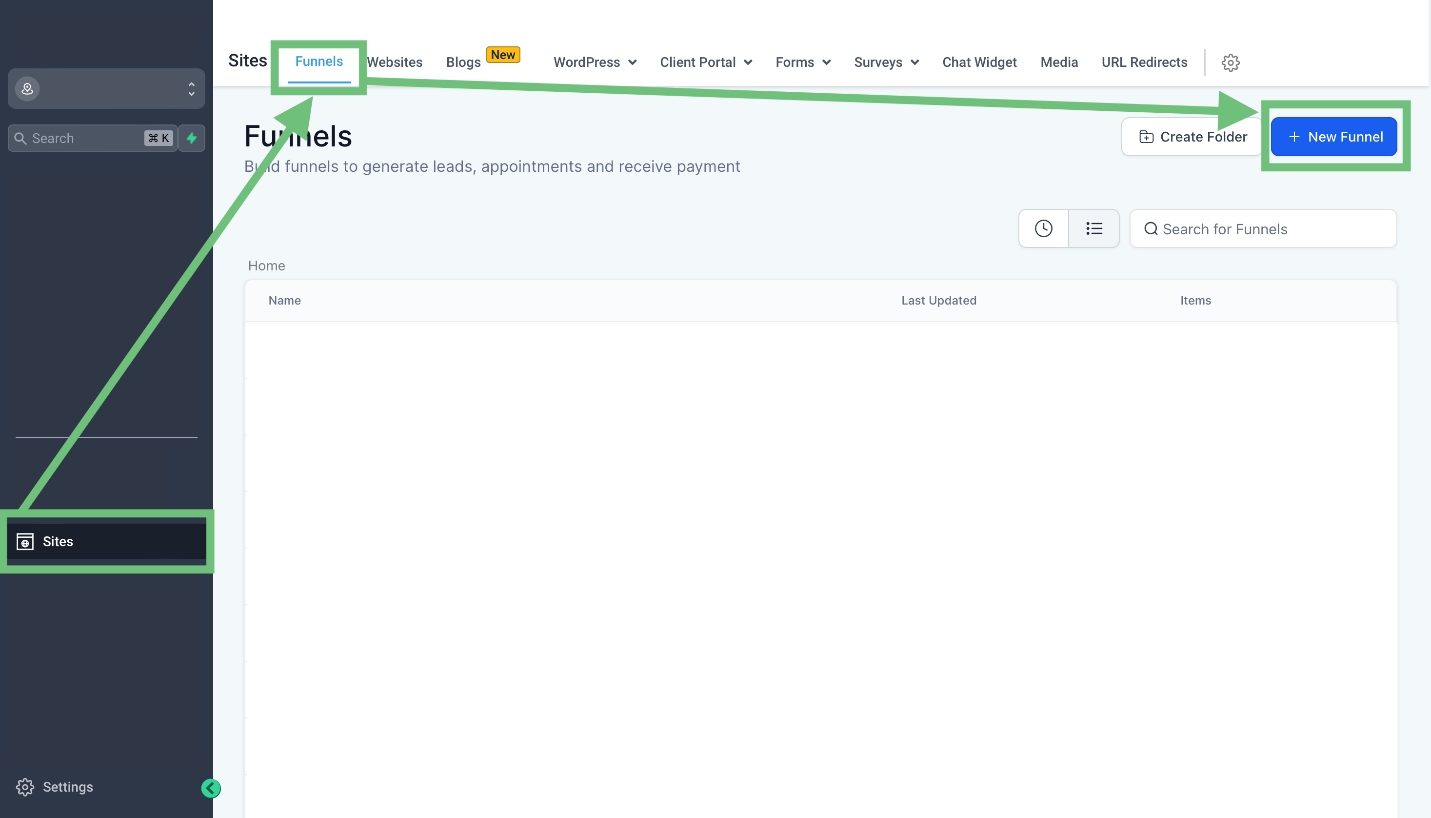
To access the funnel builder, click on the sites tab from the left sidebar menu then go to Funnels and click " +New Funnel". or edit an existing one.
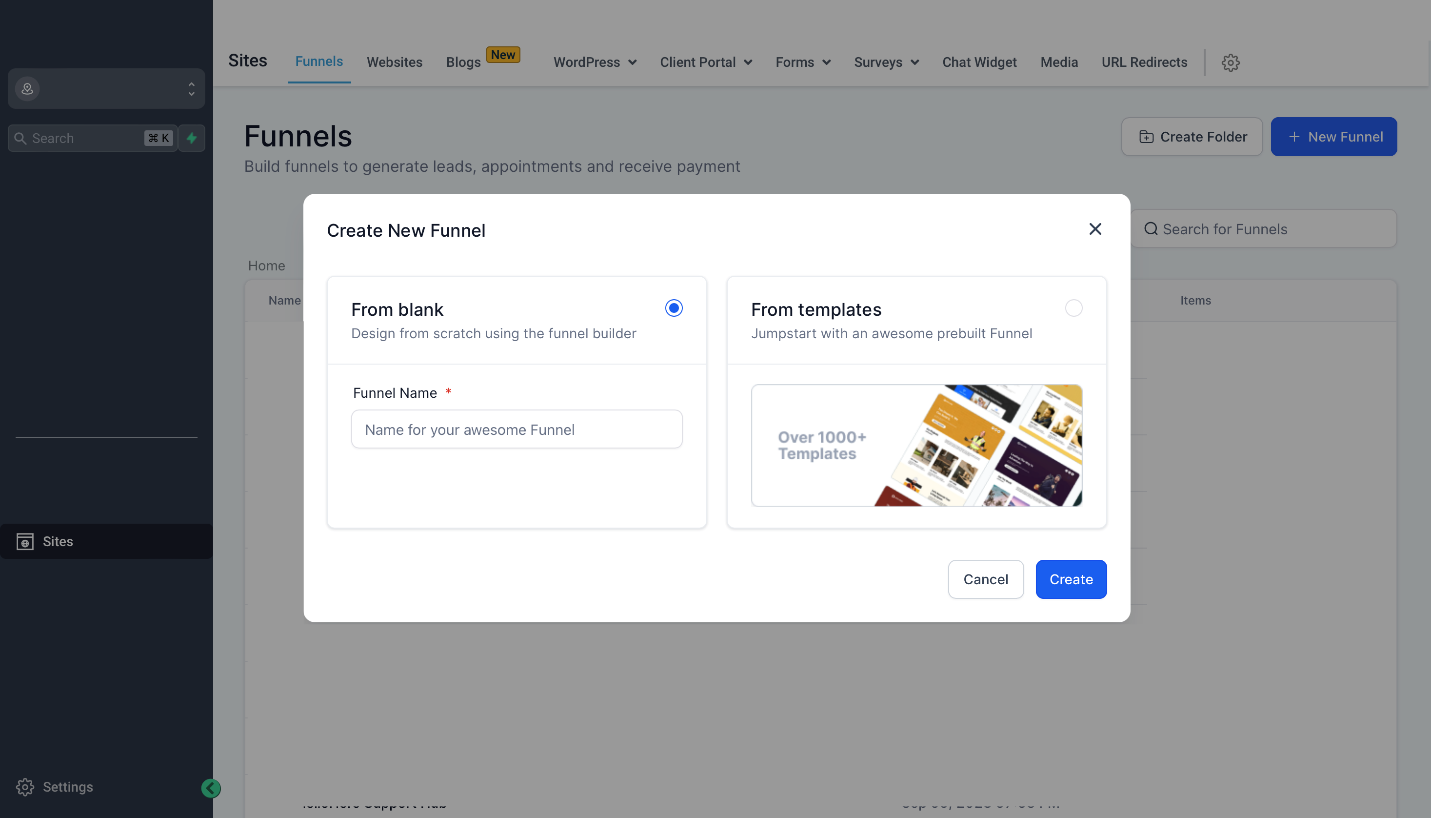
Select From blank or choose a template from the library.
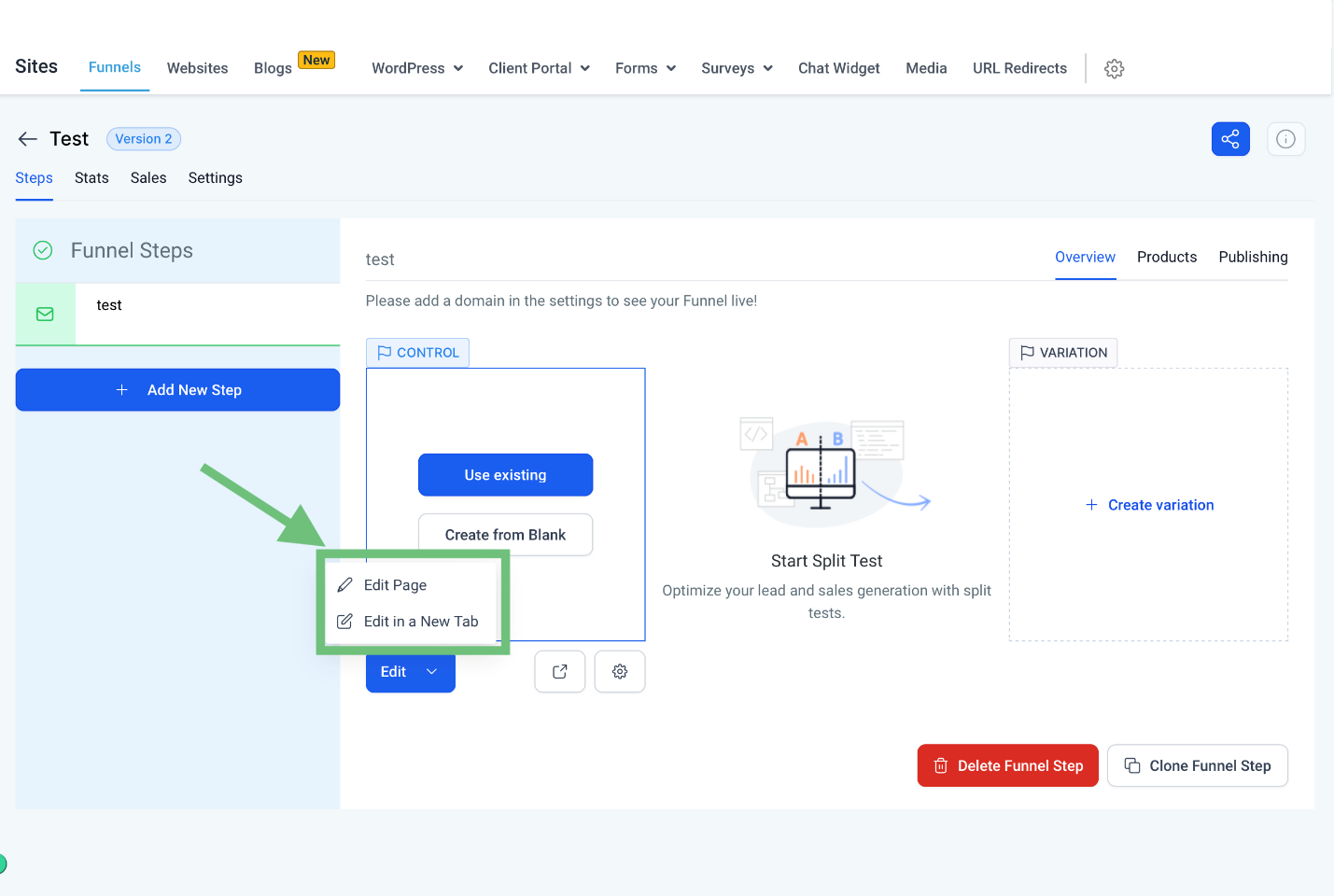
Click on the edit page to access the funnel builder.
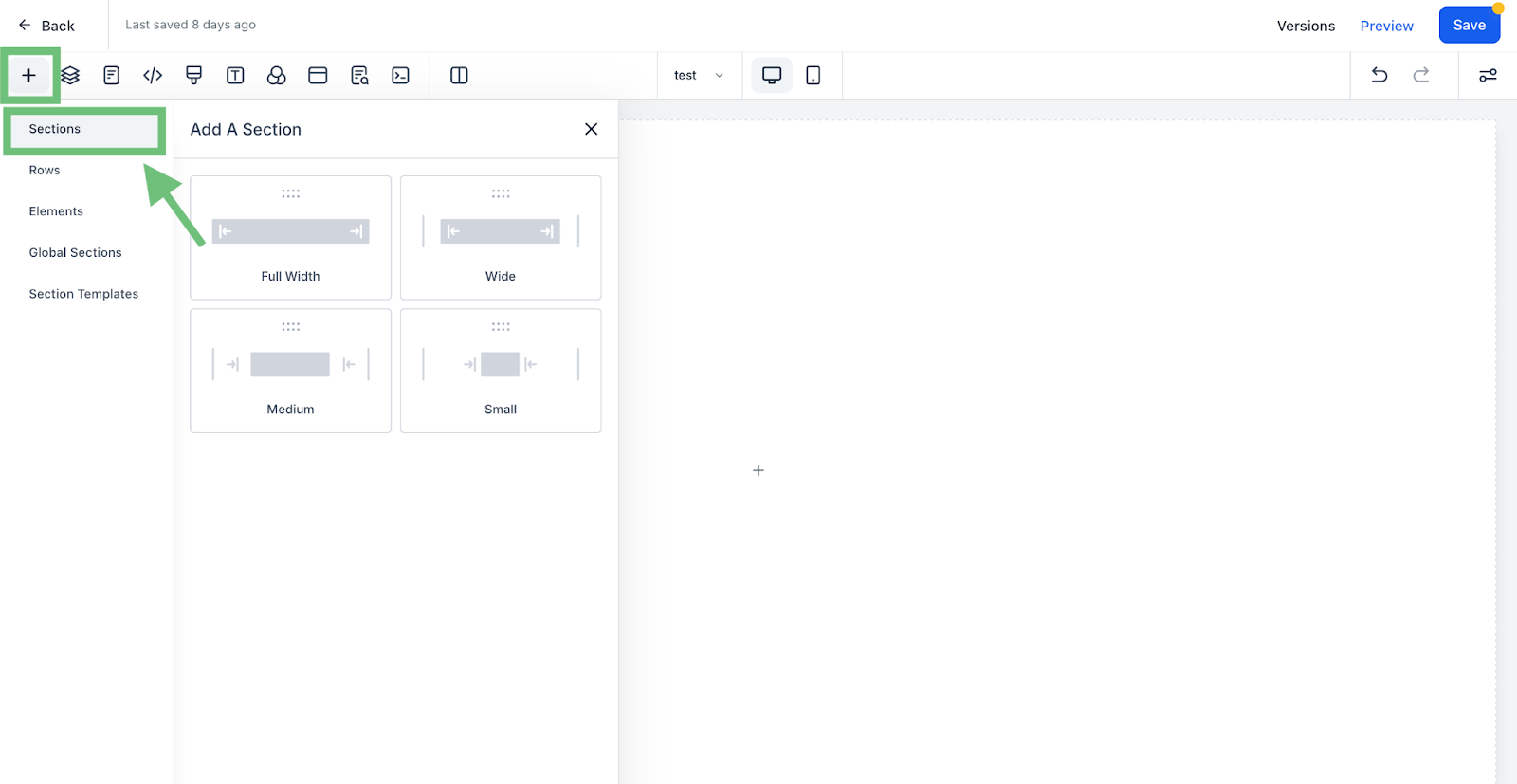
Add a section by clicking on the “+” button and then add a column of your choice.
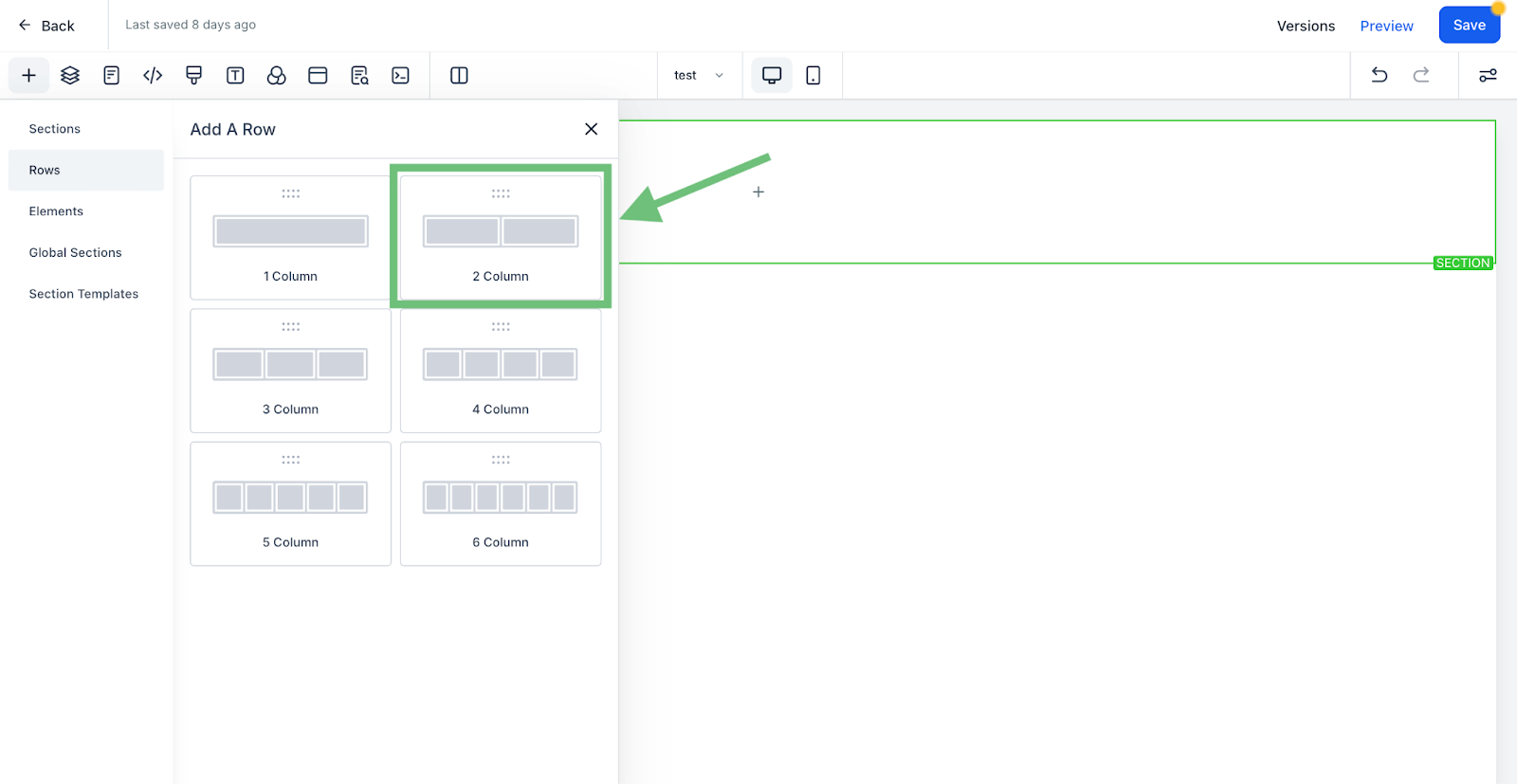
Now add a row with the desired number of columns.(e.g 2 columns)
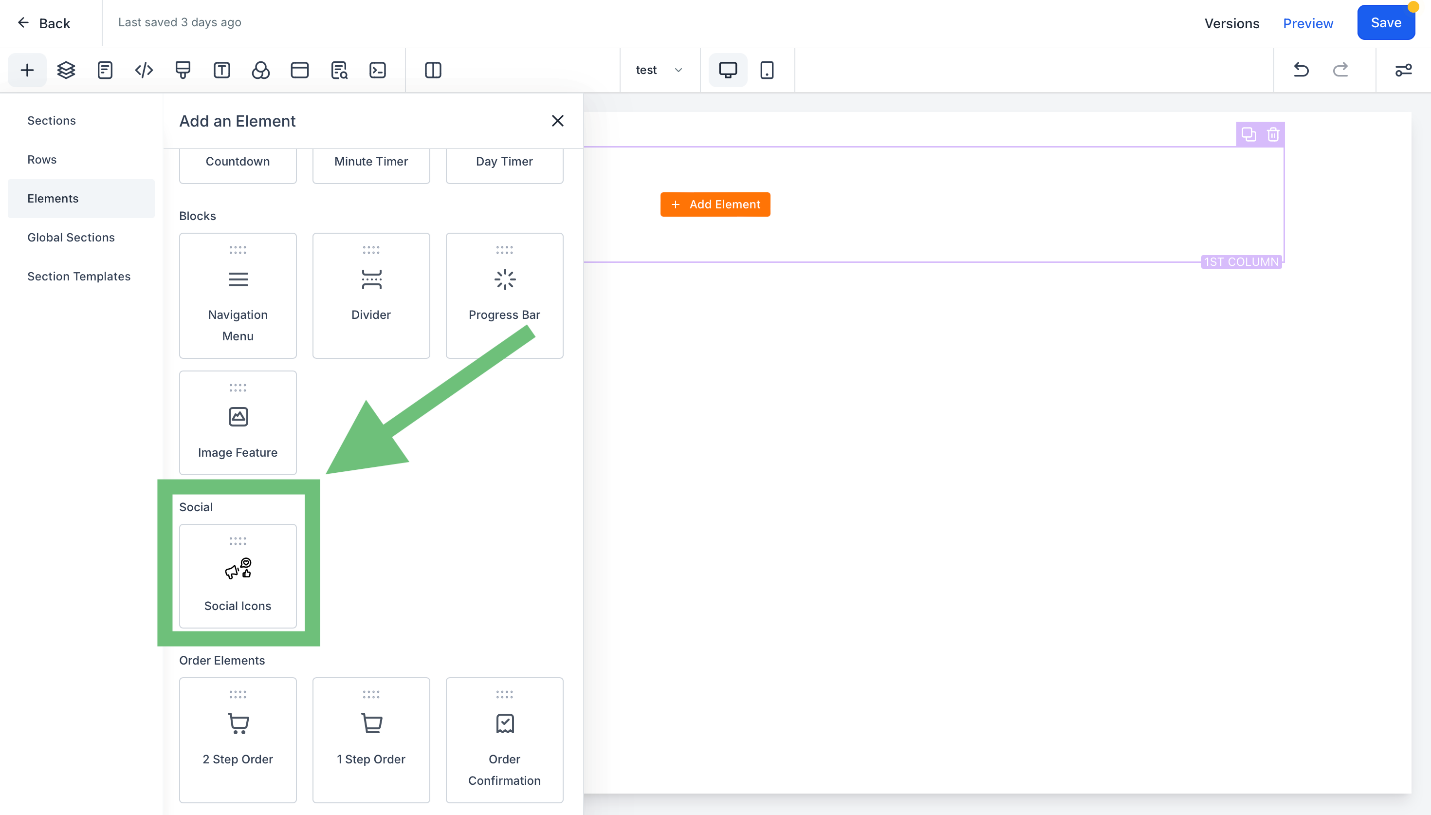
Add the social icons element from the element list.
After adding the social icons click on the element , the settings for the selected element will be open in the right panel. Click on the advance button to access the advanced settings.
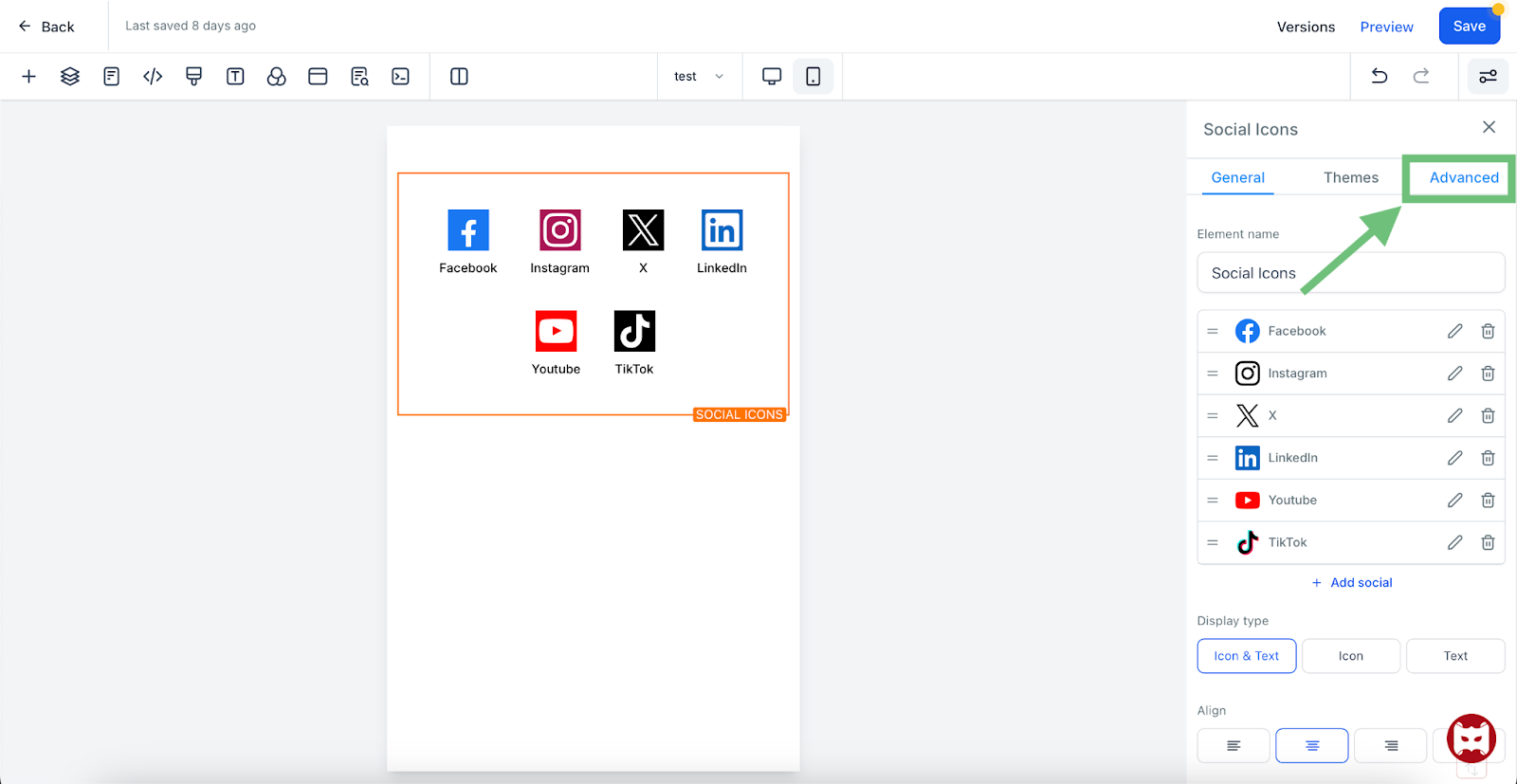
You can edit the social icon element according to your likings in mobile view in real-time. Just switch to the mobile and make the edits you want like changing the font style, font size and color etc.