





Automate CRM Workflows with Manus AI Integration (No Zapier)
Overview
Manus AI can run complex tasks on its own without continuous human guidance. Connecting Manus directly to Pinnacle lets us trigger workflows from Manus task activity and perform task operations inside our CRM. This direct integration removes the need for third-party bridges like Zapier, Make, or custom webhooks.
Why connect Manus to Pinnacle?
- Direct connection: No extra third-party tools. Manus talks to Pinnacle natively.
- Immediate reactions: Trigger follow-ups when Manus creates, updates, or completes tasks.
- Guided automation: Send new instructions, change task parameters, or update metadata to steer the AI as business rules change.
- Built-in fail-safes: React to task lifecycle events and correct course without manual intervention.
Quick setup
Follow these steps to get Manus connected and start automating:
- Open Integrations under your subaccount settings in Pinnacle and click Connect under Manus.
- In your Manus account settings, create and copy an API key for your CRM.
- Paste that API key back into Pinnacle’s Manus integration settings and click Save.
- Open your workflows and add Manus AI as a trigger or action in the app section to drive end-to-end automation.
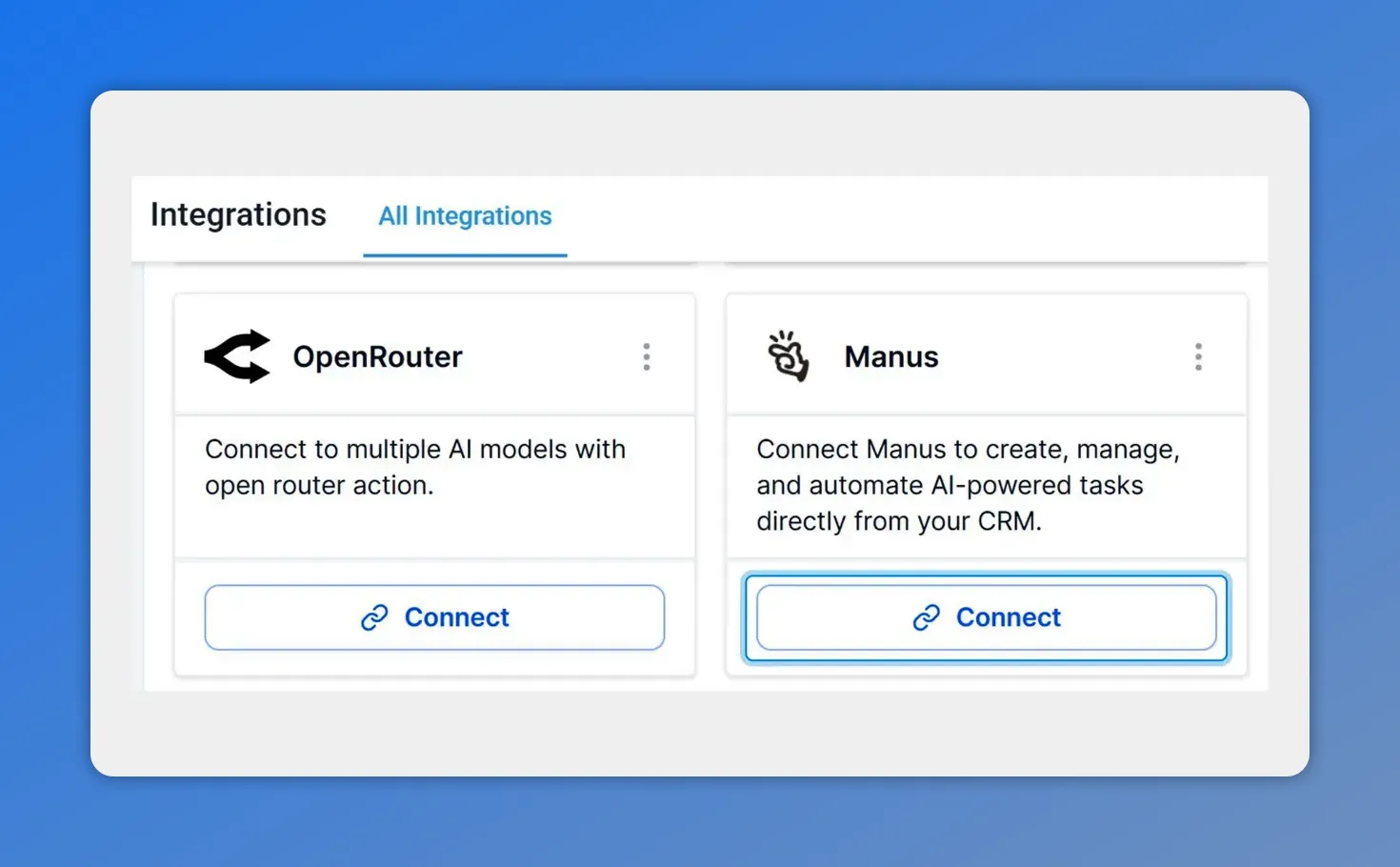
Select the Manus integration card and click Connect.
How to use Manus inside workflows
After the API key is saved, Manus appears in the app list for both triggers and actions. That opens several possibilities:
- Triggers: Start a workflow when Manus creates, updates, or completes a task.
- Actions: Send follow-up prompts, update task parameters, or modify metadata inside Manus from Pinnacle workflows.
- Event reactions: Use task lifecycle events to run conditional logic, notify teams, or update contact records.
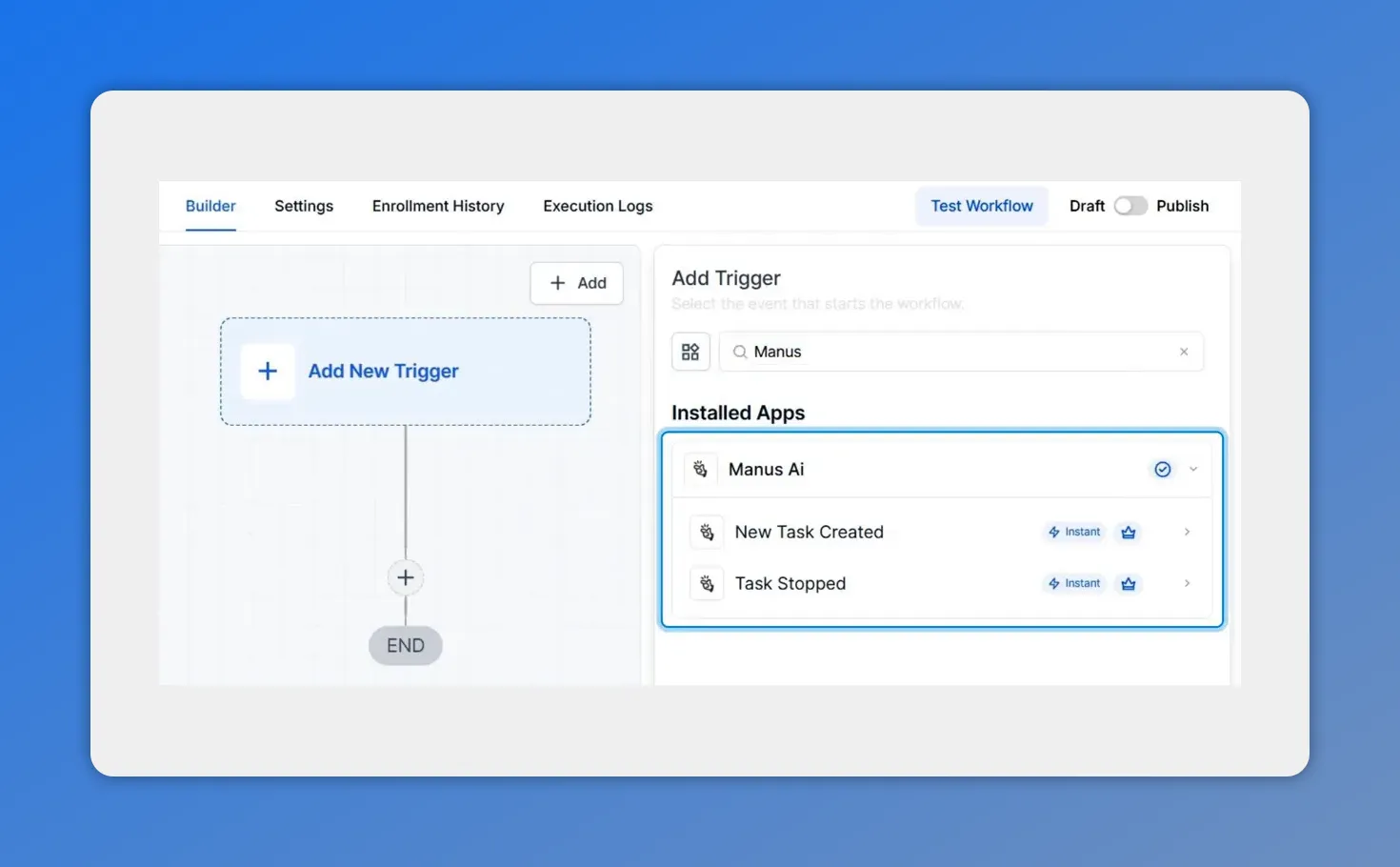
Add Manus as a trigger in your workflow to react to task events.
Practical examples
- Automated follow-up: When Manus marks a research task complete, trigger an email sequence or create a follow-up task for an account manager.
- Dynamic instructions: If a CRM field changes, send updated instructions to Manus so its behavior matches new business rules.
- Parameter tuning: Adjust task parameters or metadata mid-flight to refine Manus’s output without stopping the process.
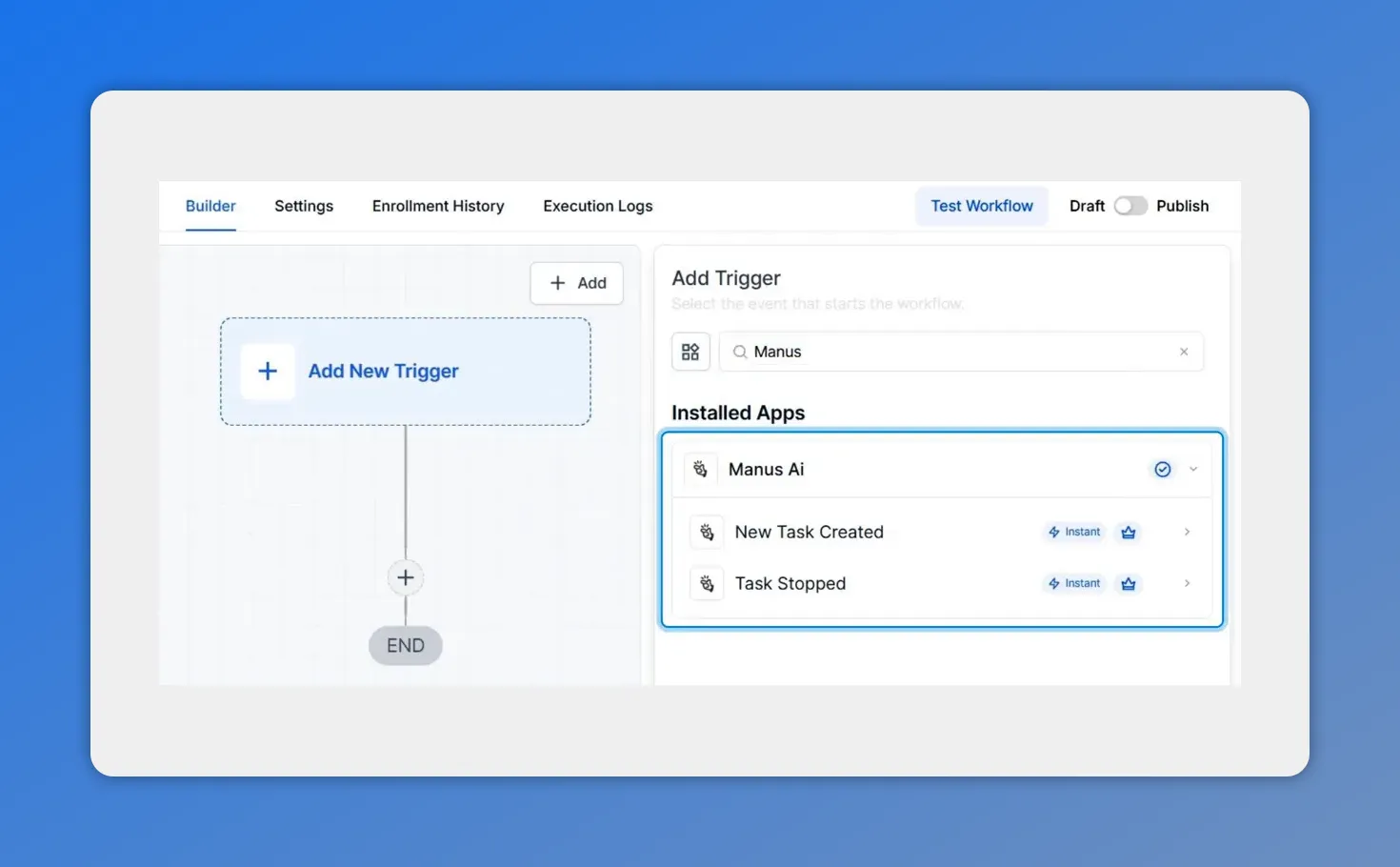
Add Manus as a trigger in your workflow (New Task Created, Task Stopped).
Best practices
- Keep prompt instructions clear and concise. Manus responds better to specific guidance.
- Use metadata and parameters to capture context that affects task behavior.
- Build lifecycle event handlers for common failure modes. For example, if a task stalls, trigger a fallback notification or preventive prompt.
- Test workflows in a safe environment before rolling them out to production contacts.
Checklist before going live
- Integration connected and API key saved in Pinnacle.
- Workflows include Manus as a trigger or action where needed.
- Task parameters and metadata fields mapped between systems.
- Fallback and notification workflows created for exceptions.
Frequently asked questions
What can Manus AI do once it's connected?
Manus can create, update, and complete tasks that then trigger Pinnacle workflows. We can also send new instructions, update task parameters, and react to task lifecycle events to keep automation aligned with changing business rules.
Do we need Zapier or other middleware?
No. The direct integration removes the need for Zapier, Make, or custom webhooks. Manus and Pinnacle communicate natively once the API key is configured.
How do we create the API key?
Generate an API key inside Manus account settings, copy it, and paste it into the Manus integration page in Pinnacle. Save the settings to enable the connection.
Can we change Manus behavior mid-task?
Yes. Workflows can modify task parameters and metadata or send follow-up prompts. This lets us correct the AI’s course without manual interruption.
What are good use cases to start with?
Start with simple automations: trigger follow-ups on task completion, send updated instructions when CRM data changes, and create alerts for stalled or failed tasks. These provide immediate value and are easy to validate.
Next steps
Open your Pinnacle subaccount settings, connect Manus, and build a simple workflow that reacts to a Manus task event. Start with one use case and expand as you validate outcomes. If we need to refine prompts or parameters, adjust them in small steps and monitor task lifecycle events for improvements.
Manus integration streamlines AI-driven automation. With clear prompts, proper metadata, and lifecycle handlers, we can keep automation reliable and responsive to business needs.
This article was created from the video Automate CRM Workflows with Manus AI Integration (No Zapier)








