





Private Courses in Communities: Grant or Revoke Access
Exclusive learning experiences give customers a sense of importance. We added private courses and manual access controls to Communities so admins can decide exactly who sees what. This lets us reward members, speed up onboarding, and run truly exclusive training without automatic unlocks.
What a private course is and when to use one
A private course stays locked until an admin grants access. It cannot be unlocked automatically by standard criteria. Use private courses when you need precise control over who can learn:
- VIP or paid tiers that should not be visible to everyone
- Cohort-based programs that open only for a set group
- Targeted onboarding for new hires, partners, or customers
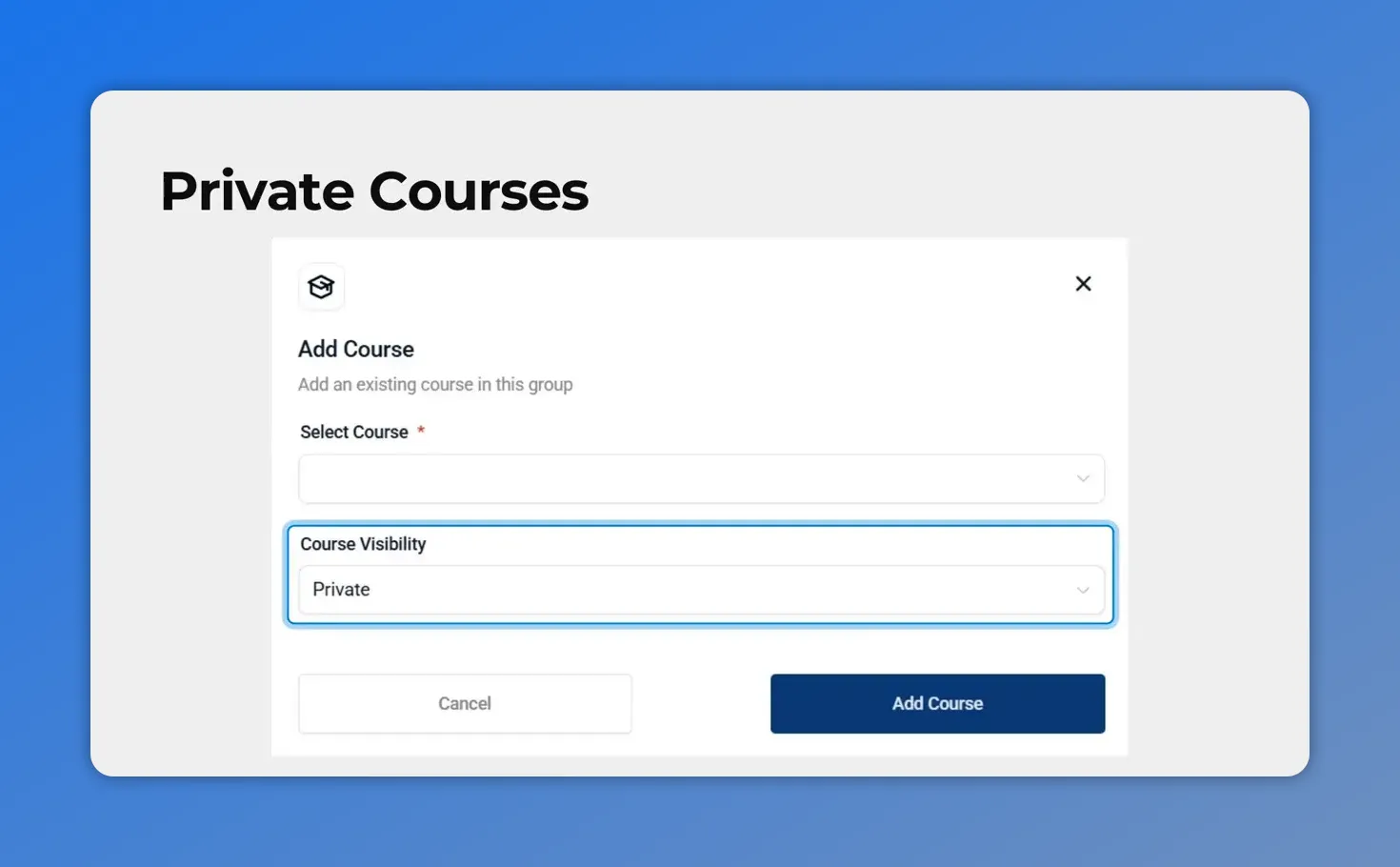
Set a course to Private when adding it to a community — then grant access manually.
How manual course access works
Admins can grant or revoke access for any course in a community. Granting gives a member access even if they don’t meet unlock rules. Revoking removes access unless the member already meets the course’s existing unlock criteria.
Important rule: Access cannot be revoked if a member already meets the existing unlock criteria. If a learner has satisfied those conditions, manual removal will not take effect until those conditions change.
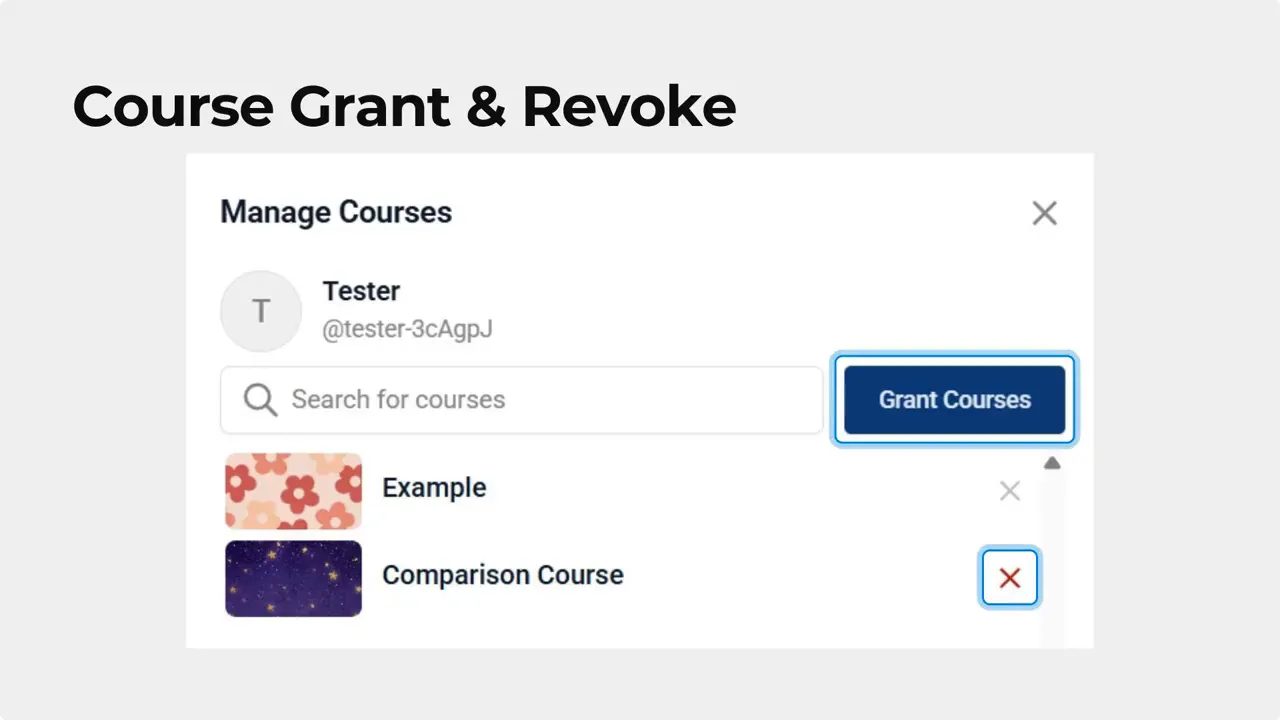
We open Manage Courses to grant or revoke a member's access.
Step-by-step: Grant access to a member
- Open the Members tab in your community.
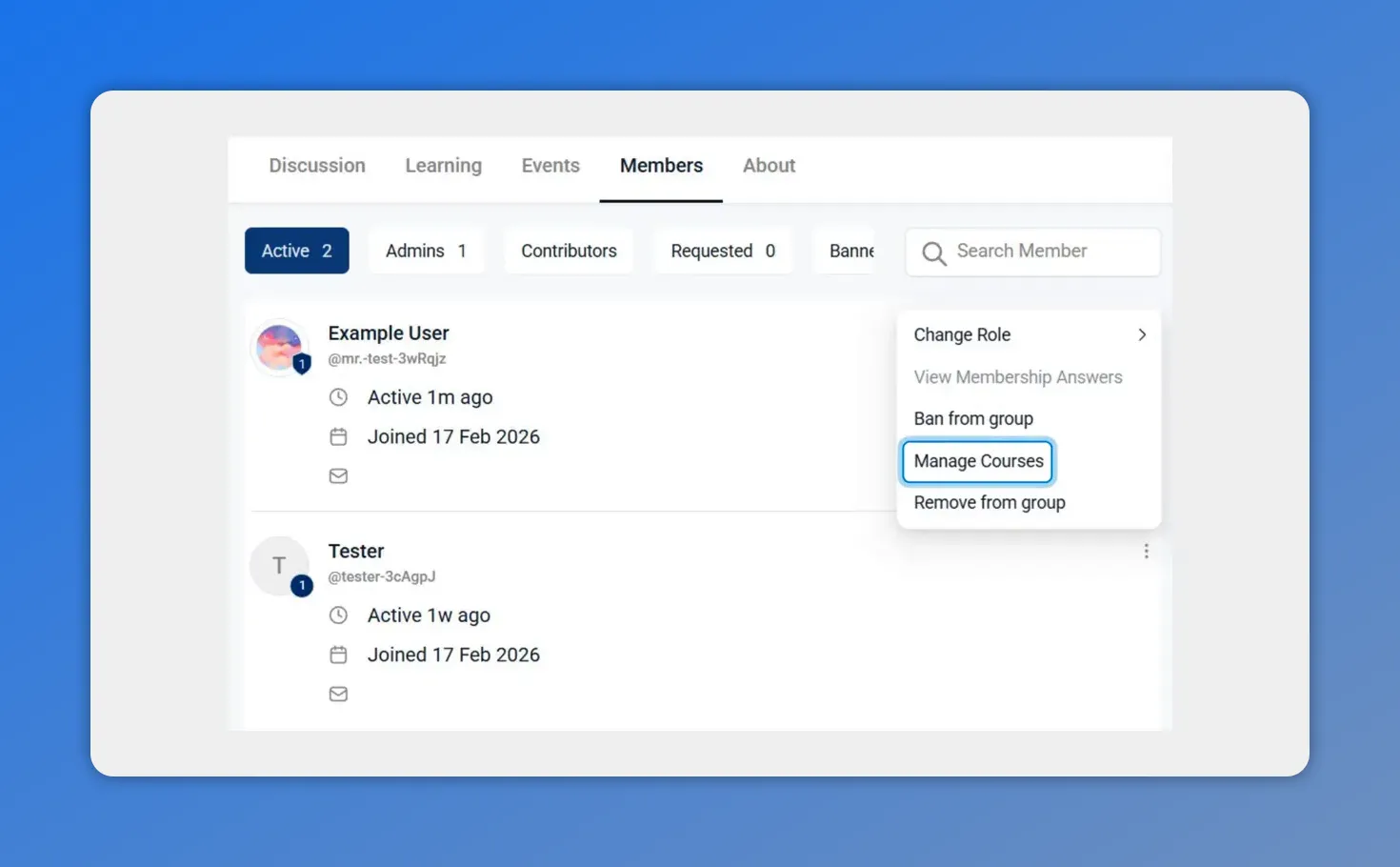
Members tab showing the member list and the three-dot menu with 'Manage Courses' highlighted.
- Click the three-dot icon next to the contact you want to update.
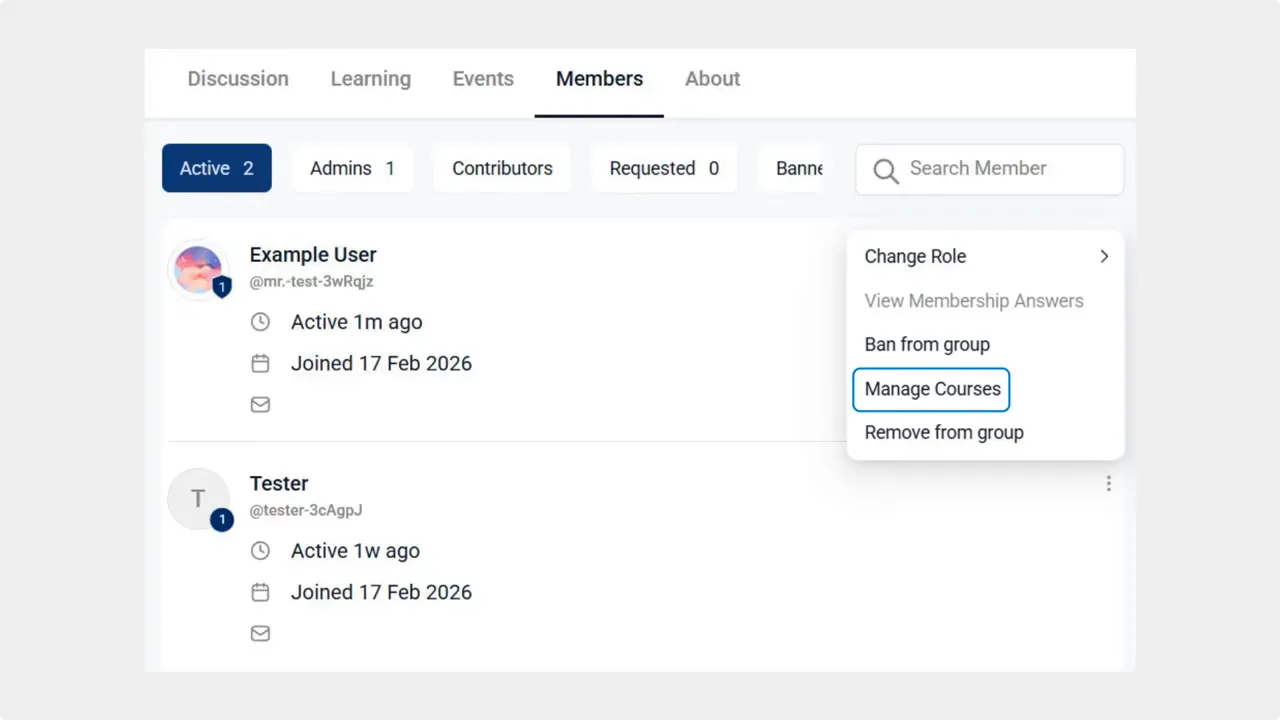
Open the member's three-dot menu and choose Manage Courses to update access.
- Select Manage Courses.
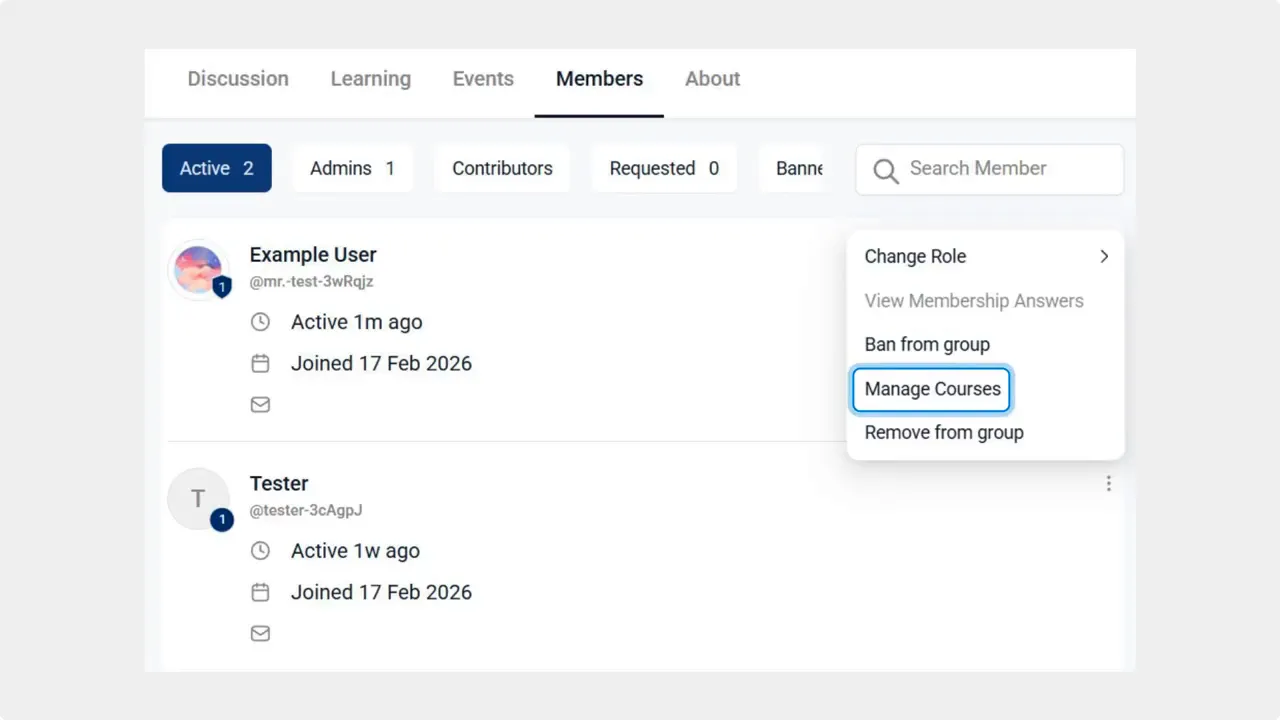
Open a member's menu and choose “Manage Courses.”
- Click the Grant Courses button.
- Check the box next to the course you want to grant, then click Grant.
Step-by-step: Remove access from a member
Open the same Manage Courses view for the member. To remove a course, click the red X next to it. If the member already meets the course’s unlock criteria, revocation will not apply.
Practical use cases
- Reward members with exclusive content after milestones or purchases.
- Faster onboarding by granting new hires direct access to role-specific training.
- Controlled cohorts where only enrolled students see materials during the program.
- Quality control by limiting early access to beta content or pilot programs.
Tips and best practices
- Plan access rules before creating private courses. Decide which roles or tags should get manual access.
- Keep clear records. Note when and why access was granted for auditing and communications.
- Communicate with learners. Tell members when they receive access and what to expect next.
- When revoke fails, check unlock criteria. Adjust criteria or membership state before removing access.
Key takeaways
- Private courses stay locked until an admin grants access.
- Grant access from the Members tab using Manage Courses and the Grant Courses button.
- Remove access with the red X when unlock criteria do not apply.
- Manual access gives full control over who sees course content, improving onboarding and member rewards.
Frequently asked questions
What is a private course?
A private course is locked by default and only becomes available when an admin grants access. It cannot be unlocked automatically by standard unlock rules.
How do we grant course access to a single member?
Go to the Members tab, click the three-dot menu beside the contact, choose Manage Courses, click Grant Courses, check the desired course, then click Grant.
How do we remove course access?
Open Manage Courses for the member and click the red X next to the course. If the member already meets the course unlock criteria, removal will not take effect.
Why won't revoke remove access for some members?
Revocation is blocked when a member already satisfies the course's unlock criteria. To remove access in that case, change the unlock conditions or the member's qualifying status first.
Can we grant access to many members at once?
Granting is done per member in the Members tab. For larger groups, check admin tools for bulk actions or use member lists and consistent tagging to streamline the process.
Next steps
Use private courses to align training with roles, tiers, and milestones. Manual access control helps us deliver better learning experiences and faster onboarding for the people who matter most.
This article was created from the video Private Courses in Communities: Grant or Revoke Access








