





Video 3 - Mar 24 2026: Building the YouTube Branch of a Content Automation System
In this session, we continued building out a multi-branch content automation system in Make. The goal is simple: take fresh content from an RSS feed and turn it into multiple content assets with as little manual work as possible.
Last time, we covered the podcast side. This time, we focused on the YouTube branch, including how to pull a video from a blog post, generate YouTube content with AI, upload it, set a thumbnail, and organize it into a playlist.
We also spent a good bit of time on troubleshooting, which is honestly where a lot of the real value is. Because when automation breaks, it is usually not because the big idea was wrong. It is usually one missing folder, one disconnected account, one plan limit, or one setting that got skipped.
Where this automation stands right now
The full automation starts with an RSS feed. In this case, the source content is news and announcement articles. From there, we parse the article text and send it through AI to generate several outputs.
At this point, the automation is doing four core AI tasks on the podcast side:
- Generate the podcast script
- Generate the podcast title
- Generate the podcast description
- Generate the audio
We prefer generating the script first, then using that result to create the title and description. Some people do it in the opposite order. Either can work, but generating the actual content first tends to make the title and description more accurate to what was produced.
After the audio is created, it gets uploaded to Google Drive, passed through IFTTT, and sent into Buzzsprout for podcast publishing. Buzzsprout still requires one small manual step to publish the episode, but the rest can be automated.
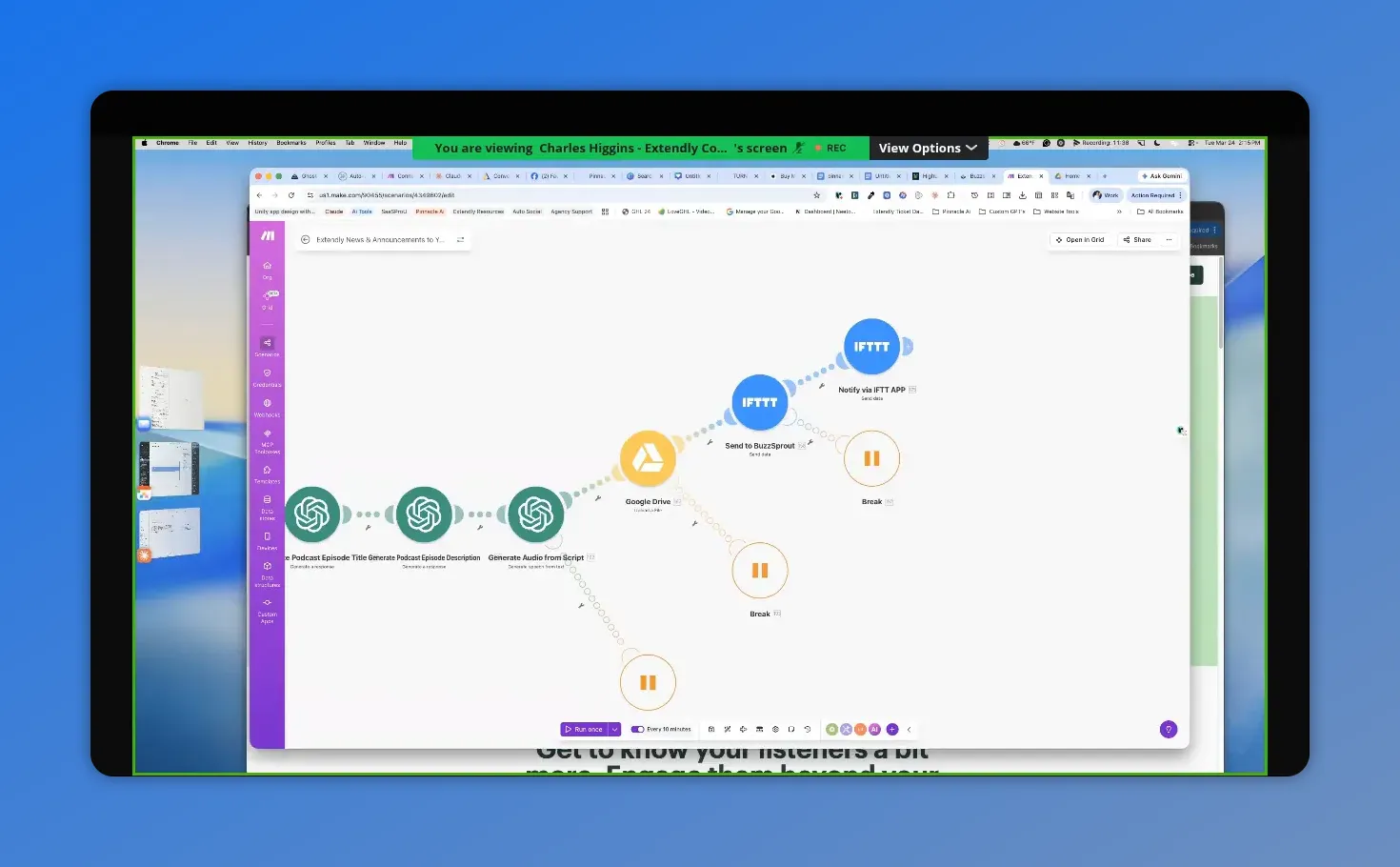
Here the Make scenario for the podcast branch is mapped end-to-end—script, audio, upload, and the downstream steps that trigger publishing.
The Google Drive step people often miss
One of the biggest setup issues came from Google Drive permissions.
If you are uploading generated files to Google Drive, you need to do more than connect the account. You also need to create a folder where those files will go, and that folder needs to be shared.
Here is the important part:
- Create a folder in Google Drive
- Open the folder options
- Click Share
- Set it so anyone with the link can view
Viewer access is enough. The reason this matters is that the automation needs a usable link to the file. If the folder is not shared properly, the workflow can fail later even though the upload itself appears fine.
And if you are using a shared drive, you still need a folder inside that drive. A shared drive by itself is not enough for the Google Drive action. That specific module expects a folder.
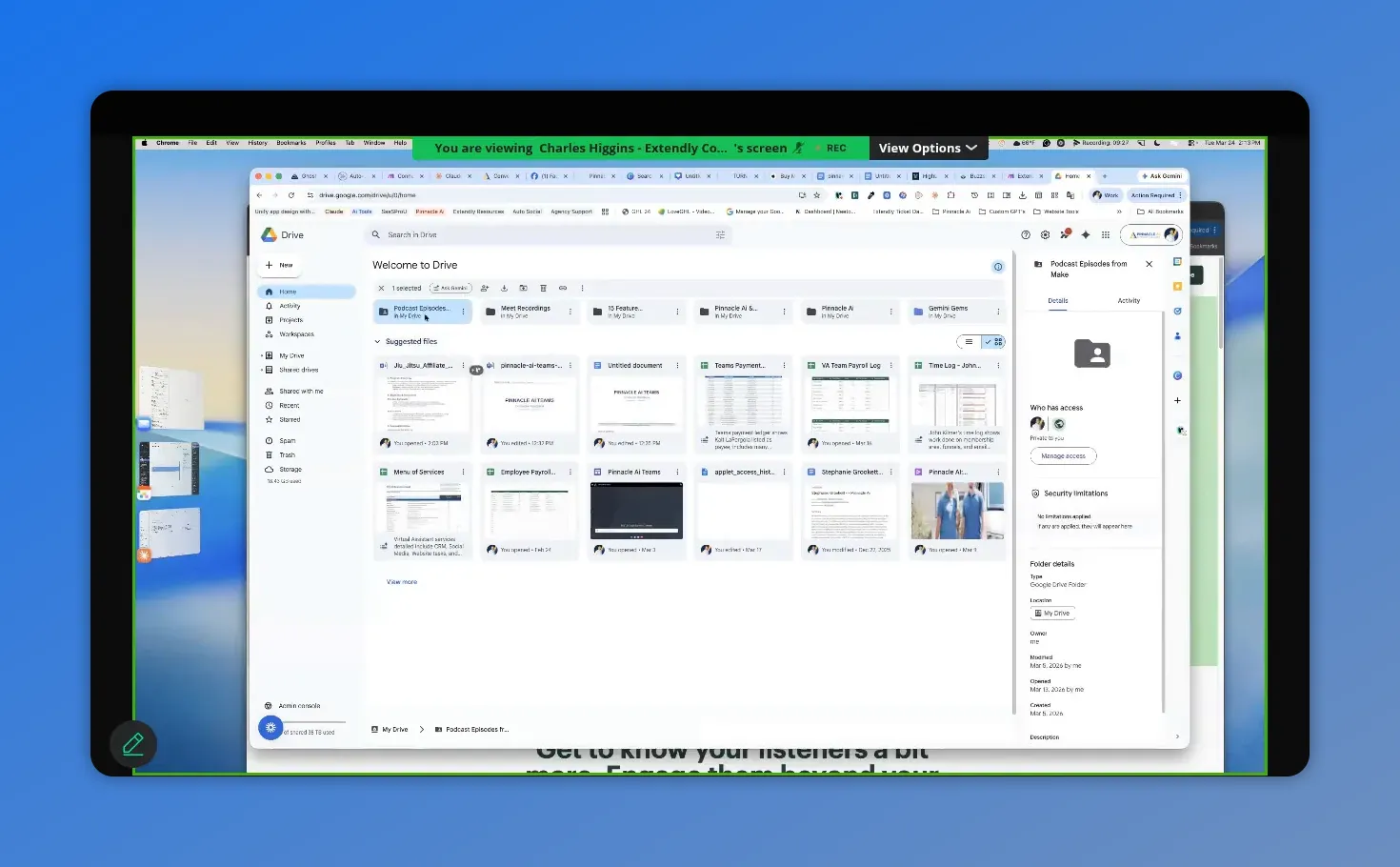
This Drive view highlights the folder access details, showing who has access—exactly the area to verify when fixing Google Drive permission issues.
How the YouTube branch works
Once the podcast branch is finished, the automation moves into the second router path, which handles YouTube.
The source is still the same blog article. But now we want to pull out the embedded video and repurpose that for YouTube.
Step 1: Extract the MP4 URL from the article
The first job in this branch is to locate the actual video file inside the blog post.
We used AI for this because it is quick and cheap. The prompt is straightforward: look through the article content, find the MP4, and return only the raw URL. If nothing is found, return a clear failure message.
This is one of those tasks that could probably be done another way. But using a lightweight model keeps it simple and costs next to nothing.
Step 2: Download the video
Once the MP4 URL is extracted, the next step is to download the video file.
And this is a potential failure point. The issue may have nothing to do with your automation logic. The source server could time out. The URL could be missing. The remote file could be temporarily unavailable.
Because of that, this module should have an error handler.
The recommended setup was:
- Retry up to 3 times
- Wait 15 minutes between attempts
- If it still fails, break and move on
This keeps one bad video from breaking the entire scenario. If one branch fails, the rest of the automation can still continue.
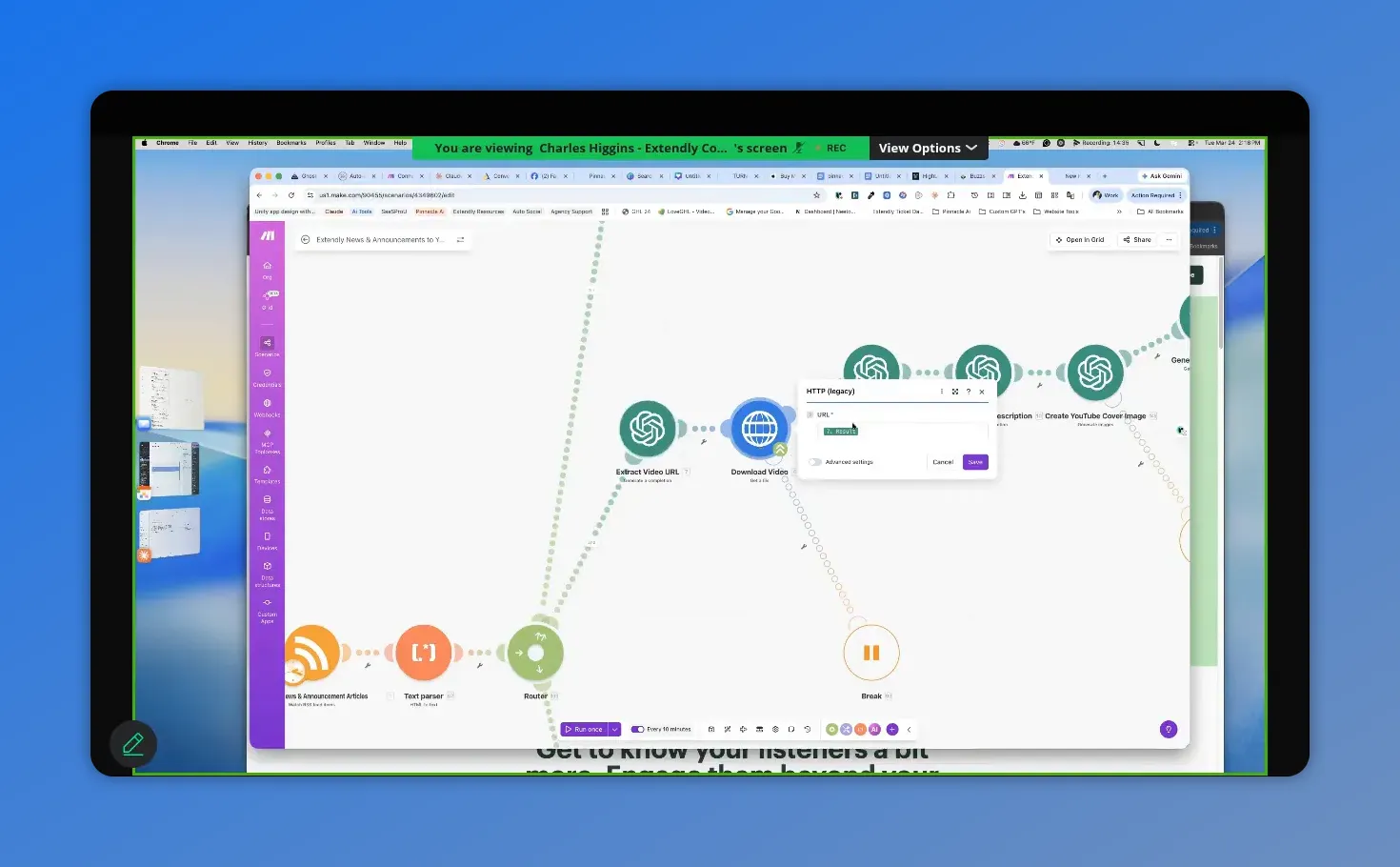
Here you can see the video-download step in action—so you can verify the workflow is actually pulling the MP4 URL and moving forward.
Generating the YouTube content with AI
Once the video is downloaded, the system creates the YouTube assets around it.
1. YouTube title
The automation uses the original article text as the source and sends it into AI with a title-generation prompt.
This gives you a title based on the actual article content rather than a generic guess.
2. YouTube description
The description is generated the same way, again using the original source content. This keeps the text relevant to the update or announcement being posted.
3. YouTube cover image
This is where things get interesting.
The automation includes a prompt to generate a thumbnail image. It works well as a starting point, but this is one area where personalization matters.
If you leave the prompt fairly general, AI may start giving you a recurring visual style or even the same type of person in your thumbnails over and over. That happened here. Even without asking for a person specifically, the image generator kept producing the same guy across multiple thumbnails.
That may be fine for some brands. But if it does not fit your business, update the prompt.
A good example came from using a few simple details to make the thumbnails feel more on-brand:
- Hair color
- Eye color
- Professional look
- Brand color alignment
It did not take an elaborate prompt. Just a few lines were enough to make the generated images better match the brand avatar and channel identity.
So the advice here is simple: inspect and customize your prompts. Many of these prompts are hardcoded with Pinnacle branding as the default example, so they should be updated to fit your own brand and use case.
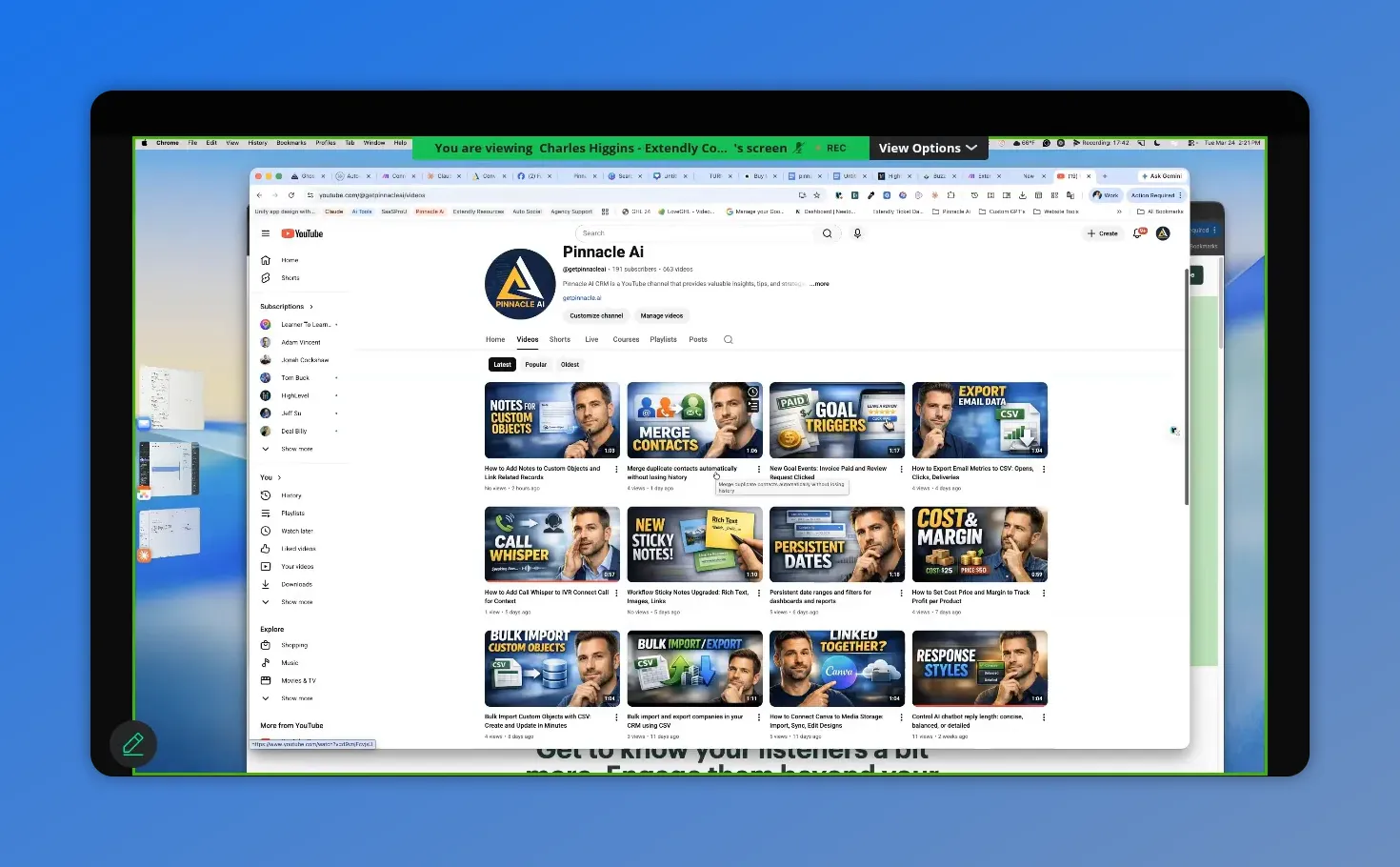
When tuning the thumbnail prompt for brand consistency, you end up with a set of generated thumbnail options that should look cohesive across uploads—like the grid shown here.
4. Video tags
Tags still matter on YouTube. They help with search and discovery, and they give the platform more context about what your content covers.
The automation generates 10 to 15 tags based on the article content, using strict formatting so the output maps cleanly into the YouTube upload module.
One small but useful addition here is a short wait step. It is not always required, but adding occasional waits in automations can reduce strange timing issues, especially when multiple AI and upload actions are chained together.
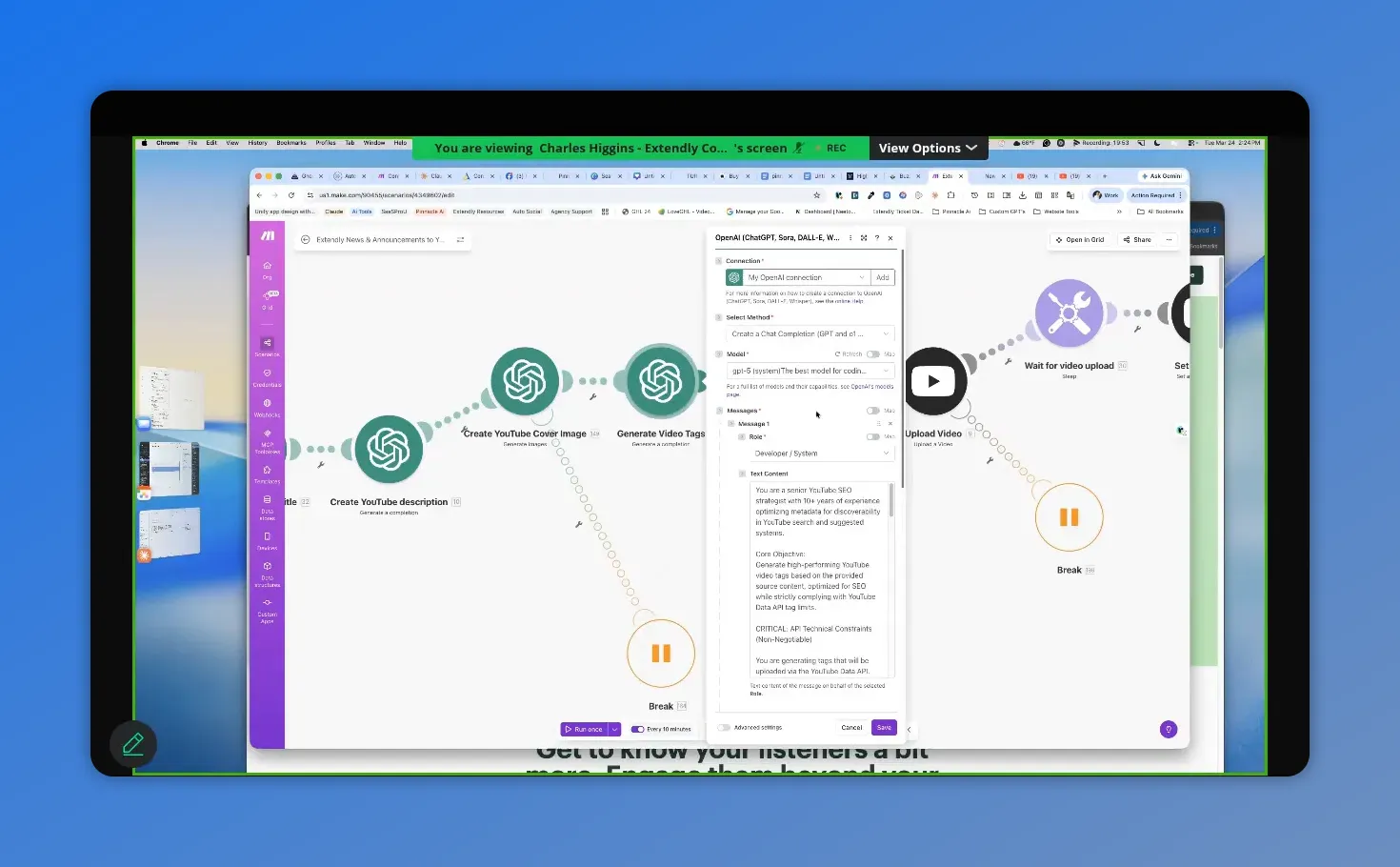
Here you can see the AI chat setup that powers YouTube tag generation, including the model connection and the prompt being used to output tags.
Uploading the video to YouTube
Once all the assets are ready, the video is uploaded using the downloaded file plus all the AI-generated metadata.
You will need to connect your own YouTube account in this module. After that, the mapping should already be in place.
Here are the main settings used:
- Title: AI-generated title
- Description: AI-generated description
- Video file: downloaded MP4 from the earlier HTTP request
- Category: Science & Technology
- Privacy status: Public
- Made for kids: No
- Altered or synthetic media: No
- Tags: AI-generated keyword set
- License: Standard YouTube license
- Embedding: Allowed
You can change the privacy status if you want to review content first. But if speed matters more than review, setting it to public can be perfectly reasonable. Fix it later if needed.
The notify subscribers setting depends on your content strategy.
If your channel is tightly focused on software, updates, and platform education, notifying subscribers makes sense. But if your main content is something else, such as consulting or coaching, you may not want every automated update pushed to subscribers.
Why there is a wait step before setting the thumbnail
After the upload, the automation waits for 120 seconds before trying to set the thumbnail.
That delay is there for a practical reason. The video needs a little time to get far enough into the upload process before YouTube will accept a custom thumbnail.
These are short videos, so two minutes is usually enough.
After that, the thumbnail module pulls:
- The video ID from the upload step
- The thumbnail image generated earlier by AI
Then it applies the thumbnail automatically.
Adding every upload to a playlist
After the thumbnail is set, the automation waits a few more seconds and then adds the video to a playlist.
This part is optional, but it is a good idea.
Playlists help in a few ways:
- They keep related updates organized
- They make it easier for people to browse your content history
- The newest video appears at the top
If you are publishing recurring product updates, feature releases, or training clips, a dedicated playlist gives all of that content a proper home.
To set this up, you may need to use the YouTube ID finder to locate your channel and then select the right playlist ID.
How to test each route without wasting time
One of the best practical tips from the session had nothing to do with AI prompts or YouTube settings. It was about testing smarter.
If you are still working on one route, disable the others.
In Make, you can right-click a route and choose disable route. That lets you focus only on the branch you are currently fixing.
A better workflow looks like this:
- Test route one by itself
- Once it works, leave it alone
- Disable it and test route two
- Then test route three
- Once all three work independently, turn them all back on
This saves time and avoids rerunning pieces you already know are working.
Also, if you have already run the scenario at least once, you can reuse previous run data. That means you do not have to wait for a brand-new article in the RSS feed every time you want to test something.
Common setup problems and how to fix them
A big part of the session was troubleshooting. Here are the most useful fixes that came up.
Google Drive permission errors
If you get an insufficient permissions error, the likely issue is one of these:
- You selected a shared drive but not a folder inside it
- The folder was not shared properly
- The module connection needs to be refreshed
The fix that worked was simple: create a folder inside the drive, share it, reconnect the module, and test again.
Disconnected account links in Make
If a module says the connection is not found, the fix may be to completely remove the broken connection and reconnect it cleanly.
It also helps to name connections clearly so you can tell which one is current and which one is an old leftover connection.
Scenario just spins on the first module
If the RSS trigger keeps spinning and does nothing, it may not know where to start.
Go into the RSS module and choose a starting point, such as the most recent item. Once that is set, the run should proceed normally.
Maximum file size exceeded
This one is tied to your Make plan.
If the video download step throws a maximum file size error, your subscription tier is likely too low for the files you are trying to process.
The recommendation was to use the Pro plan, because lower tiers can hit file size limits fast, especially when video is involved.
Buzzsprout via IFTTT not creating episodes
This was the one issue that remained stubborn.
There were cases where the automation appeared to execute correctly but still did not create the Buzzsprout episode. No obvious error. No clean explanation.
The best working theory was that the issue was related to the webhook or connection setup inside IFTTT.
The workaround was:
- Delete the existing connection
- Refresh the workflow
- Reconnect the service cleanly
- Name the new connection clearly
That may not solve every edge case, but it is the most sensible first fix when everything looks right and still does not work.
Can this same framework be used with other RSS feeds?
Yes, absolutely.
This automation is not limited to one content source. At its core, it is just pulling from RSS and then processing the content in different ways.
That means you can adapt it for:
- Corporate blog feeds
- Industry news feeds
- Other product update feeds
- Partner or franchise content sources
For example, if a company provides a central blog feed but local partners want to publish content under their own brand, they could use the RSS feed as the source and generate:
- Podcast episodes
- Static image posts
- Video content, if videos are embedded in the articles
And if you want to use multiple RSS feeds, the cleanest method is usually to duplicate the scenario rather than forcing multiple feeds into one complicated setup.
That keeps each automation simpler, and if one feed breaks, it does not break everything else.
What about creating content in another language?
For text outputs like podcast scripts, titles, and descriptions, changing the language is mostly a prompting task. If you want those written in Portuguese, for example, update the prompts to tell the model to generate the content in Portuguese.
But the YouTube video branch is different.
If the source video itself is in English, changing the metadata language will not change the spoken video language. For that, the practical option is to look into YouTube dubbing. YouTube offers dubbing capabilities, and that is the best route if you want the actual audio to be translated rather than just the title or subtitles.
One note on podcast artwork limitations
There was also a good question about custom podcast episode artwork.
In the current IFTTT setup, only three values are being sent through the webhook:
- Title
- Description
- Episode link or content
That means there is no extra field available for a custom episode cover image.
If you want per-episode artwork, you would need a more advanced webhook setup that sends a full JSON payload rather than using the simple three-field version. That is possible, but it is more technical.
For now, using one consistent cover image for all podcast episodes is a reasonable and much simpler option.
Why this kind of automation matters
The real benefit here is not just that content gets posted automatically.
It is that one source article can become multiple useful assets:
- A podcast episode
- A YouTube upload
- A thumbnail
- Tags and metadata
- Organized playlist content
- And additional image-based posts in later branches
That is the framework. And the nice part is that it is flexible. You can modify it, add to it, remove parts of it, and make it fit your business.
You do not have to use all the branches. You can use one. You can use two. You can clone the scenario and repurpose it for other feeds. The framework matters more than the exact example.
FAQ
Can thumbnail images be saved automatically too?
Yes. You can add another Google Drive action after the thumbnail is generated and save it the same way the audio file is being saved. The easiest method is to duplicate the existing Google Drive step and point it to the folder you want to use.
Do we need a folder in Google Drive, or is a shared drive enough?
You need a folder. Even if you are using a shared drive, the Google Drive action still expects a folder inside that drive.
Should the script be generated before the title and description?
That is the preferred setup here. Generating the script first usually makes the title and description more accurate because they are based on the actual content produced.
Can this automation be rebuilt in another platform besides Make?
Probably, yes. But this framework was built in Make, and that is the platform used throughout the process. Rebuilding it elsewhere would require adapting the logic and connections manually.
Can we run multiple RSS feeds through the same setup?
You can, but duplicating the scenario is usually the better option. It keeps each feed separate, avoids unnecessary complexity, and makes troubleshooting easier.
Can the system generate content in Portuguese or another language?
Yes for text-based outputs. Update the prompts so the AI generates the podcast script, title, and description in the target language. For video audio, you would need a dubbing solution such as YouTube dubbing.
Why does the RSS module sometimes just spin and do nothing?
Usually because no starting point has been selected yet. Open the RSS module and choose the first item or most recent item so Make knows where to begin.
Why does the video download fail with a maximum file size error?
That is usually a subscription limit in Make. Lower tiers have small file size caps. The recommended fix is upgrading to the Pro plan.
Can we use a custom avatar in the AI-generated YouTube thumbnails?
Yes. The best approach is to update the image prompt with a few clear details about your avatar or upload the avatar to AI and ask it to rewrite the prompt so future thumbnails match your branding better.
Can podcast episodes have unique custom cover images in this setup?
Not with the simple three-field IFTTT webhook used here. That setup only passes a limited set of values. To support custom artwork per episode, you would need a more advanced JSON-based webhook workflow.
That is where the YouTube branch stands right now. The structure is in place, the main logic works, and most of the common issues now have clear fixes. From here, the next step is less about adding complexity and more about tightening the system, testing each branch independently, and making the prompts and branding feel like your own.
This article was created from the video Video 3 - Mar 24 2026








