





New Integrations Page: Faster UI, Search, Lead Ads Form Mapping

We rebuilt the Integrations page to make connecting external tools faster and easier. The layout is cleaner, discovery is quicker, and form mapping for Lead Ads is simpler. This update helps admins and marketers manage connections without extra clicks or confusion.
What changed
The Integrations page now focuses on clarity and performance. Key updates include:
Card-based layout — each integration is shown in a structured card with one primary action.
Three-dot menu — integration-specific options like support documentation, troubleshooting, and settings are tucked into a dedicated menu for each card.
Search bar — find an integration quickly without scrolling through a long list.
Consistent role-based access control — access rules are unified across native integrations for predictable permissions.
Centralized form management — the old Form Mapping tabs are removed. Mapping and listing now live inside the three-dot menu.
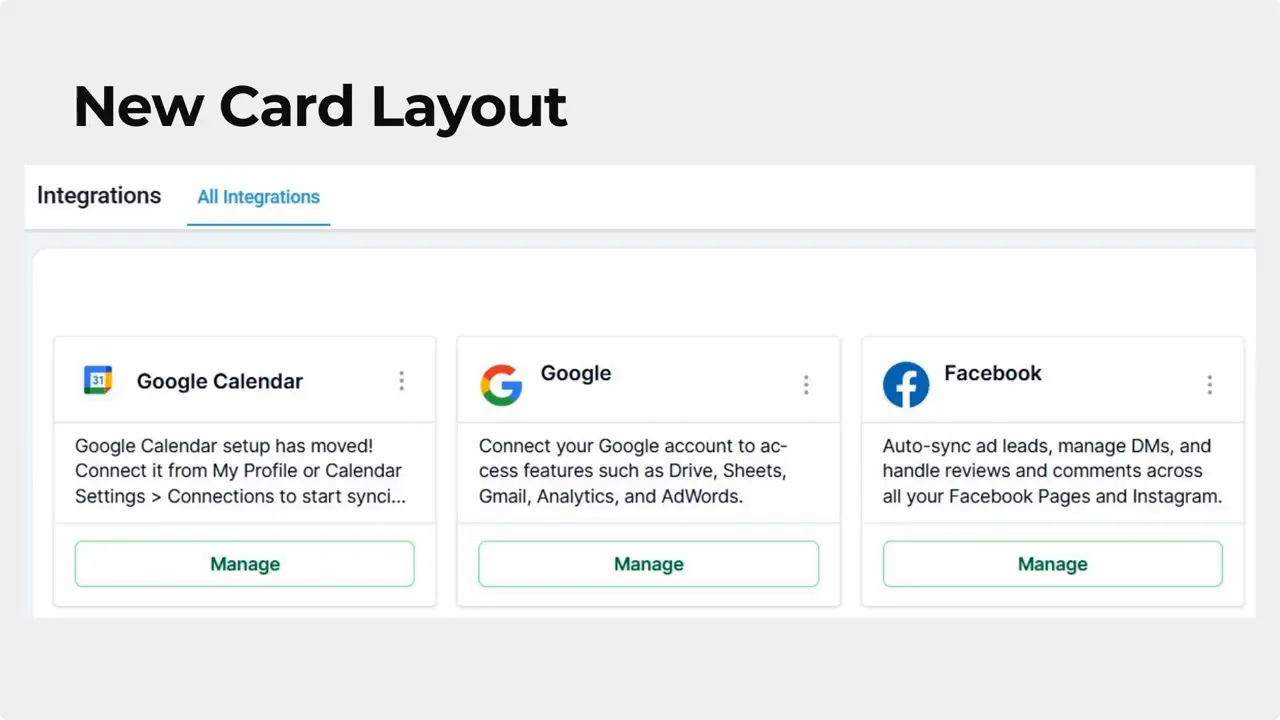
New card-based layout showing integrations (Google Calendar, Google, Facebook).
How form field mapping works now
Form mapping for Lead Ads (Facebook, LinkedIn, TikTok) follows a compressed, repeatable flow. We simplified the steps and moved the controls into the three-dot menu to reduce clutter.
Open the Integrations tab and find your Facebook, LinkedIn, or TikTok Lead Ads integration.
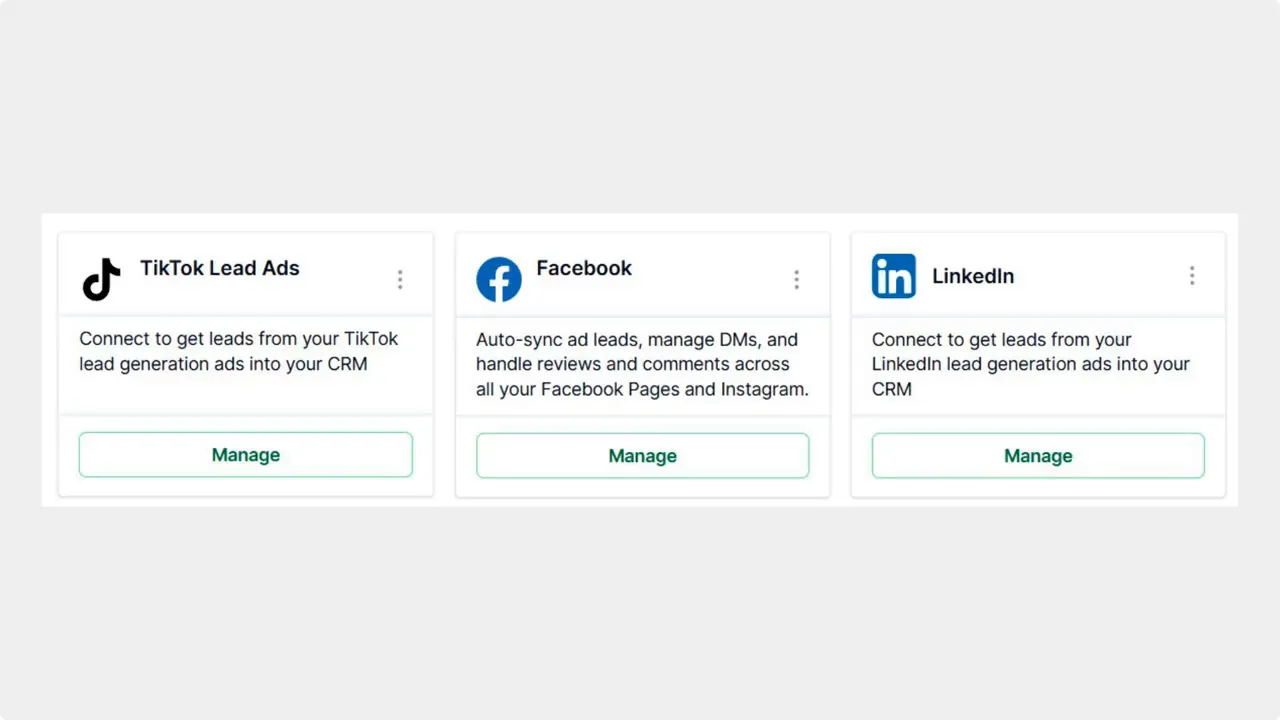
Integrations tab showing TikTok, Facebook, and LinkedIn cards (clear, centered view).
Click the three-dot icon on the integration card and choose Form Field Mapping.

Open the three-dot menu on the Facebook card and select Form Field Mapping.
Select Edit Fields to open the editing module.
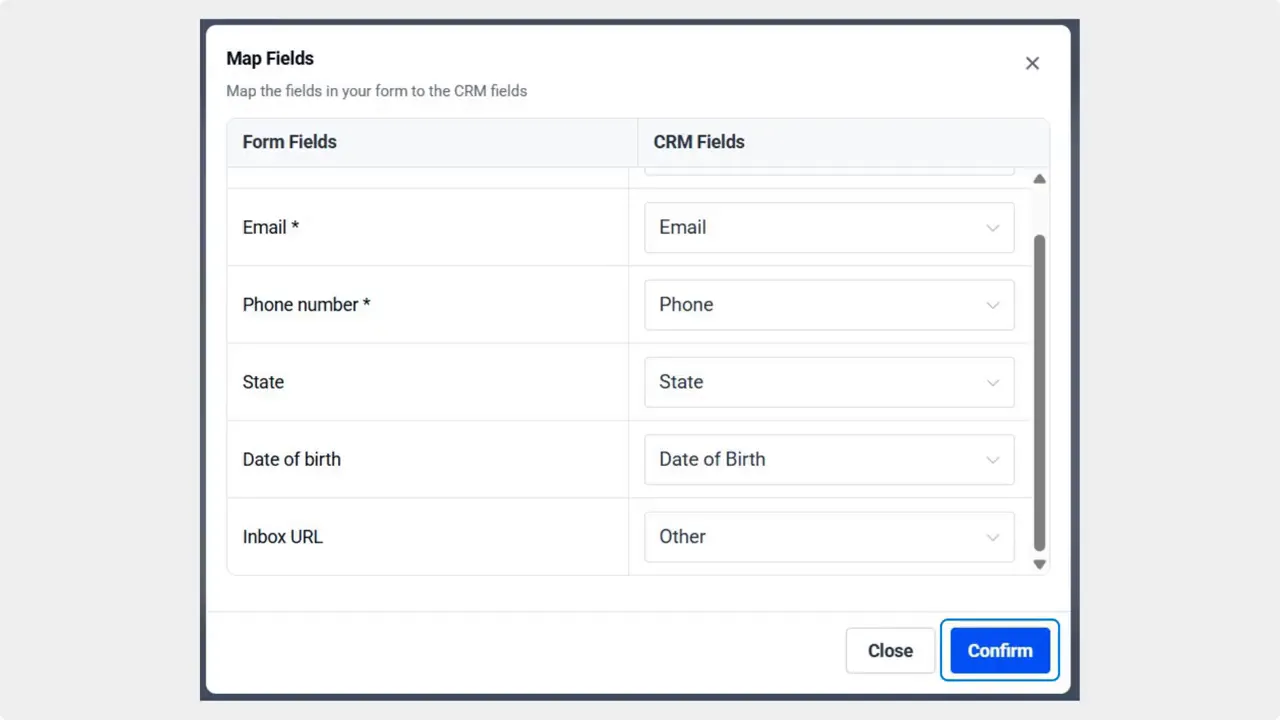
Editing module: match Lead Ad fields to CRM fields and click Confirm.
Match your lead form fields to the corresponding CRM fields.
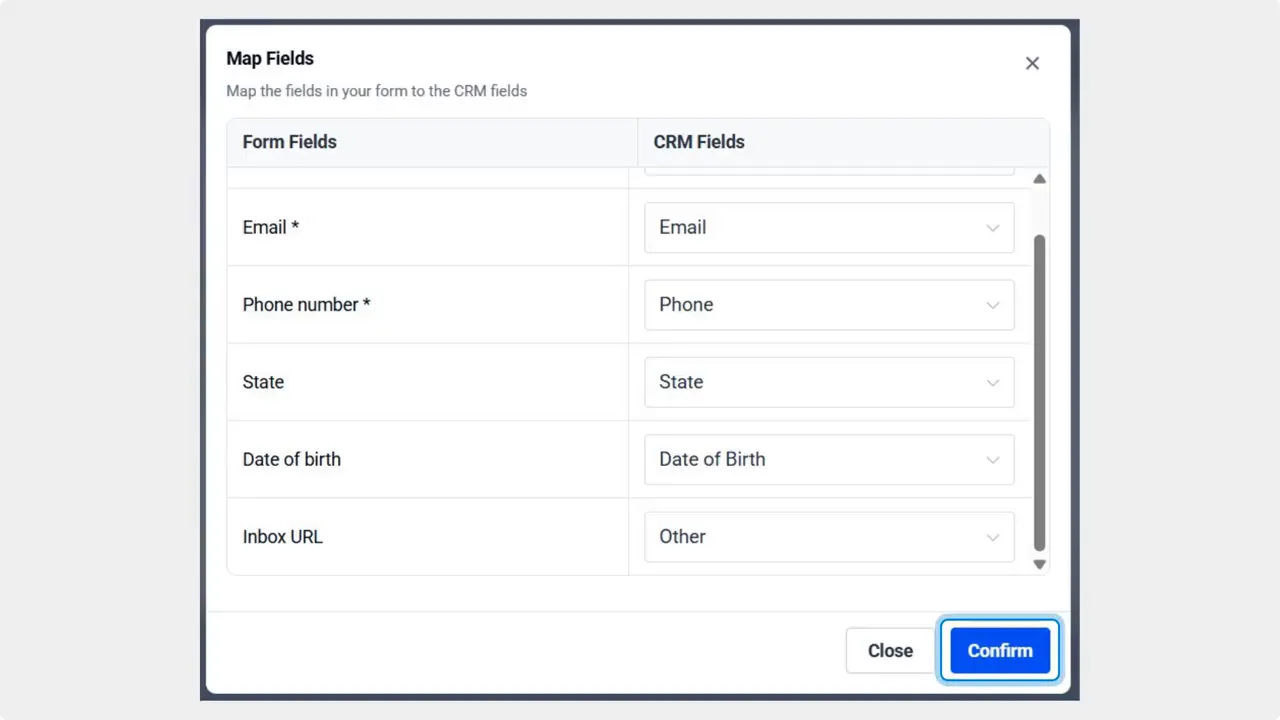
Matching Lead Ad form fields to CRM fields — confirm to save mappings.
Click Confirm to map and activate the form.
Notes about the new mapping flow
The mapping steps are the same conceptually, but controls are relocated for faster access.
Form mapping and the listing modal are now inside the three-dot menu to keep the main page uncluttered.
This streamlined flow will be used for any future integrations as well.
Why this matters
The redesign reduces clicks and makes integrations easier to find and manage. Search speeds up discovery. Moving mapping controls into the three-dot menu declutters the main interface and improves performance. Overall, these changes help keep lead capture running smoothly and reduce configuration time.

Centralized Facebook form mapping modal showing forms and 'Edit Fields' actions.
Quick troubleshooting and support
If a mapping looks off or a form stops delivering leads, use the three-dot menu on the integration card. You can access support documentation, troubleshooting steps, and settings right from there.
Best practices
Use the search bar to locate integrations instead of scrolling.
Confirm mappings after editing to ensure leads populate the right CRM fields.
Review role permissions when inviting teammates to manage integrations.
Keep a mapping checklist for each platform (Facebook, LinkedIn, TikTok) to speed repeat setups.

Open the three-dot menu and choose Form Field Mapping on the Facebook card.
FAQ
How do we find an integration quickly?
Use the search bar at the top of the Integrations page. Enter the integration name and the matching card will surface immediately.
Where do we map Lead Ads form fields now?
Open the integration card, click the three-dot menu, select Form Field Mapping, then choose Edit Fields. Match fields and click Confirm to activate.
Who can access integration settings?
Role-based access control applies consistently across native integrations. Check user roles and permissions to confirm who can edit mappings and settings.
Can we find support resources from the same place?
Yes. Support documentation and troubleshooting links live in the three-dot menu for each integration card.
Will future integrations use the same flow?
Yes. The streamlined process and centralized controls are the standard for current and future integrations.
This article was created from the video New Integrations Page: Faster UI, Search, Lead Ads Form Mapping








