





Import Course Content From Another Course in Minutes

Reusing proven content helps us speed up course creation and keep our curriculum consistent. Instead of rebuilding the same lessons, modules, or structure from scratch, we can now import content from one course directly into another inside the builder.
This makes it easier to create courses that share common topics while still leaving room to tailor details for different offers, audiences, or membership programs.
Why importing course content matters
When we already have strong course material in one product, it makes sense to reuse it. Importing course content gives us a faster and simpler workflow, especially when we are building related programs.
It helps with three things in particular:
- Faster course creation by reducing manual rebuilding
- Better consistency across lessons, modules, and course structure
- More flexibility because we can import one item or a full course
That balance is important. We can keep the core experience consistent while still making edits where needed. In other words, we can create a signature learning experience with space for variability.
Where to find the import option
To start, go to the Product Courses tab inside the Memberships section. From there, select the course you want to edit. This will be the destination course, meaning the course that will receive the imported content.
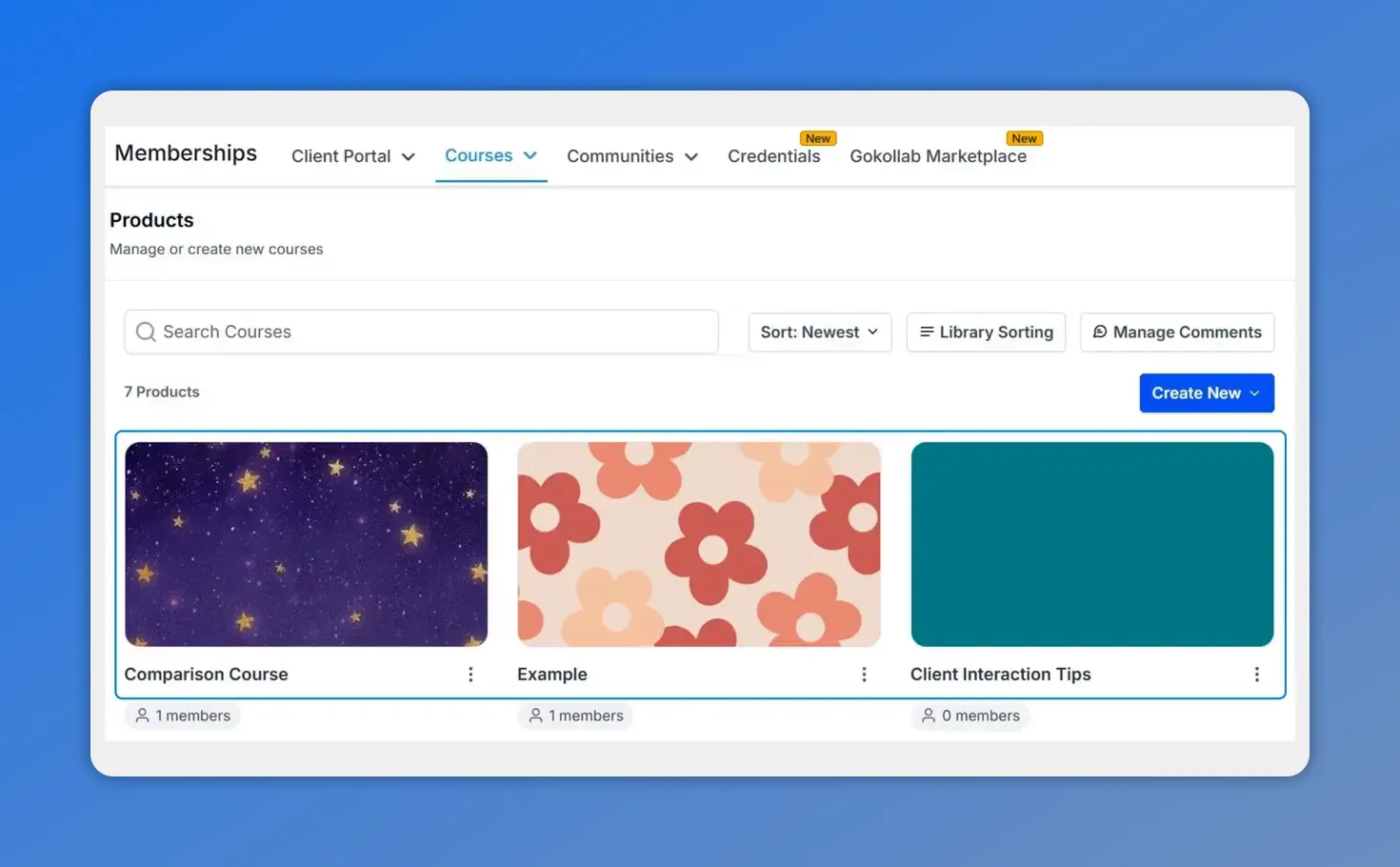
In Pinnacle, open the Memberships area to access your courses—this is where the destination course is selected.
Once you are inside the course builder, click + Add Content. Among the available options, choose Import from another course.
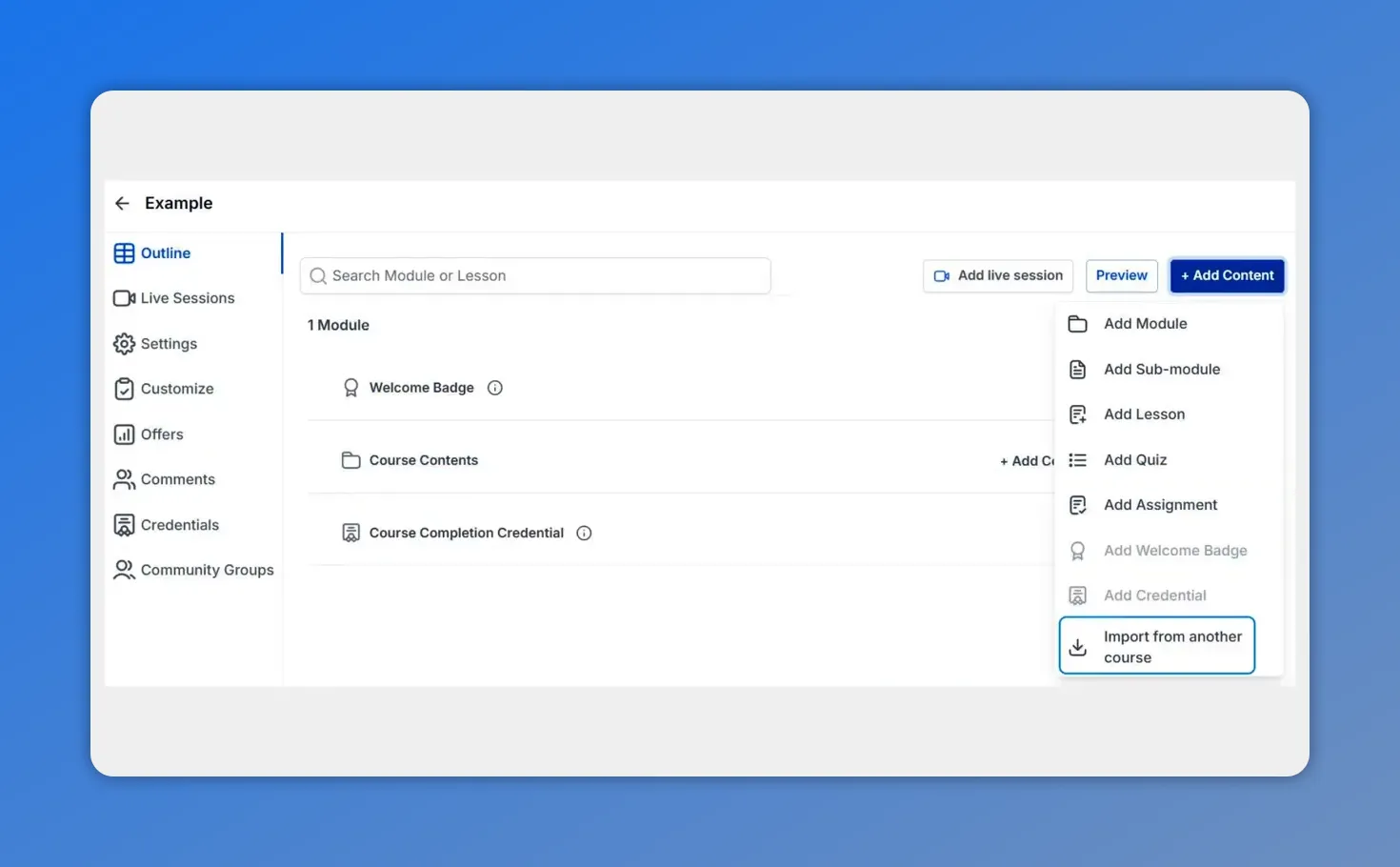
Inside the course builder, open the + Add Content menu to choose the import option.
This opens the import flow and lets us choose where the content will come from.
How to import content from another course
The process is straightforward and works whether we want to copy a full course structure or just a few pieces.
- Open the destination course in the builder.
- Click + Add Content.
- Select Import from another course.
- Choose the source course.
- Select either the entire course or specific items.
- Complete the import.
That is the full workflow. The key decision happens in the middle, when we choose how much content to bring over.
Option 1: Import an entire course
If we want to duplicate the full structure from another course, we can import the entire course at once. This is useful when the new course should follow the same layout, modules, and lessons as an existing one.
After selecting the source course, choose the option to import the full course and click Import Entire Course.
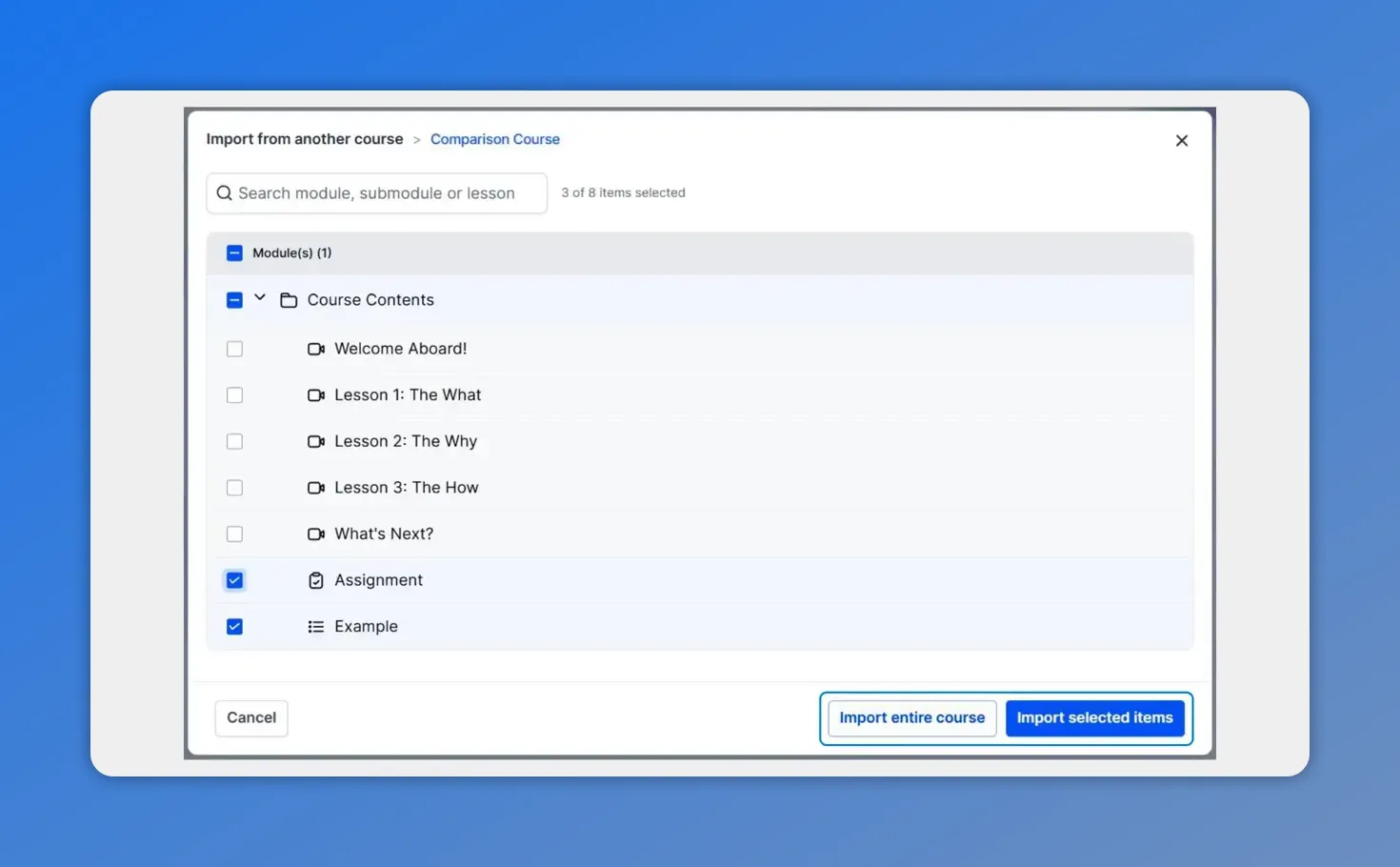
When importing selected items, you can pick specific lessons or modules—then choose whether to import the entire course or only the selected items.
This works well when we are building a similar program and want the same foundation in place right away.
Option 2: Import selected items only
If we only need certain pieces, we can select individual content items instead. That might be a single lesson, several lessons, a module, or other assets already built into the source course.
After choosing the course, select the content you want to reuse, then click Import Selected Items.
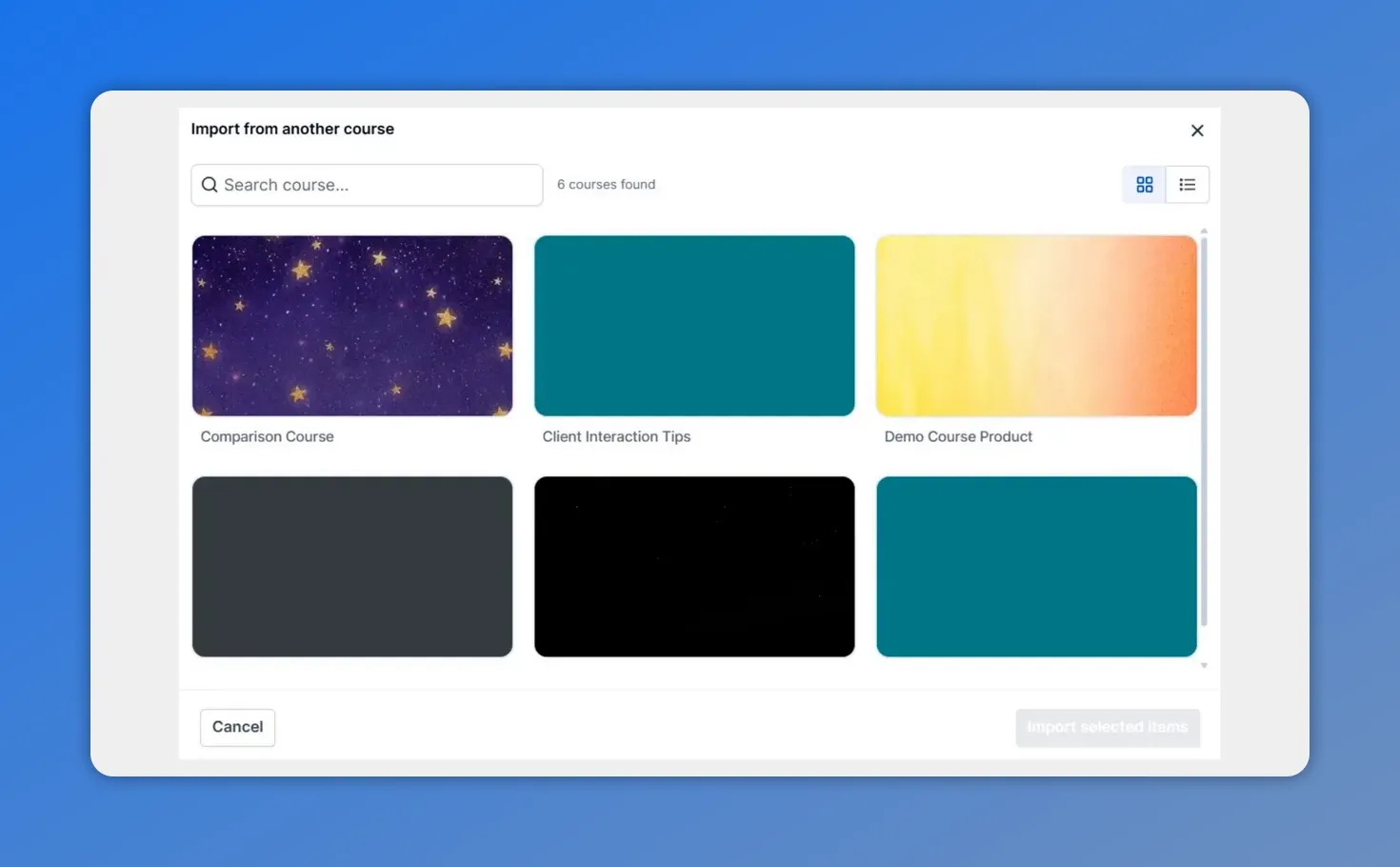
When you import selected items, you start by choosing the source course inside the “Import from another course” window.
This gives us more control and is helpful when only part of an existing course applies to the new one.
What kinds of content can be reused?
The import tool is flexible. We are not limited to copying only full courses. We can bring in:
- A single lesson
- Multiple lessons
- A full module
- A complete course structure
That range is what makes the feature practical. Some course builds need a full duplicate as a starting point. Others just need one proven lesson added into a new program.
What happens after the import
Once the import is complete, the selected items are added directly to the destination course. They are available right away and ready for editing.
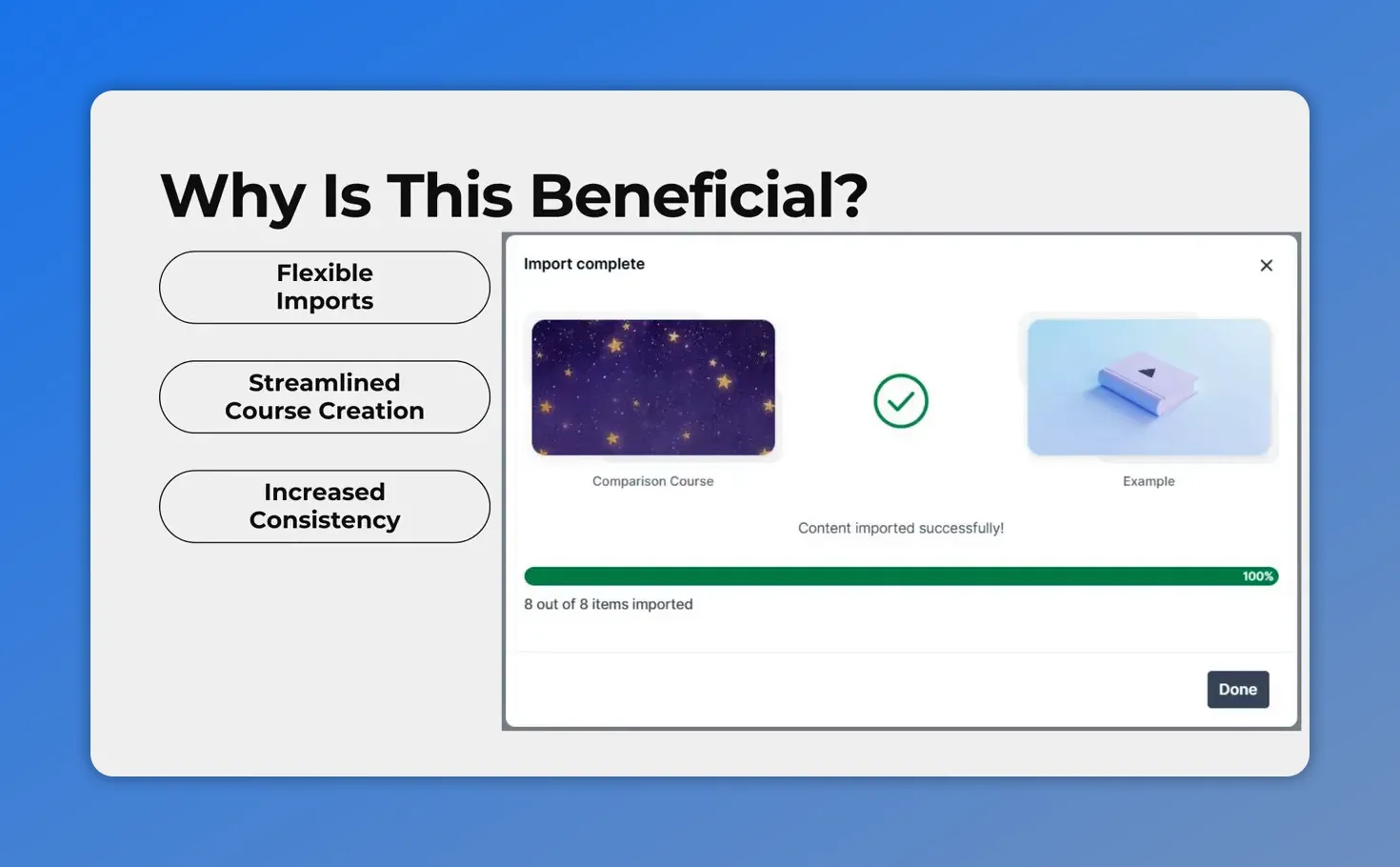
Once the import is complete, the selected items are added to your destination course immediately—so you can review and edit right away.
That means we can immediately adjust titles, lesson content, module order, or any other details needed for the new course. We get the benefit of reusing existing work without losing the ability to customize it.
This is especially useful when creating courses that share common topics. Instead of repeating setup work, we can start with material that is already proven and refine it for the specific course we are building.
How this improves consistency across programs
Consistency matters in course design. When several products cover related material, using shared modules or lessons helps keep the learning experience aligned.
Importing content makes that easier because we can standardize the parts that should stay the same, such as:
- Core lesson sequences
- Repeated framework modules
- Common onboarding or orientation content
- Shared educational assets
Then we can edit the imported content to fit the exact purpose of the destination course. This approach saves time while also making the curriculum feel more structured and intentional.
A simple way to speed up course creation
If we regularly build courses inside Pinnacle, this feature can reduce a lot of repetitive work. We no longer need to recreate the same structure every time a new but related course is launched.
Instead, we can:
- Use an existing course as the starting point
- Copy only the modules or lessons we need
- Edit everything immediately after import
- Keep our curriculum consistent across products
It is a simple improvement, but it makes the builder much more efficient.
FAQ
Where do we find the course import tool in Pinnacle?
Go to the Product Courses tab inside the Memberships section, open the course you want to edit, click + Add Content, and choose Import from another course.
Can we import an entire course at once?
Yes. After selecting the source course, we can choose to import the entire course. This copies the full course structure into the destination course.
Can we import only specific lessons or modules?
Yes. We can select individual items instead of copying the full course. This is useful when only certain lessons, modules, or assets need to be reused.
Are imported items editable after they are added?
Yes. All imported items are added to the destination course and are ready for immediate editing.
Why should we reuse course content instead of rebuilding it?
Reusing existing content saves time, reduces repetitive work, and helps keep curriculum structure and core material consistent across related courses.
If we are building multiple courses with shared topics, importing content from another course is one of the easiest ways to work faster and stay organized. Open the Product Courses tab, choose a course to edit, and import your first lesson, module, or full course structure.
This article was created from the video Import course content from another course in minutes








