





How to Add Call Whisper to IVR “Connect Call” for Context

Transferred calls often arrive with zero context. That might sound small, but it creates real friction for the person answering. They get a ringing line, they may not know why the caller was transferred, and they often have to scramble to find the right details while the customer is already on the call.
With a call whisper, we can send a private heads-up to the receiving user before the caller is connected. The goal is simple: give your team the key info up front so they can answer confidently and provide a smoother customer experience.
This is the section heading for how to add a call whisper to the Connect Call (IVR) action.
What a call whisper does (and why it matters)
A call whisper is a short, private message that plays only for the team member who will receive the transferred call. It acts like a pre-brief.
In practical terms, the whisper helps your team:
- Prepare faster before saying hello
- Answer with context instead of starting from scratch
- Reduce friction for both the agent and the caller
- Pull up contact details when needed
Because the message can include key information (as custom values), your team can walk into the conversation already informed. That is when customer interactions feel professional, organized, and personal.
How to add a call whisper to the Connect Call (IVR) action
Here’s the setup we recommend when you want transferred calls to arrive with context.
-
Create or edit a workflow and add the Connect Call (IVR) action.
-
Select the users you want to connect the call to.
-
Enable Add whisper message.
-
Enter your whisper text.
-
Configure the added details for the whisper message.
-
Click Save action.
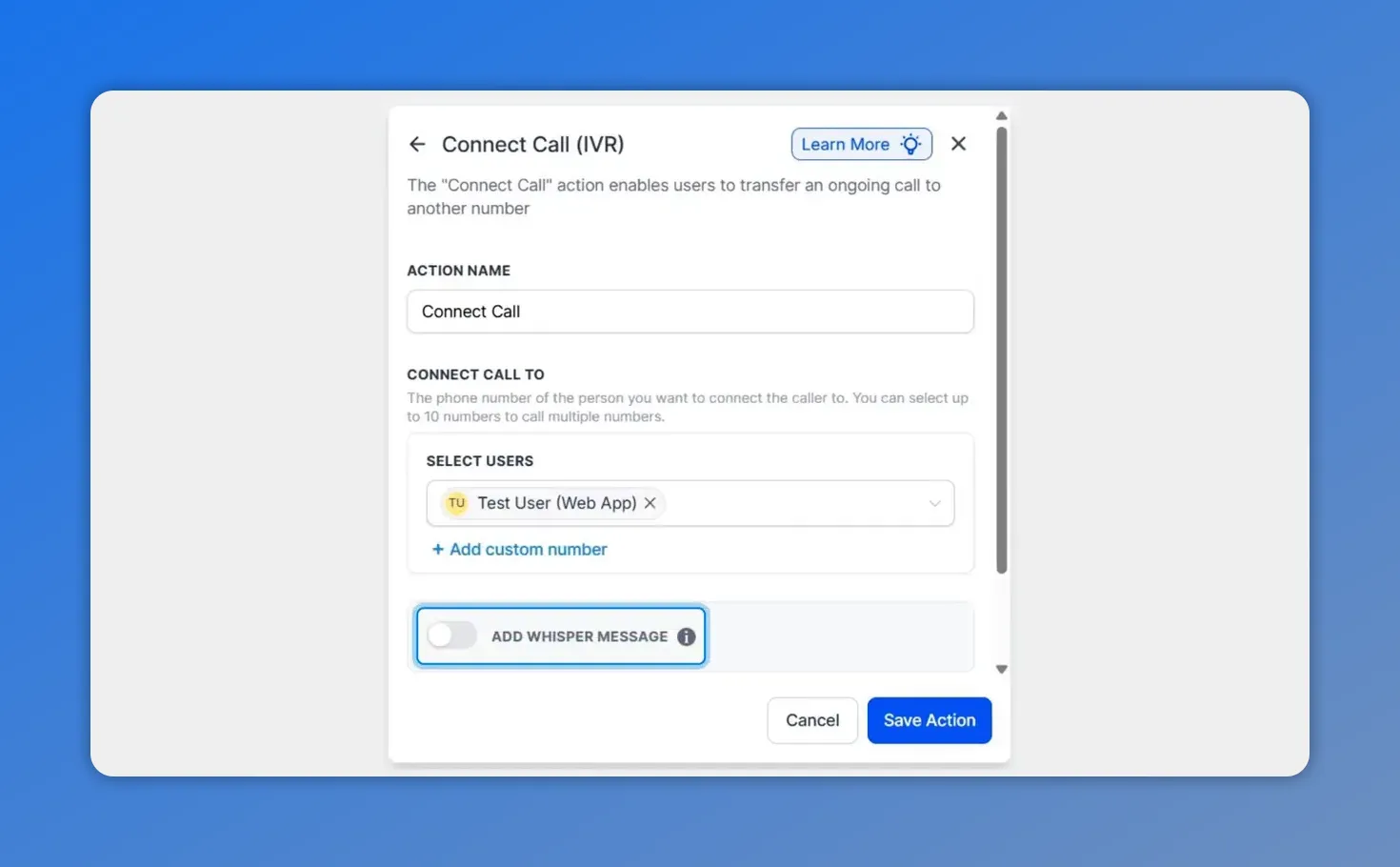
Once the Connect Call (IVR) action is set up, enable “Add Whisper Message” to send the private heads-up to the receiving user.
Make the whisper useful with custom values
The call whisper is more than a generic heads-up. We can include important details as custom values, so the message is relevant to the caller and the reason for the transfer.
That means your team can see the details they need right away, and they can open contact information quickly when the transfer happens.
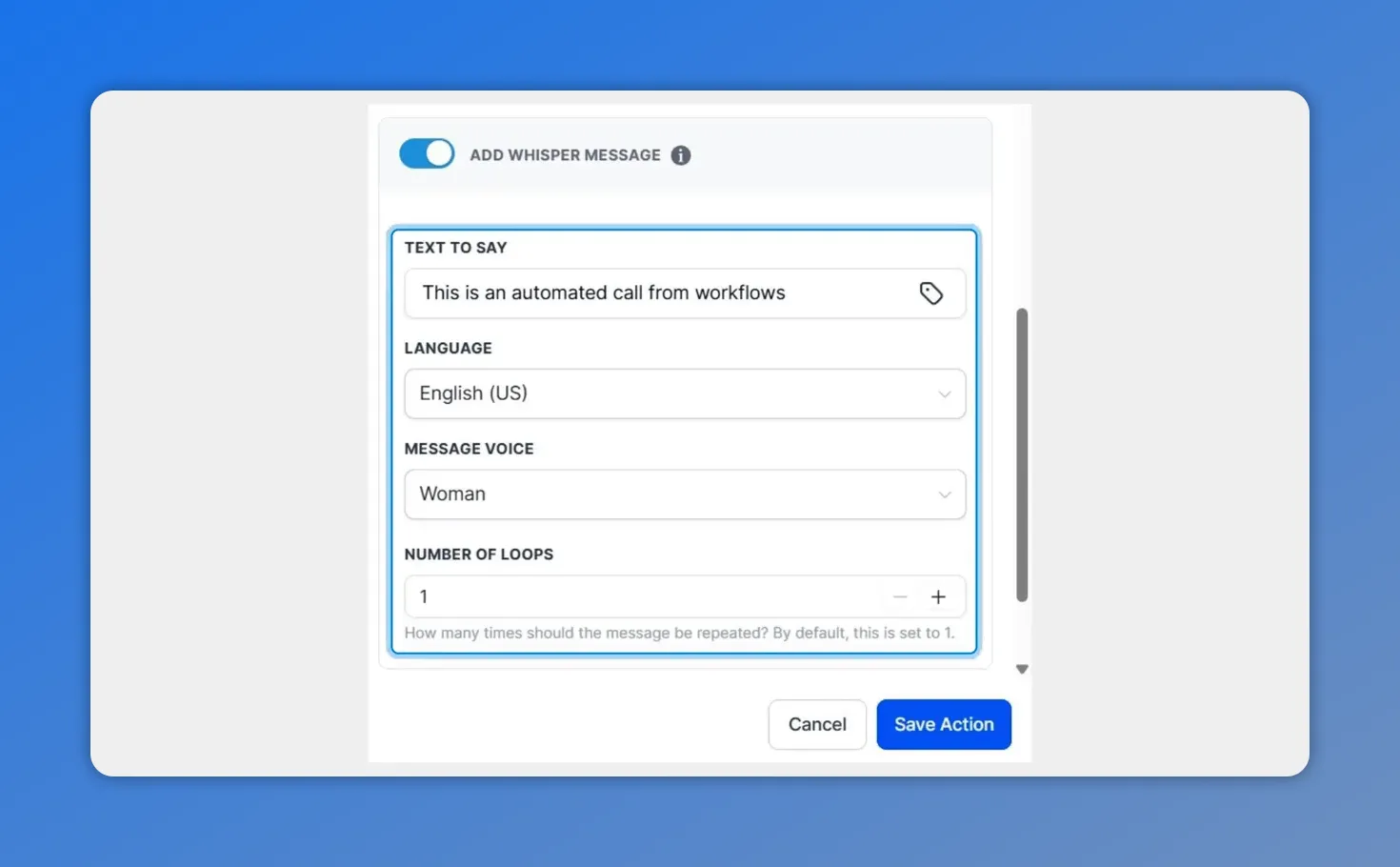
Turn the whisper into something useful by entering the exact text to say, choosing the language and message voice for the call whisper.
Example whisper messages you can use
Your exact wording will depend on your process, but here are a few practical templates we commonly see work well:
- Billing follow-up: “Caller needs billing help. Account: {{account_id}}. Reason: {{request_type}}.”
- Support escalation: “Escalated ticket received. Priority: {{priority}}. Issue: {{issue_summary}}.”
- Appointment changes: “Appointment reschedule request. Service: {{service_name}}. Preferred time: {{preferred_time}}.”
Even a short message like this can prevent the awkward pause where an agent has to figure out what’s going on mid-call.
FAQ
What is a call whisper in a Connect Call (IVR) setup?
A call whisper is an optional private heads-up message that plays for the receiving team member before the transferred caller is connected. It gives the agent context so they can prepare and answer confidently.
Who can receive the whisper message?
You select the specific users in the workflow when configuring the Connect Call (IVR) action. The whisper is intended for the team member(s) connected to handle that transferred call.
Can we include contact details in the call whisper?
Yes. The whisper supports including key information as custom values. It can help your team open or reference contact details as part of the message configuration.
Will the caller hear the whisper?
No. The call whisper is private and is meant to help your team prepare before the caller is connected.
How does this improve the customer experience?
It reduces call friction. Agents have key details up front, so they can greet the caller in context, ask the right questions sooner, and handle the request faster.
Get it set up in minutes
If transferred calls are currently coming in with little or no background, a call whisper is a fast improvement. Open your IVR workflow, add the Connect Call action, enable Add whisper message, then customize the text with the details your team needs most.
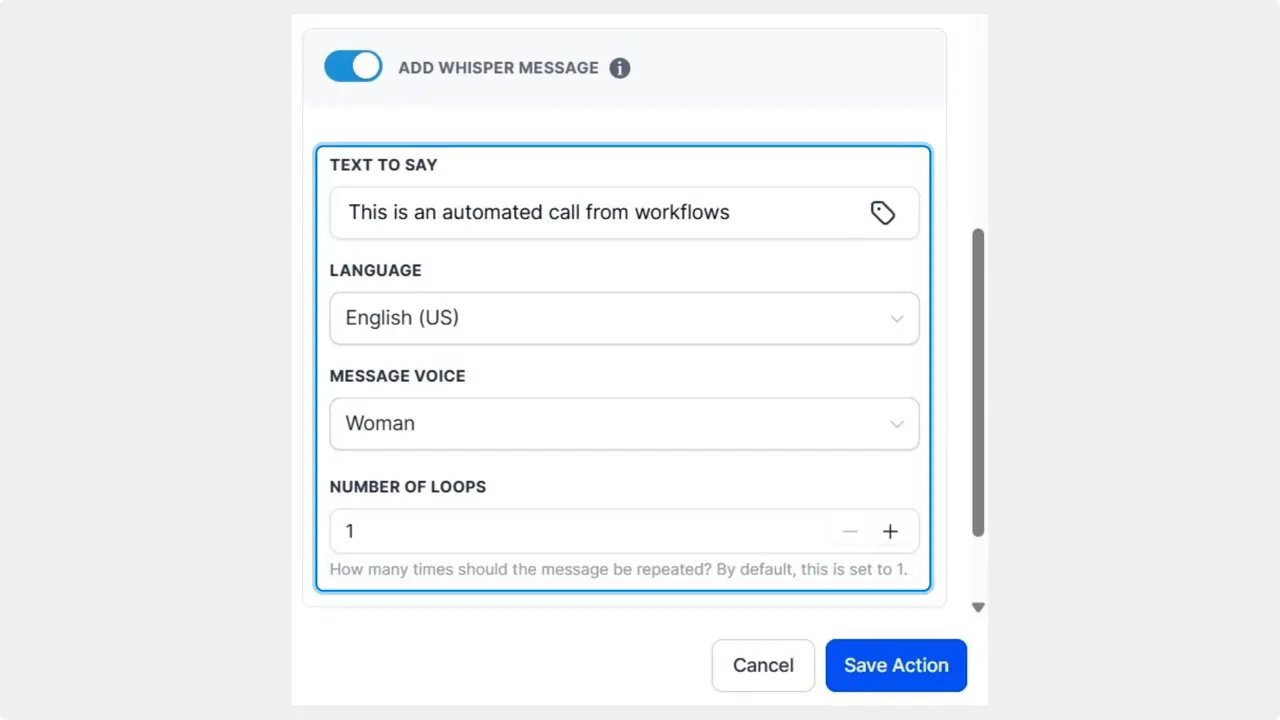
Use this panel to configure what the receiving agent will hear privately—set the message text, language, voice, and repeat count before saving the action.
This article was created from the video How to Add Call Whisper to IVR Connect Call for Context








