





How to Host Community Events Natively with a Live Room
Community events are one of the best ways to bring people together inside a membership. But when the event itself lives on an outside platform, it adds extra steps for members. They have to leave the community, find the right link, and sometimes install another app just to join.
That friction matters. It can lower attendance, create confusion, and make the whole experience feel disconnected.
That is why native Live Rooms are such a useful update. Instead of sending members somewhere else, we can now host community events directly inside Pinnacle. Members can join from the event itself, including from mobile devices, and the event experience stays consistent from start to finish.
Why native Live Rooms improve community events
Before this update, community events often needed to be hosted externally. That worked, but it also created an entry barrier for some members.
When people need to switch tools, search for links, or figure out a new interface, attendance can drop. Even members who planned to join may give up if the process feels inconvenient.
Using a Live Room as the event location solves that problem by keeping everything in one place.
Members join directly from the event page
Mobile access is built in
Hosting and access stay inside your community
Notifications and event flow feel more consistent
In short, Live Rooms give us greater control over the event location while making it easier for members to show up.
Where to create a community event
To create a new event with a Live Room, start inside the membership section of your account.
From there:
Open Community Groups
Log into your community
Go to the Events tab
Click + Event in the top right
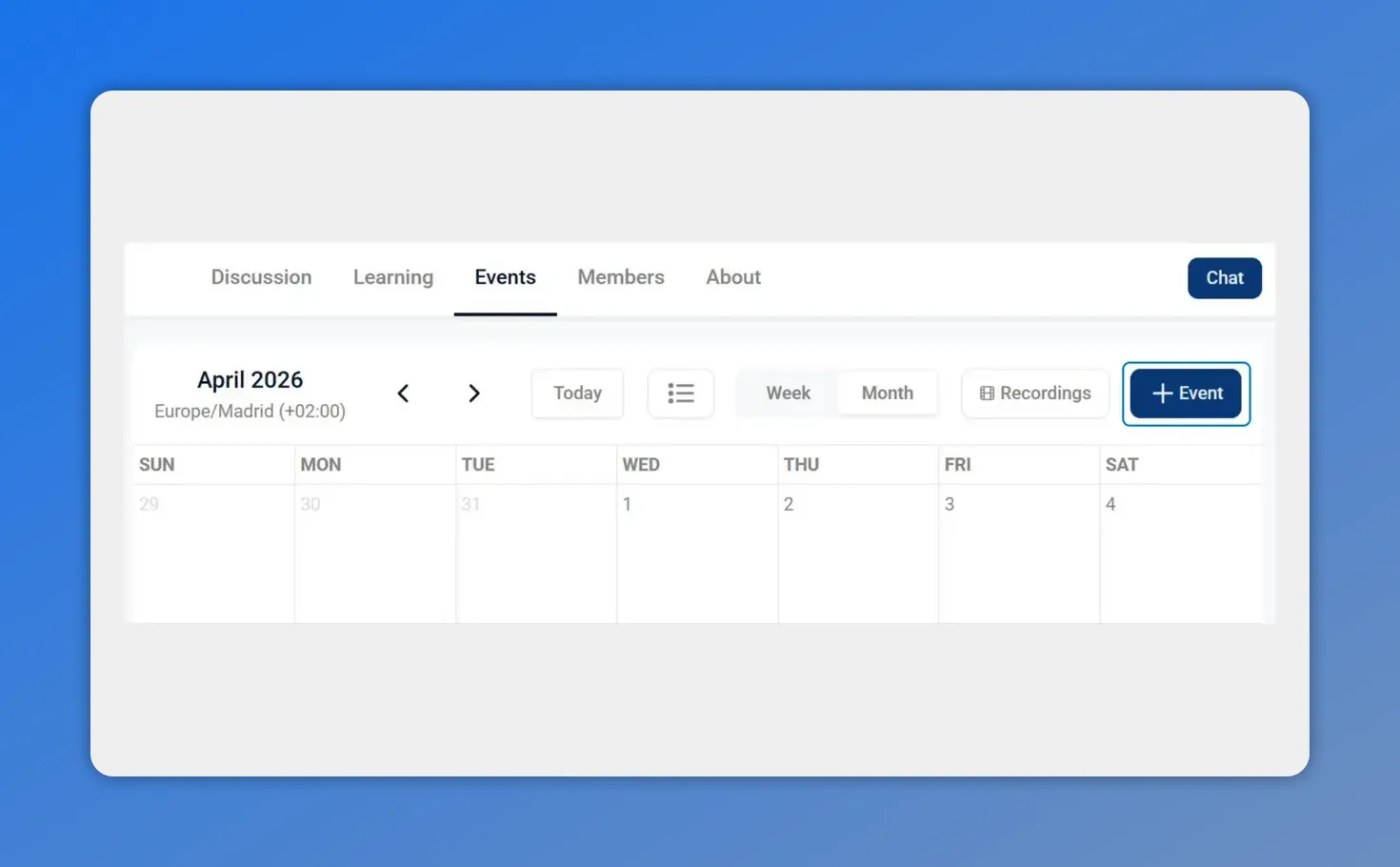
Once you’re inside your community, open the Events area and use the + Event button to start setting up a new event.
This is the starting point for setting up any community event inside Pinnacle.
How to create a community event with a Live Room
Once you click to create a new event, the setup is straightforward.
1. Enter the event details
Fill out the event information you want members to see. This is where you define the basics of the event before publishing it.
Make sure the details are clear so members know what the event is, when it takes place, and what they can expect.
2. Choose Live Room as the location
This is the key step. In the location options, select Live Room.
That turns the event into a native experience inside your community rather than relying on an external meeting tool.
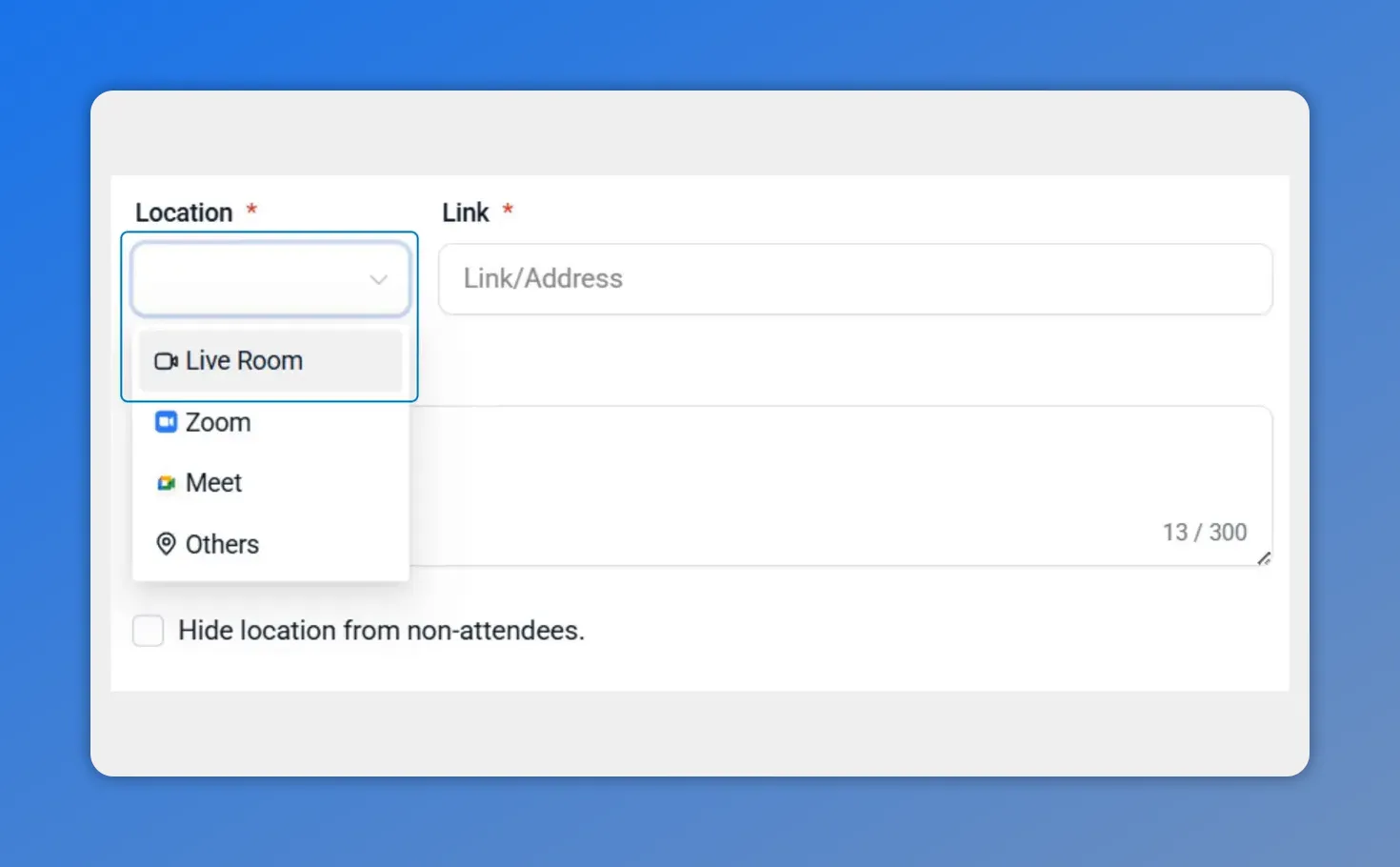
In the event setup, choose the location type—selecting “Live Room” makes the event native inside your community instead of linking out.
3. Set the payment requirement
After choosing the location, select the payment requirement for the event.
This gives you flexibility to run:
Free events for your full community
Paid events when access should require payment
This is useful if your membership includes a mix of open sessions and premium experiences.
4. Publish the event
When everything looks right, click Create Event to publish it.
Once published, the event is ready inside the community, and attendees can join directly from the event page.
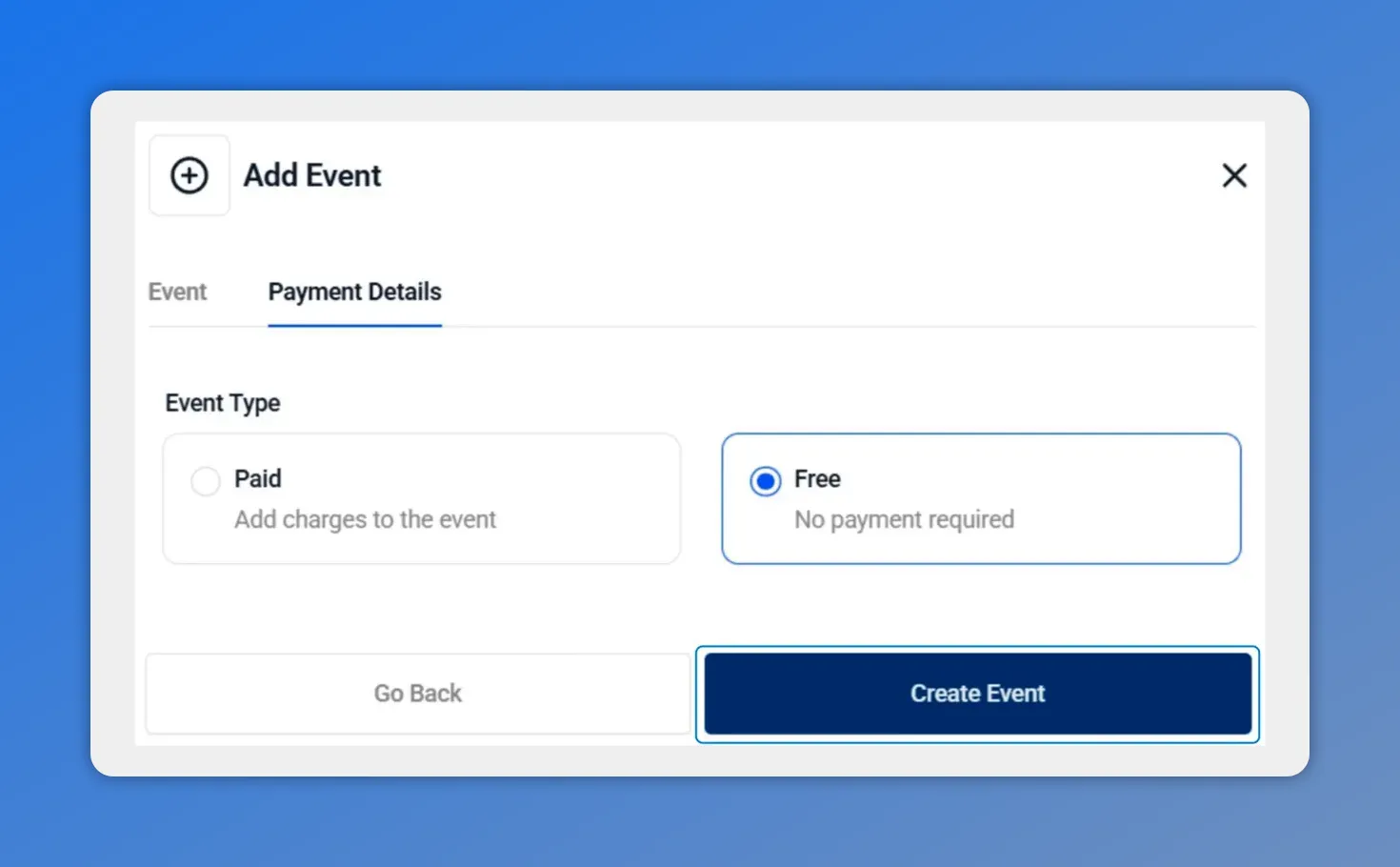
After choosing your Live Room location, you can set the payment requirement for the event and then create it.
What members experience when joining
One of the biggest advantages of using a native Live Room is the member experience.
Instead of tracking down a separate meeting link or switching to another platform, attendees join from the event itself. That makes the process simpler and more reliable.
And because mobile device connections are supported, members can also join from their phones without needing to move through extra tools.
This matters because convenience has a direct impact on participation. The easier it is to join, the more likely people are to attend.
How Live Rooms simplify operations for community managers
Live Rooms do more than improve access for attendees. They also make event management simpler on the backend.
When hosting, notifications, and member access all live inside the same system, there are fewer moving parts to manage.
That means we can reduce common event problems such as:
Sending the wrong external link
Members asking where to join
Different experiences across different event platforms
Extra setup work just to host a session
With Live Rooms, the community itself becomes the hub for the full event experience.
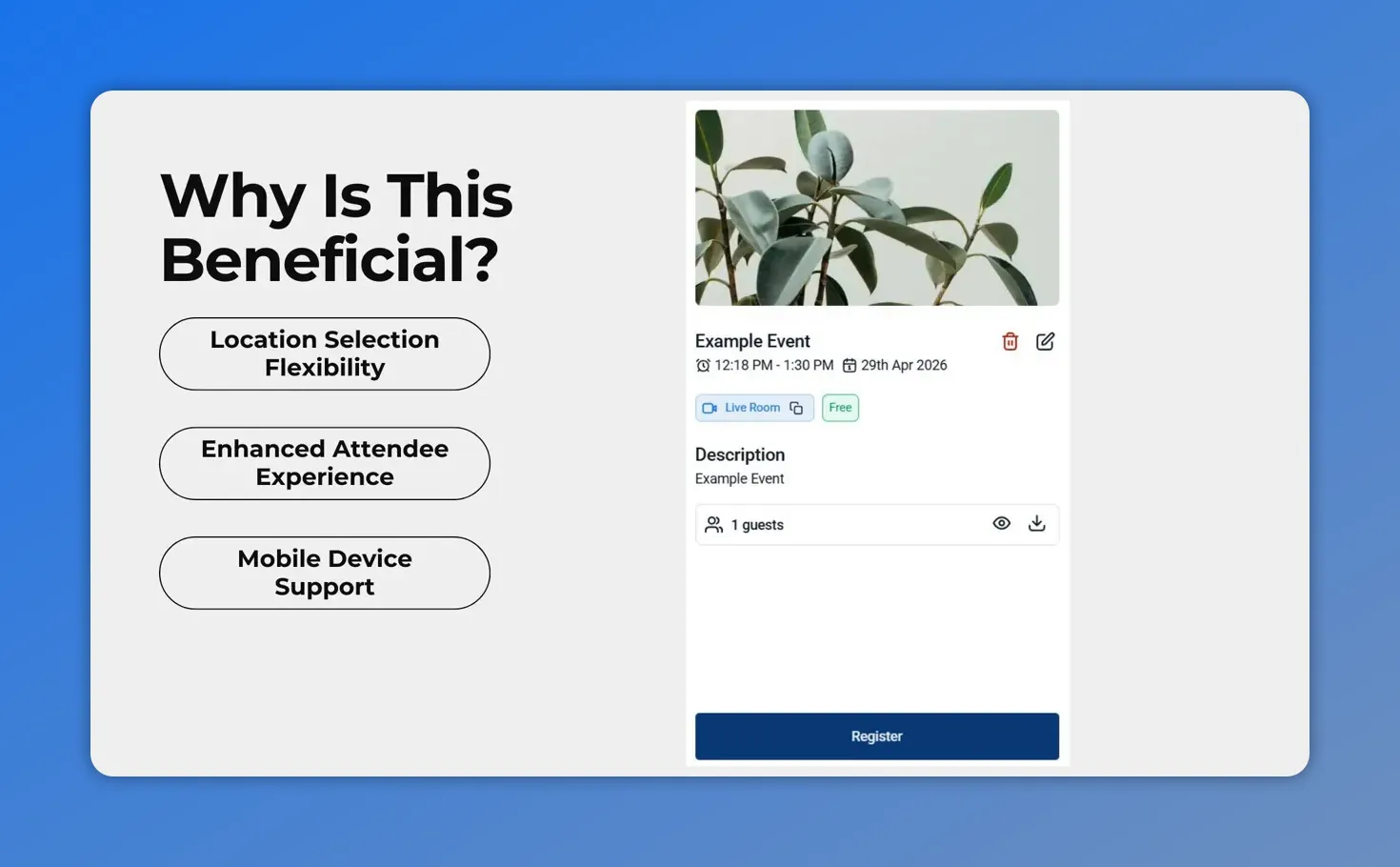
This is what makes native Live Rooms beneficial for members: flexible event setup, a smoother attendee experience, and support for mobile connections.
The bigger benefit of native event hosting
The real value here is consistency.
When every part of the event happens inside Pinnacle, the experience feels more connected for everyone involved. Members stay in a familiar environment. Access is simpler. And community managers have more control over how events are delivered.
That consistency helps with trust, ease of use, and day-to-day operations. It also removes unnecessary barriers that can keep people from participating.
If your goal is to make community events easier to host and easier to join, choosing Live Room as the location is a practical improvement.
Quick setup recap
Here’s the full process in order:
Go to the Membership area
Open Community Groups
Log into your community
Open the Events tab
Click + Event
Enter the event details
Select Live Room as the location
Choose the payment requirement
Click Create Event to publish
FAQ
What is the main benefit of using a Live Room for community events?
The main benefit is that members can join directly from the event inside your community. There is no need to rely on an outside platform, which reduces friction and creates a more consistent event experience.
Where do we create a community event in Pinnacle?
Go to the membership section, open Community Groups, log into your community, switch to the Events tab, and click + Event.
Can we choose whether an event is free or paid?
Yes. During setup, you can select the payment requirement for the event. This lets you decide whether the event is free to attend or requires payment.
Can attendees join a Live Room from a mobile device?
Yes. Live Rooms support mobile device connections, so attendees can join from their phones.
Why is native hosting better than using an external event link?
Native hosting keeps the full experience in one place. It simplifies access, reduces confusion, supports a more consistent workflow, and helps community managers avoid the extra steps that come with external tools.
What happens after we publish the event?
After you click Create Event, the event is published in the community. Attendees can then join directly from the event page when it is time to meet.
Use Live Rooms for your next community event
If you want a simpler way to host sessions inside your membership, this update is worth using right away.
Create your next event in Community Groups, choose Live Room as the location, set the payment requirement, and publish. It keeps hosting, notifications, and member access together in one place, which makes community events easier to run and easier to attend.
This article was created from the video How to Host Community Events Natively with a Live Room








