





New Feature: Form Support for Custom Object and Company Object Fields
Forms, surveys, and quizzes now capture company and custom object data natively. This update links form submissions directly to CRM records so related objects are created or updated in one step. Below we explain how to set it up, why it matters, and best practices for making the most of the integration.
What this feature does
You can now add fields from Company objects and Custom objects directly into a form, survey, or quiz. When someone submits that form, the system will associate or update related CRM records automatically. This creates complete relationships in one submission and lets you edit those object fields inside the form builder.
When to use it
- Collect company-level details such as billing addresses, industry, or account status while capturing a contact.
- Capture data for related business objects like subscriptions, orders, or account settings that live in custom objects.
- Keep records synchronized so form submissions update both contact and linked object records instantly.
How to add Company or Custom Object fields to a form
-
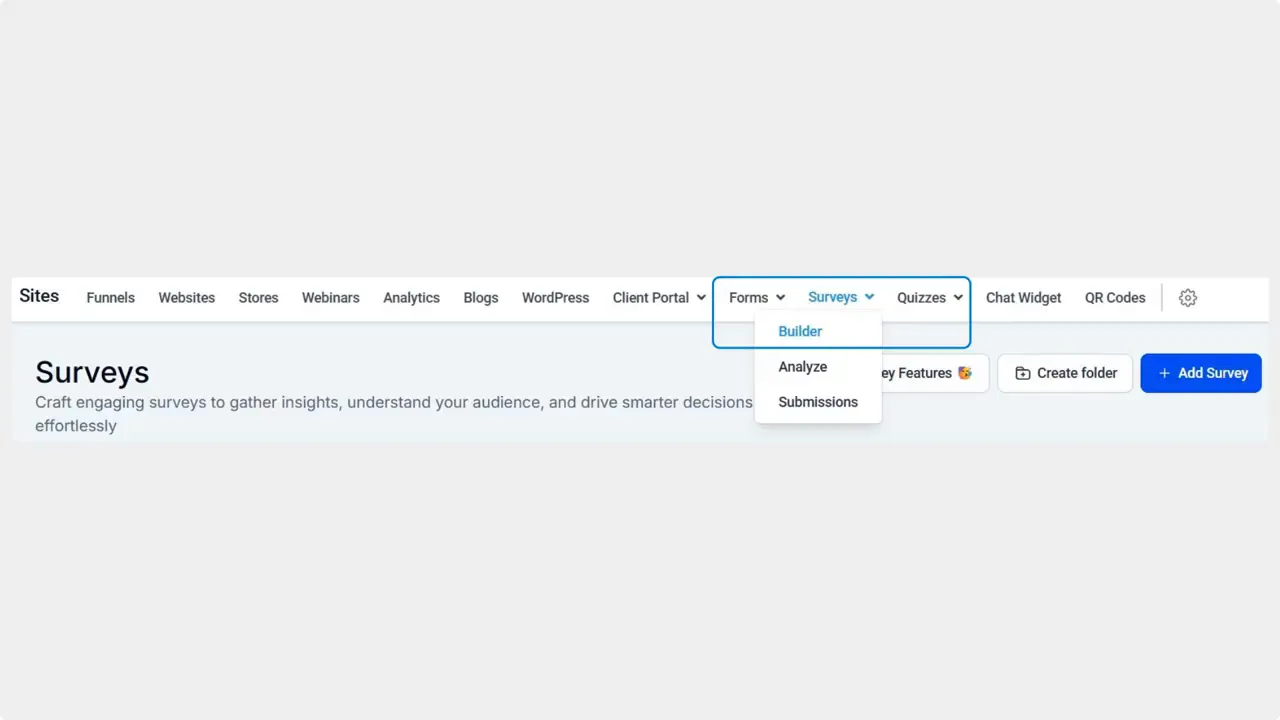
Go to the Form, Survey, or Quiz tab and create or edit a build.
-
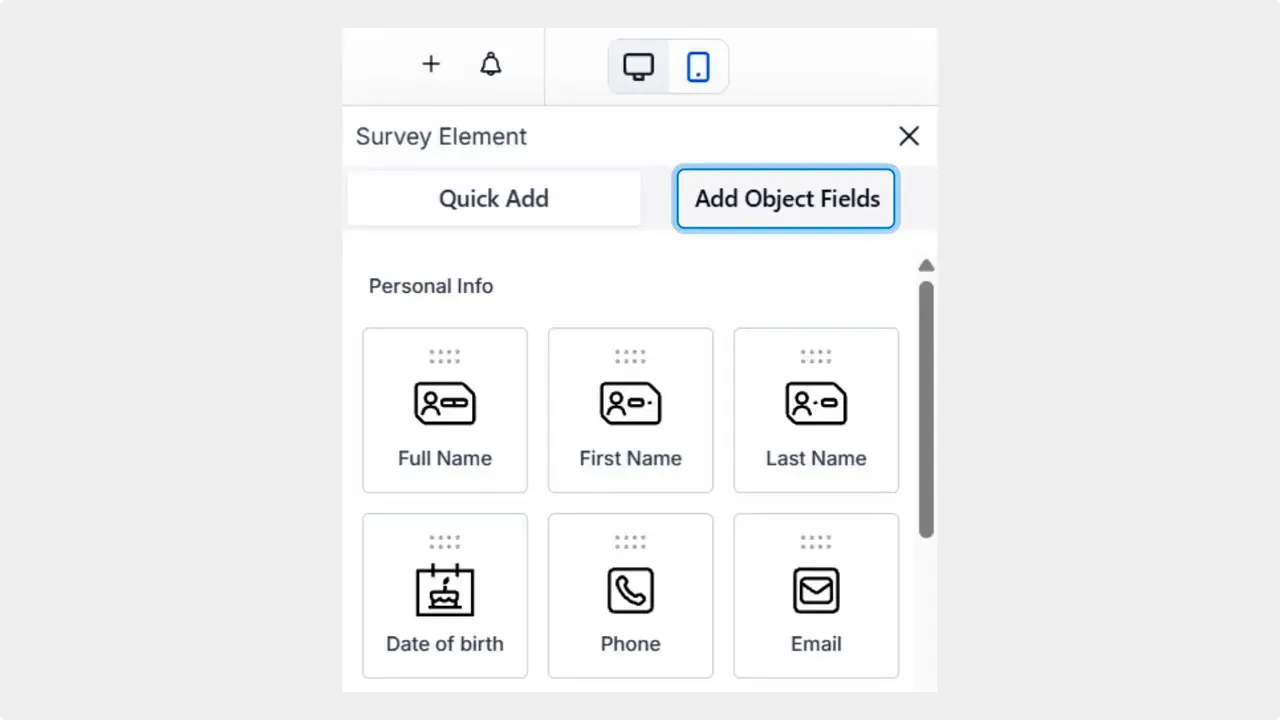
Click the plus sign icon to add an element.
-
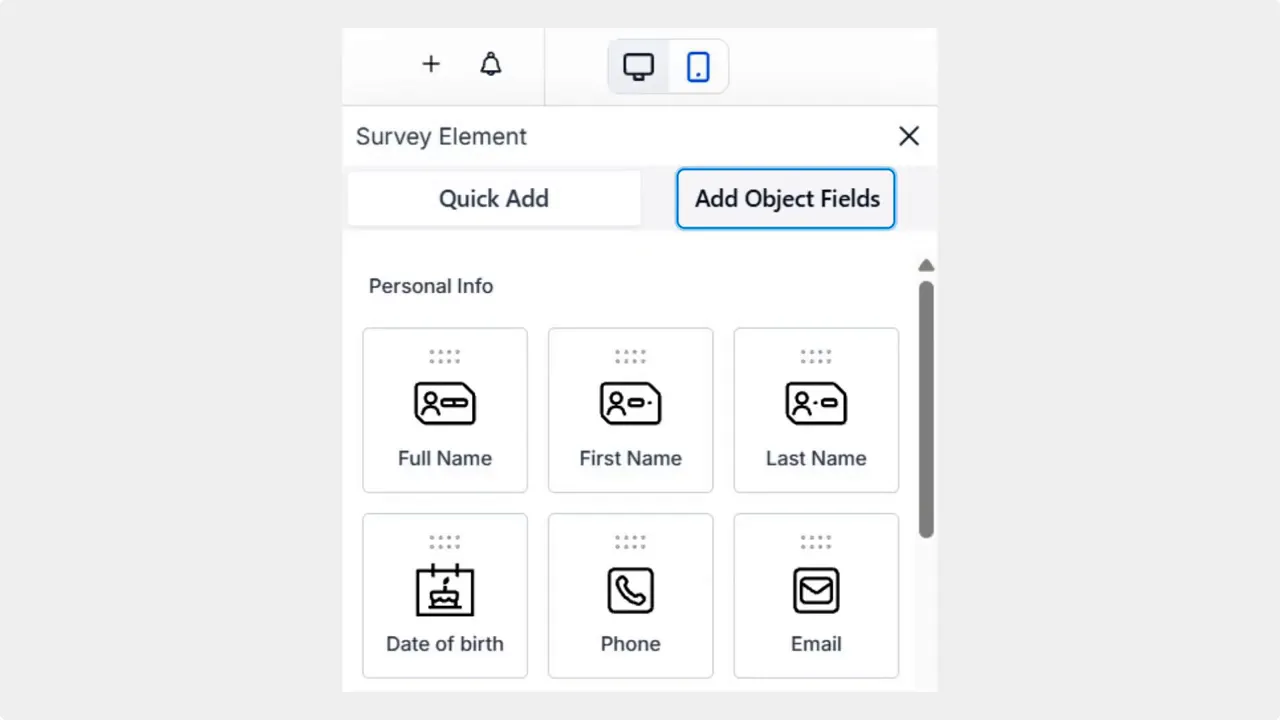
Switch to the Add Object Fields option.
-
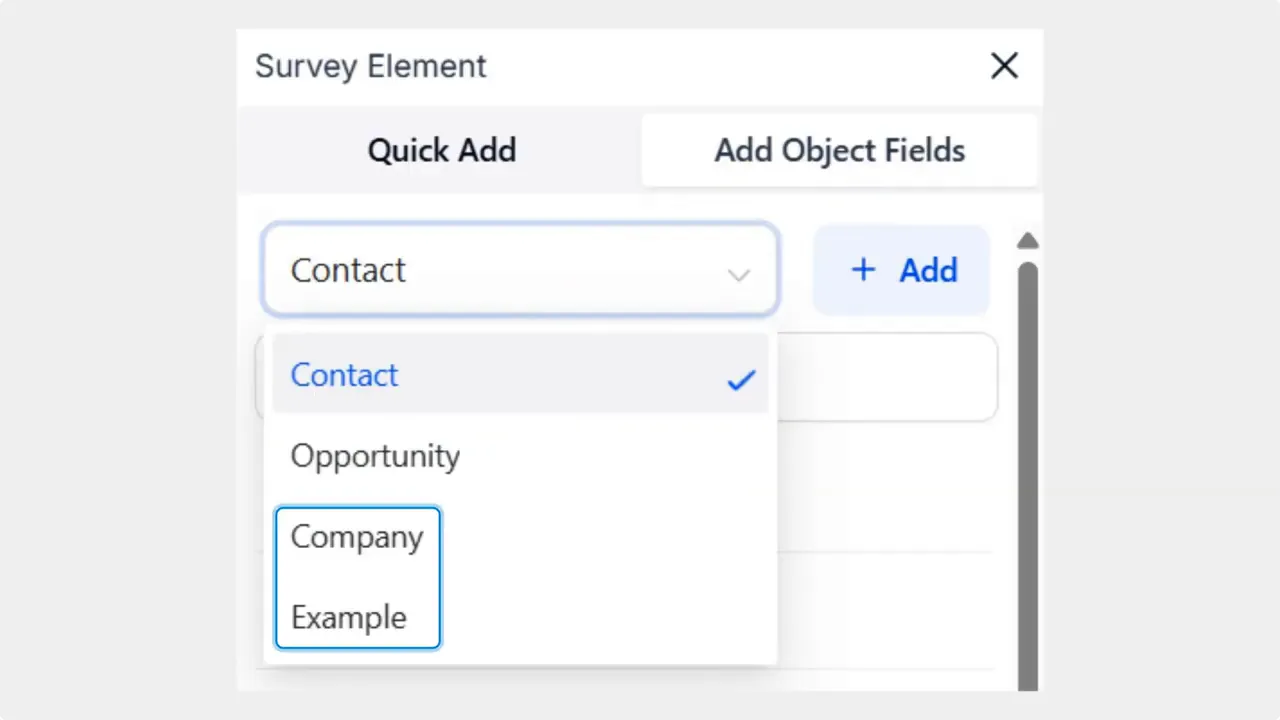
Open the drop-down menu and select Company or Custom Object.
-
Drag and drop your desired fields into the build. Select or create the association that links the submission to the correct CRM record, then click Save.
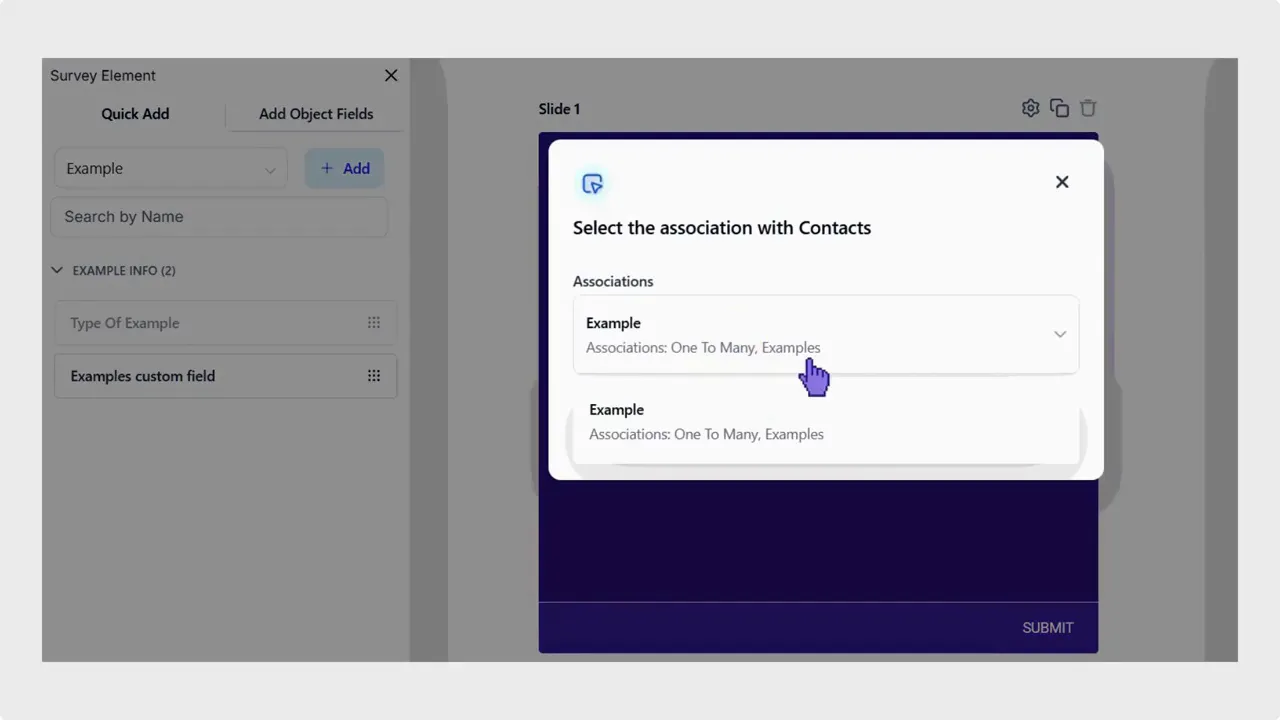
Use this native integration to add fields from custom objects and the company objects, which allow for in-builder editing and submissions that instantly associate and update related records.
Key benefits
- Native integration — no external workarounds needed to collect object data.
- In-builder editing — add and edit object fields directly inside the form interface.
- Automatic association — submissions can create or update linked records immediately.
- Simpler data models — capture full relationships in one submission instead of multiple follow-ups.
Practical tips and best practices
- Plan associations before building forms. Decide whether submissions should create a new company or link to an existing one.
- Map only the fields you need. Limiting fields reduces friction for respondents and keeps CRM data clean.
- Test submissions with sample data to ensure the association and updates work as expected.
- Use clear field labels so users understand what information is being collected for each object.
Troubleshooting checklist
- Confirm the correct object type is selected in the Add Object Fields menu.
- Verify associations exist or create them during the build step.
- Check that required object fields are present in the build so submissions do not fail validation.
FAQ
Can form submissions update multiple related records at once?
Yes. When you include fields from Company or Custom objects and set the proper associations, a single submission can update the contact record and its linked object records immediately.
Do we need any plugins or external tools to use this feature?
No. This is a native capability. Add object fields inside the form builder and save. The integration handles associations and updates without third-party tools.
Can we edit object fields inside the form builder?
Yes. The builder supports in-builder editing for Company and Custom object fields, making it faster to configure forms and keep fields up to date.
What happens if an association is missing?
If you do not set an association, the submission may not link to the intended related record. Always select or create the correct association before saving the build.
How does this help data quality?
By capturing related object data at submission time and updating linked records instantly, the feature reduces manual entry and keeps CRM data synchronized and accurate.
Next steps
Add Company and Custom object fields to a test form. Confirm associations and run a few sample submissions to see how the contact and related object records update. This approach helps ensure forms collect the right data and that relationships are created correctly in your CRM.
This release connects Custom Objects and Company Objects directly to your CRM data collection tools, helping create complete relationships in one submission.
This article was created from the video New Feature: Form Support for Custom Object and Company Object Fields








