





Track external traffic and form conversions in your CRM

Analyzing performance for external websites matters as much as tracking internal pages. We built a centralized analytics dashboard that lives alongside your Sites and Forms. It shows page views, form views, responses, and completion rates with filters and audience breakdowns. Here’s how it works and how to get useful insights quickly.
What the dashboard tracks
The dashboard gives native analytics without needing third-party tools. Data are aggregated and anonymized, and the main metrics include:
Page views — total visits to external pages.
Form views — how often a form appears to visitors.
Responses — completed form submissions.
Completion rate — responses divided by form views, showing drop-off.

Overview: Analytics for External Tracking.
Audience and traffic breakdowns
To help you understand who visits and how they access pages, the dashboard includes:
Device type — desktop, tablet, mobile distribution.
Top browsers — which browsers your visitors use.
Top client IPs — useful for spotting heavy sources of traffic.
Geographic distribution — country, state, and city.
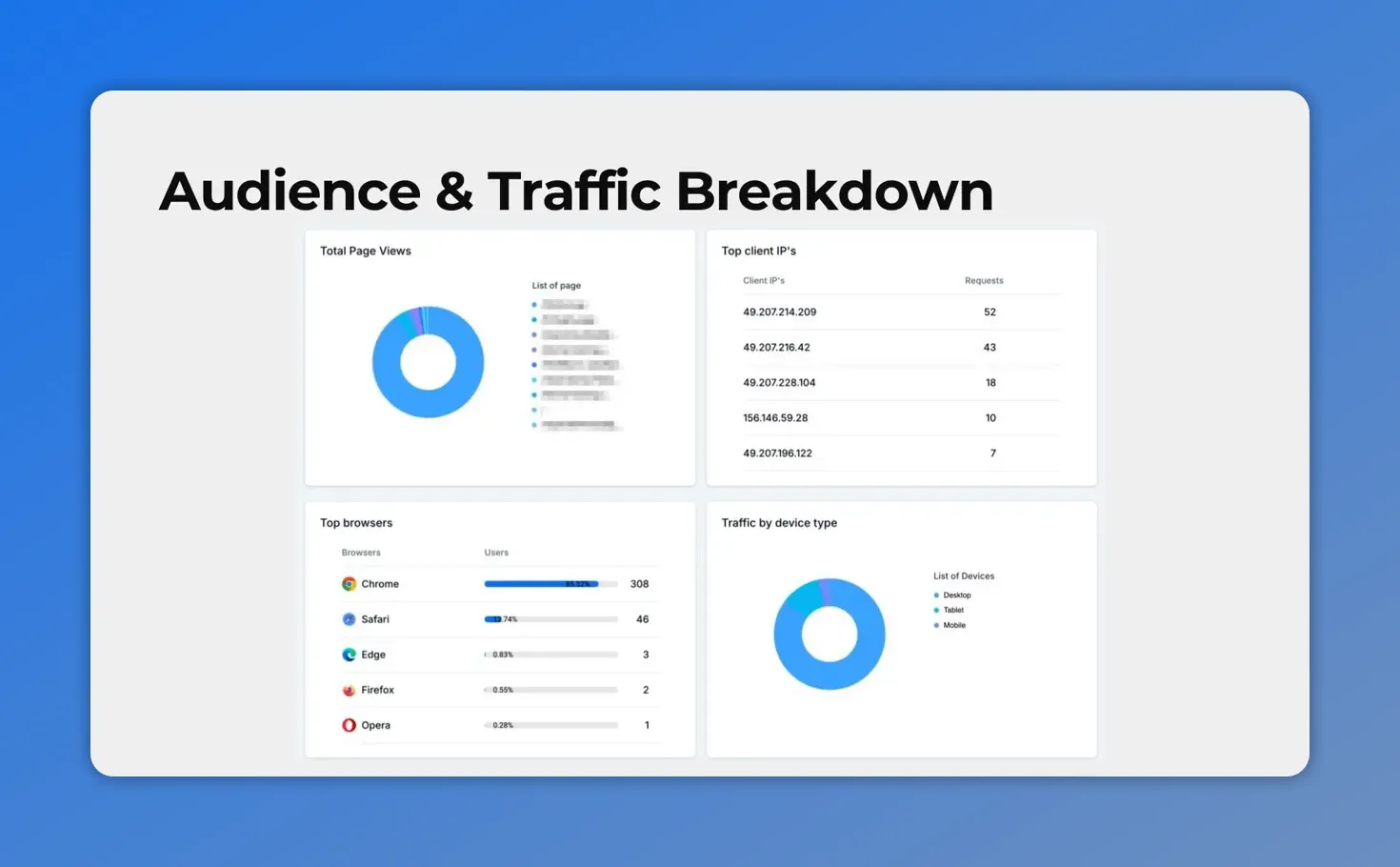
Audience & traffic breakdown showing top browsers, device types, top pages and client IPs.
Form-level view for quick auditing
The All Forms section lists forms with these columns for fast comparison:
Total views
Responses
Completion rate
Last updated timestamps
That lets teams find low-performing forms and prioritize fixes without digging through multiple tools.
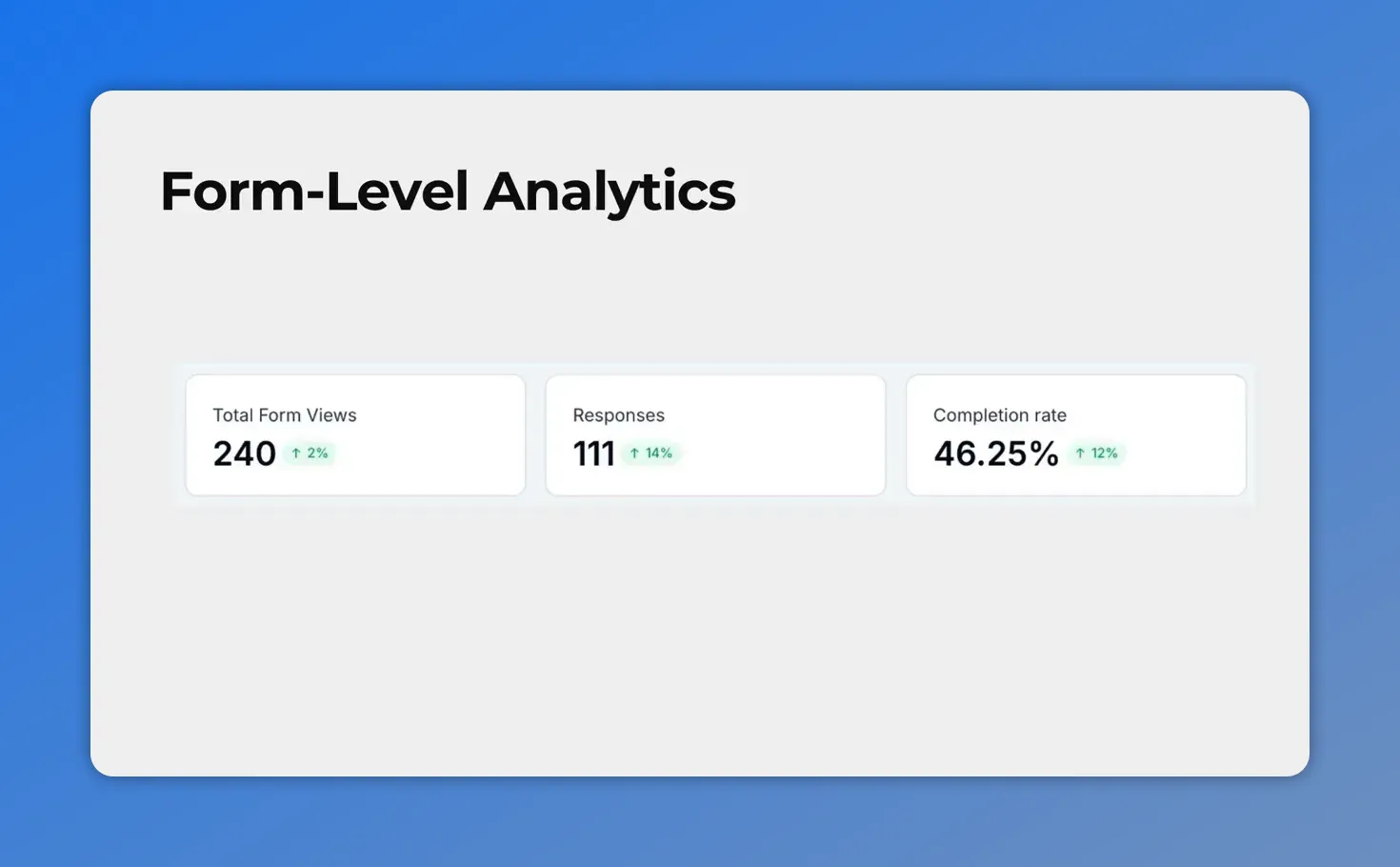
At-a-glance form-level metrics: total views, responses, and completion rate.
How to enable external tracking
To start collecting data, follow these steps inside your account:
Open Account Settings and go to External Tracking.
Connect your tracking script to the external sites you want to monitor.
Open Sites, select the Analytics tab, and choose External Tracking.

Paste the external-tracking script into your site's pages to enable tracking.
Filtering and refining insights
Analytics can be narrowed by domain, page, and form. Use filters to focus on the exact traffic that matters. Also set a date range to compare periods or isolate a campaign.
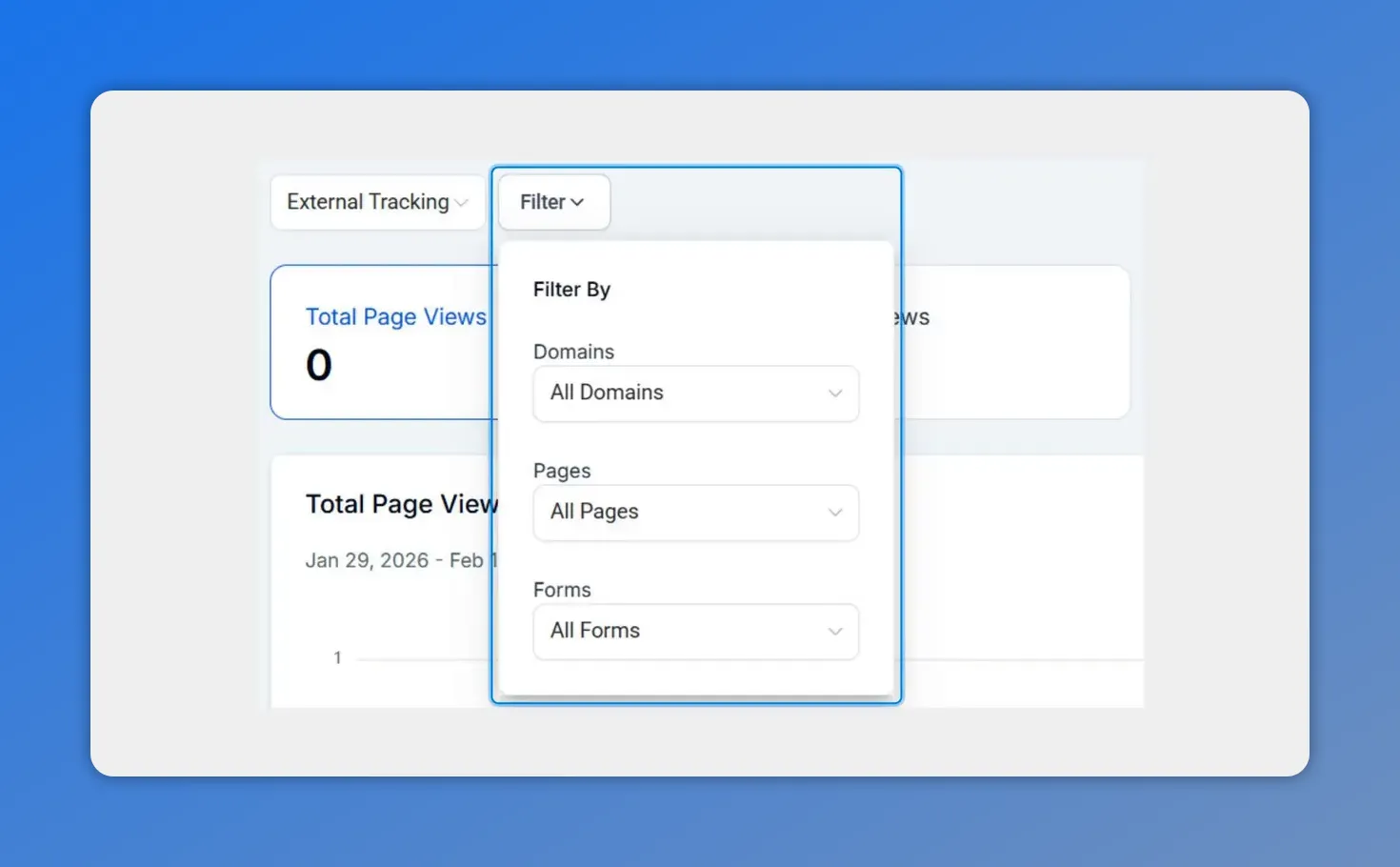
Open the filter panel to narrow results by domain, page, or form.
After applying filters, the aggregate data updates to reflect visitor behavior for the selected domains and forms. This makes it easy to analyze reach and conversions from external domains inside your CRM.
How teams typically use these insights
Find drop-off points — low completion rates point to form friction or mismatch between traffic and offer.
Audit external pages — last updated timestamps and views help prioritize maintenance and optimization.
Segment traffic — filter by device, browser, or geography to tailor messaging or troubleshoot issues.
Reduce context switching — keep website performance and CRM data in one place to move faster.
Best practices
Install the tracking script on all external domains you care about. Partial coverage gives incomplete signals.
Check completion rate by form before changing copy or fields. Baseline first, then iterate.
Use date ranges to compare before and after changes, or to evaluate campaign windows.
Review top client IPs and geography to spot unusual traffic spikes or targeting opportunities.
Frequently asked questions
How do we connect the tracking script?
Open Account Settings, go to External Tracking, and paste the provided script into the pages you want to monitor. Once the script is present, data will flow to the analytics tab under Sites when External Tracking is selected.
Which metrics are available for forms?
The All Forms view shows total views, responses, completion rate, and the last updated timestamp for each form. Use these to spot low-performing forms quickly.
Is the data anonymized?
Yes. Traffic is aggregated and anonymized. We show patterns like device type, browser, and geography without exposing personally identifiable details.
Can we filter by domain, page, and form?
Yes. Apply filters for domains, pages, and forms and set the date range. The dashboard updates to reflect the selected slice of traffic.
Where do these analytics appear in the CRM?
Analytics live inside Sites, under the Analytics tab, when External Tracking is active. This keeps external site performance alongside internal Sites and Forms for easy auditing.
What should we look for first?
Start with completion rates and recent changes. Compare date ranges to see if a drop coincides with a page update or campaign. Then segment by device and geography to find patterns.
This article was created from the video Track external traffic and form conversions in your CRM








