





How to Export Email Metrics to CSV: Opens, Clicks, Deliveries

Email performance data is useful because it helps us shape marketing decisions. But pulling that data into a clean format used to be messy. Exporting it externally, or trying to share results with partners, often took more time than it should.
To fix that, we added a direct exporting option that lets you generate a shareable CSV of key email metrics like deliveries, opens, and clicks. You can also limit what gets included so reporting stays focused and easy to manage.
What you can export (opens, clicks, deliveries)
When you run an export, you get a CSV report you can use for analysis and sharing. The export is designed for real workflow needs, so it supports quick, consistent reporting across:
- Campaigns
- Workflows
- Bulk actions
You can choose to export reporting for everything or narrow it down to specific campaigns or actions. That way, teammates and partners only get the data they need.
Step-by-step: export email metrics to CSV
Here’s how to generate your CSV export.
-
Open Marketing, then go to the Emails tab.
-
In the Statistics branch, click Export.
-
Add the email address(es) where you want the file link to be sent.
-
Press Enter, then click Export.
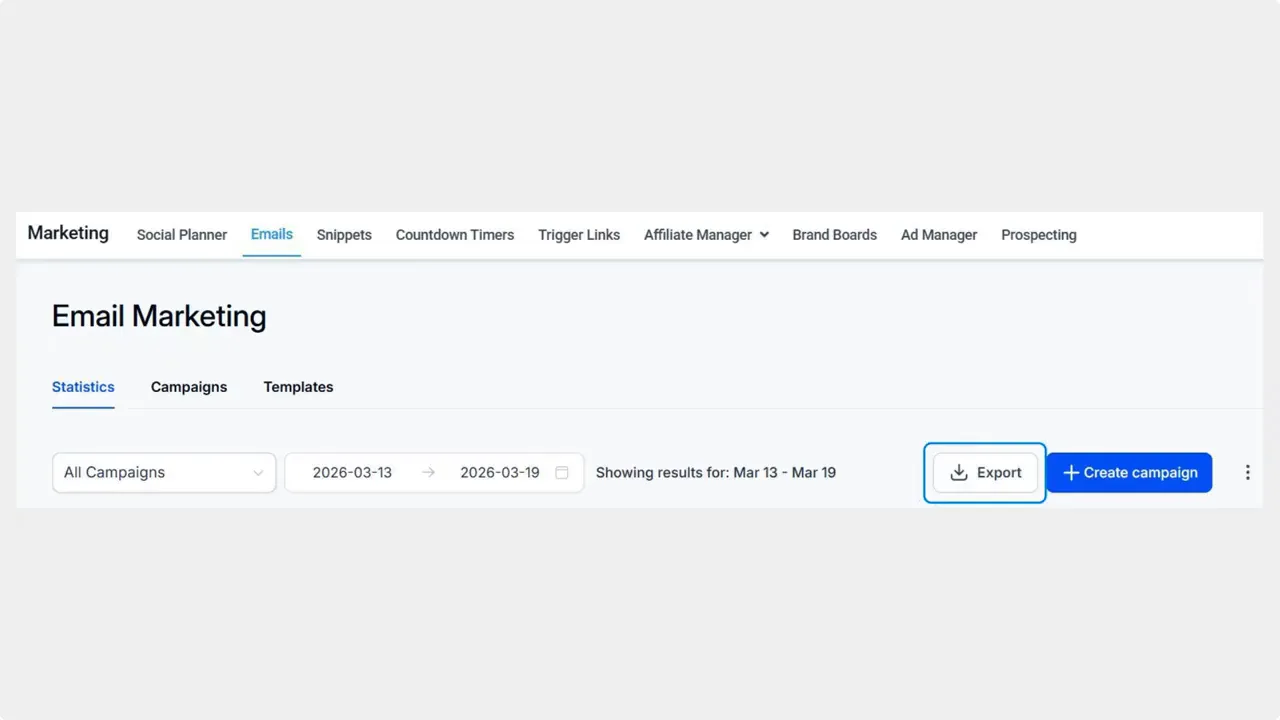
Go to Marketing → Emails and open the Statistics area where you can start the CSV export for email engagement metrics.
Send results to a team or a partner
When you export, the recipient email gets access to the download link for the CSV. This makes it simpler to align stakeholders without manually collecting and formatting email performance numbers.
Find and redownload recent exports
If you need the same report again, you do not have to start over.
-
Return to the export area and click the three-dot icon.
-
Select Recent exports.
All exports created in the last 30 days are available for redownload in this section.
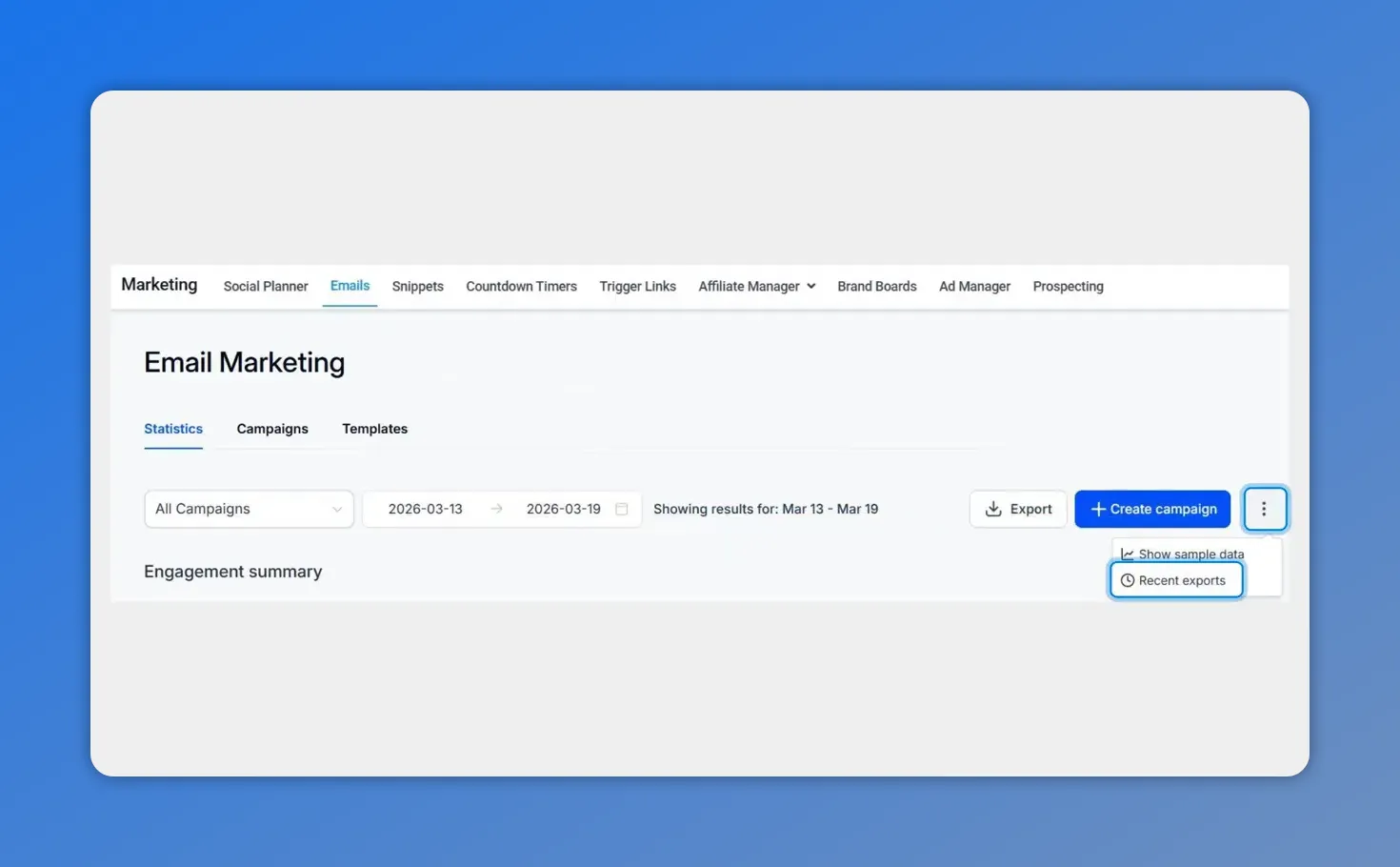
On the Email Marketing statistics screen, open the export menu and choose “Recent exports” to grab a previously generated CSV.
Export all campaigns or focus on specific data
Sometimes you want a complete picture. Other times you want a tight report for one initiative. Pinnacle supports both.
When generating reports, you can:
- Export all campaigns for a broad overview.
- Limit to specific campaigns to keep reports short and relevant.
- Target reporting across campaigns, workflows, and bulk actions.
This makes it easier to manage, analyze, and share performance results without extra back-and-forth.
Why this helps teams (and keeps reporting consistent)
Exporting email metrics in a standard CSV format is one of those small changes that reduces a lot of friction.
- Better data management: keep deliverables, opens, and clicks organized for campaign and workflow analysis.
- Simpler sharing: send a secure CSV download link directly to the right people.
- Clearer reporting: include only what matters by narrowing exports to specific campaigns or actions.
If your team works with marketing stakeholders across projects, this helps everyone work from the same numbers.
FAQ
Where do we start an email metrics export?
We start in Marketing, then open the Emails tab. From there, we go to the Statistics branch and click Export.
What do we need to enter before exporting?
We add one or more recipient email addresses where we want the CSV download link to be sent. After that, we press Enter and click Export.
How can we access past exports?
We click the three-dot icon and choose Recent exports. Exports created in the last 30 days are available for redownload.
Can we export data for specific campaigns only?
Yes. We can generate reports for all campaigns or limit the export to specific campaigns, workflows, or bulk actions depending on what we need.
Next step
Go to Marketing, open the Emails tab, and run your first CSV export for opens, clicks, and deliveries. Once the report is generated, it becomes much easier to analyze performance and share results with the people who need them.
This article was created from the video How to Export Email Metrics to CSV: Opens, Clicks, Deliveries








