





Workflow Sticky Notes Upgraded: Rich Text, Images, and Links

Sticky notes have always been a handy way to add context inside workflows. They help us jot down key details and color-code branches so navigation stays simple.
But the old sticky notes were limited. The information they supported was a bit too basic for teams that need clearer instructions, better readability, and faster access to supporting resources.
Now, Pinnacle has upgraded workflow sticky notes so they can carry more meaning in the same place where the work happens.
What changed in Pinnacle Sticky Notes
Sticky notes inside the workflow builder now support three major upgrades:
- Rich text annotations for clearer messaging and standard formatting.
- Image support so you can add visuals like your logo or a reference picture.
- Links inside the note to connect directly to external pages and documents.
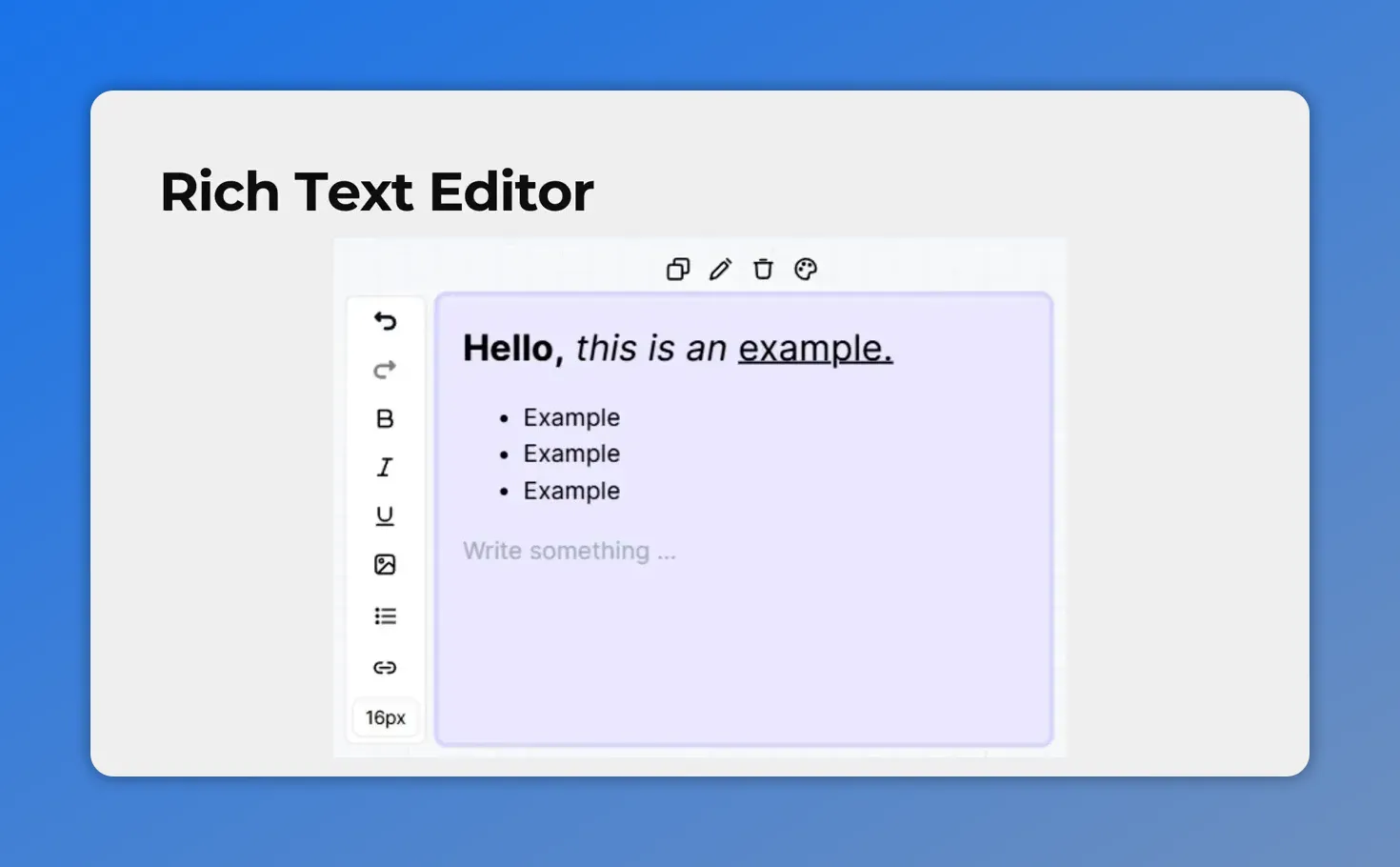
The upgraded sticky note includes a rich text editor, letting you format messages to make key points easier to scan.
1) Rich text for better readability
Instead of plain text that can be hard to scan, we can now use a rich text editor inside sticky notes. That means we can format the note content to make key points stand out for our team.
Use formatting to separate instructions, highlight important details, and keep communication clean directly in the workflow builder.
2) Images right in the workflow
Sometimes a visual explains what paragraphs cannot. With the upgraded sticky notes, we can add images such as:
- our company logo
- workflow references or screenshots
- inspirational or training images
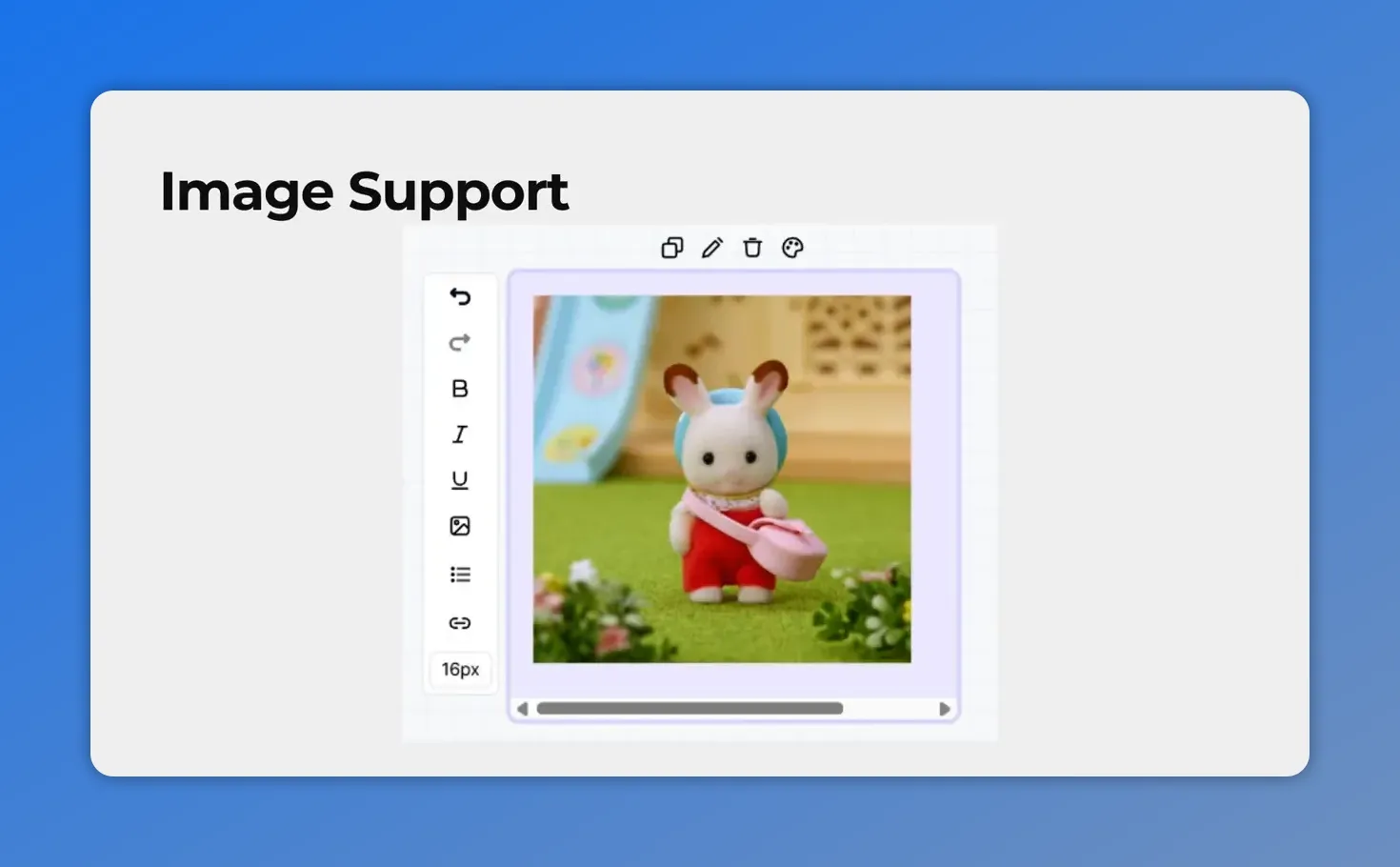
You can add images inside a workflow sticky note so teammates get context at a glance.
3) Links and highlighted text for quick access
Sticky notes can also act like a mini resource hub. We can enter links and even highlight text to connect teammates to external pages without leaving the workflow context.
This is especially useful when we want to attach supporting documentation, SOPs, dashboards, or reference materials to the exact place where a decision is made.
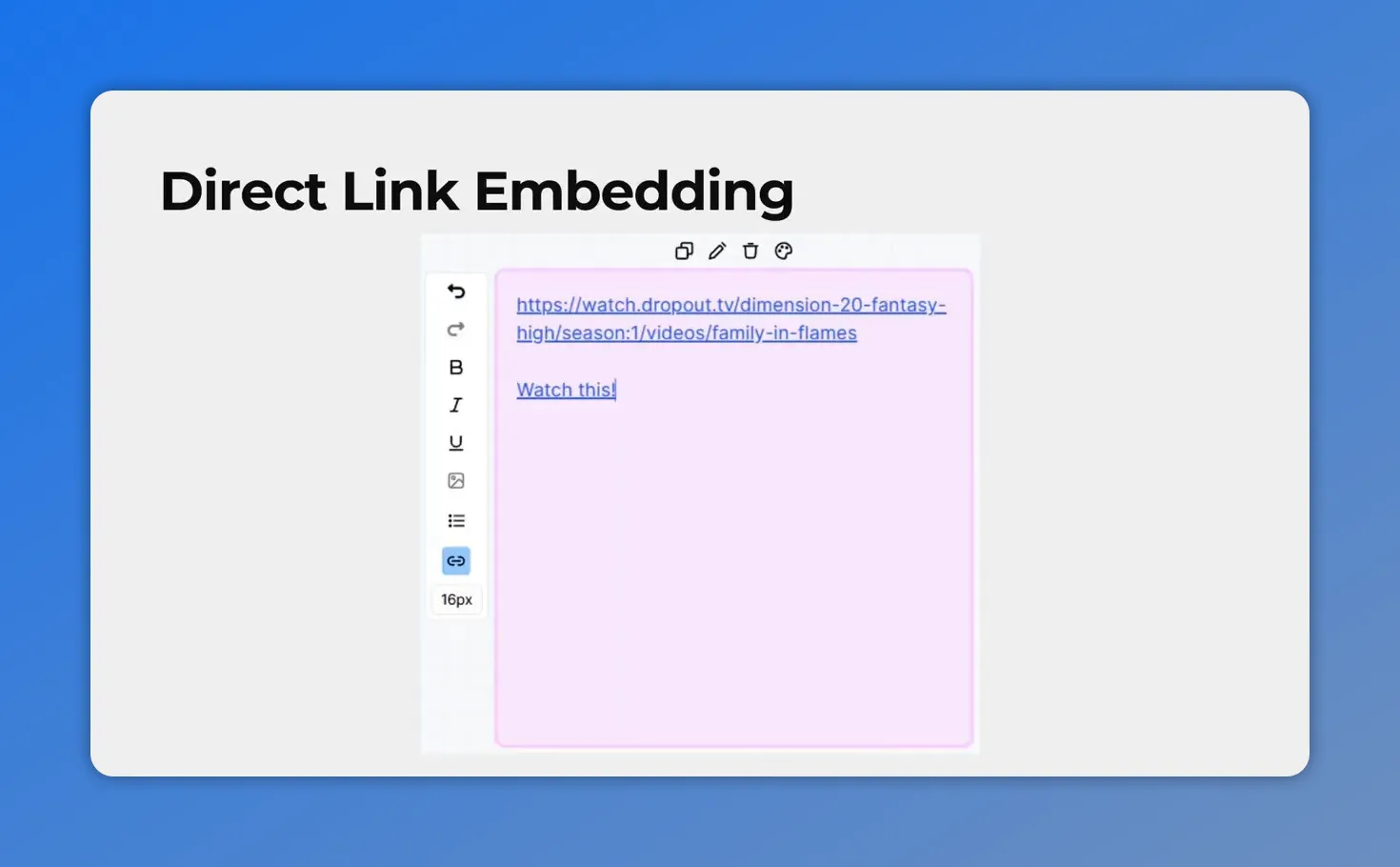
You can embed a direct link right inside the sticky note so teammates have the resource available without leaving the workflow.
Why this upgrade matters for team workflows
When workflow notes are stronger, collaboration gets easier. We can capture:
- decisions (what we chose and why)
- logic (how the branch should be interpreted)
- context (what to do next and where to find help)
And because everything stays inside the workflow, we reduce back-and-forth. Our automations become easier to maintain because the “why” and “how” remain attached to the process.
How to add an upgraded Sticky Note
Here’s the simple setup flow we use when updating a workflow note.
-
Go to the Workflows tab inside the Automation section.
-
Create or edit a Standard Builder workflow.
-
Click the sticky note icon and select your desired color.
-
Click the pencil icon to edit the note.
-
Customize the note content with rich text, images, and links as needed.
-
Save the workflow when you are done.
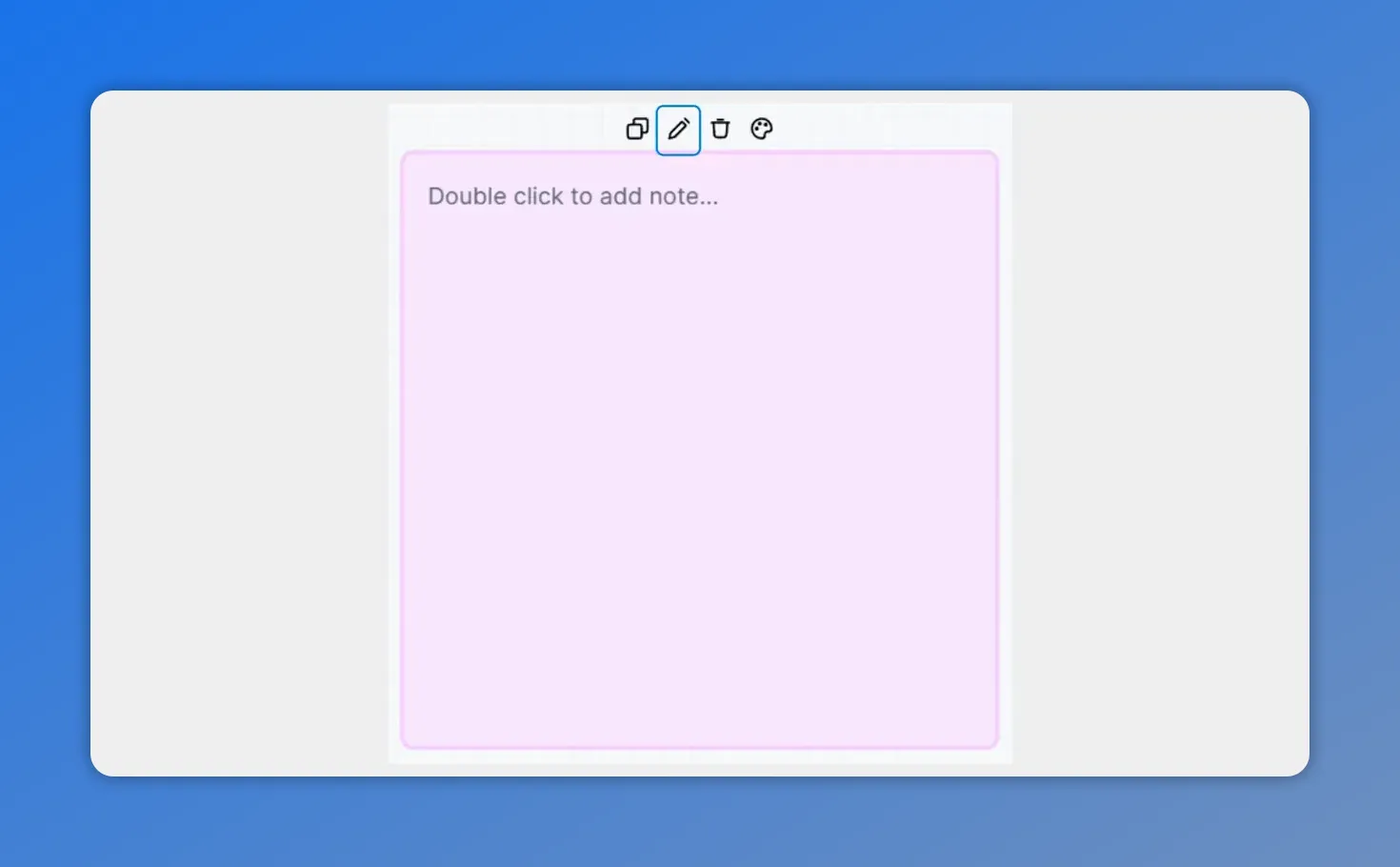
The note editor opens inside the workflow, with formatting tools ready once you start typing.
Practical examples for your next sticky note
If you want to get the most value from upgraded sticky notes, here are a few practical patterns our team uses.
Color-coded branches with context
Use note colors to match your branch meaning. For example:
- Green for success paths and completed steps
- Yellow for review or conditional logic
- Red for exceptions, errors, or manual intervention
Link to the exact documentation
Add a short instruction and then embed a link for deeper details. Teammates can quickly jump to the resource when they need it, without guessing where to look.
Use a logo or reference image for clarity
For teams that work across roles, a small image can reduce confusion. A logo, flow reference, or screenshot can make the note easier to recognize at a glance.
FAQ
-
Can we format sticky note text in Pinnacle?
Yes. Sticky notes now include a rich text editor with standard formatting options for clearer messaging.
-
Do sticky notes support images?
Yes. We can add images directly inside the sticky note, such as a logo or reference visuals.
-
Can we add links inside a sticky note?
Yes. We can enter links and highlight text to connect teammates to external pages and documents.
-
Where do we add upgraded sticky notes?
We add them from the Workflows tab inside the Automation section by creating or editing a Standard Builder workflow.
-
What happens after we edit and customize a sticky note?
Once the note is customized, we save the workflow to keep the updated sticky note in place.
Bottom line
Pinnacle’s upgraded sticky notes make workflow communication more complete. With rich text, images, and embedded links, notes can do more than “remind.” They can explain, guide, and connect your team to the right resources right where the work happens.
This article was created from the video Workflow Sticky Notes Upgraded: Rich Text, Images, Links








