





Conversation AI summaries and transcripts: how to enable
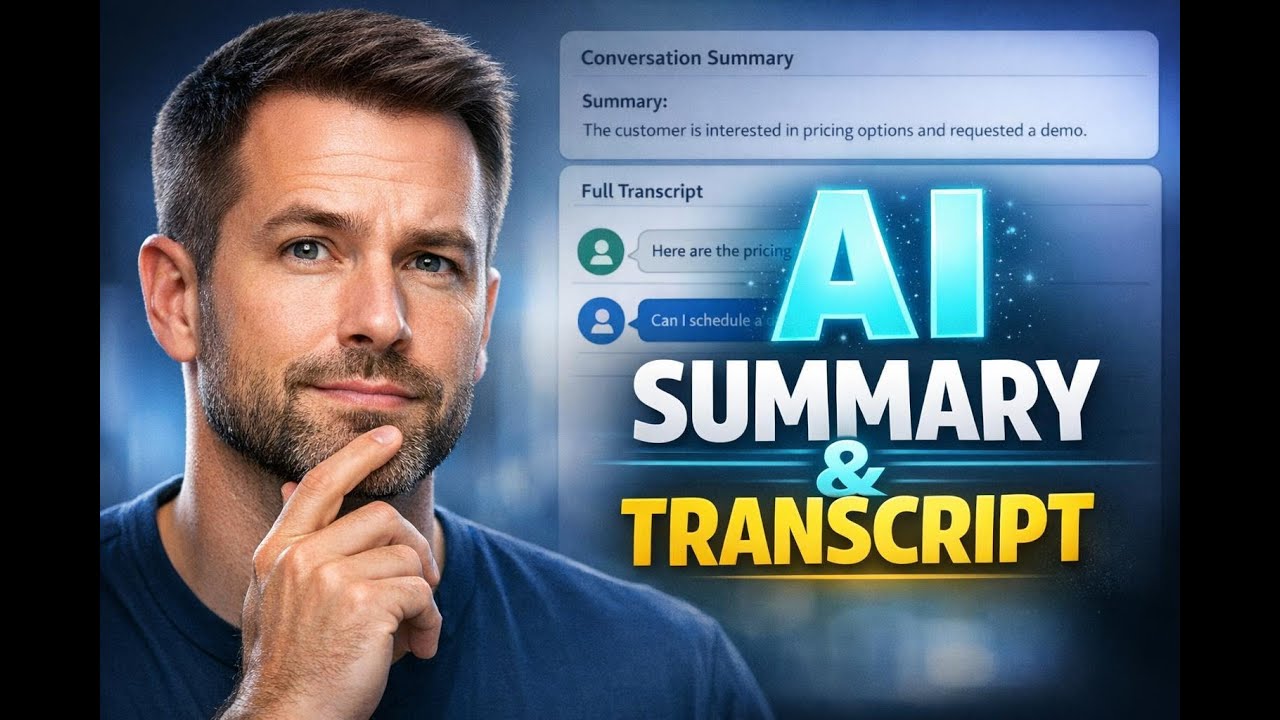
Conversation AI now creates automatic conversation summaries and full transcripts for every session. This gives a centralized, contextual record of past interactions so teams can audit chats, extract insights, and improve customer support.
What this feature does
When enabled, Pinnacle will generate a summary and a full transcript for each Conversation AI session. Summaries capture only messages sent after the last summary, so each record focuses on new inbound and outbound activity.
Summaries and transcripts make it easier to:
- Audit conversations quickly with a single contextual record.
- Extract insights to spot common questions and update FAQs or training data.
- Share context across teams without manual note taking.
- Trigger automations when a summary is generated and access data using Conversation AI workflow variables.
How to enable conversation summaries
Follow these simple steps inside Pinnacle:
- Select the Conversation AI tab inside the AI agent section and choose an existing bot or create a new one.
- Open the Bot Goals tab.
- Enable Conversation Summary.
- Configure the summary settings to match your reporting needs.
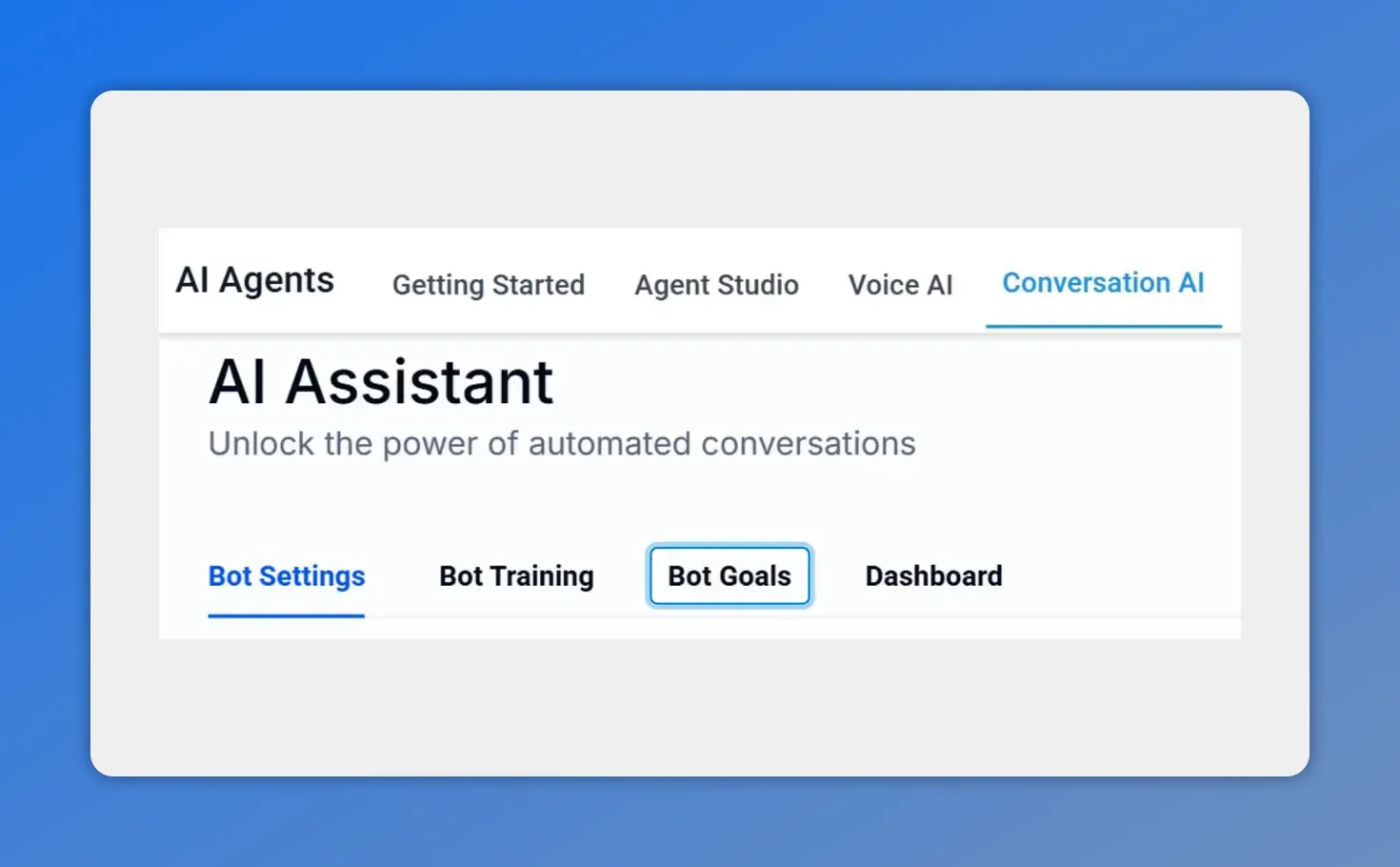
Open the Conversation AI tab and select the bot you want to configure.
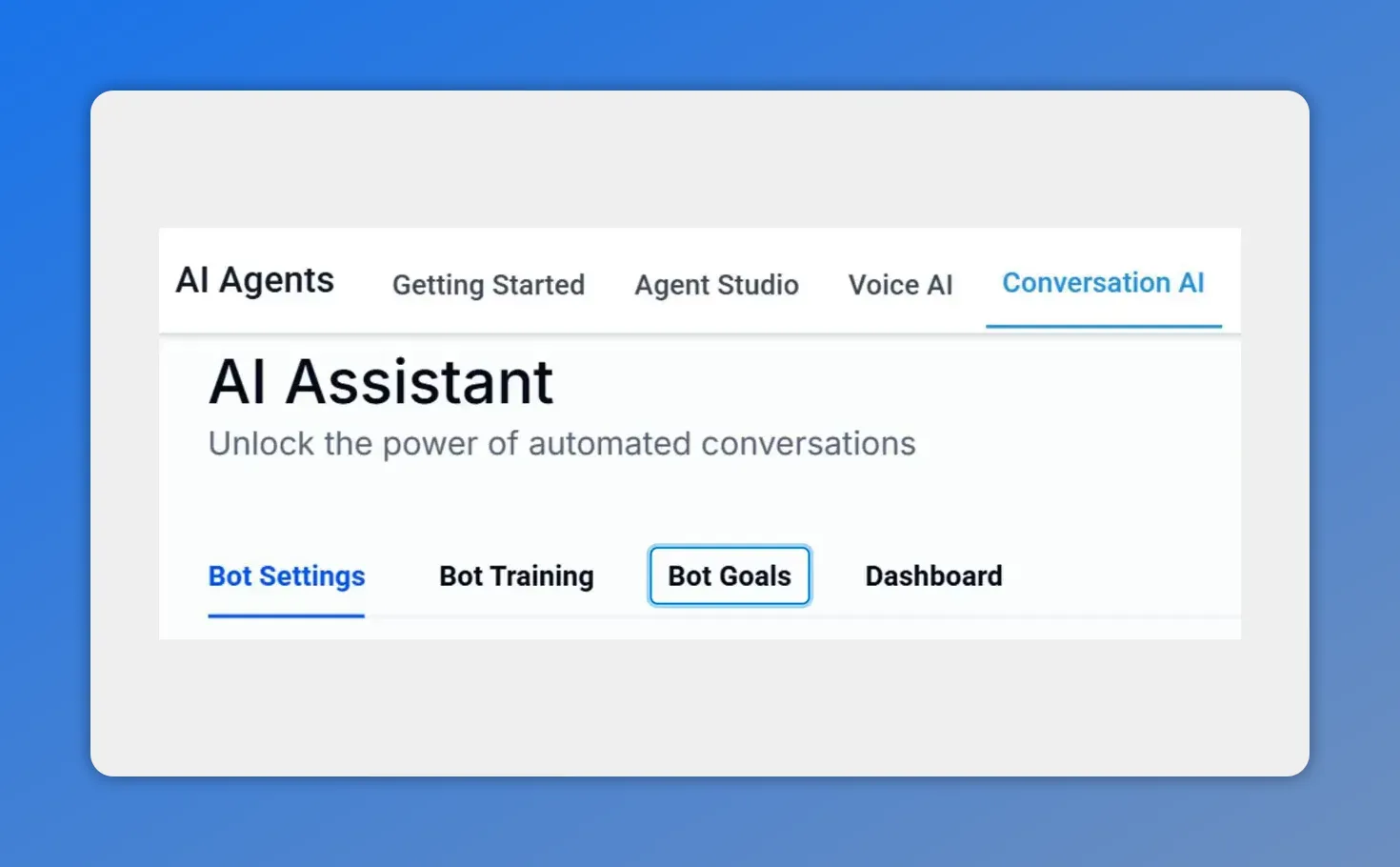
Open the Bot Goals tab to access summary and transcript settings.
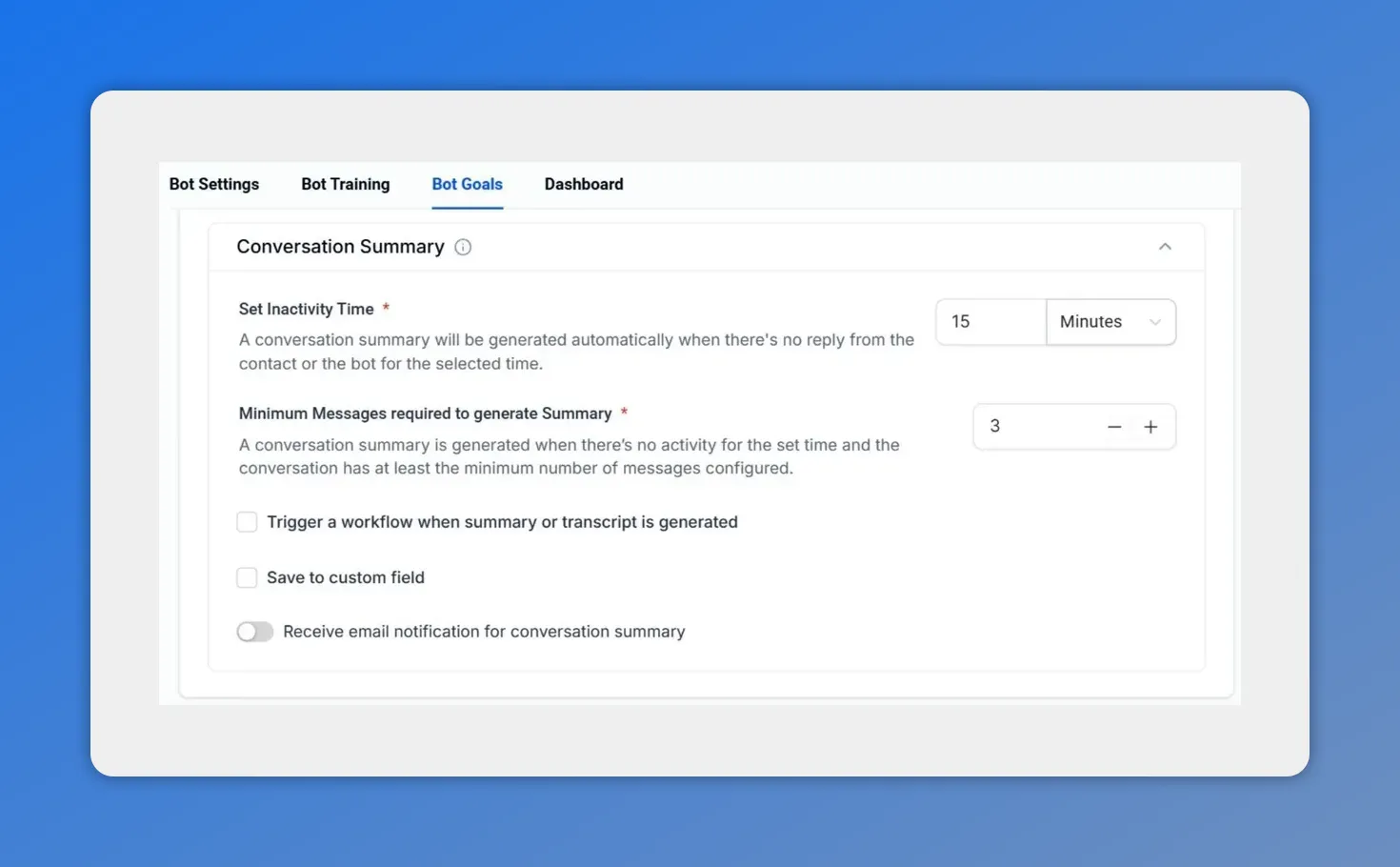
Configure inactivity time, minimum messages, and notification/workflow options for summaries.
Configuration tips
Personalize summary settings so the output matches how your team uses conversation data. Consider these adjustments:
- Choose which message types to include so summaries focus on relevant content.
- Set frequency or triggers for summaries if you want them generated at specific points in a session.
- Link summaries to workflow automations to route important issues to the right team immediately.
Workflow and automation options
Summaries can kick off workflows. Use Conversation AI workflow variables to pass summary content into automations, ticket systems, or reporting tools. This reduces manual steps and speeds up follow-up actions.
Best practices for teams
- Set a clear review cadence so summaries are reviewed regularly for quality and training improvements.
- Use summaries to update FAQs when the same questions appear across conversations.
- Share summaries across departments to provide context for sales, support, and product teams.
Quick checklist before you enable
- Confirm the bot you want summaries for is selected.
- Decide which message types should be captured.
- Plan automations that will run when summaries are created.
- Inform stakeholders how they will access and use summaries and transcripts.
Frequently asked questions
Will the summary include old messages from previous sessions?
No. Each summary includes only messages sent after the last summary. This keeps records focused on new activity.
Can summaries trigger automated workflows?
Yes. You can configure workflows to run when a summary is generated. Conversation AI workflow variables let you pass summary content into automations and external systems.
Are full transcripts available for every session?
Yes. Pinnacle generates full transcripts for every Conversation AI session alongside the summary.
How do summaries help improve FAQs and training data?
Summaries surface recurring customer questions and common issues. Teams can use that data to update FAQs and refine training prompts or dataset examples.
Where do we turn this on?
Open AI Agents, go to Conversation AI for the bot, navigate to Bot Goals, enable Conversation Summary, and then configure settings to match your needs.
Next steps
Open AI Agents, enable Conversation Summary on the bot you use for customer conversations, and start turning interactions into actionable insights. Summaries and transcripts make audits faster, context clearer, and follow-up actions easier.
This article was created from the video Conversation AI summaries and transcripts: how to enable








