





Add Funnel Pages to Your Course for Upsells and Lead Capture

Adding dynamic elements and clear calls to action inside a course is one of the simplest ways to turn learning into action. Instead of sending people away from the lesson flow, we can place funnel pages directly inside the course experience and give learners a natural next step.
That next step might be an upgrade, an offer, or a lead capture page. The key is that it happens where engagement is already high. When learners can move from education to action without leaving the course player, the experience feels smoother and conversions become easier to support.
Why add funnel pages to a course?
Course content builds trust. Funnel pages create momentum. When both live in the same place, they work together better.
By embedding an existing funnel page into a course, we can:
- Convert learners into customers with timely offers and upgrade paths
- Capture leads while interest is high
- Keep engagement strong by avoiding unnecessary clicks away from the course
- Reuse existing assets instead of rebuilding the same content from scratch
- Create a seamless experience where education and action happen in one place
This is especially useful for course creators and membership site owners who want to pair lessons with a clear next move. A training module can lead into a booking page. A strategy lesson can lead into a premium offer. A free course can lead into a lead capture or paid upgrade.
How funnel pages fit inside the learning experience
Funnel pages inside a course behave like any other content type. That matters because it keeps your curriculum organized and predictable. You are not creating a separate system to manage. You are simply adding another type of course content that happens to be designed for conversion.
And because the funnel renders inside the course player, the transition feels natural. Learners stay in the same environment, which helps preserve the flow of the lesson.
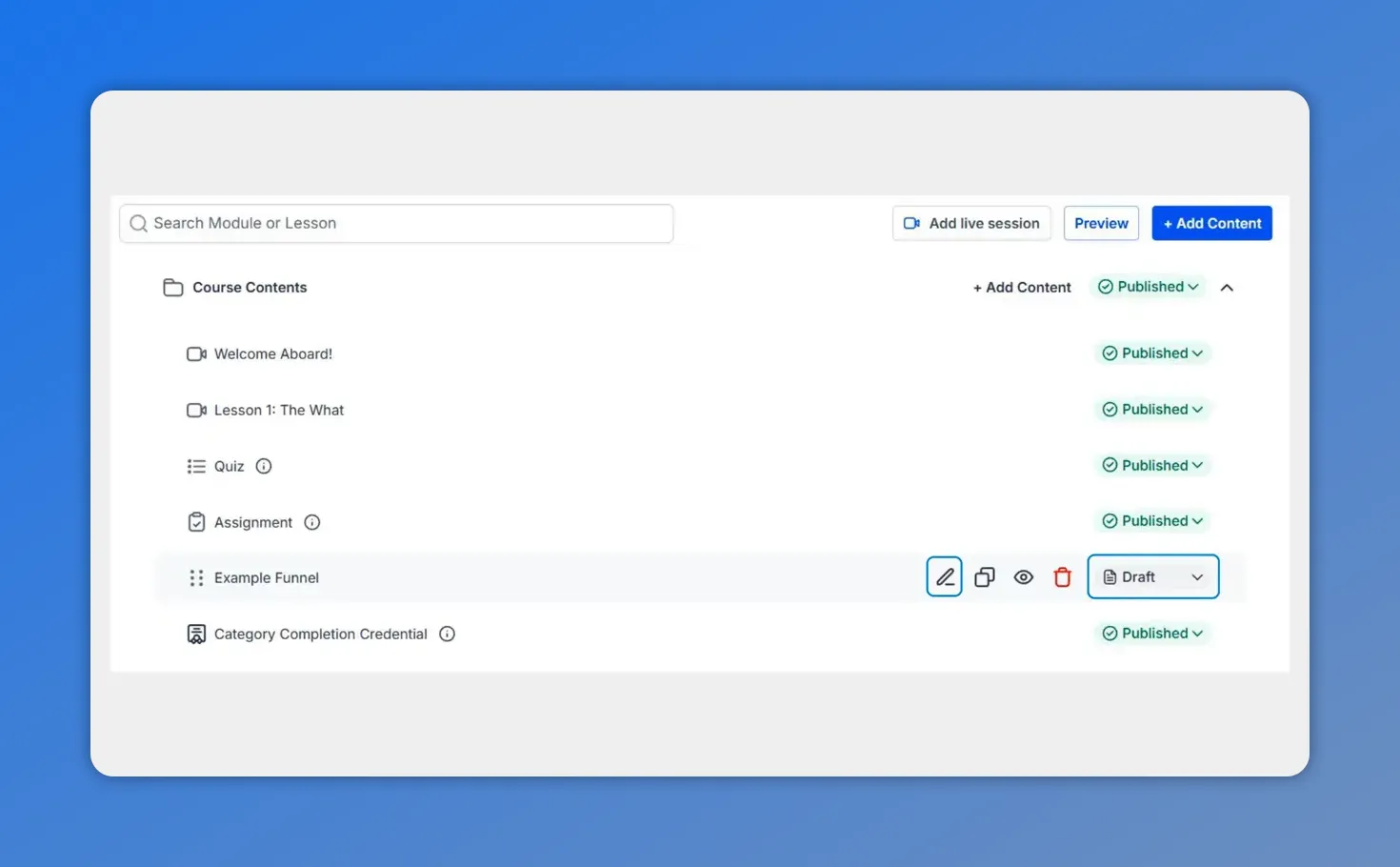
In the course contents view, your added funnel page shows up alongside lessons and other items—so the learner journey stays connected.
That smooth handoff is where a lot of the value comes from. Instead of asking someone to stop learning, open a new page, and figure out what to do next, we can guide them toward the next step right where they already are.
How to add a funnel page to your course
Here’s how the setup works inside Pinnacle.
1. Open the course you want to edit
Go to the Product Courses tab inside the Membership section. Then choose the course where you want to add the funnel page.
This is the starting point for placing a conversion-focused page directly into your curriculum.
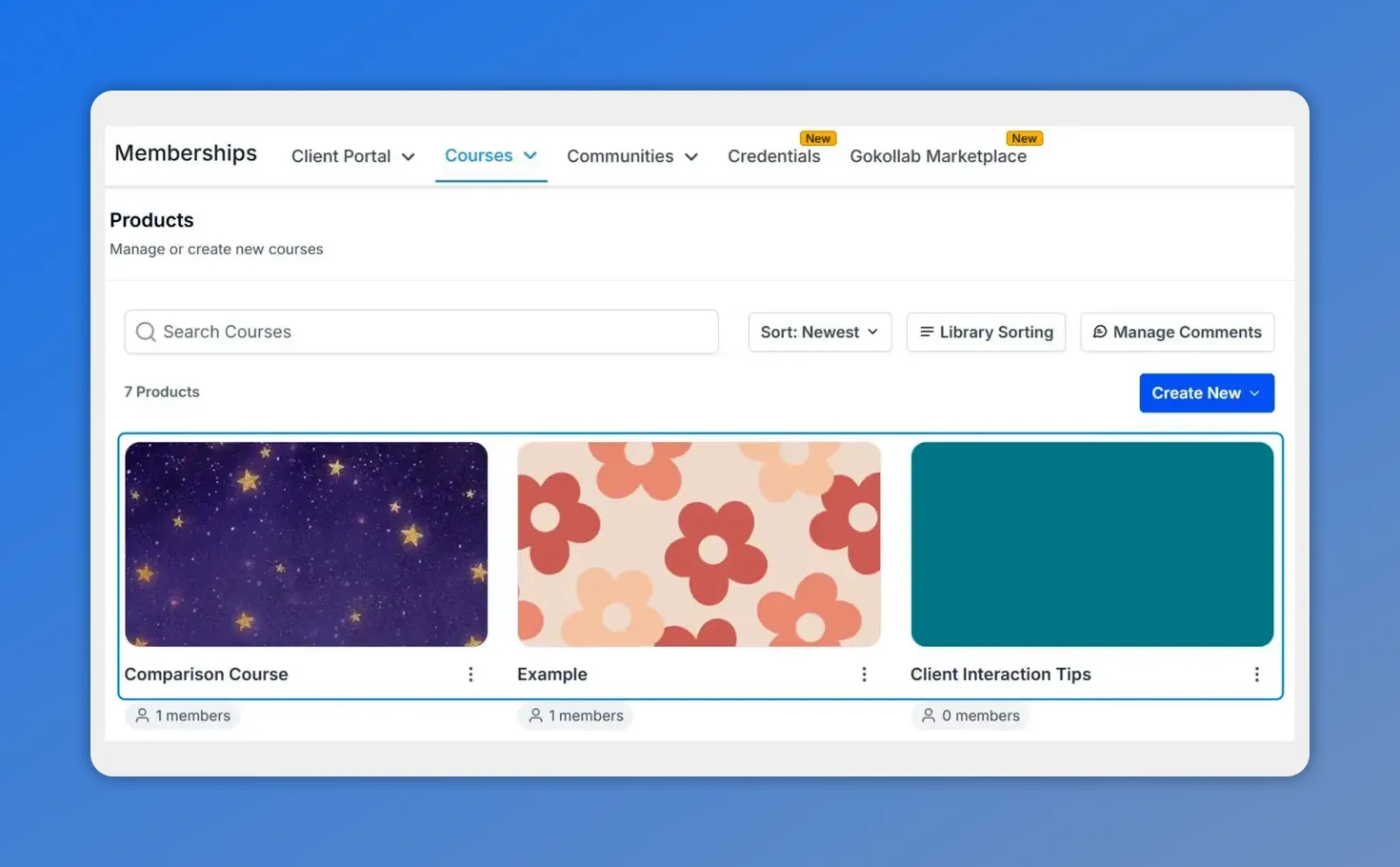
In Pinnacle, start from the Products/Courses area where you manage your courses—this is where you’ll pick the course to edit.
2. Add new content
Inside the course editor, click + Add Content. From the content options, select Add Funnel Page.
This tells Pinnacle that you want to insert an existing funnel as part of the course content structure.
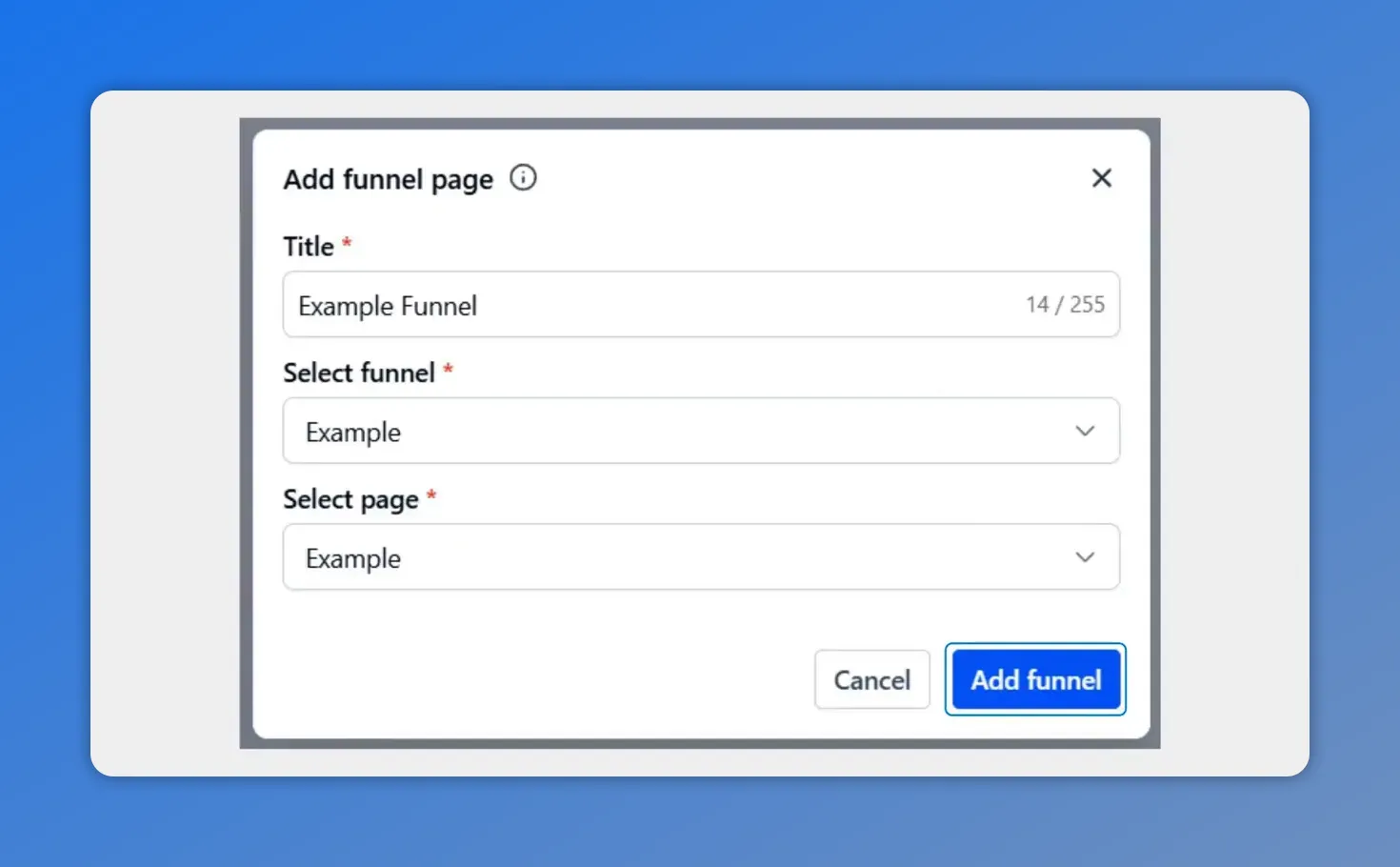
When you add a funnel page, you enter a title and choose which funnel and specific page you want to display inside the course.
3. Enter the funnel page details
Give the content item a title. Then choose:
- The funnel you want to use
- The specific page from that funnel
Once those are selected, click Add Funnel.
This makes it easy to work with funnels you have already built. You are not recreating pages from the ground up. You are connecting existing funnel assets to the course where they can do more work.
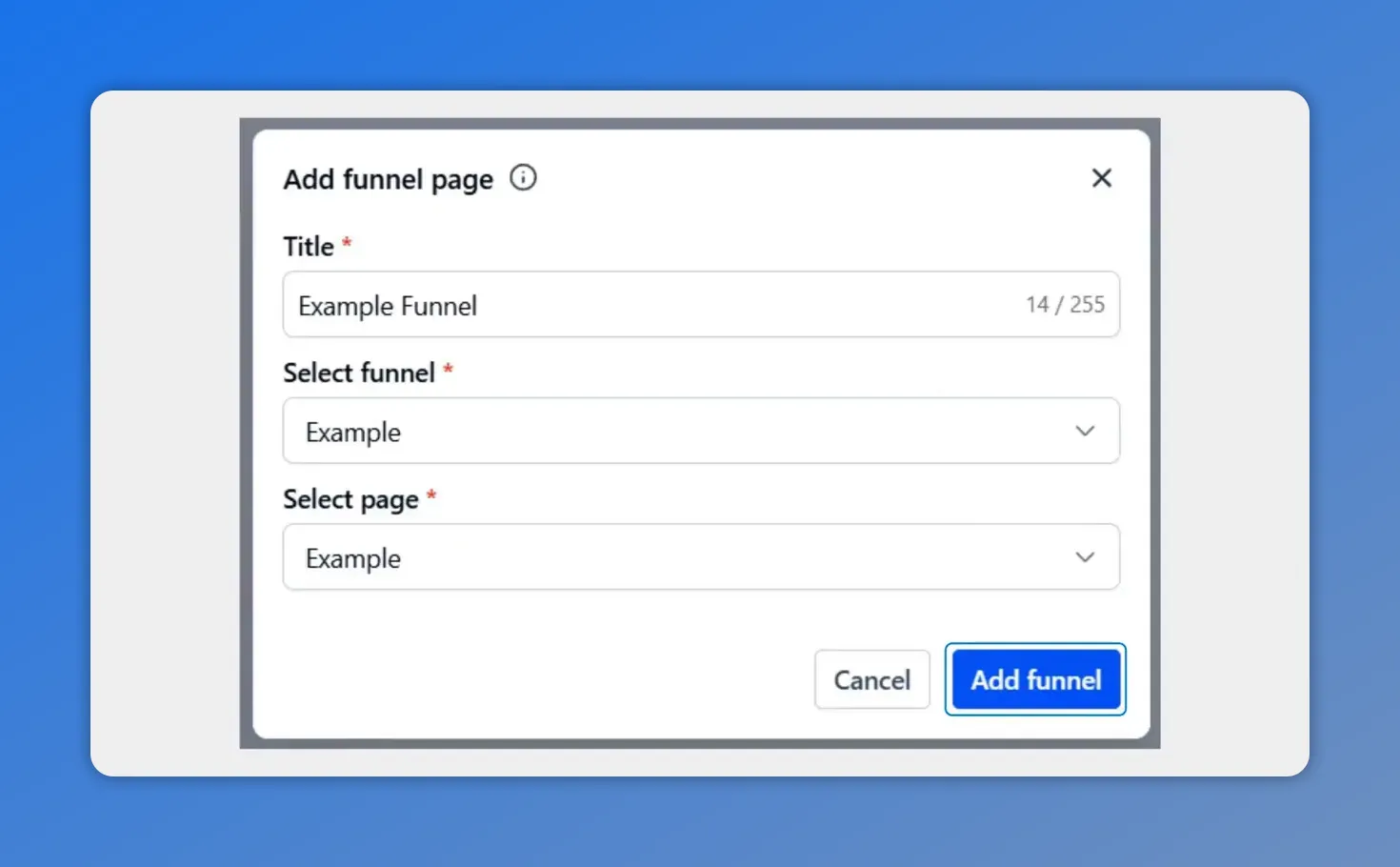
In Pinnacle, you set up the funnel page by entering a title, selecting the funnel, choosing the specific page, and clicking “Add funnel.”
4. Edit the funnel page if needed
After adding the funnel page, use the pencil icon to edit the page and its details.
This gives you a quick way to refine the content, update settings, or adjust the page before making it available to learners.
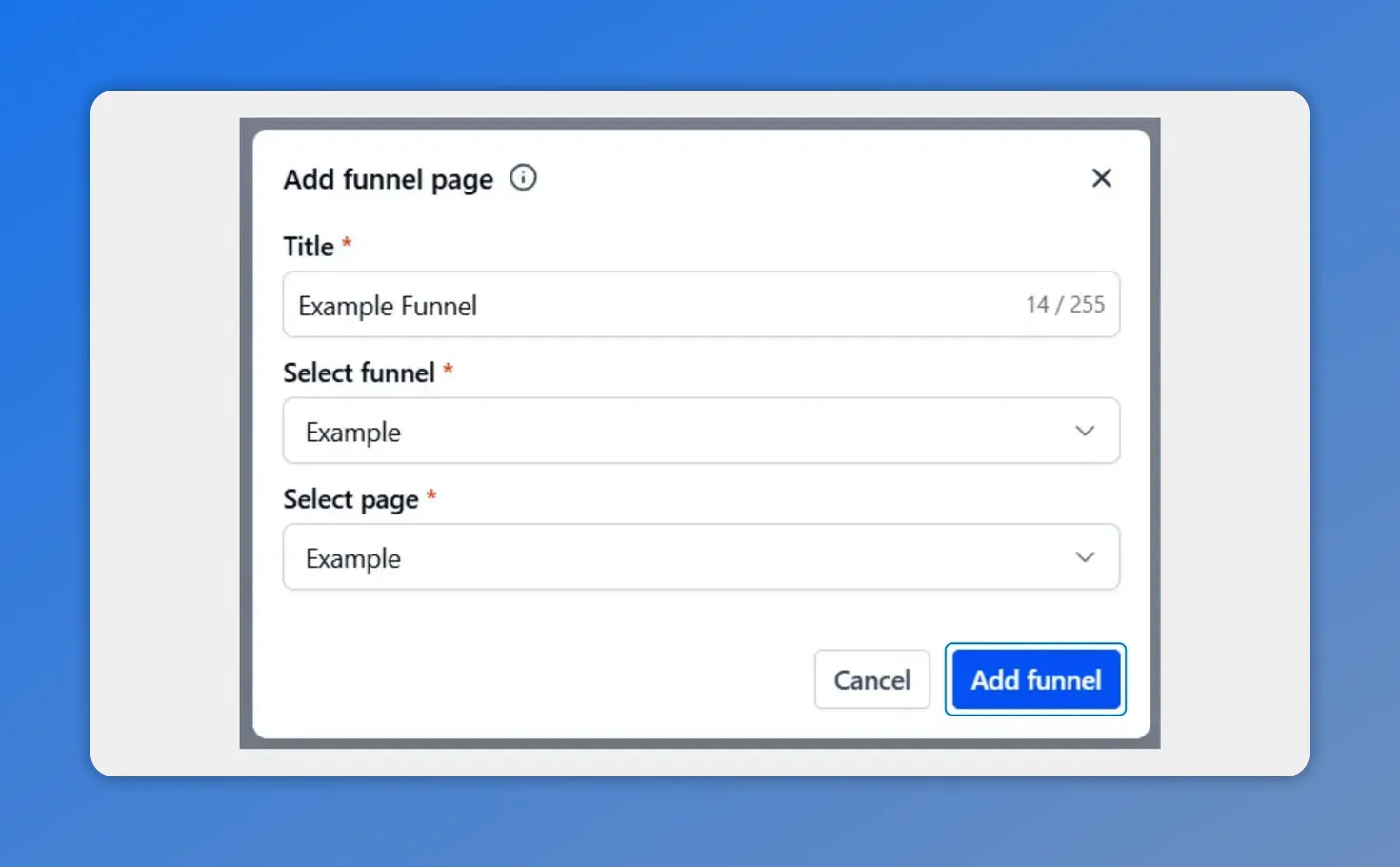
In Pinnacle, editing the funnel page starts with the “Add funnel page” form—this is where you set the title and choose the funnel and specific page to show in your course.
5. Publish the funnel page
When everything looks right, switch the status to Published. That makes the funnel page accessible inside the course.
At that point, it becomes part of the learner journey just like any other lesson or content item.
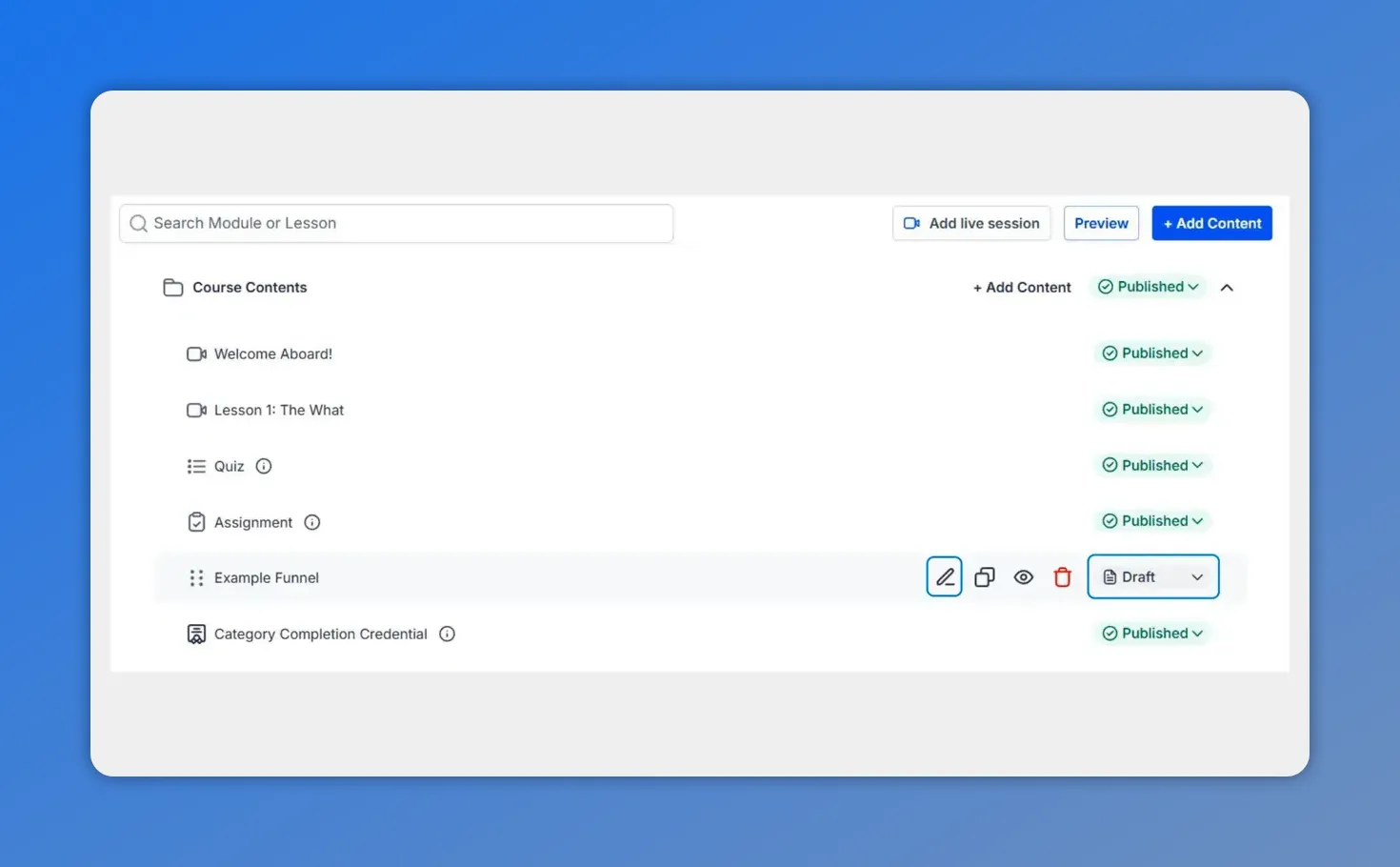
After you publish, the funnel page becomes available alongside the rest of your course content—so learners can take action without breaking the learning flow.
What happens after publishing?
Once published, the funnel page appears inside the course player and works as part of the overall learning path. This is what makes the setup so effective.
Instead of feeling like a separate sales process, it feels like a continuation of the lesson. Learners can read, engage, and take action in one connected experience.
That can support several goals at once:
- Upsells to a higher-tier product or service
- Lead capture for follow-up campaigns
- Offer placement tied to the lesson topic
- Guided action that helps learners apply what they just learned
Why this approach improves conversions
Funnels work best when they appear at the right moment. A course creates many of those moments naturally.
Someone finishes a lesson, understands the problem more clearly, and is ready for the next step. That is the ideal time to present an offer, a booking option, or a lead form. We do not need to interrupt the educational experience. We can build the action step right into it.
This helps bridge the gap between learning and action. And that gap is often where momentum gets lost.
By placing funnel pages inside the course, we can:
- Reduce friction
- Keep attention focused
- Give each lesson a purpose beyond information alone
- Support revenue and lead generation without creating a disconnected experience
A simpler way to build with what you already have
Another big advantage is efficiency. If you already have funnels built in Pinnacle, you can reuse them across your course content instead of duplicating work.
That makes course creation simpler. It also helps keep messaging consistent across your offers, lead capture pages, and upgrade paths.
For teams managing several courses, this can save time and reduce manual setup. The same proven funnel page can be added exactly where it makes sense in the learning journey.
Where to place funnel pages inside a course
The strongest placements are usually the most natural ones.
Good placement points include:
- After a lesson that introduces a clear pain point
- At the end of a module where learners are ready for a next step
- Inside a free or introductory course where upgrades make sense
- After high-engagement lessons that already get strong traffic
If you are deciding where to start, add one funnel page to your highest-traffic lesson and publish it. That gives you a practical way to test how learners respond without restructuring the whole course.
Keep education and conversion in one seamless experience
When courses and funnels work together, the result is cleaner for both your team and your learners. The content teaches. The funnel guides action. And both happen inside the same course player.
That means less friction, less repetition, and a better path from interest to conversion.
If your goal is to educate, engage, and convert inside a single experience, adding funnel pages to your course is a simple and effective step.
FAQ
Can we add an existing funnel page to a course in Pinnacle?
Yes. Inside the course editor, click + Add Content, choose Add Funnel Page, then select the funnel and the specific page you want to use.
Do funnel pages appear inside the course player?
Yes. The funnel renders inside the course player, which helps keep the experience smooth and connected.
Can a funnel page be edited after it is added to a course?
Yes. Use the pencil icon to edit the funnel page and adjust its details after adding it to the course.
How do we make a funnel page available to learners?
Change the content status to Published. Once published, the funnel page becomes accessible within the course.
What can funnel pages inside a course be used for?
They can support upsells, lead capture, offers, and other calls to action that help move learners from education to the next step.
Do funnel pages behave differently from other course content?
No. They behave like any other content type inside the course, which makes them easy to organize as part of your curriculum.
This article was created from the video Add Funnel Pages to Your Course for Upsells and Lead Capture








