





Set up to 100 products per page for faster store browsing

Large product catalogs can slow down shopping and hide great items behind too many pages. We updated the Product Listing Page in Sites so stores can show up to 100 products per page. That reduces pagination, improves navigation, and helps customers find products faster.
Why increasing products per page matters
- Fewer clicks to browse — Customers can see more items without jumping between pages.
- Better product discoverability — A higher product count increases the odds that shoppers spot what they need.
- Smoother experience on desktop — Desktop layouts handle denser results well, making higher counts especially useful for desktop-heavy traffic.
- Consistent presentation for large catalogs — Showing more items per page keeps the layout consistent across many categories.
Where to change the products-per-page setting
Here are the exact steps to update the number of products shown per page in Sites:
- Open the Products List page for the store you want to update.
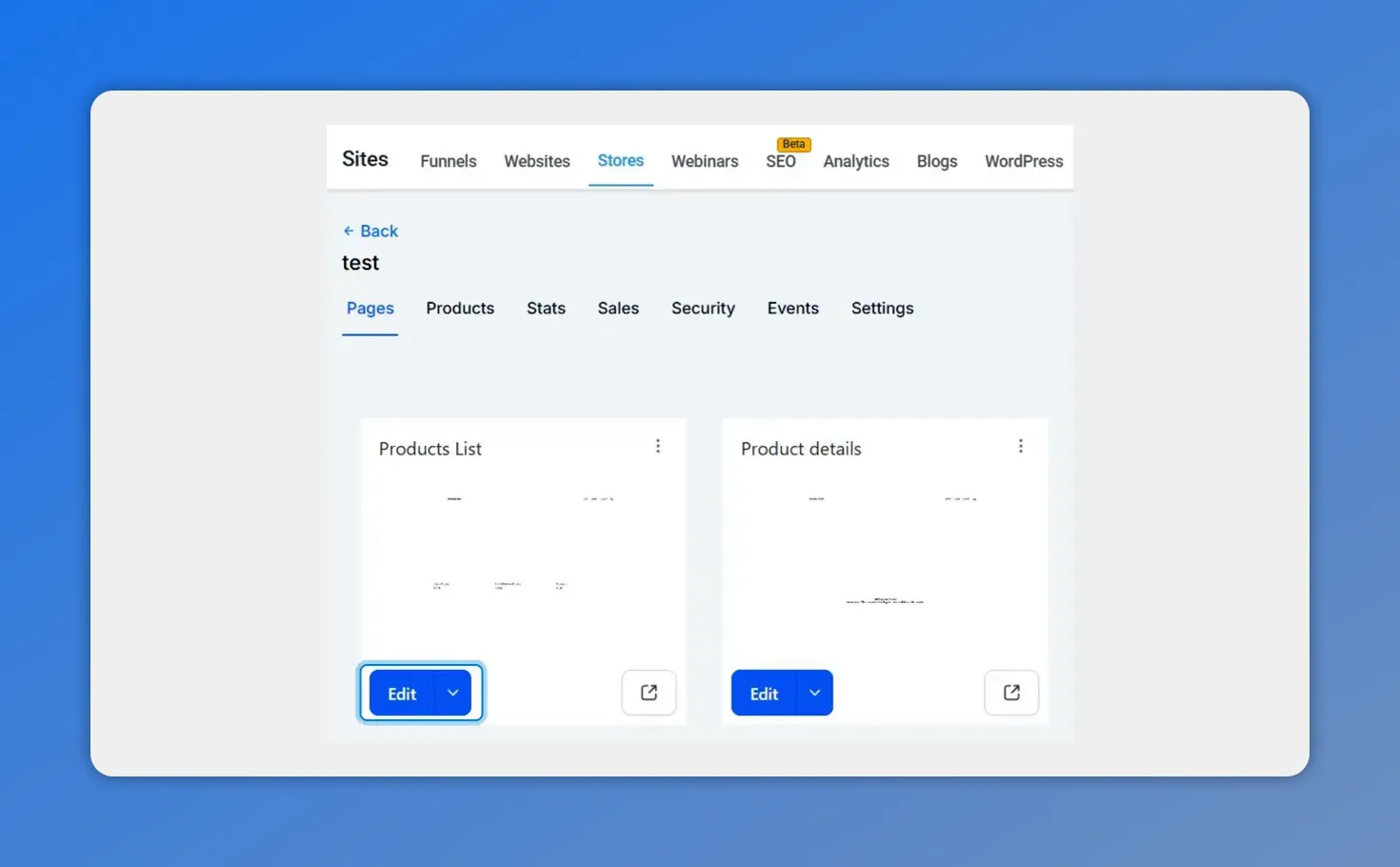
Open your store and click Edit on the Products List page to start.
- Click the Product List element to edit it.
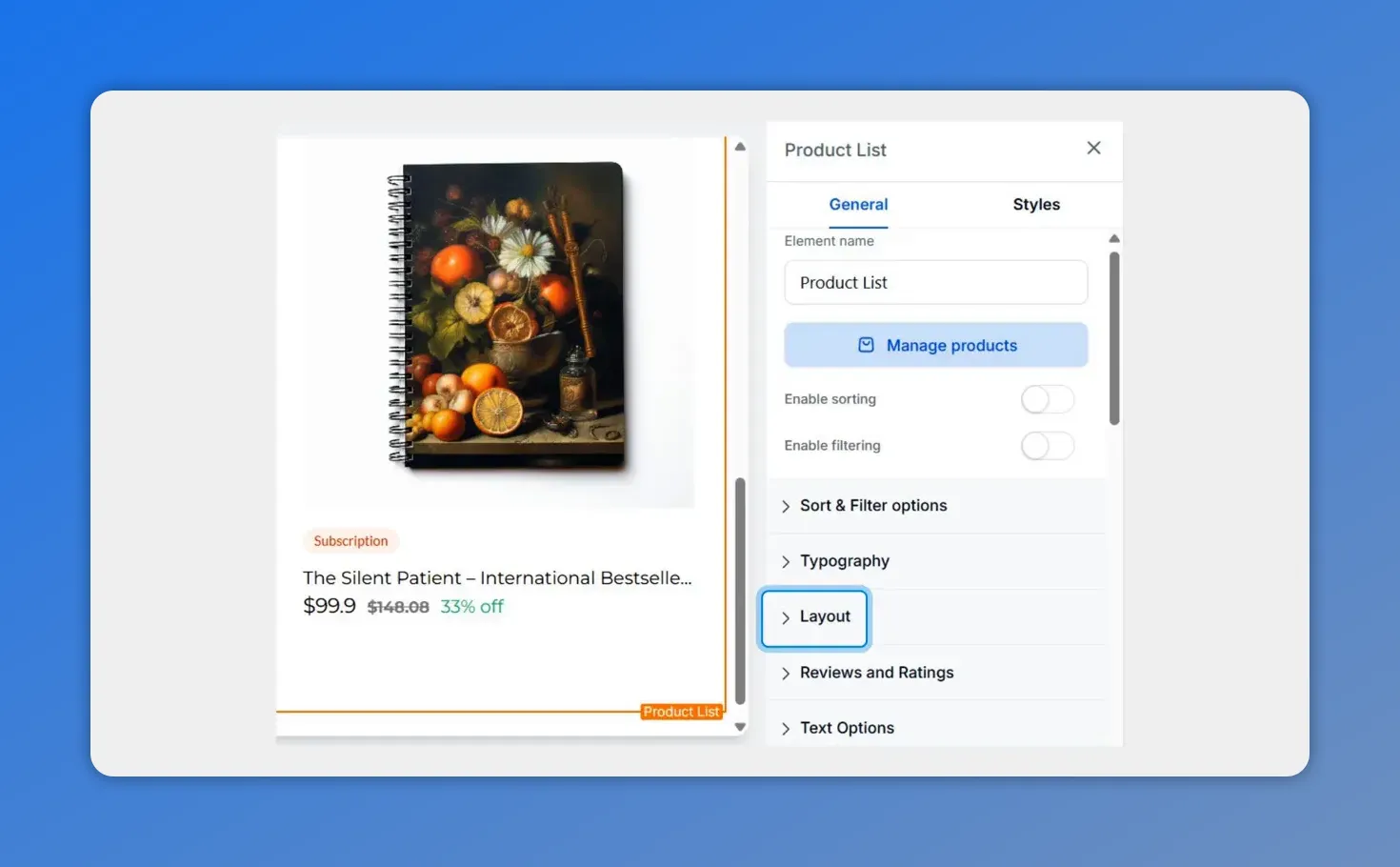
Click the Product List element to open its settings (Layout is available here).
- Scroll to the Layout section.
- Use the slider to set the number of products per page, up to 100.
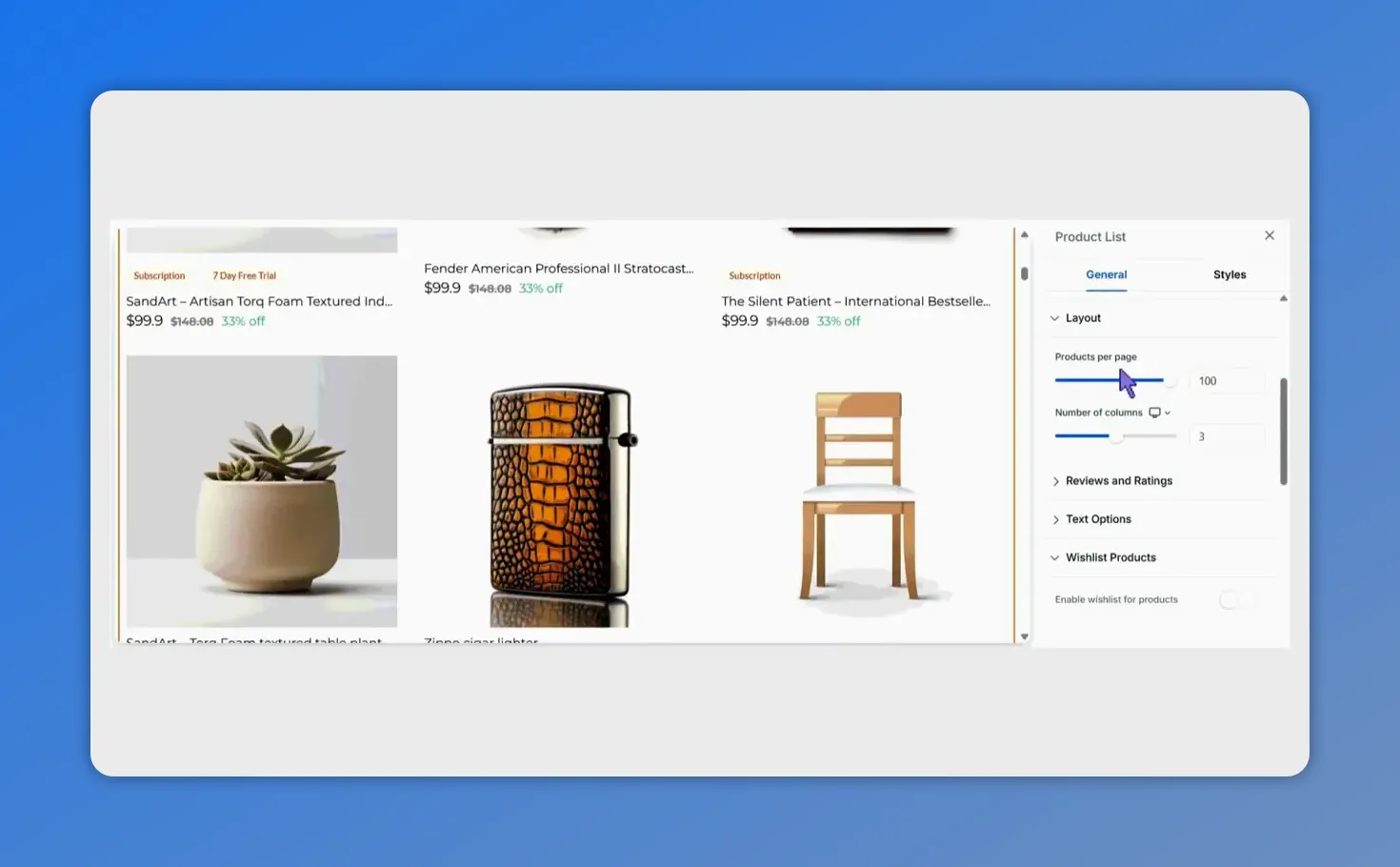
Set the 'Products per page' slider to 100 in the Product List layout.
- Save and publish your changes once you are satisfied.
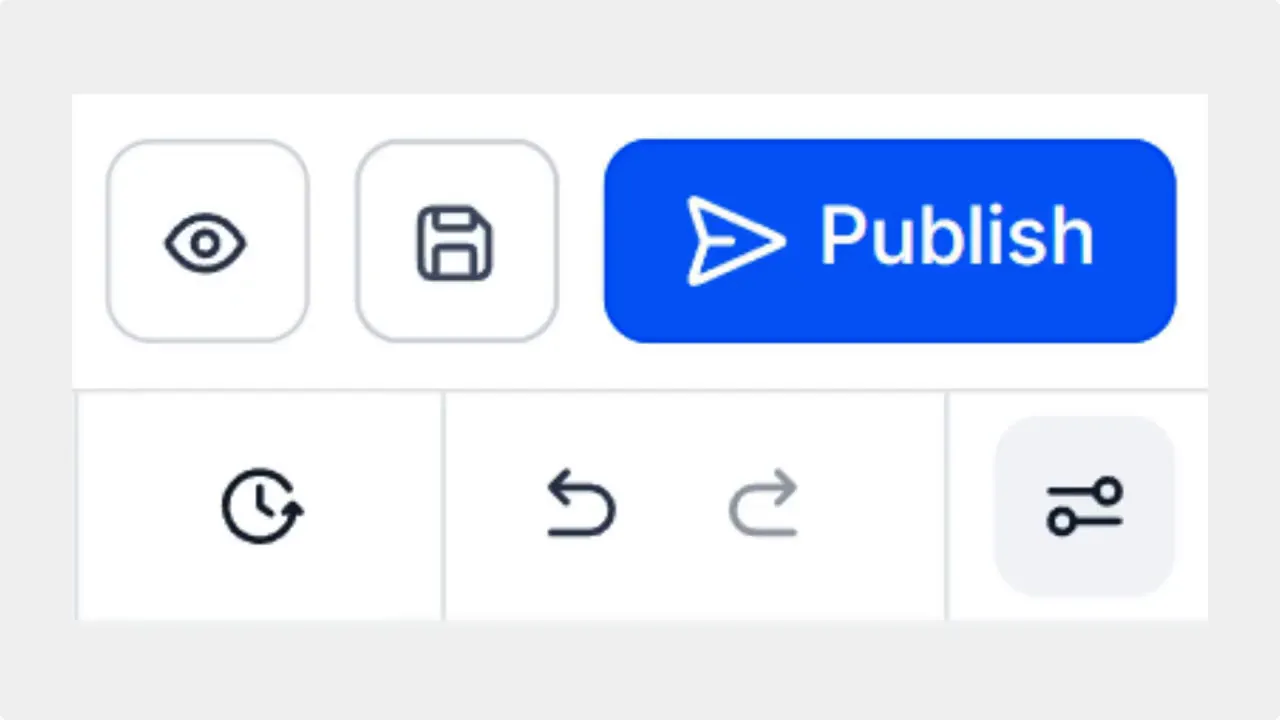
Click the Publish button to save and publish your Product List changes.
Quick visual guide
The slider makes the change fast and reversible. Move it to the number that matches your catalog size and audience behavior.
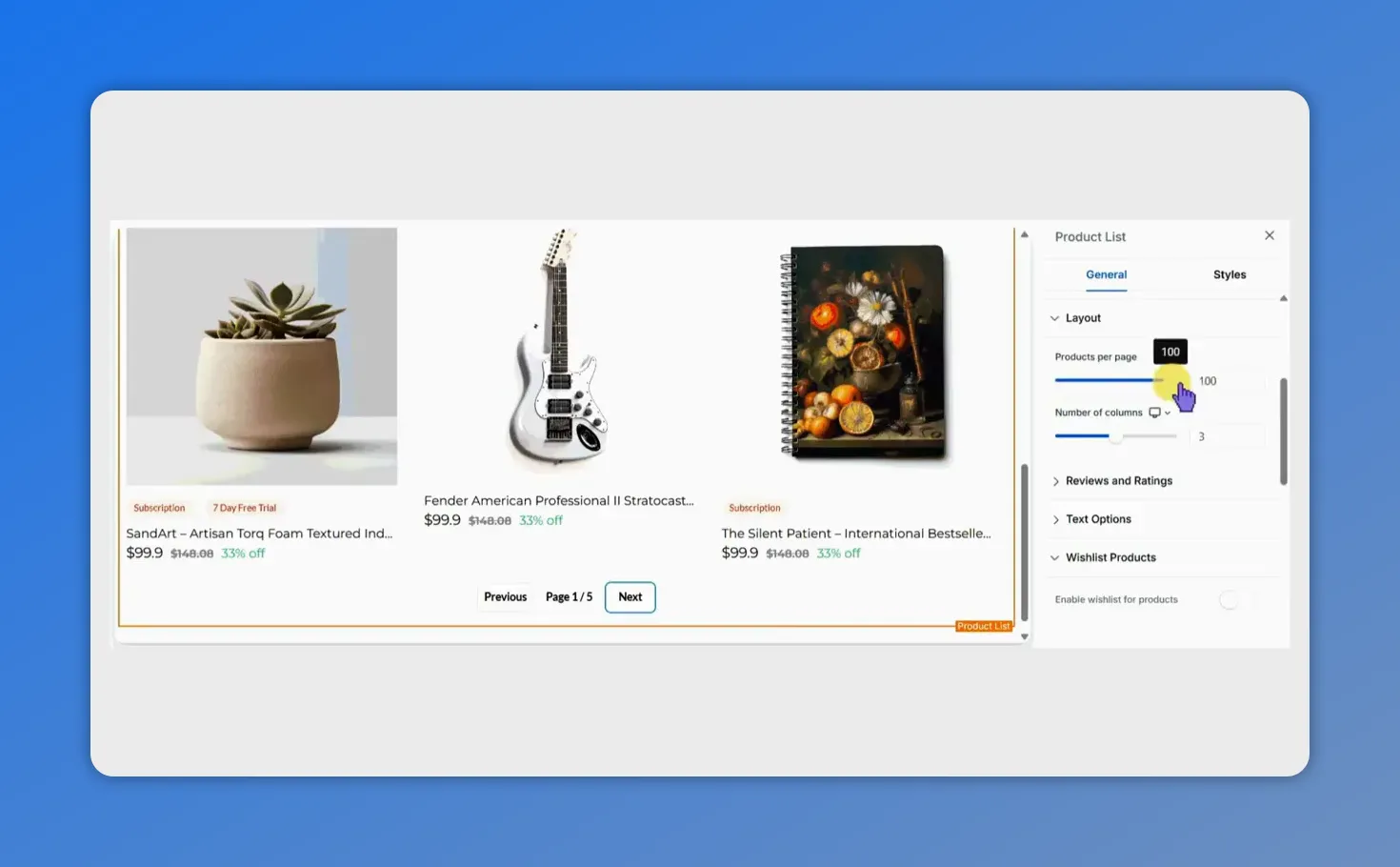
Use the 'Products per page' slider to set the number of items (here set to 100).
When to use 100 products per page
Showing 100 items per page is not always the right choice. Use higher counts when:
- Your catalog is large and customers often browse by scrolling.
- Most traffic is desktop, where users expect denser results.
- Search and filtering tools are available so shoppers can refine a long list quickly.
Keep the count lower if many customers visit from mobile devices or if pages become heavy and slow to load.
Tips to balance layout and performance
- Test on real devices: Preview pages on desktop and mobile to ensure images and layout remain fast and clear.
- Optimize images: Use compressed images and lazy loading so larger result sets do not slow the page down.
- Use filters and sorting: Combine higher product counts with strong filtering to keep discovery efficient.
- Monitor metrics: Track session length, bounce rate, and conversions after changing counts to measure impact.
Implementation notes from the team
We increased the default limit from 24 up to 100 products per page. The change is simple to apply and reversible at any time via the Product List element's layout settings. The goal is a cleaner navigation path and faster product discovery for shoppers.
Frequently asked questions
What is the maximum number of products I can show per page?
The maximum is 100 products per page. You can adjust the number with the layout slider on the Product List element.
Will showing more products slow down my pages?
Pages can load more slowly if assets are large. We recommend optimizing images, enabling lazy loading, and testing changes on desktop and mobile before publishing.
Is 100 per page recommended for mobile shoppers?
Not usually. Mobile users prefer shorter pages and faster loads. Consider a lower count for mobile or rely on filters and search to narrow results.
How do I revert the change if I want fewer products per page?
Open the Product List element, move the slider to the desired count, then save and publish. Changes can be updated at any time.
Where is this setting located?
It is in Sites, on the Products List page. Click the Product List element and open the Layout section to find the slider.
This article was created from the video Set up to 100 products per page for faster store browsing








