





Override Product Description Font Style on Product Details Page to Boost Branding
Photo by Brett Jordan on Unsplash
Overview
Consistent branding builds trust and helps customers finish purchases. Our new setting gives you direct control over product description typography on the Product Details Page. That means the body text, the Show More/Show Less link, and extended descriptions can all match your brand voice without extra code.
What this setting does
When you enable Override Product Description Font Style, you control the font family, size, color, weight, and background for product descriptions from inside the Stores Builder. Custom product page styles take precedence over other styling rules, so your descriptions remain consistent across default and custom product pages.
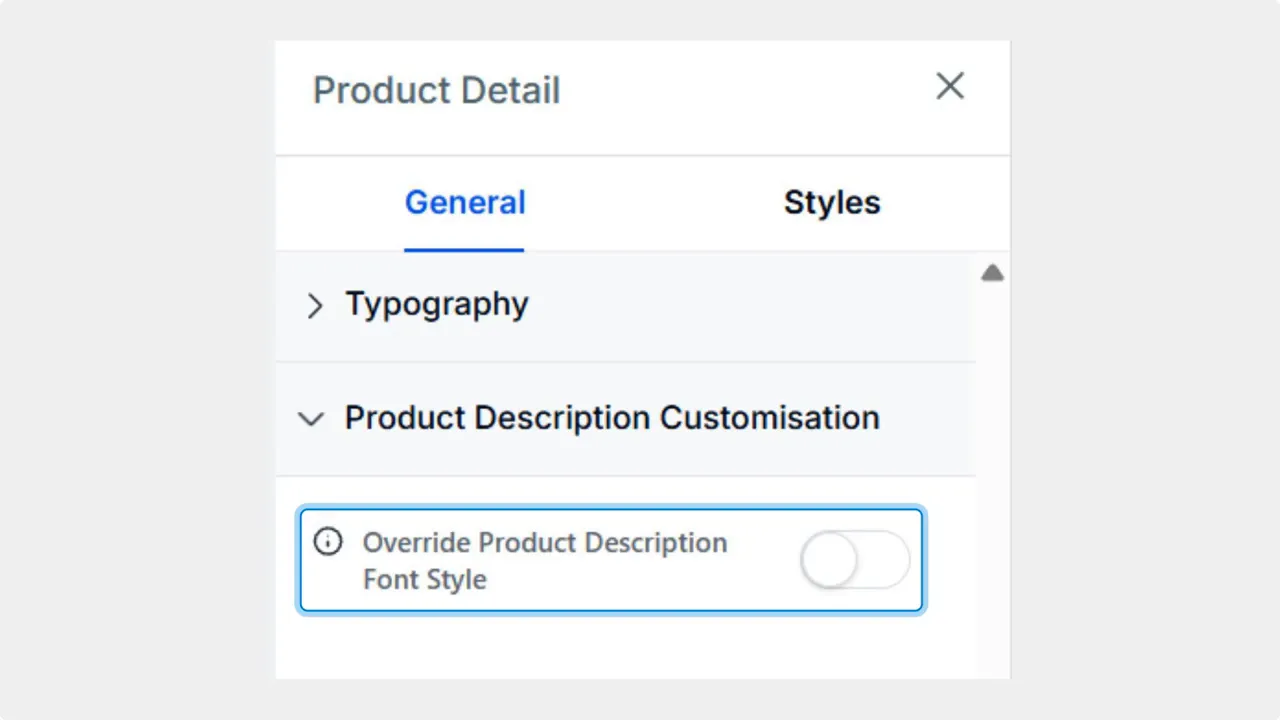
Step-by-step: Apply custom product description typography
Select the Product Details page in the Stores Builder.
Select the Product Details element on that page.
Open the Product Description Customization section.
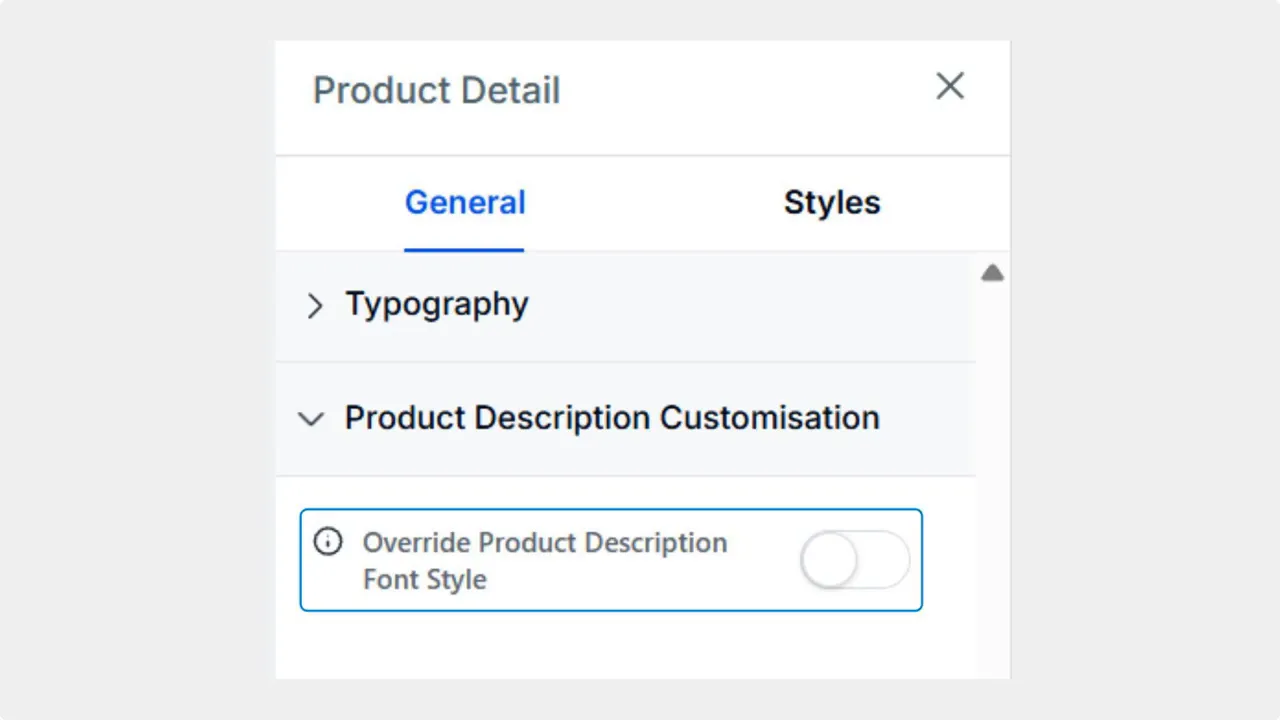
Turn on Override Product Description Font Style.
Adjust typography settings (font family, size, color, weight, background) to match your brand.
Publish your changes.
Why this matters
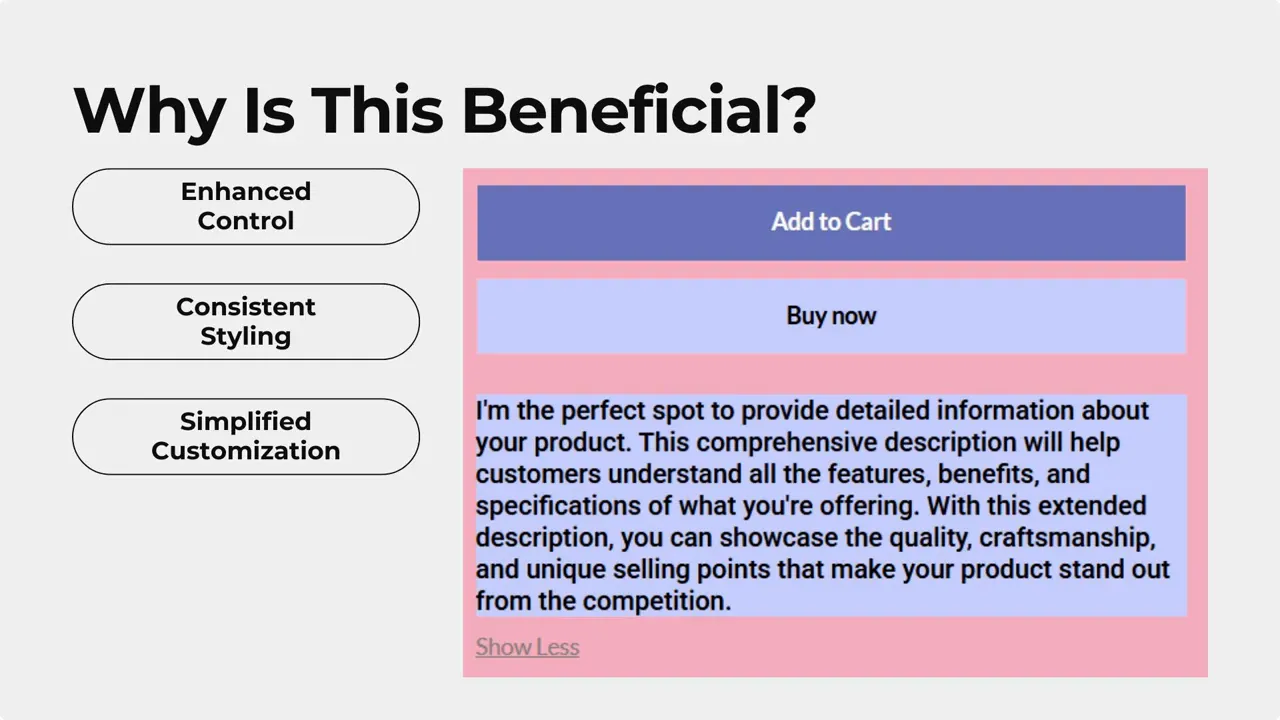
Branded experience — Text that matches your visual identity reinforces brand recognition and looks professional.
Clarity and trust — Clear, readable descriptions reduce friction and increase the chance customers complete a purchase.
Consistency — Custom PDP styles override other styling options so the description always displays as intended, whether a page uses default or custom product page templates.
"Personalize the product description font style to provide customers with a branded experience every step of the way, increasing their trust in your business and helping you close more sales."
Practical tips for typography that converts
Choose a legible font family that aligns with your brand. Avoid novelty fonts for long blocks of text.
Prioritize contrast. Make sure text color and background provide easy reading on all devices.
Use font size and weight to create hierarchy. Headings, bullets, and key specs benefit from slightly larger or bolder text.
Test on mobile. Descriptions must remain clear on small screens where most purchases happen.
Limit font variations. Use one or two complementary fonts to keep pages clean and fast.
Quick checklist before publishing
Is the font easy to read on desktop and mobile?
Does the color meet accessibility contrast guidelines?
Does the Show More/Show Less text match the description styling?
Have you published and reviewed the live product page?
FAQ
What does "Override Product Description Font Style" actually change?
It replaces the default description styling with the typography settings you choose in the Product Description Customization section. These settings control font family, size, color, weight, and background for description text and the Show More/Show Less control.
Does this affect the Show More or Show Less link?
Yes. The override applies to the Show More and Show Less label as well as the extended description text so the entire block stays visually consistent.
Which styling rules take priority?
Custom PDP styles set with the override take precedence over other styling options in the builder. That ensures the product description displays exactly as configured.
Will this work on custom product pages as well as default pages?
Yes. The override works for both default and custom Product Details Pages. When enabled, your custom PDP styles will apply and take precedence.
How can we revert changes if the new typography does not look right?
Turn off Override Product Description Font Style in the Product Description Customization section to revert to the previous styling. Then adjust settings and republish as needed.
This article was created from the video Override Product Description Font Style on Product Details Page to Boost Branding








