





CRM Pipelines Update: Edit Faster and Color-Code Stages Across Views

Pipelines are one of the most useful parts of any CRM. They help keep customer organization clear, and they make follow-ups more consistent. But even the best pipeline setup can become frustrating when it takes too many clicks to manage.
We made a small revamp to improve efficiency and keep the experience consistent across key screens. The big changes are faster pipeline editing and stage color options that carry through multiple views so teams can scan and prioritize work at a glance.
Faster pipeline management from the pipeline dropdown
One of the most noticeable improvements is where you can create and edit pipelines.
Instead of needing extra navigation, you can now create and edit pipelines directly from the pipeline dropdown. This reduces friction when you are updating stages, adjusting your workflow, or setting up a new pipeline for a different customer segment.
In practice, that means pipeline management stays close to where your work already happens.
Choose how stage colors appear: Default, Colored dot, or Background tint
Stage colors help people visually understand where a deal or record sits in the process. But everyone does not want the same display style.
We added a display selection so you can control how stage colors show up. You can choose between:
- Default view with no color
- Colored dot view
- Background tint view
This gives you flexibility while keeping the pipeline visually readable.
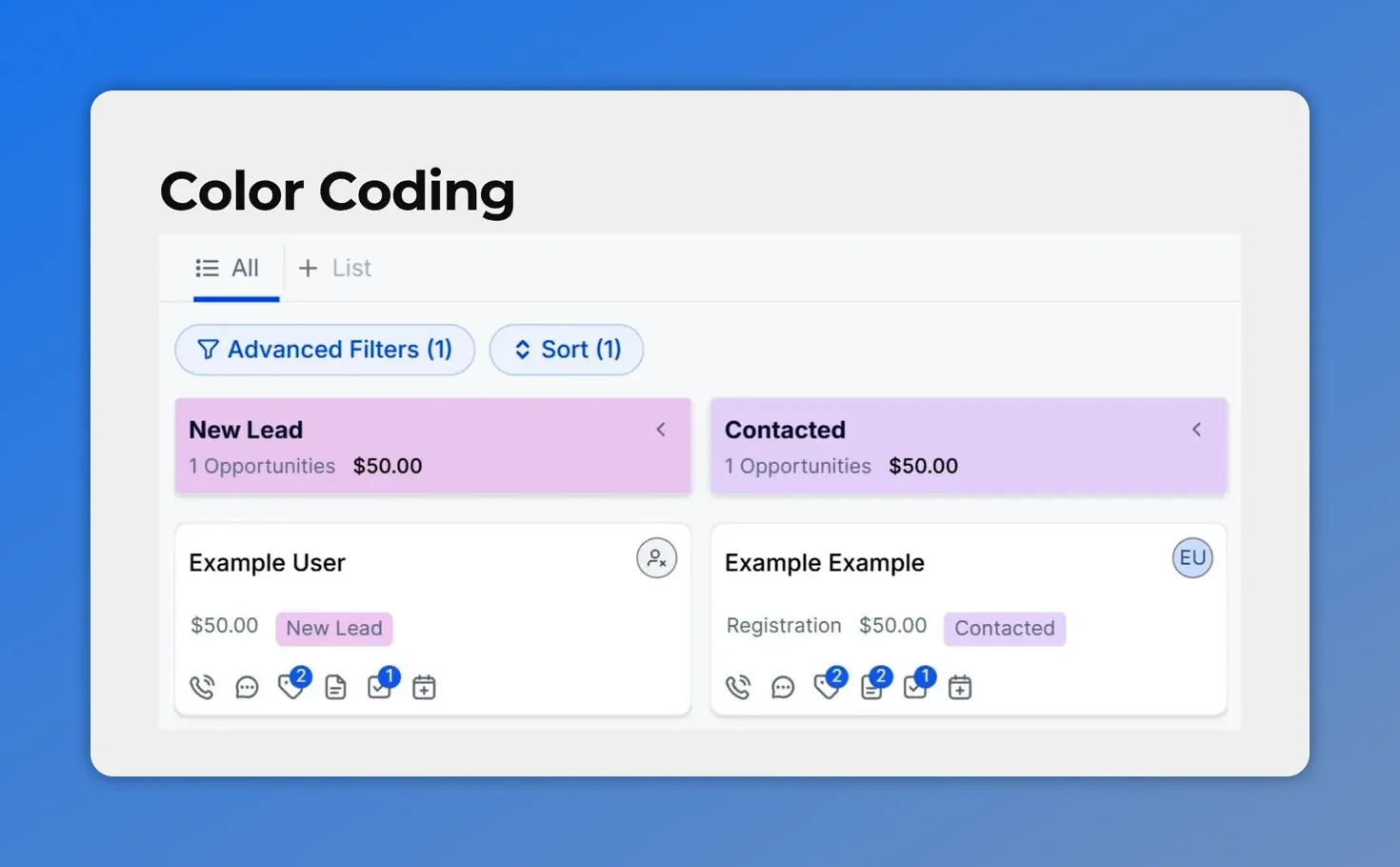
Stage color coding helps teams interpret deal progress consistently, with New Lead and Contacted stages clearly distinguished on the board.
Stage colors now reflect across key views
Color coding is only useful if it stays consistent. That is why stage colors now carry through multiple places where you view pipeline information.
Stage color configuration reflects across key screens such as:
- Kanban views
- Record details views
The result is better visual clarity across stages and deals. People do not have to relearn what colors mean each time they look at a different screen.
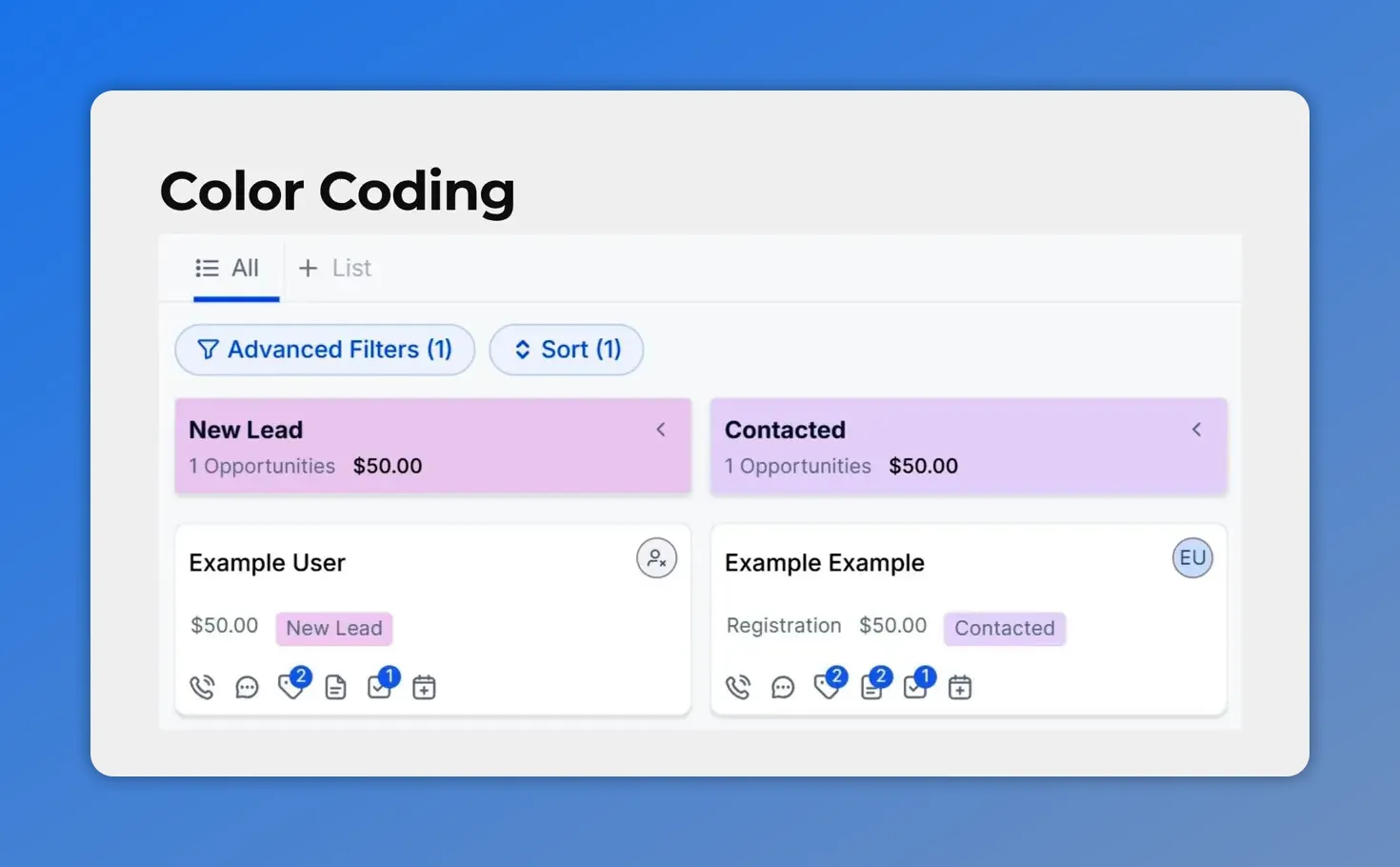
Stage colors remain visually consistent in the pipeline view so teams can interpret progress the same way every time.
How to color-code pipeline stages
Here is the exact flow to set up stage colors, whether you are editing an existing pipeline or creating a new one.
Step 1: Edit or create a pipeline
Start by either editing an existing pipeline or creating a new one.
Step 2: Pick your stage color display style
Next, choose how stage colors should appear:
- Colored dot
- Background tint
(You can also select the default no color option, but color coding is what we are optimizing for here.)
Step 3: Assign a color for each stage
For each stage, click the colored square next to it, then assign your desired color.
This lets us visually group or differentiate stages in a way that matches your workflow.
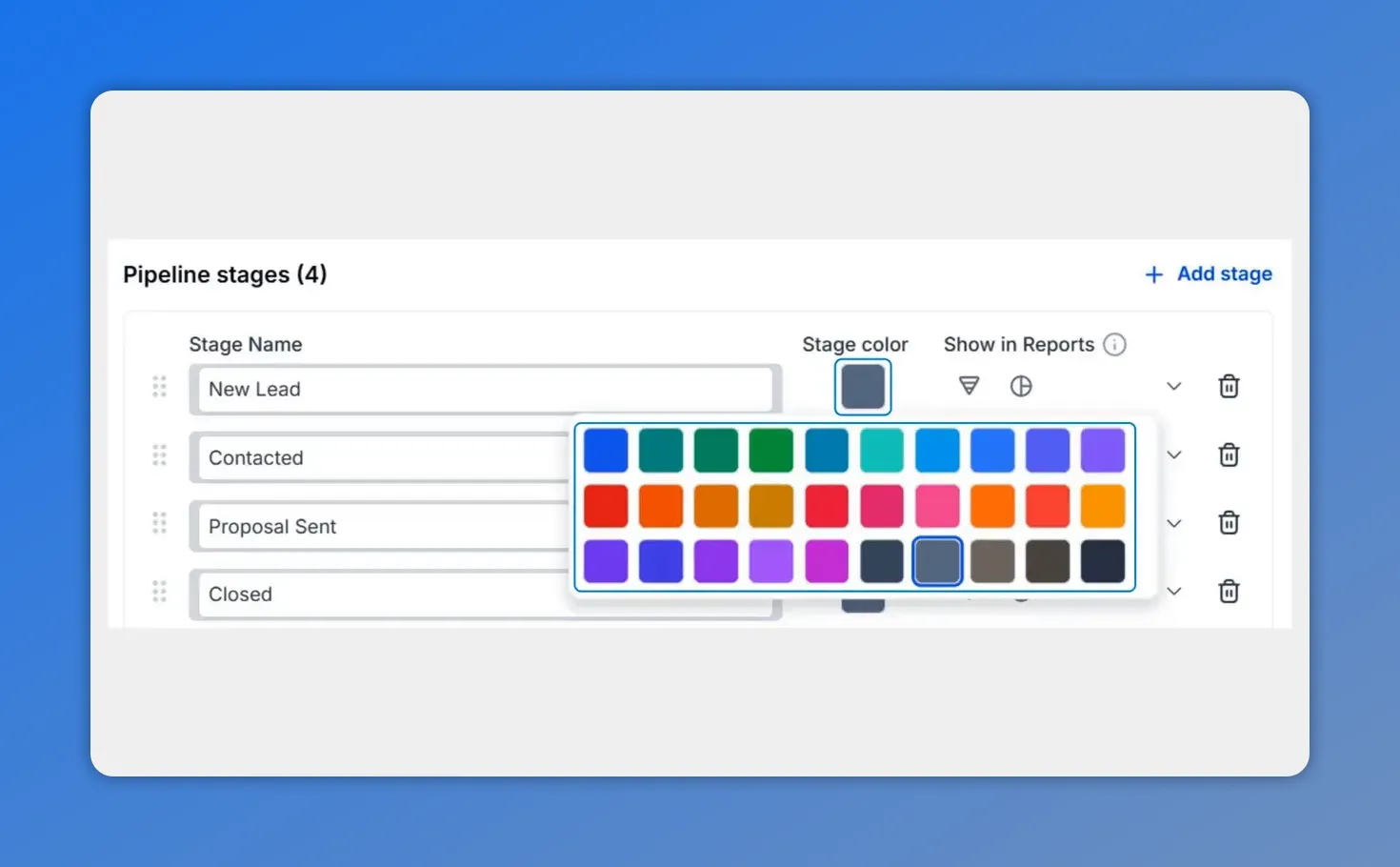
Assign a color for each pipeline stage by selecting a stage and choosing the stage color.
Step 4: Save your changes
Once everything looks right, click Create or Update to save your stage color configuration.
All users see the same stage color setup, which makes pipelines easier to scan and helps teams prioritize the same way across views.
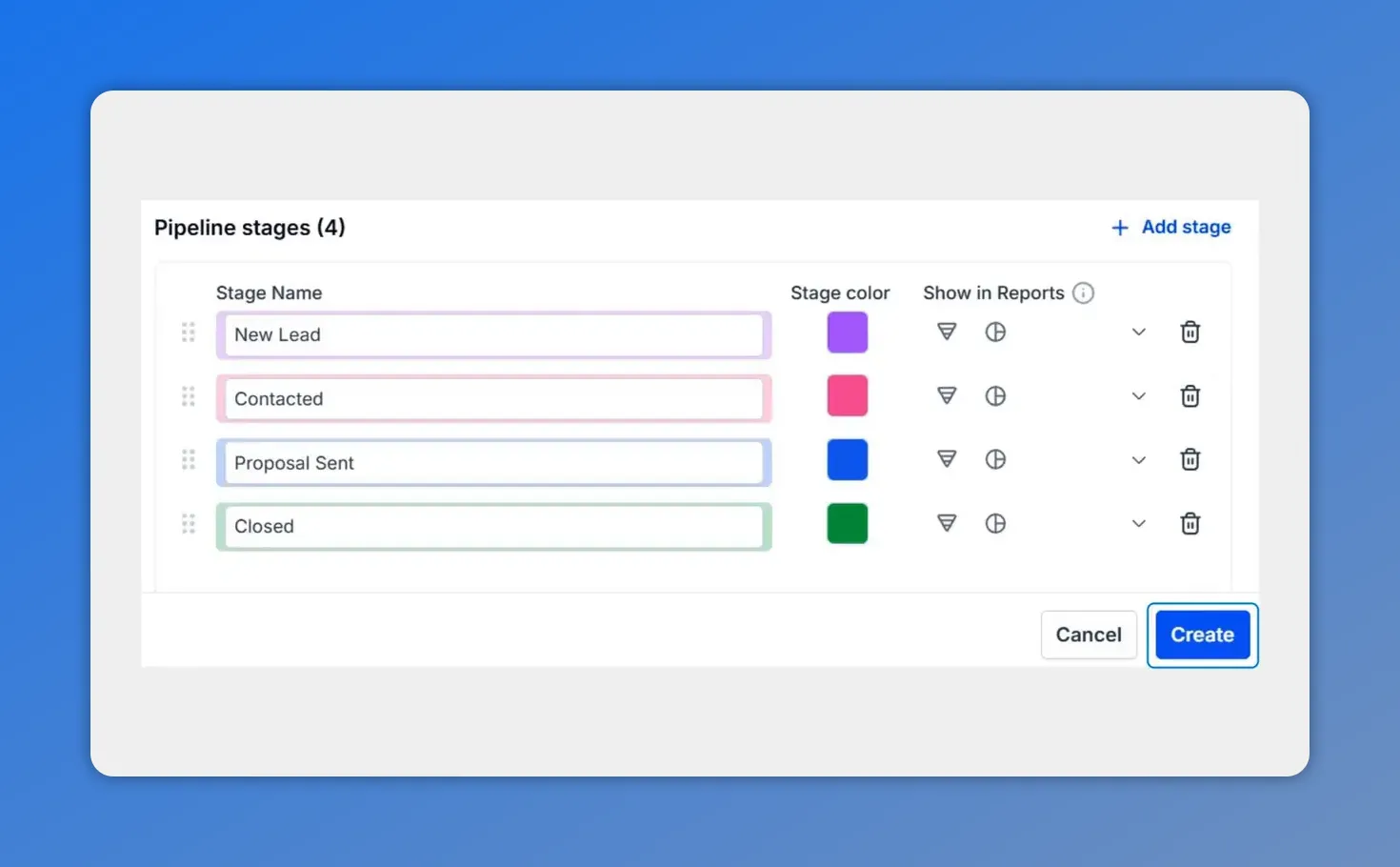
When you assign colors to each stage, you can clearly see how your pipeline will look before saving.
Why this consistency matters for teams
When stage colors stay consistent, people can scan deals faster and reduce mistakes. It also supports shared follow-up habits because everyone is interpreting the same visual cues.
- Fewer clicks to manage pipelines
- Easier scanning of deals and stages
- Consistent visual cues across Kanban and record details
FAQ
Can we create and edit pipelines without extra navigation?
Yes. We can create and edit pipelines directly from the pipeline dropdown for faster pipeline management.
What stage color display options are available?
You can choose Default (no color), Colored dot, or Background tint.
Do stage colors show up in multiple views?
Yes. Stage colors reflect across key views such as Kanban and record details.
Who sees the stage color configuration?
All users see the same stage color configuration, making it easier to scan pipelines consistently.
How do we save stage color changes?
After selecting a color for each stage, click Create or Update to save.
Get your pipeline colors set up
If your team manages sales or customer workflows, stage colors can make a big difference in how quickly people understand progress. Use the options above to edit pipelines faster and color-code stages in a way that stays consistent across Kanban and record details.
This article was created from the video CRM Pipelines Update: Edit Faster, Color-Code Stages Across Views








