





How to Set Up Inbound Email Replies in Conversation AI (CC/BCC)
Conversation AI can now help respond to incoming emails with the same intelligence and personalization you expect from chat. That means your agent can handle email support workflows, not just conversations in a chat box.
In this guide, we’ll walk through the setup for enabling inbound email replies, configuring the sender and reply behavior, and creating the email template your agent will follow. We’ll also cover two key governance options: default recipients and flexible formatting.
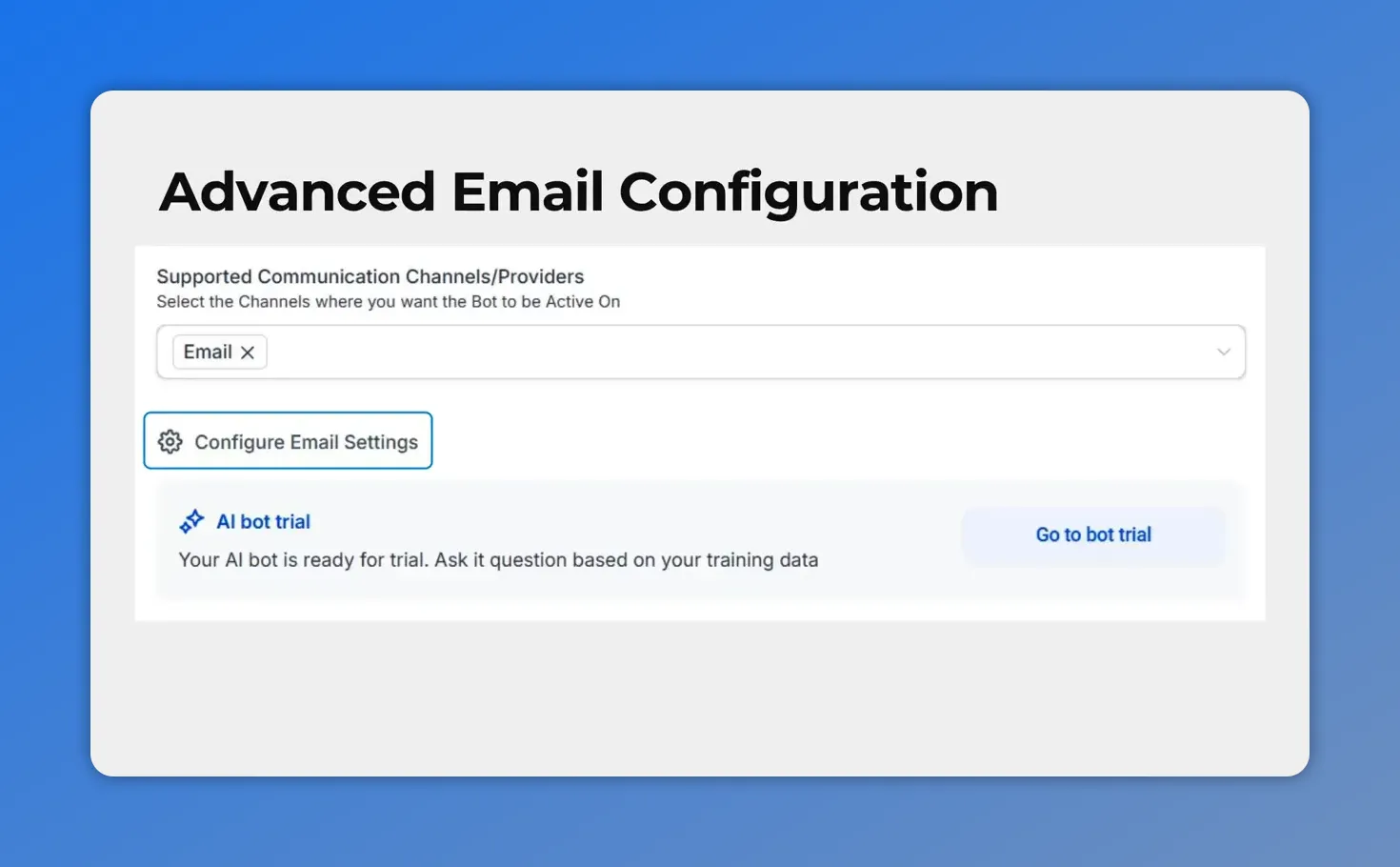
In the Conversation AI bot settings, set up email as a supported communication channel, then open the email configuration to continue.
What’s new in email support for Conversation AI
To make email automation reliable, Conversation AI adds an email-specific configuration layer. This layer helps you control how replies look and what your agent sends back.
- Advanced email configuration: A dedicated configuration layer for email-specific formatting and design.
- CC and BCC support: Set default recipients for AI-generated replies.
- Email formatting: Choose plain text or use a design editor template that the agent follows.
The result is a unified automation experience across chat and email, using the same rules and context so responses stay consistent.
Step-by-step: enable inbound email replies
Here’s the exact flow we use to set up email replies for a Conversation AI agent.
-
Go to the Conversation AI area inside the AI Agents section. Open an existing bot or create a new bot.
-
In Bot Settings, enable the email channel from the channel dropdown.
-
Click Configure email settings to define the response details.
-
Set the sender details and reply behavior. Then click proceed.
-
Create your email template. Review it, then click save.
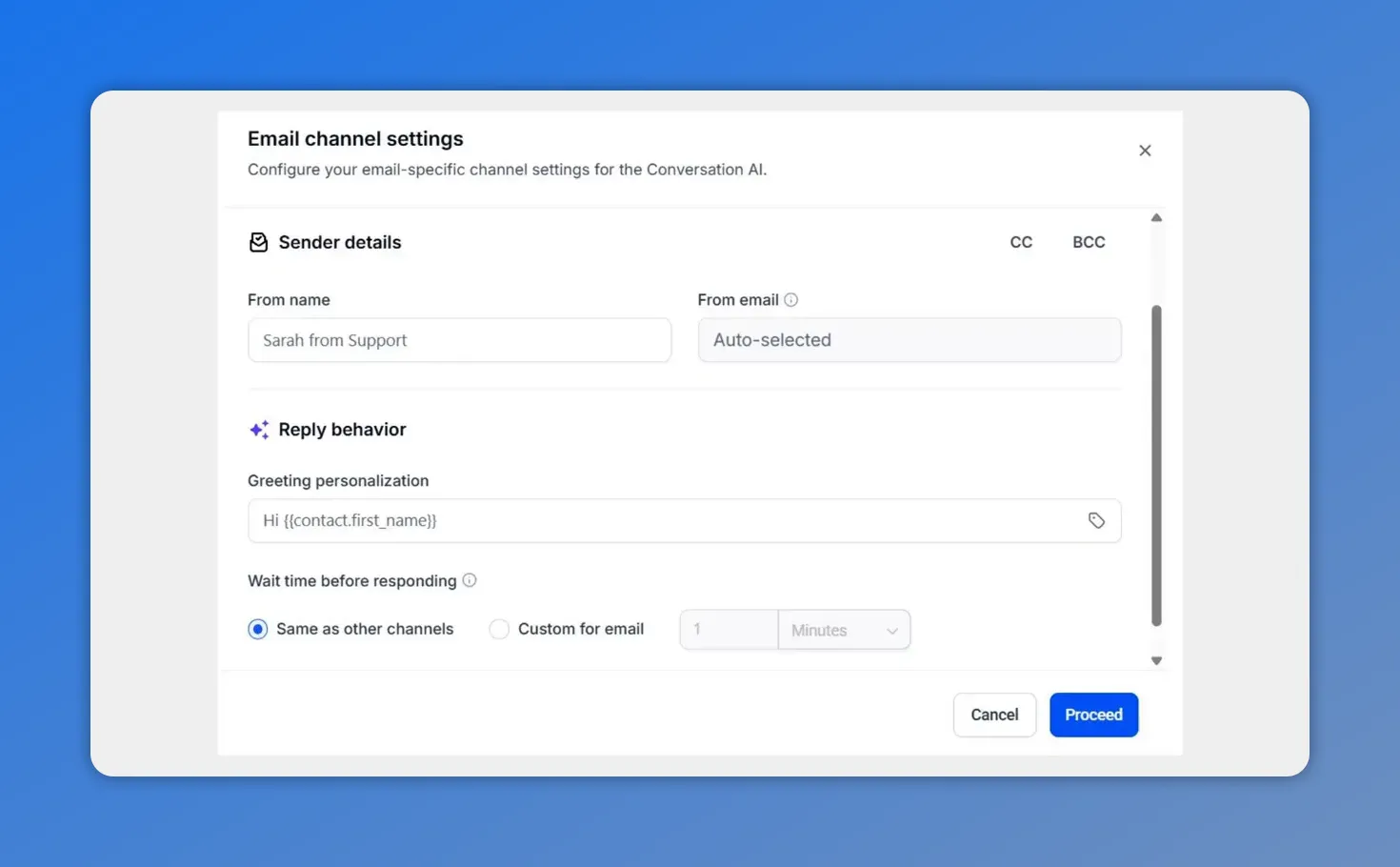
In the email channel settings, you configure sender details and reply behavior—this is where CC/BCC defaults and how the agent responds are defined.
Configure email settings (sender, reply behavior, and defaults)
After enabling the email channel, the next step is making sure your agent’s replies look right and follow your policies.
Your email configuration includes a dedicated layer for email-specific formatting and design. From there, you can define defaults that apply to all AI responses.
1) Define default recipients (CC/BCC)
Conversation AI supports CC and BCC. That means you can set default recipients for AI-generated replies, so every response includes the right people automatically.
This helps with governance, internal visibility, and consistent team workflows without requiring manual edits each time.
2) Set sender details and reply behavior
You also choose who the email appears to come from and how the agent handles its reply behavior. Once those settings are in place, the system is ready to generate responses based on your rules and context.
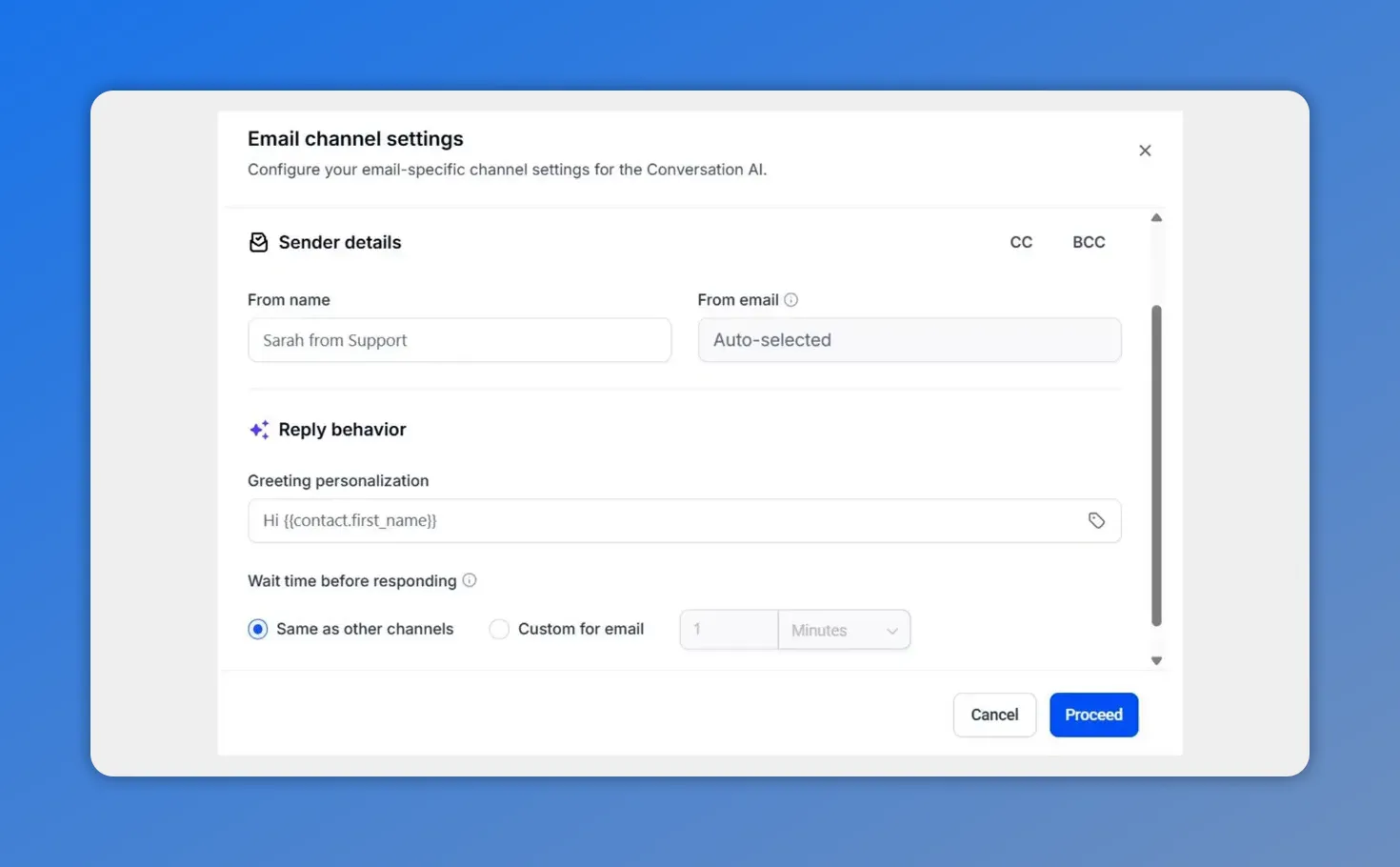
In the email channel settings, set your sender details and reply behavior (including greeting personalization and response timing).
Create your email template (plain text vs. design editor)
Next, we build the template the agent will follow.
Conversation AI lets you select between:
- Plain text, for straightforward transactional replies
- The design editor, where you create a formatted layout the agent can follow
This step is important because it controls structure and presentation. When your template is clear, your replies become more predictable and on-brand.
When the template is ready, review it carefully and then save your changes.
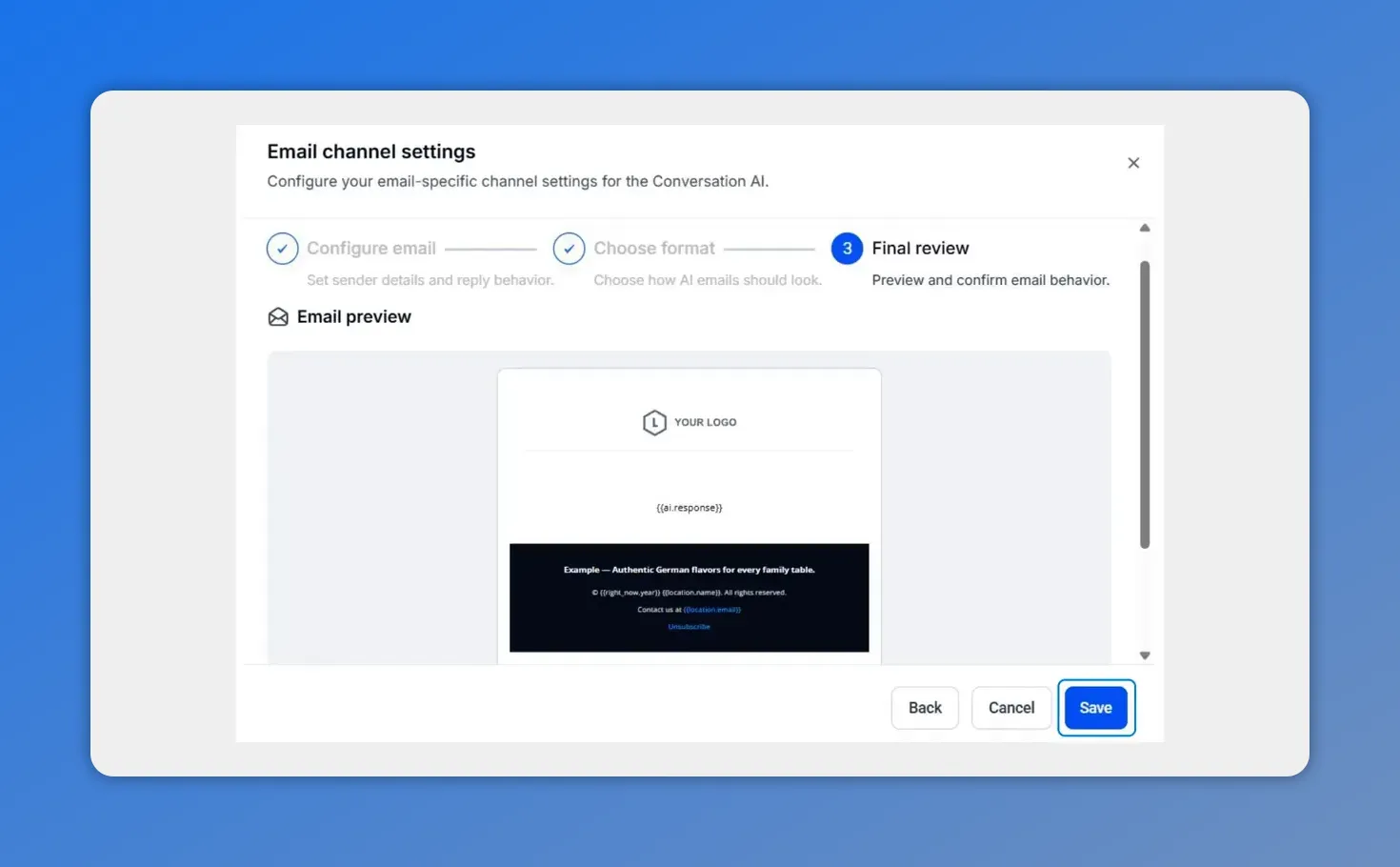
In the final review step of the email channel setup, you can preview what your agent’s inbound email reply will look like before saving.
Why this setup matters for support and automation
Enabling inbound email replies isn’t just a convenience. It supports a cleaner automation model for customer support and internal processes.
- Unified automation across chat and email: Your agent can process and respond automatically based on the same configured rules and context.
- Consistent responses: With templates and defaults, replies stay aligned with your brand voice and structure.
- Clear governance: Default CC and BCC help keep the right stakeholders included without manual steps.
Practical tips before you roll it out
To keep email replies reliable, we recommend treating template setup and recipient defaults like part of your support workflow design.
- Use templates to control structure: The cleaner and more specific the template, the more predictable the AI output format.
- Pick plain text for transactional updates: If you’re sending short, task-focused messages, plain text can be the simplest choice.
- Use the design editor for branded layouts: If you need a consistent look with formatting, use the design editor so the agent can follow your layout.
- Test with sample emails: Try a few real-world scenarios, confirm the output formatting, and adjust rules as needed before broader rollout.
FAQ
Can Conversation AI respond to incoming emails automatically?
Yes. After enabling the email channel for your Conversation AI bot and configuring response settings and templates, the agent can process and reply to incoming emails automatically based on your configured rules and context.
How do CC and BCC defaults work for AI-generated replies?
You can set default recipients using CC and BCC settings in the email configuration. Those defaults apply to AI-generated replies, so the right people are included every time.
What are the formatting options for email replies?
You can choose between plain text and a design editor template. The agent will follow the selected formatting style when generating email responses.
Where do we enable the email channel for an agent?
Open (or create) your bot under the Conversation AI area inside the AI Agents section. Then enable the email channel from the channel dropdown in Bot Settings.
What should we do after creating the email template?
Review the template once it’s built, then click save. After saving, Conversation AI can generate email replies using the template and the email settings you configured.
Next step
If your support inbox needs faster, consistent responses, enable the email channel for your Conversation AI bot and set up your template and CC/BCC defaults. That’s the practical path to streamlining inbound email replies while keeping responses structured and on brand.
This article was created from the video How to Set Up Inbound Email Replies in Conversation AI (CC/BCC)








