





How to Connect Canva to Media Storage: Import, Sync, Edit Designs

Canva is one of the most popular tools for creating marketing assets. We added a direct connection between Canva and Pinnacle media storage so teams can design, import, and edit without constant platform switching. This reduces manual downloads, version confusion, and duplicate files while keeping access rules intact.
What the Canva integration does for your workflow
The integration links your Canva account to Pinnacle media storage. Once connected you can:
- Import designs directly into My Media for use in funnels, emails, and posts.
- Edit designs in Canva from inside Pinnacle and save changes back without manually re-uploading files.
- Filter and find Canva files using the media library selector so you only see designs created in Canva.
- Respect access rules so project permissions remain enforced across the team.
How to connect Canva to Pinnacle media storage
Here’s how it works in a few quick steps.
1. Open Media Storage and connect Canva
Go to Media Storage in Pinnacle and click Connect Canva. This starts the authorization flow that links your Canva account to your Pinnacle workspace.
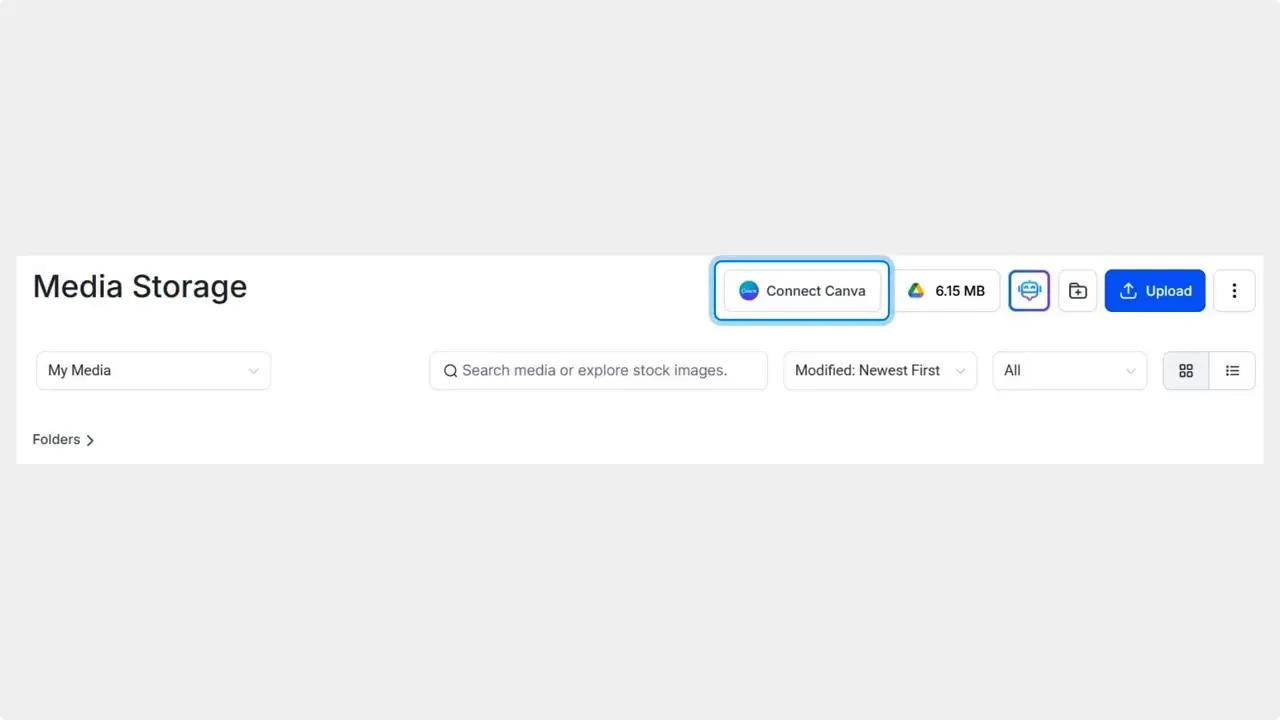
Click 'Connect Canva' in Media Storage to start the connection.
2. Complete authentication
Follow the on-screen prompts to sign in to Canva and grant the necessary permissions. Once authenticated the connection is active and you can access Canva files from within Pinnacle.
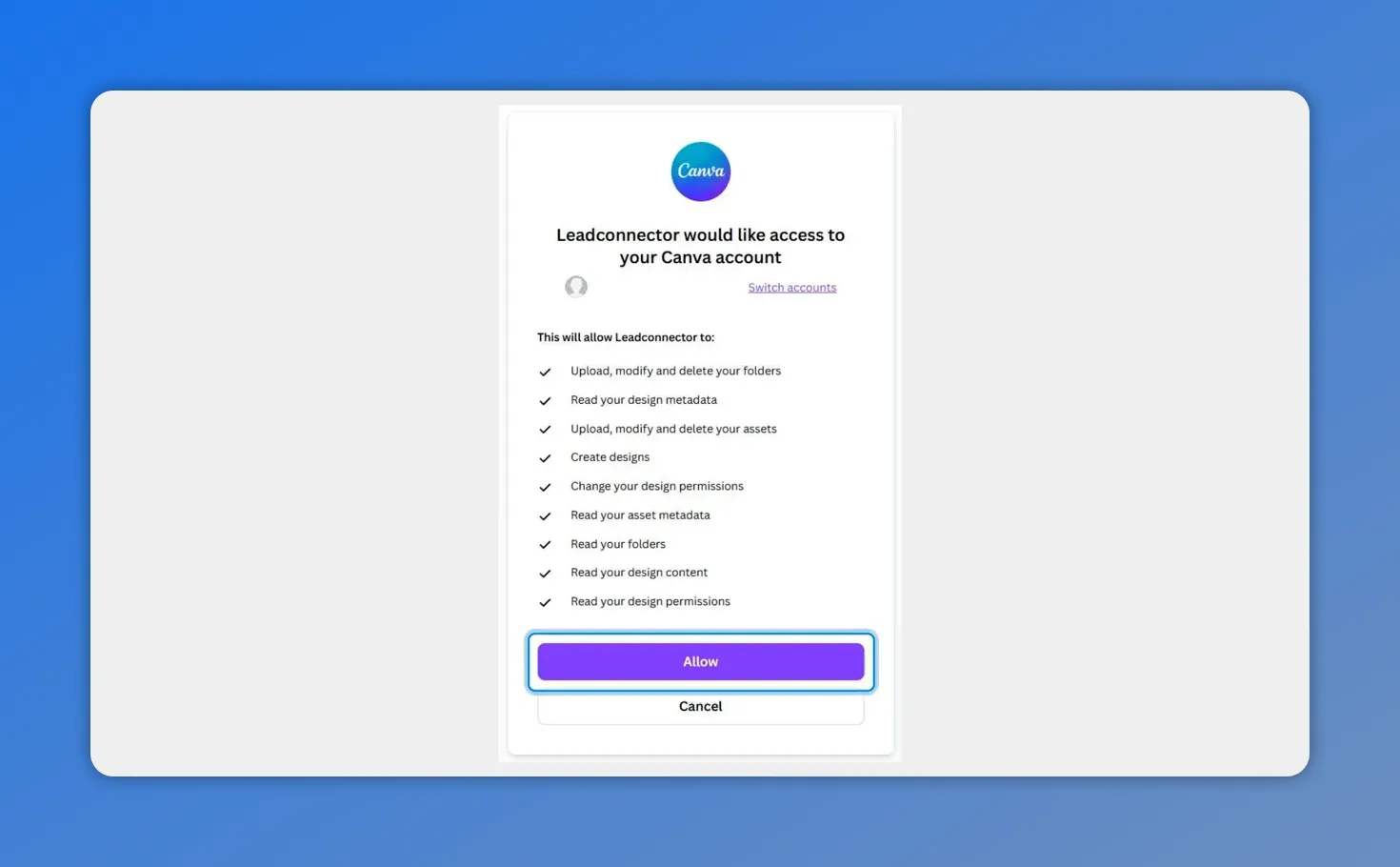
Grant Pinnacle access to your Canva account by clicking Allow to complete authentication.
3. Filter the library to show only Canva files
Use the media library selector in the top-left corner to show only Canva files. This makes it easier to preview and import approved assets.
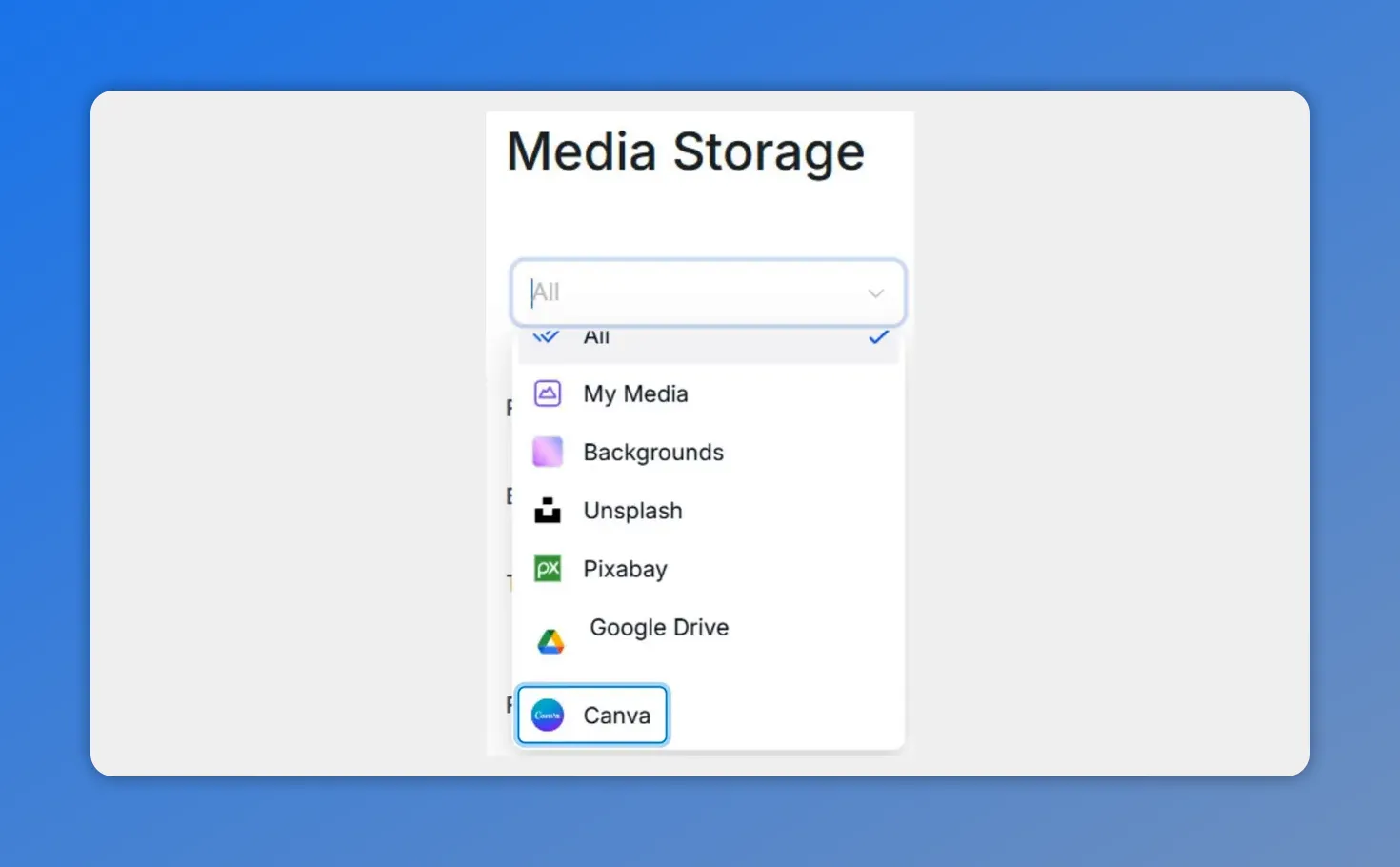
Filter the media library to show only Canva files for quick preview and import.
4. Import or edit designs
For any Canva design you can either import it into My Media or open it in Canva for editing right from Pinnacle. Imported files become part of your media library and are available for campaigns, emails, posts, and funnels.
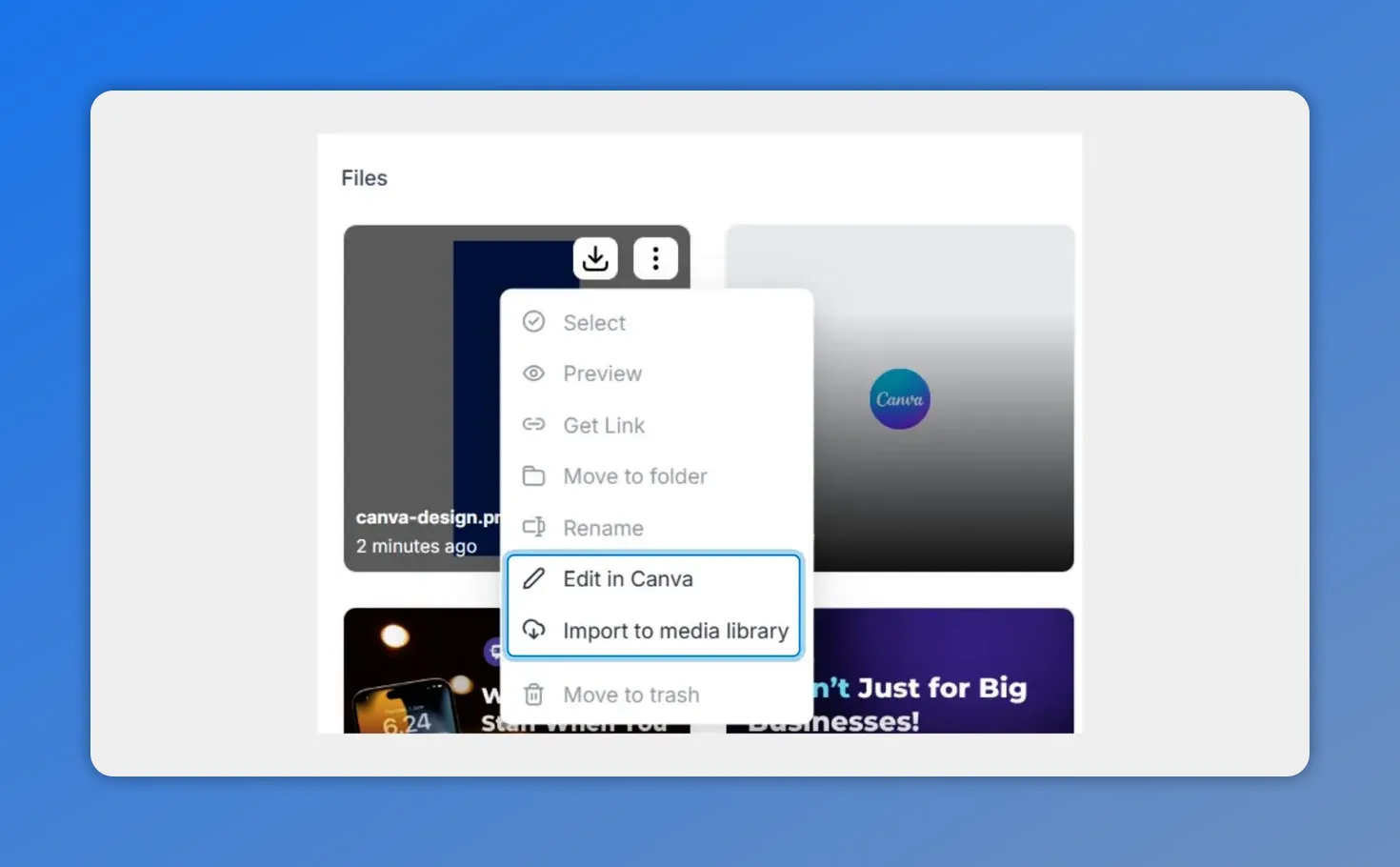
Open the file menu to Edit in Canva or Import to media library.
Why this matters
The integration removes common friction points that slow teams down. It helps by:
- Eliminating tab switching so designers and marketers stay in one workspace.
- Preventing manual downloads which saves time and reduces errors.
- Reducing version confusion by keeping a single source of truth for assets.
- Avoiding duplicate files through smart design tracking and sync behavior.
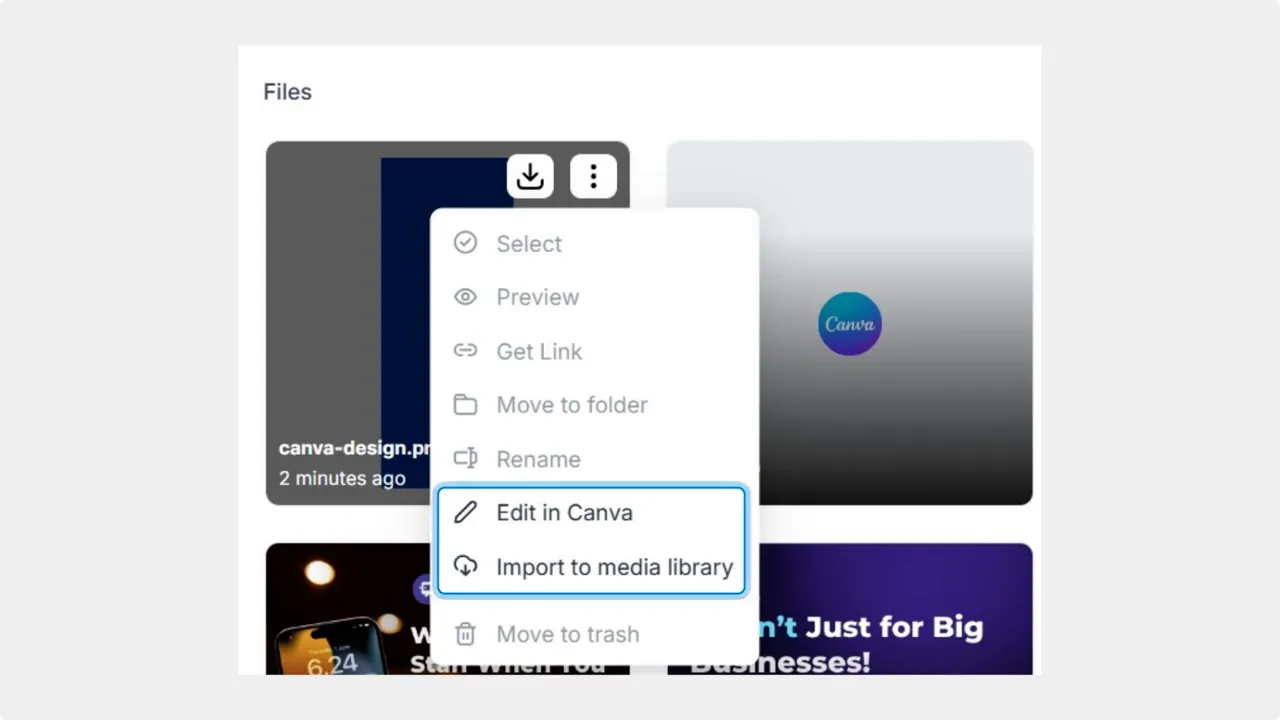
Open the file menu to Edit in Canva or import the file into My Media.
Permissions and team access
The integration respects project access rules. The person who installs and authenticates Canva can edit designs. Team members can view, search, download, and import assets according to their Pinnacle permissions. This keeps control and visibility aligned with your existing workflows.
Best practices for using Canva with Pinnacle
- Use consistent naming conventions so imported designs are easy to find.
- Create a shared “Approved Designs” folder in My Media for campaign-ready assets.
- Import before publishing so funnels, emails, and posts use the approved file from Pinnacle.
- Limit editor accounts to a few designers to reduce accidental overwrites.
- Regularly clean up unused or outdated Canva imports to keep media storage tidy.
FAQ
How do we connect Canva to Pinnacle?
Open Media Storage in Pinnacle, click Connect Canva, and complete the authentication flow to link accounts.
Can designs be edited directly from Pinnacle?
Yes. You can open a design in Canva from Pinnacle, make edits, and save changes without downloading and re-uploading files.
Will this create duplicate files?
The integration tracks designs to prevent unnecessary duplicates. Imported files become part of My Media and are managed by Pinnacle to reduce version confusion.
Who can access imported Canva files?
Access follows Pinnacle permissions. The installer can edit; teammates can view, search, download, and import according to their access level.
Where can we use imported designs?
Imported designs are available for funnels, emails, posts, and any other media placements inside Pinnacle.
Next steps
Open Media Storage in your Pinnacle account and click Connect Canva to get started. This direct import path saves time and helps teams deliver consistent, approved marketing material with less manual effort.
This article was created from the video How to Connect Canva to Media Storage: Import, Sync, Edit Designs








