





How to Collect Card Details at Signing in Documents & Contracts

Documents and contracts are more than paperwork. They are a key moment in the customer relationship. When someone is ready to sign, they are already taking an important step forward. That makes signing the right time to also collect payment details.
Until now, that direct payment step was often missing from the signing flow. The result was extra follow-up, separate payment links, and more chances for payment to stall. With the Card Details element in Pinnacle Documents & Contracts, we can capture card information during signing and save it for future payments.
This creates a smoother process for both teams and customers. It also helps reduce friction at the exact moment the agreement is being finalized.
Why collecting card details at signing matters
When payment details are collected later, there is usually more back-and-forth. Someone signs the document, then needs a separate invoice, a follow-up email, or another payment request. Every extra step increases the chance of delay or drop-off.
Collecting card details during signing solves that problem by keeping everything in one flow.
- Faster payment collection because card information is captured upfront
- Fewer follow-ups because there is no need to chase payment details later
- Better information retention because the details are gathered at the moment of commitment
- Lower customer friction because there are fewer steps to complete
- Improved payment security because the signer enters and saves their card through the built-in flow
And just as important, saved card details can support future payments. That lays the groundwork for ongoing billing workflows such as auto-pay or subscriptions, where applicable in your process.
How the Card Details element works
The setup is simple. In the document builder, we add a Card Details field directly into the document. We then assign that field to the correct signer and make it required.
Once the document is sent, the signer can click into that field during the signing process. A pop-up window appears, allowing them to enter their card information and save it for future payments.
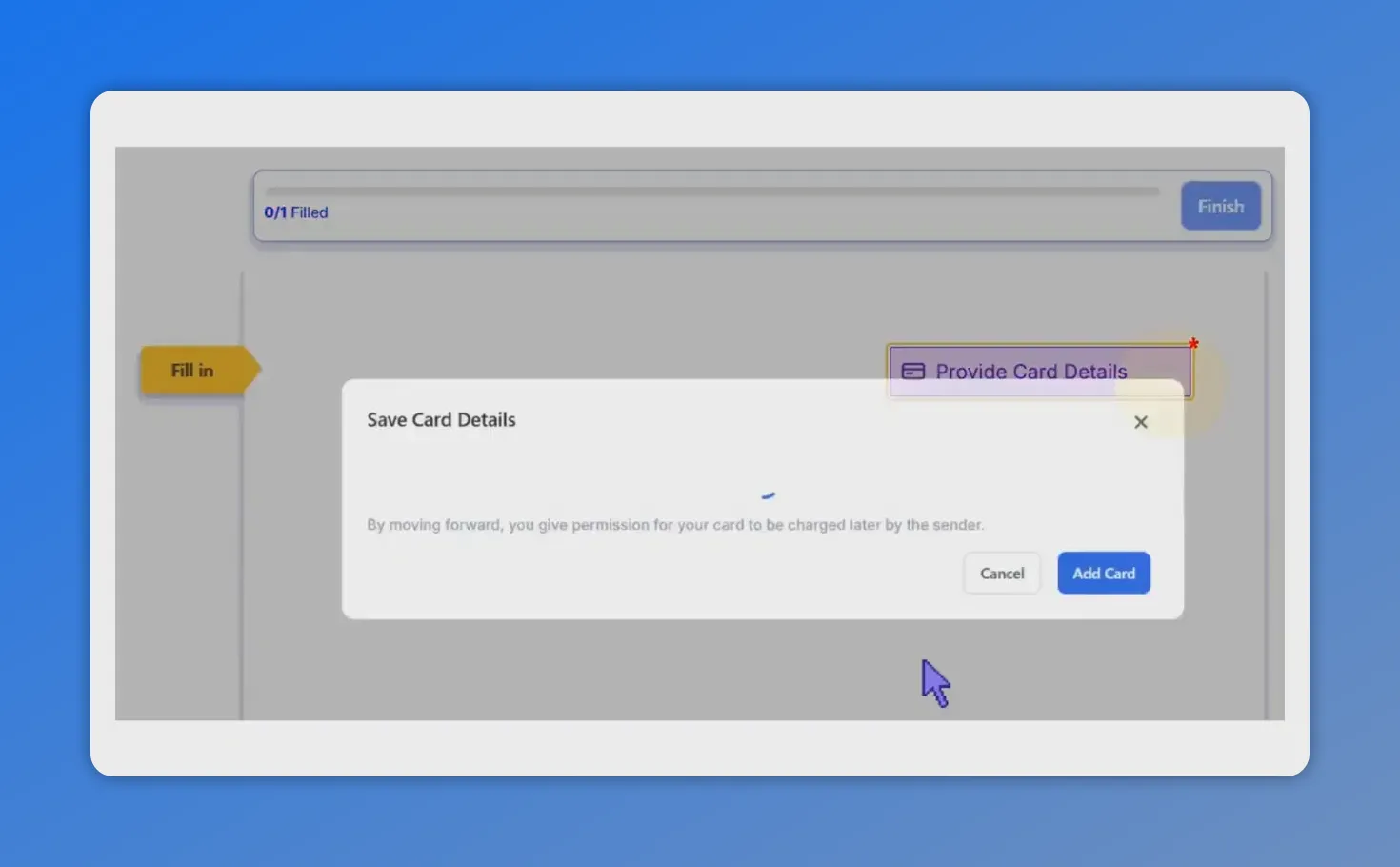
During signing, the Card Details pop-up prompts the signer to add and save their card for future payments.
The main advantage is that payment information is gathered in the same flow as the agreement itself. There is no separate handoff and no need to interrupt the experience with extra steps.
Step by step: add card details to a document
1. Open the document builder
Start inside Pinnacle Documents & Contracts and open the document you want to send for signature.
This is where all document fields are added and arranged, including the Card Details element.
2. Click Add Element
Use the plus option to add a new field to the document.
From there, find the Card Details element and drag it into place where it makes sense in the agreement.
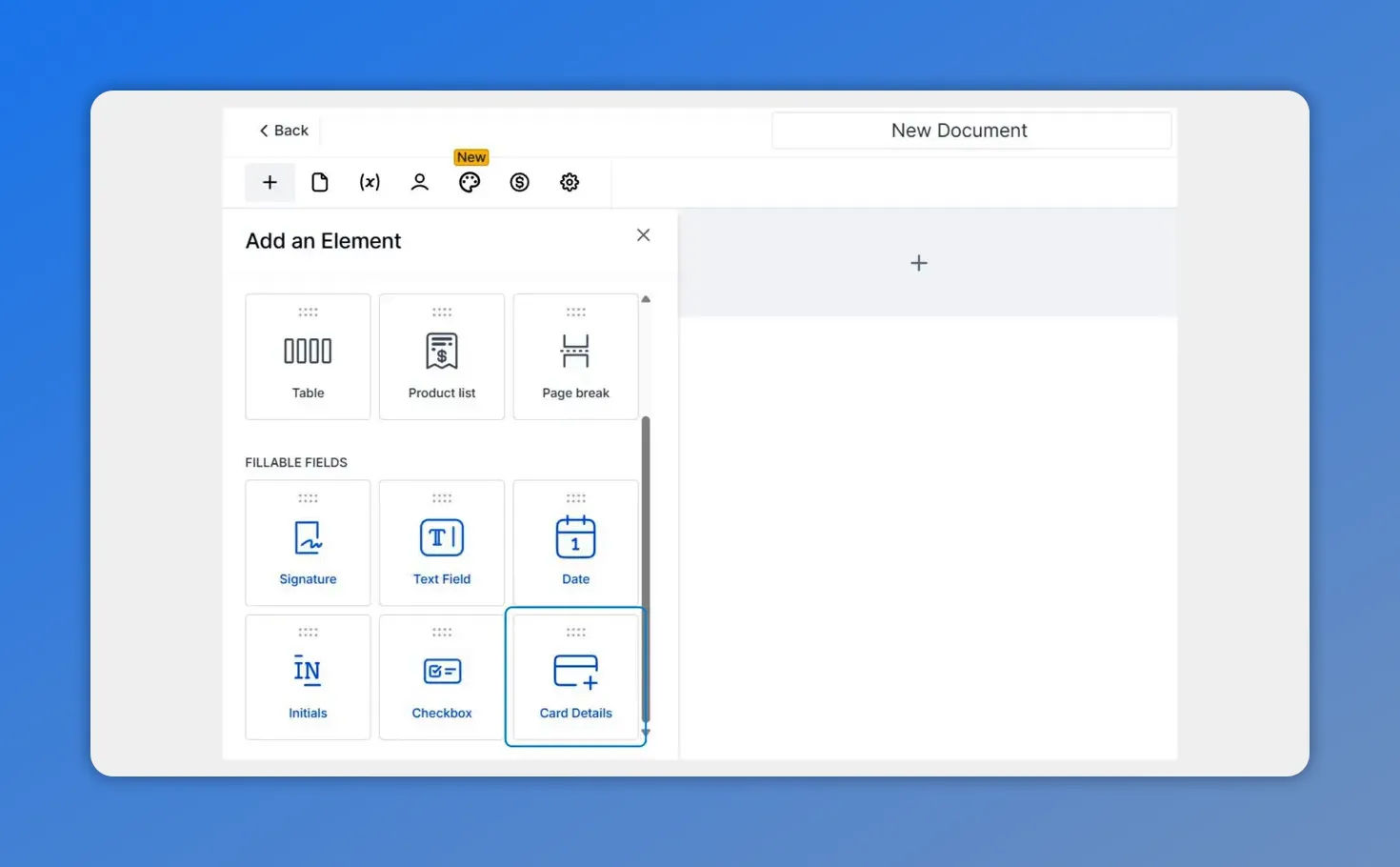
In the builder’s “Add an Element” screen, you can see the “Card Details” field option highlighted so you can place it into your signing flow.
Placement matters. Add it where the signer naturally expects to complete required information during the signing flow.
3. Assign the field to the signer
Once the field is in the document, assign it to the correct signer.
This ensures the right person is responsible for entering the card information. If the document includes multiple signers, make sure the field is tied to the person who should provide the payment method.
4. Mark the field as required
Set the Card Details field as required.
This is an important step. Marking it required makes sure the signer completes the field before finishing the document.
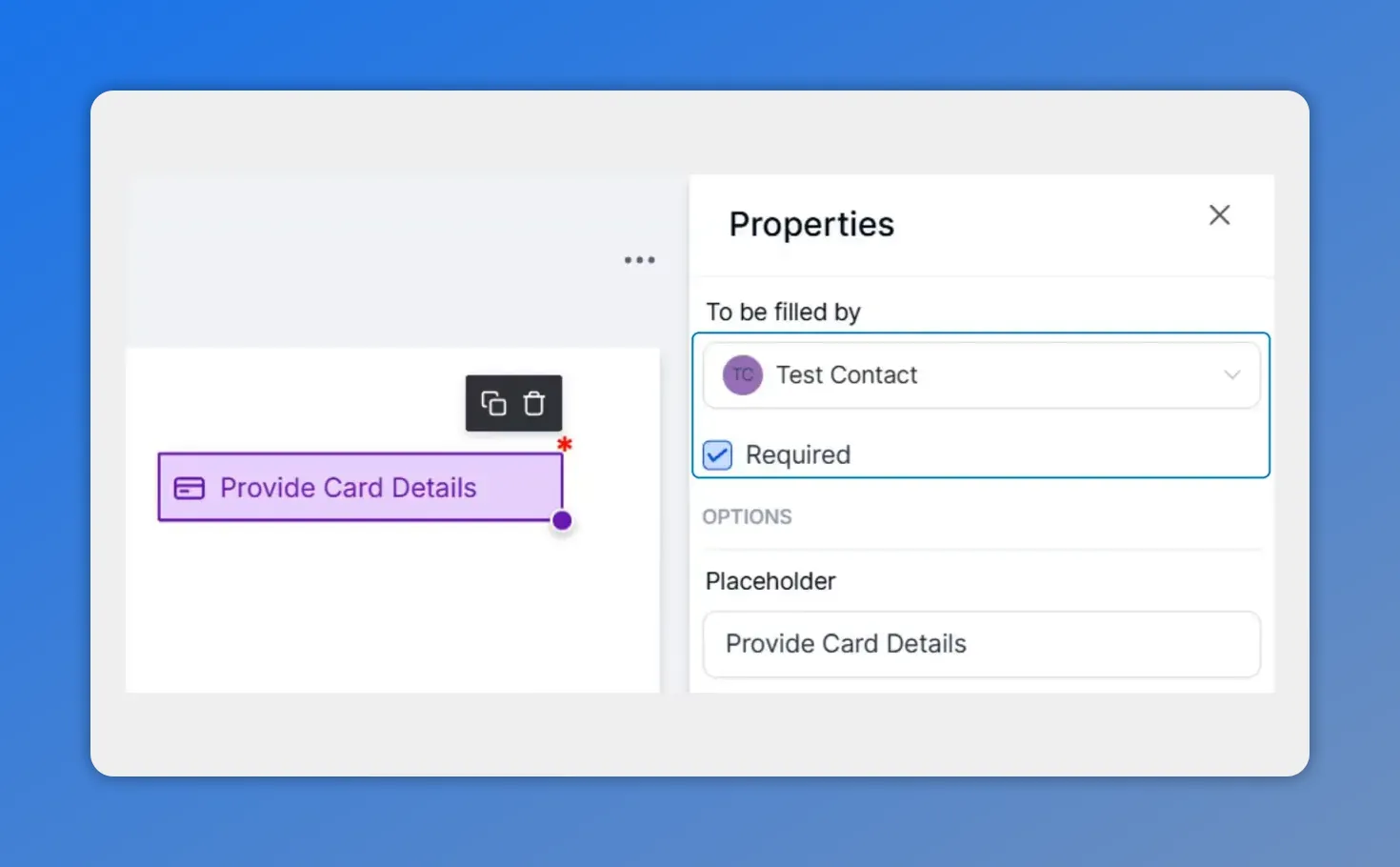
Mark the Card Details field as required and assign it to the correct signer, so the signer must complete it before finishing the document.
5. Send the document
After the field is added, assigned, and required, send the document as usual.
At this point, the document is ready for the signer to review, complete, and sign.
What the signer experiences
When the signer reaches the Card Details field, they click it and a pop-up window appears. Inside that window, they can enter their card information and save it for future payments.
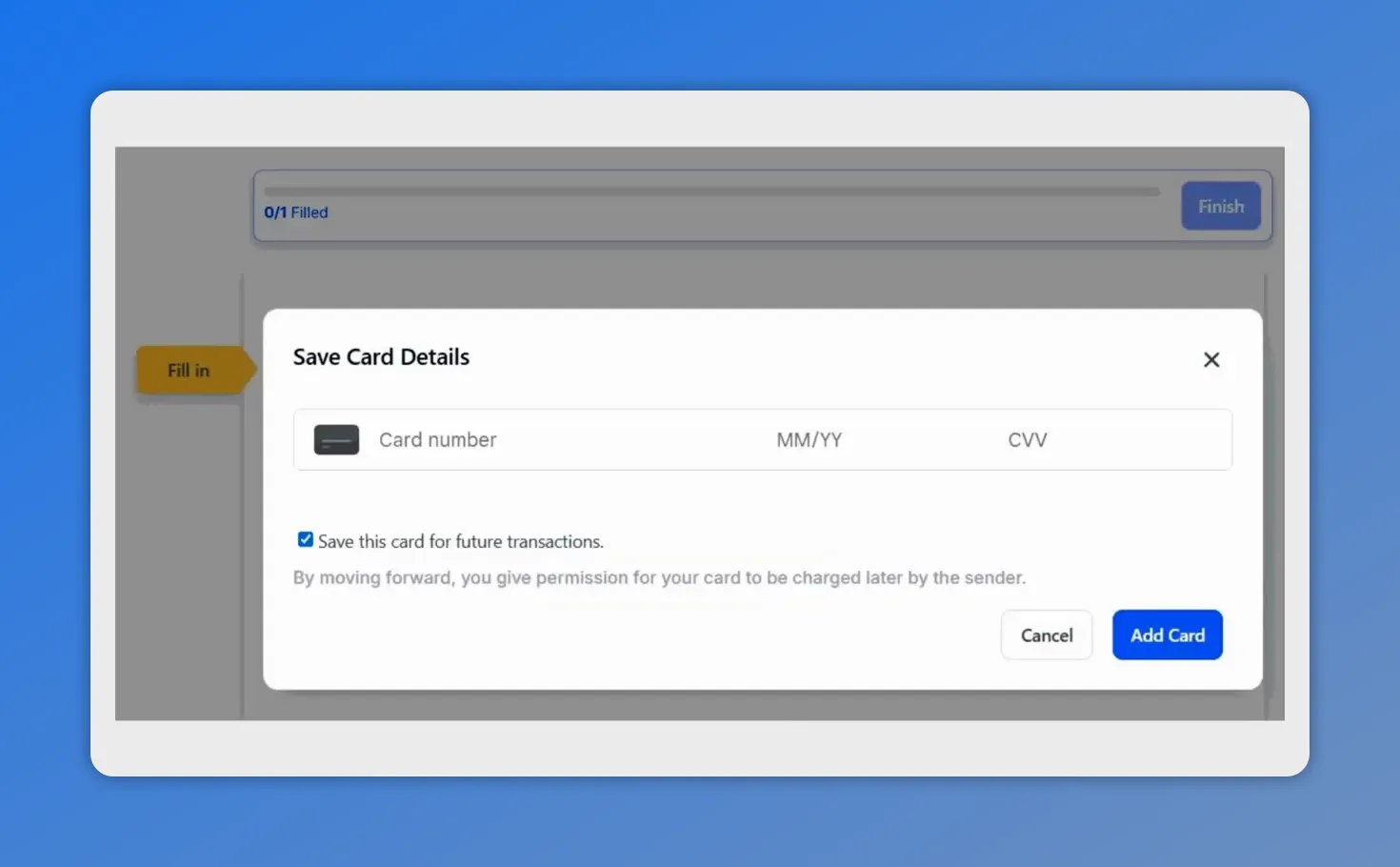
When the signer opens the Card Details field, a “Save Card Details” window appears for entering and storing card information for future payments.
This keeps the process clean and focused. The signer does not need to leave the document, switch tools, or wait for a separate payment request.
That matters because the best payment process is often the one that feels like part of the agreement, not a disconnected task that shows up later.
What this improves for your workflow
Adding card details at signing is a small change, but it can improve the whole payment workflow.
Improved retention of key information
When customers are already engaged and ready to sign, they are more likely to complete related actions in the same session. Collecting card details at that point helps avoid losing momentum.
Lower friction for customers
There is no separate invoice to open and no extra payment link to track down. Fewer steps usually mean a smoother customer experience.
Better security and confidence
The signer adds their card securely while filling out the document, and the card is saved for future use. That can create a stronger sense of confidence because the payment step is built into a structured signing process.
Cleaner operations for teams
Instead of chasing down payment information after the contract is signed, teams can collect what they need upfront. That reduces manual follow-up and keeps the process moving.
Best use case for this feature
This feature is especially useful when a signed agreement is closely tied to future payment activity.
For example, if your process normally requires someone to sign first and then provide payment details later, the Card Details element helps combine those steps into one streamlined workflow.
That means less back-and-forth, fewer dropped payment requests, and a more complete customer handoff from agreement to billing.
A simple next step
If you are already sending documents through Pinnacle, the easiest next move is to add the Card Details field to your next contract or agreement.
Open the document builder, drag in the field, assign it to the signer, mark it as required, and send the document. That one adjustment can make the signing experience smoother and prepare the account for future payments at the same time.
FAQ
What does the Card Details element do in Pinnacle Documents & Contracts?
It allows us to collect a signer’s card information during the document signing process. The signer can enter their card details in a pop-up window and save the card for future payments.
How do we add the Card Details field to a document?
Open the document builder, click Add Element, drag the Card Details field into the document, assign it to the correct signer, and mark it as required.
Can the signer save their card during signing?
Yes. When the signer clicks the Card Details field, a pop-up appears where they can enter their card information and save it for future payments.
Why collect payment details at signing instead of later?
Collecting card details at signing reduces extra steps, lowers payment drop-off, cuts down on follow-up, and creates a smoother experience for the customer.
Should the Card Details field be required?
If collecting payment information is part of the signing process, yes. Marking it as required helps ensure the signer completes that step before finishing the document.
Does this help with future payments?
Yes. The card is saved for future payments, which can support a more streamlined billing process later.
This article was created from the video How to Collect Card Details at Signing in Documents & Contracts








