





Bulk import and export companies in your CRM using CSV

Managing company data at scale should be simple. With Pinnacle, you can create, update, and export company records using CSV files. These bulk actions remove manual work, speed up migrations, and make sharing data with teams effortless. Here’s how it works and how to avoid common issues.
Why bulk import and export matter
- Save time — No more editing records one by one.
- Improve accuracy — Standardized CSVs reduce manual errors.
- Simplify migrations — Move large datasets between systems quickly.
- Share data easily — Exported CSVs are easy to send to stakeholders or analytics tools.
How to bulk import companies (create or update)
Follow these steps to add new companies or update existing ones from a CSV file.
- Open Contacts › Smart Lists. Choose Import to start a new bulk import.
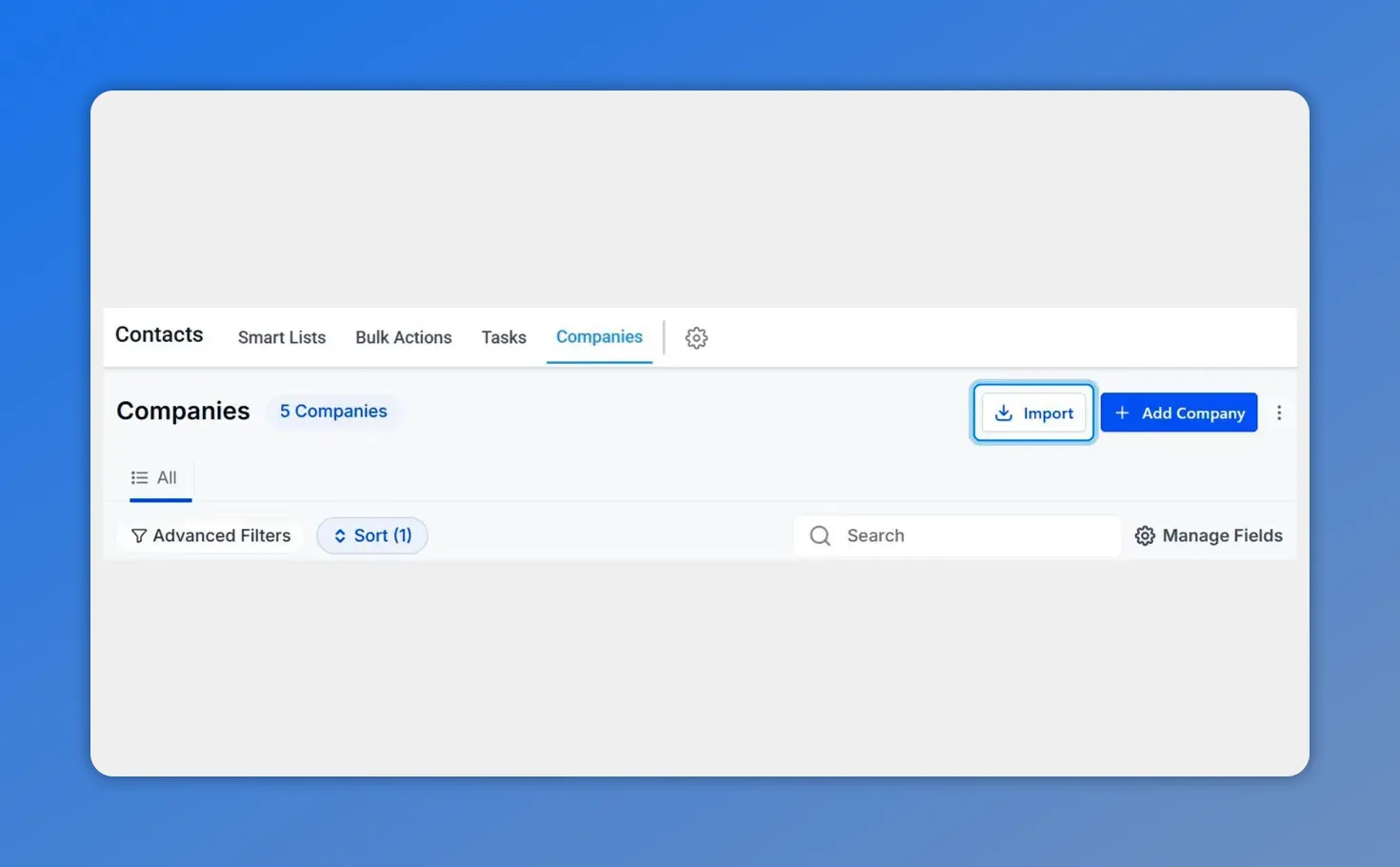
Open Contacts → Companies and click Import to start a bulk import.
- Proceed to the next step and upload your CSV file. Use a clear, headered CSV for best results.
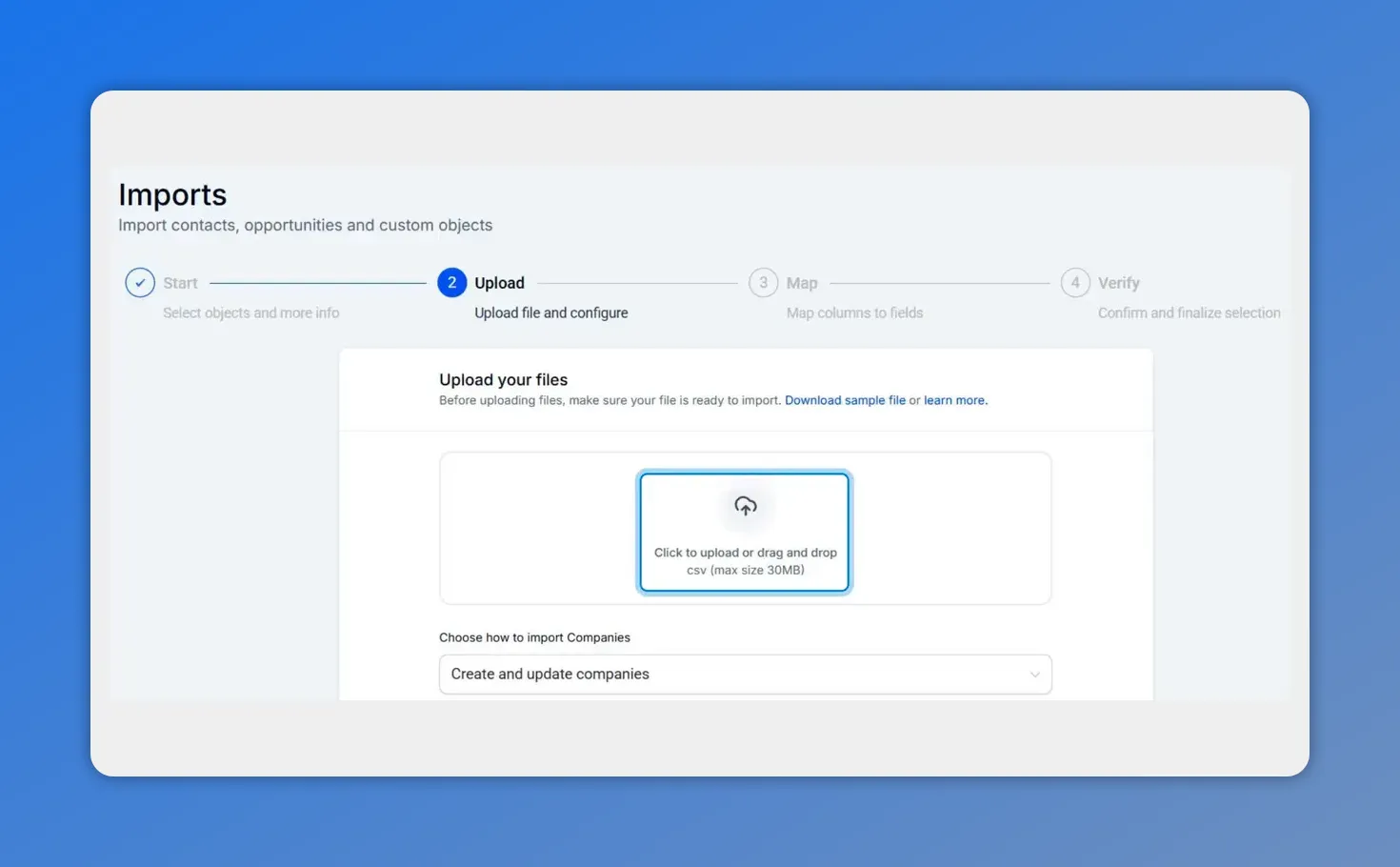
Upload your CSV here — drag and drop or click to browse the file.
- Map CSV columns to Pinnacle company fields. Match each column to the correct field inside the system so data lands in the right place.
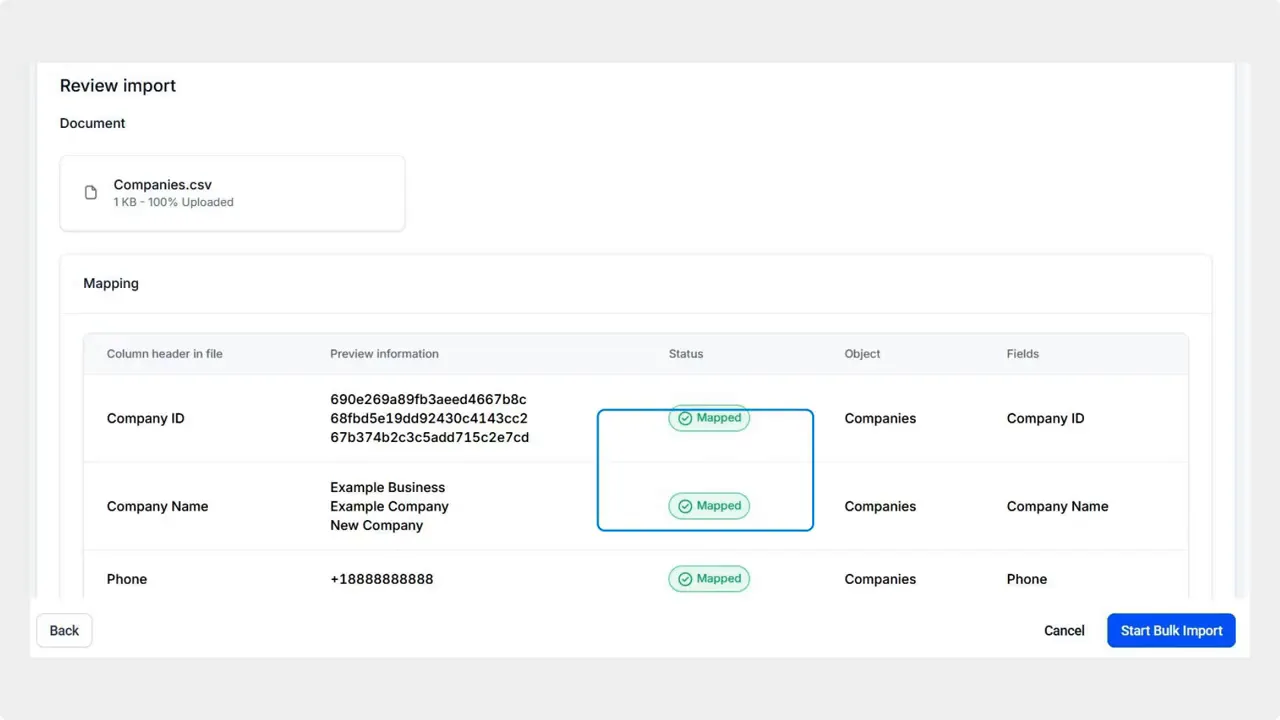
Review CSV column mappings and sample values before importing.
- Start bulk import. Click Start Bulk Import and monitor any errors or skipped rows.
We recommend starting with a small test file to confirm mappings before importing the full dataset. This prevents surprises and speeds troubleshooting.
How to export multiple company records
Exporting is quick when you need to share data or prepare for a migration.
- Go to Contacts › Companies. Use the Companies tab to view all company records.
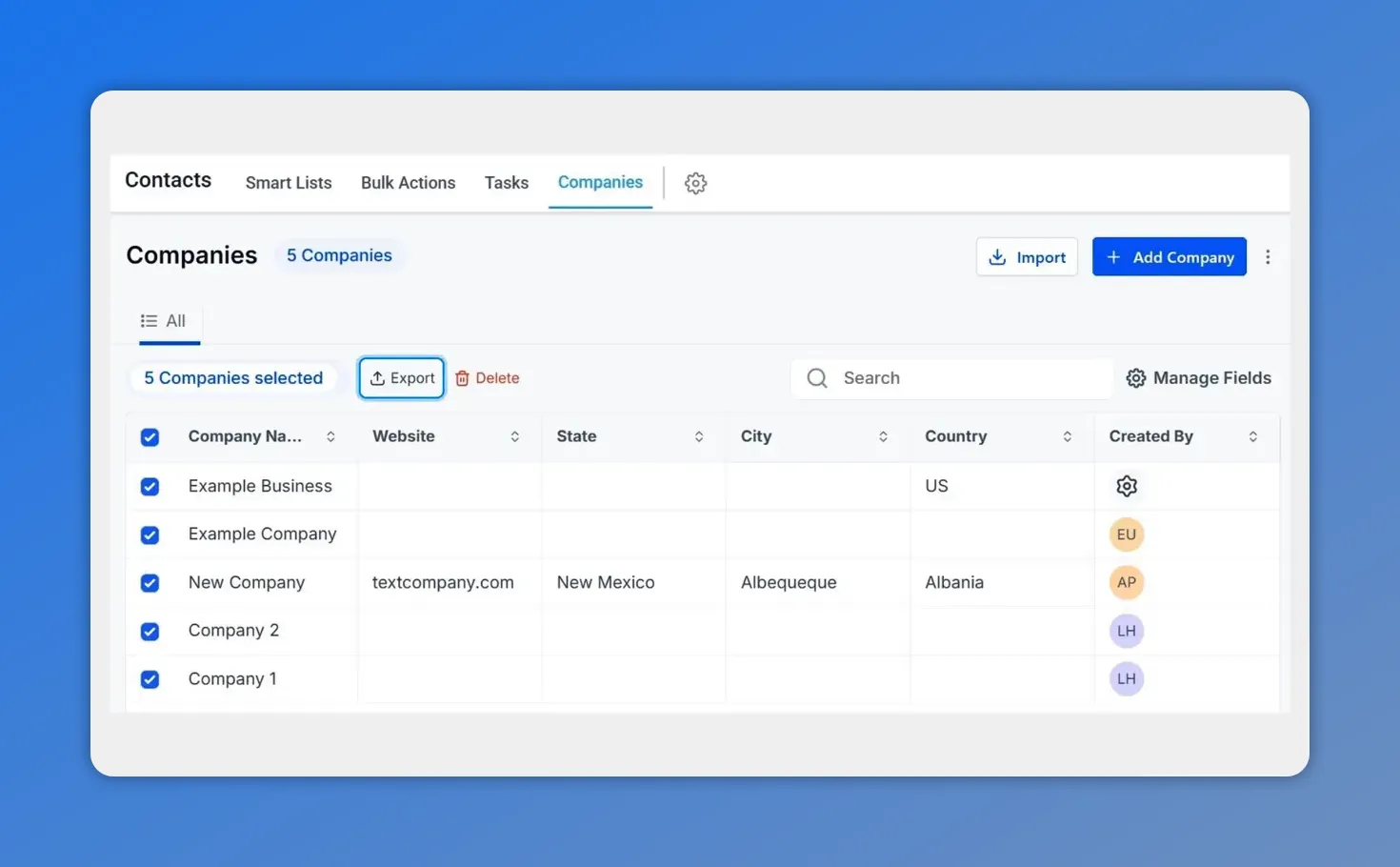
Companies tab with multiple records selected and the Export button.
- Select the companies you want to export. Filter or search to narrow your selection if needed.
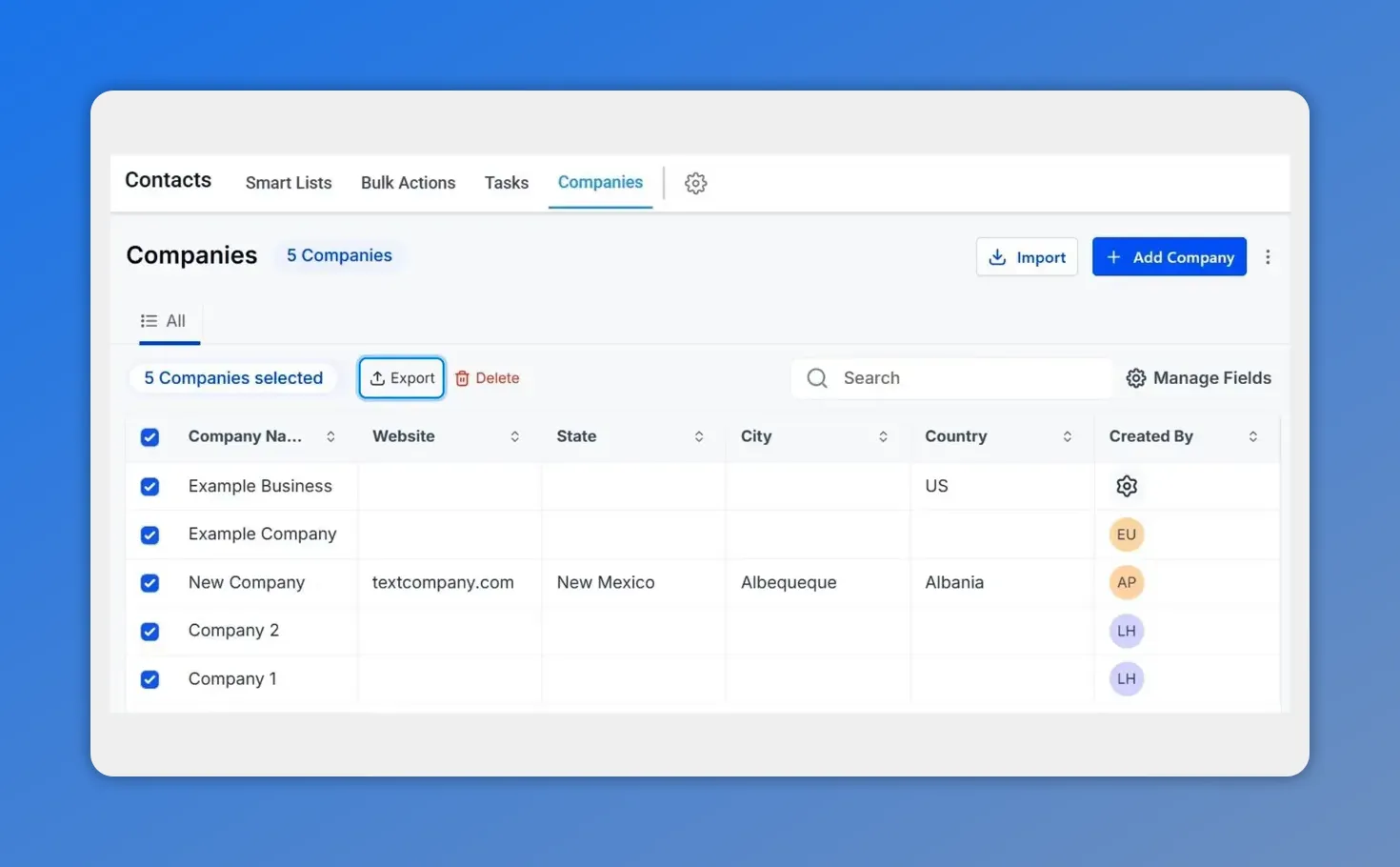
Selected companies ready to export from the Companies tab.
- Click Export. Your selected records download as a CSV for reporting or transfer.
Practical tips for smooth imports and exports
- Standardize your headers. Clear column names make mapping faster and reduce errors.
- Run a test import first. Use 10–50 rows to validate mappings and required fields before a full import.
- Deduplicate and normalize data. Clean names, domains, and addresses to avoid creating duplicate company records.
- Include required fields. Missing mandatory fields will cause rows to fail or be skipped.
- Keep backups. Export a snapshot of current data before major imports so you can revert if necessary.
Common pitfalls and how to avoid them
- Wrong field mapping. Double-check mappings during import. A mismapped column can overwrite key information.
- Duplicate creation. Use a unique identifier such as company domain to match existing records when updating.
- Formatting issues. Ensure dates, phone numbers, and boolean fields follow the system format.
- Missing required fields. Validate the CSV before uploading to reduce failed rows.
Quick checklist before a full import
- CSV headers are clear and consistent.
- Required fields are present for every row.
- Test import passed with a small sample.
- Duplicates identified and handled.
- Current data exported as a backup.
FAQ
How do we update existing company records instead of creating duplicates?
Include a unique identifier in your CSV, such as company domain or an internal ID. Map that column to the matching field in Pinnacle so the system can match and update existing records rather than creating new ones.
What file format should we use?
Use CSV. It is widely supported and makes field mapping straightforward. Keep headers descriptive and avoid special characters in column names.
What if some rows fail during import?
Check the import error report. Common causes are missing required fields or invalid formats. Fix the CSV and re-import the failed rows after confirming mappings.
Can we export only a subset of companies?
Yes. Use filters or search in the Companies tab to narrow the list, then select and export only the records you need.
Closing notes
Bulk import and export actions make company data management faster and less error prone. We recommend running a small test import, standardizing your CSV, and keeping a backup before large changes. These steps help ensure clean data, smoother migrations, and better reporting.
Ready to get started? Open Contacts, run a test import, and scale when everything looks right.
This article was created from the video Bulk import and export companies in your CRM using CSV








