





Automate CRM Updates with Fathom Triggers and Actions
Meeting notes matter. But they are only useful if they end up in the right place at the right time.
That is exactly what we set out to fix. With Fathom, we can automatically transcribe and summarize meeting content, then send that information into your CRM and workflows. Instead of copying and pasting details, our workflows can handle the sync, follow-ups, and internal alerts for you.
Why bring Fathom transcription and summaries into your CRM?
Fathom automatically transcribes and summarizes meeting information because it is critical to customer relationships. When that information is connected to your CRM, it becomes part of your system of record.
Here is what the integration enables:
- Easy data management: Use meetings as the source of truth to start conversations or add information into your CRM.
- Better organization: Match contacts using participant details so notes, summaries, and transcripts stay aligned in your records.
- Automated synchronization: Reduce manual updates and avoid building extra third-party automation steps when you can use a direct workflow bridge.
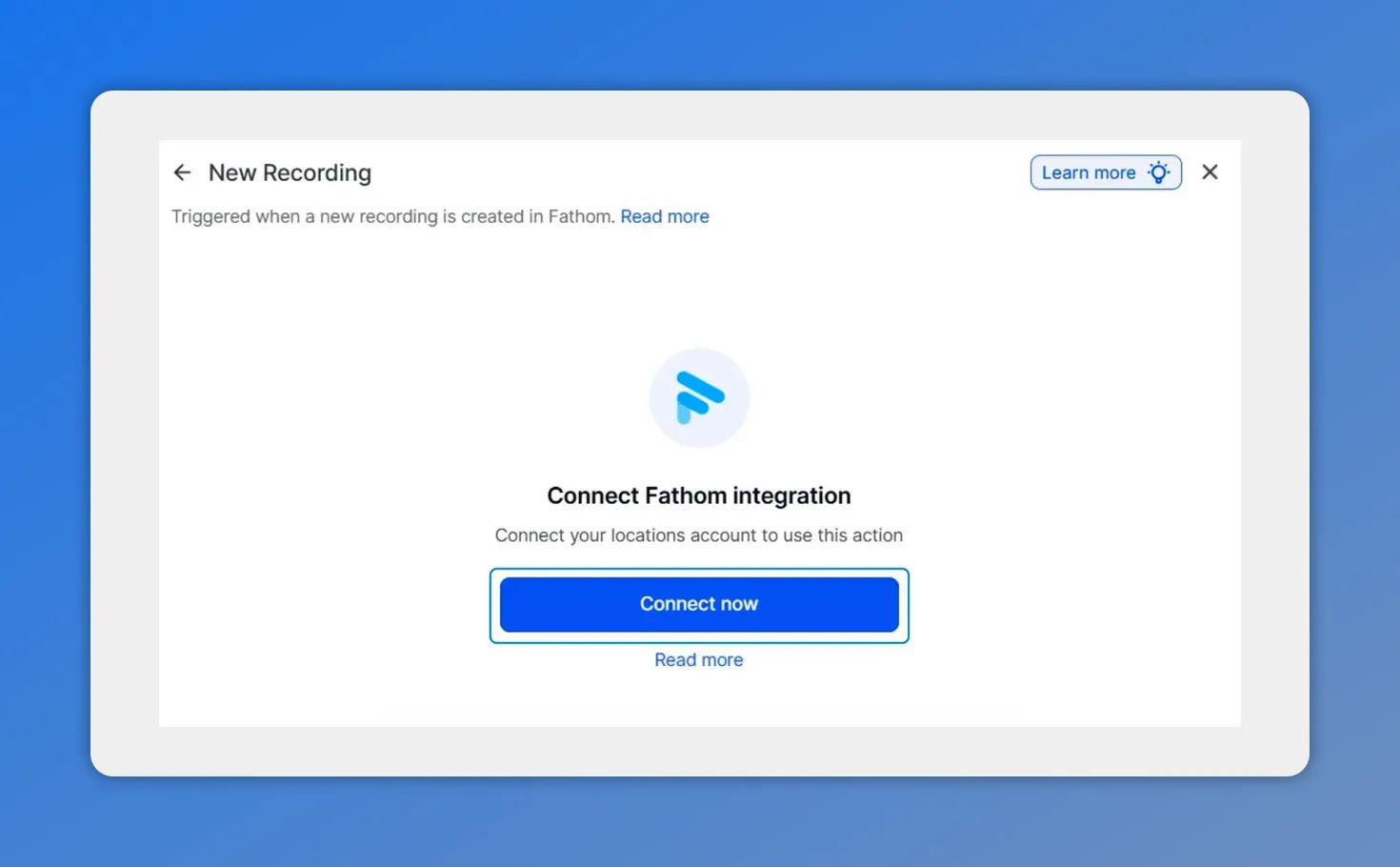
From the Fathom integration screen, you can connect your account to enable meeting-triggered updates.
Connect Fathom inside your account settings
To start syncing meeting data into your CRM workflows, begin by connecting Fathom.
- Head to Integration inside your account settings.
- Click Connect under Fathom.
- Choose a Fathom trigger or action for your workflow.
- After selection, fields will appear to help you specify which meetings to work with.
- Test your trigger or action before saving to confirm the connection is working properly.
Once connected, we can start adding meeting details into contact cards. That means your CRM is updated with less manual work, and your follow-ups can happen faster.
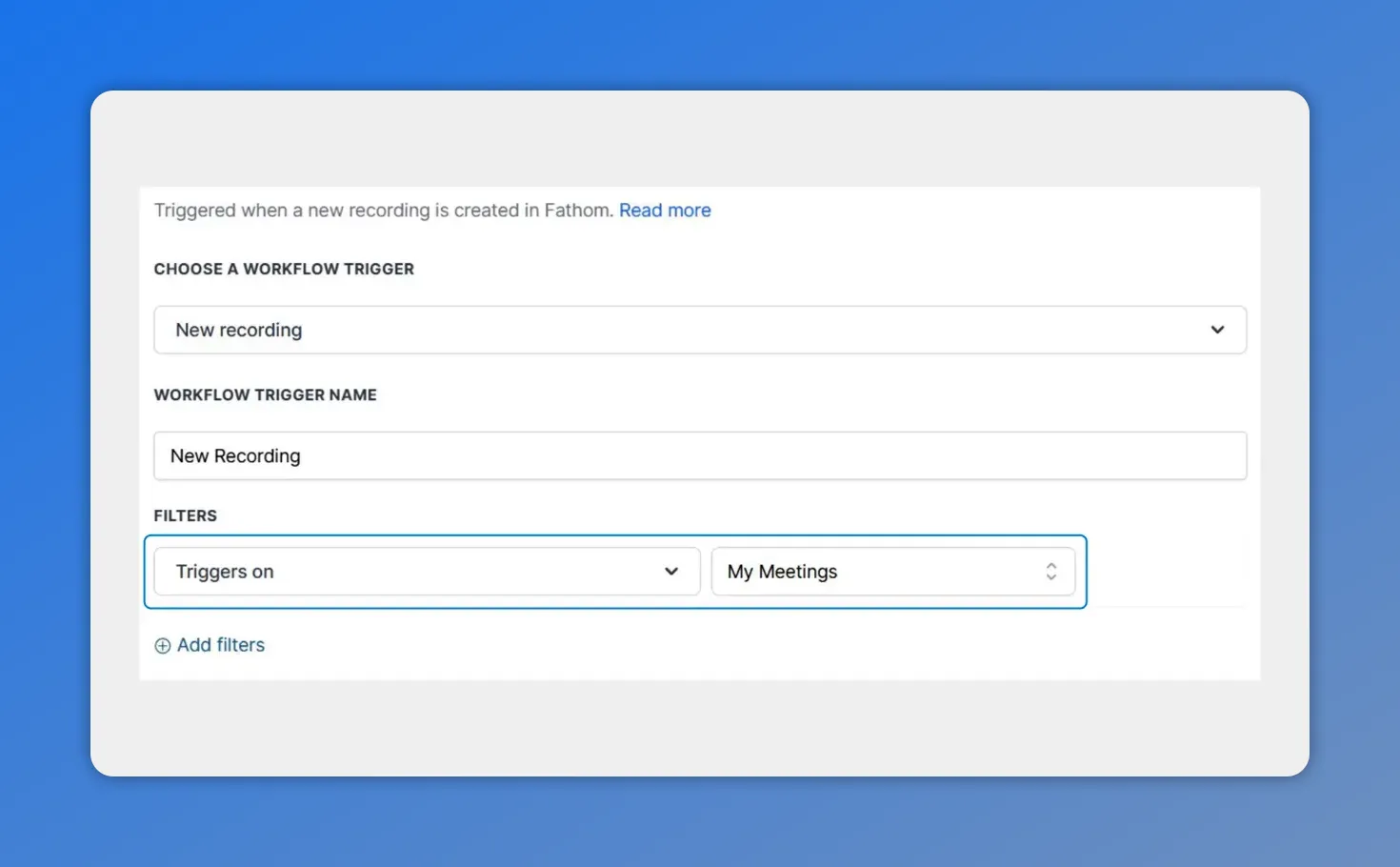
Choose the Fathom workflow trigger and set meeting filters so the integration pulls the correct meetings into your CRM updates.
Pick the right Fathom trigger or action
Your workflow choice comes down to what you want to happen when meeting data is available (or what you want to do with that data).
After connecting, you will be prompted to choose a Fathom trigger or action. This step matters because it determines how the integration behaves inside your workflows.
Once you pick the trigger or action, the integration will show additional configuration fields so you can control meeting selection.
Configure meeting filters using the fields provided
When you choose your trigger or action, the next set of fields appear. These fields are there to help you specify the meetings your workflow will interact with.
In plain terms, this is where we make sure we are not pulling the wrong meeting details into the wrong records.
- Use the displayed fields to define which meeting data should be used.
- Ensure the selected meetings map correctly to the contacts you want to update.
Test first, then save
Before you lock anything in, you should test the workflow connection. The integration includes a way to test your trigger or action before saving.
Testing helps you avoid situations where the workflow looks correct but does not fetch or send data the way you expect.
Once testing confirms everything is wired correctly, save your changes and proceed with your automated setup.
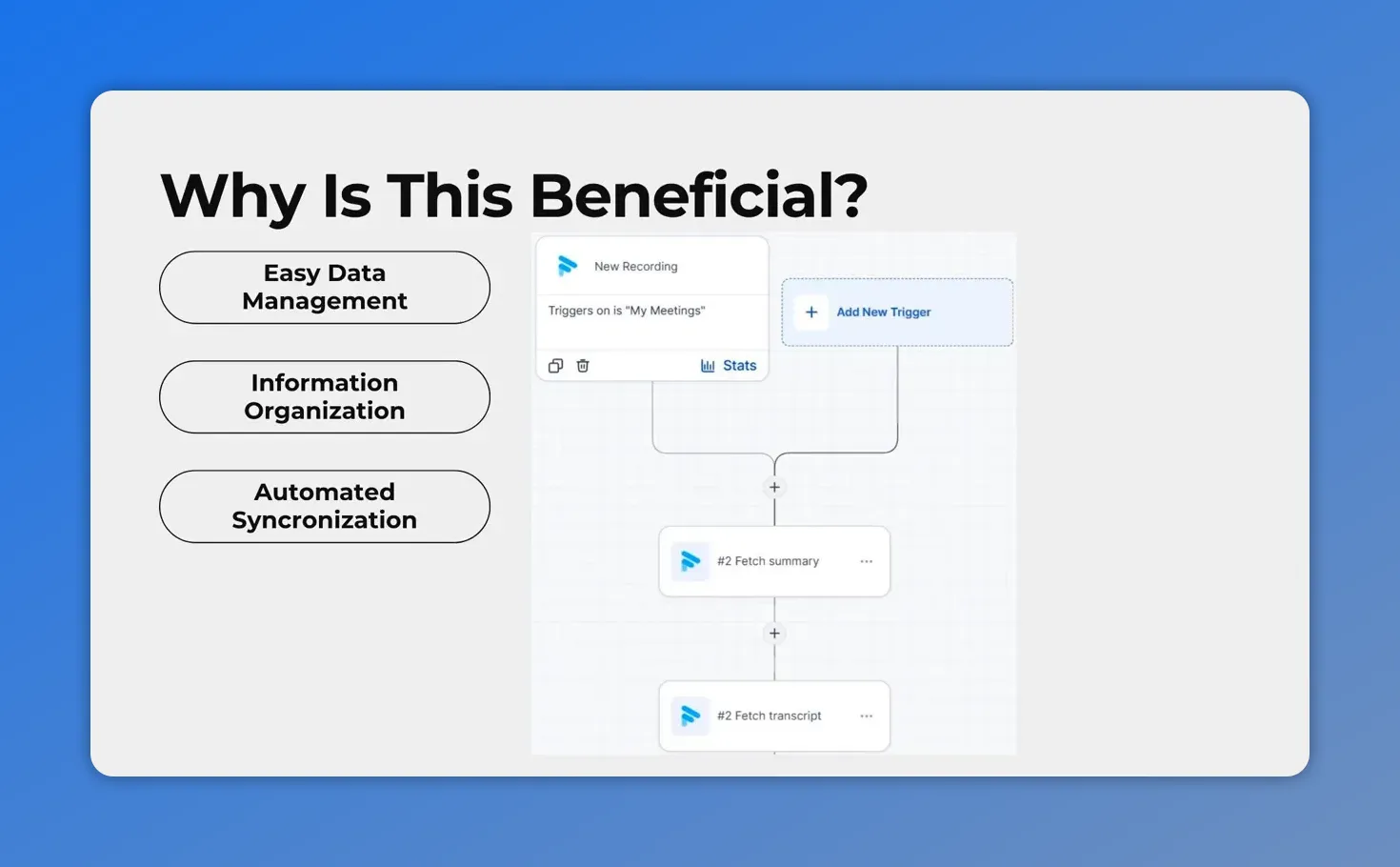
The workflow can automatically sync meeting outputs—using a trigger from “My Meetings”—to fetch a summary and a transcript for your CRM updates.
What the integration can automate for your team
The integration is designed to turn meeting conversations into actions you can run automatically.
Depending on how you set up your workflow, meeting transcripts and summaries can be used to support automation like:
- Follow-ups driven by meeting insights
- Task creation based on what was discussed
- Internal notifications so the right people stay informed
The goal is simple: reduce manual effort while increasing rapport through timely, relevant CRM updates.
How this helps customer relationships
Meeting conversations contain context. Fathom’s transcription and summaries capture that context, and the CRM integration makes sure it does not get lost.
By automatically connecting meeting details to contact cards and workflows, we help teams keep their records accurate and their follow-ups consistent. That improves organization, and it helps ensure customers do not feel like they are being handled from memory or guesswork.
FAQ
What does Fathom do before data reaches the CRM?
Fathom automatically transcribes and summarizes meeting information so it can be used in customer relationship workflows.
Where do we connect Fathom in our account?
We go to our account settings, open Integration, and click Connect under Fathom.
How do we choose what meetings a workflow should use?
After selecting a Fathom trigger or action, configuration fields appear. We use those fields to specify the meetings the workflow should interact with.
Do we need to test before saving?
Yes. We should test the trigger or action before saving to ensure the integration works properly.
What kinds of automations can be triggered by meeting data?
Meeting conversations can be used in workflows for follow-ups, task creation, and internal notifications, without manual effort.
Build your first automated workflow
If you are ready to stop copying meeting notes into the CRM, this is the path to follow:
- Open account settings and go to Integration.
- Connect Fathom.
- Select a Fathom trigger or action for your workflow.
- Configure the meeting selection fields.
- Test, then save.
From there, your workflows can automatically add meeting details to contact cards and help drive follow-ups that stay aligned with what was actually discussed.
This article was created from the video Automate CRM updates with Fathom triggers and actions








