





Video 2 - Mar 17 2026: How We Turn Pinnacle Updates Into AI Content on Autopilot
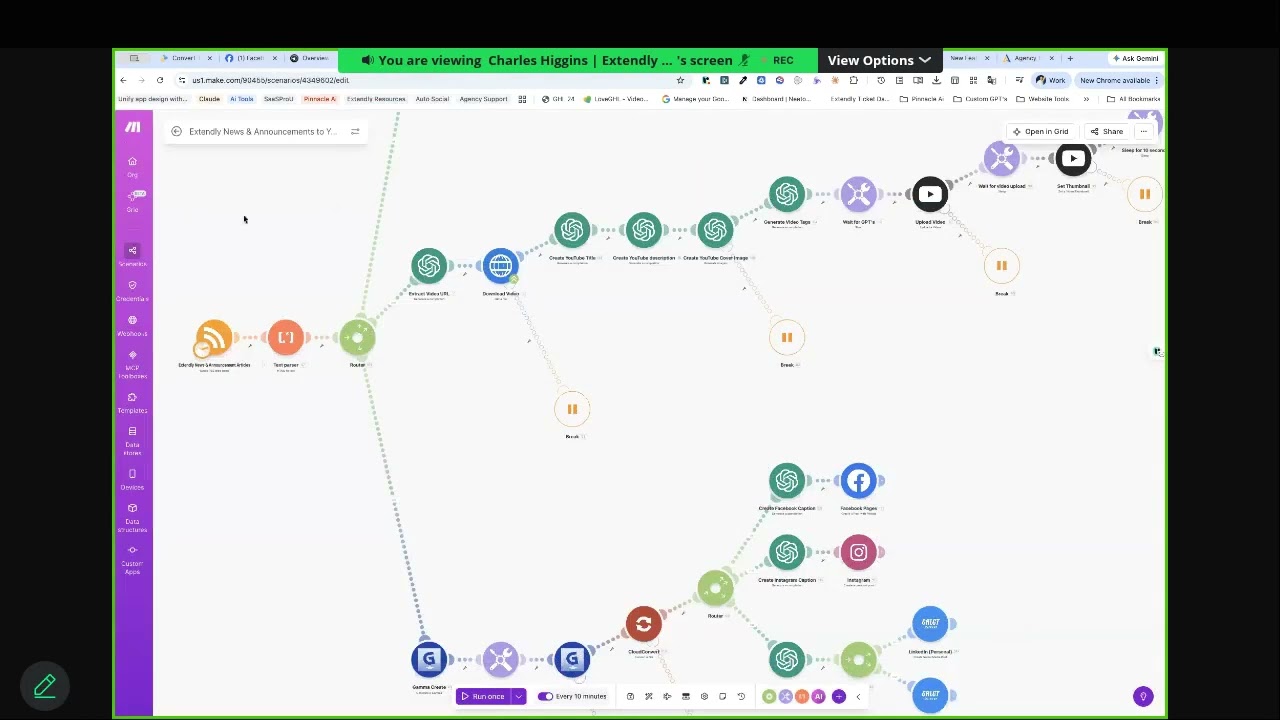
One of the easiest ways to stay visible without constantly creating content from scratch is to repurpose the content you already have.
That is exactly what this workflow does.
We take the white-labeled update content already available through Pinnacle news and announcements, pull it into Make, and automatically turn it into multiple content assets across different channels. That includes:
a short podcast episode
social media carousel content for Facebook and Instagram
YouTube content
And the whole point is simple: set it up once, stop touching it, and let it keep working in the background.
If the goal is to spend less time thinking about content and more time focusing on sales, this is one of the cleanest ways to do it.
What this automation is actually doing
Pinnacle already gives us a steady stream of useful product update content through the built-in news and announcements area and through the blog. Those articles are already white-labeled and focused on sub-account relevant updates, which means they are usable as-is for branded marketing content.
Instead of letting that content live only inside the platform, we can use it to attract new people and keep existing customers informed.
From a single update article, this workflow can generate:
a quick podcast episode hosted on Buzzsprout
a Facebook carousel
an Instagram carousel
a YouTube video based on the same update content
That means one source of content becomes several pieces of content, all automatically.
What the finished output looks like
Here is the practical result of this setup.
A new article is published. The system picks it up. Then it creates a short audio episode that sounds like a product update briefing, builds social posts using screenshots and summary text, and prepares video-based content from the same source material.
For example, a single update about product cost and margin tracking can become:
a two-minute podcast episode explaining what changed and why it matters
a five-image carousel showing the feature, the benefit, and where to use it
a branded YouTube upload using the existing explainer content
This is exactly the kind of thing AI should be doing. Not replacing strategy. Just taking repetitive work off our plate.
The tool stack
This setup uses several connected tools. Some are required. Some are optional depending on which content channels you want to keep.
1. Make
Make is the engine behind the whole workflow. It handles the RSS trigger, text parsing, AI steps, file handling, routing, and all the app connections.
For this setup, the recommended plan is Make Pro.
The main reason is the larger file size limit. The Pro plan supports 250 MB files, which matters when downloading assets from feeds and moving files through scenarios. It also gives priority scenario execution, which helps if Make is under load.
The starting point mentioned for this was 10,000 operations per month at roughly $18.82 monthly.
Could the cheaper plan work? Maybe. But it can create headaches with file handling, so Pro is the safer choice.
2. OpenAI account and API billing
OpenAI is used for script writing, title generation, description writing, and text-to-speech.
This part matters: using ChatGPT as a consumer product is not the same thing as using the OpenAI developer platform.
For this workflow, the developer side is what matters. That means:
creating an OpenAI platform account
setting a budget
adding a payment method
creating an API key
A good starting budget is at least $25 to $50. Alerts can be set for usage thresholds so there are no surprises.
And one important detail: once an API key is generated, it will only be shown once. Copy it immediately and store it somewhere safe.
Password managers with secure notes are a good place to store keys. The exact tool does not matter as much as having a reliable place to save them.
3. Buzzsprout for podcast hosting
Buzzsprout is used to host and syndicate the podcast episodes to podcast platforms like Apple Podcasts, Spotify, and others.
If the podcast part does not matter for your business, this tool can be skipped entirely.
But if short audio updates fit your audience, Buzzsprout is a very easy add-on.
For this use case, the podcast episodes are short, usually two minutes or less. Because of that, even a small plan can work.
Recommended options:
start with the free plan if budget is tight
or use the 6-hour monthly plan for more room
There is no need for extra add-ons like Magic Mastering or Cohost AI for this workflow.
4. Gamma for social content generation
Gamma is doing a lot of the heavy lifting for visual content.
Most people know Gamma for presentations and simple AI-generated decks. But the useful part here is the API access.
That API access allows the workflow to generate presentation-style content that can then be turned into social media carousels.
The required plan here is Gamma Pro, because API access is only available on Pro.
The Pro plan also includes:
up to 60 cards per prompt
4,000 monthly credits
credit rollover up to twice the monthly amount
access to premium AI models
5. IFTTT for the Buzzsprout step
IFTTT is only needed for the podcast workflow.
Its job is simple. Make sends podcast data to IFTTT through a webhook, and IFTTT creates the new Buzzsprout episode.
Because webhook access is required, the needed plan is at least IFTTT Pro, which was noted at about $2.99 per month.
If you are not doing the podcast route, you do not need IFTTT at all.
6. CloudConvert for turning PDFs into images
CloudConvert is used on the social media side.
Gamma exports files as PDF or PowerPoint. Social media needs images. So CloudConvert converts those PDF pages into image files.
It is a prepaid credit model. And usage is light for this workflow. A small prepaid amount with auto-refill is usually enough to get started.
Why we use dedicated tools instead of rebuilding everything from scratch
Could some of this be rebuilt with direct API calls in another automation system? Probably.
But that is usually a bad trade.
If a tool already does something well, there is no reason to spend weeks trying to recreate it just to save a few dollars. Time matters. The more practical move is to use tools that already solve the problem cleanly.
That is the thinking behind this stack.
Make handles native integrations well. Gamma is already very good at structured visual generation. Buzzsprout already handles podcast hosting and syndication. CloudConvert already handles conversion. So we use them.
That keeps the workflow easier to maintain and faster to launch.
How the Make scenario is structured
The automation starts with the Pinnacle blog RSS feed.
Every 15 minutes, Make checks for a new article. When a new article appears, the scenario pulls in the content from the RSS feed.
That content comes in as HTML, not clean text. So the first step is to parse the HTML and extract only the useful article text.
From there, the scenario splits into three routes.
Route 1: podcast workflow
Route 2: social media workflow
Route 3: YouTube workflow
And this is one of the best parts of the setup: each route is modular.
If you do not want a route, you do not need to delete it. Just disable that route in Make.
So if you do not want podcast content, disable the first route and skip Buzzsprout and IFTTT. If you do not want social content, disable the Gamma and CloudConvert path.
The podcast route step by step
The first route creates the short podcast episode.
Step 1: Generate the podcast script with OpenAI
After the article text is parsed, OpenAI creates a short spoken script based on the update.
This prompt already exists inside the workflow blueprint. But it needs light editing before use.
Specifically, you should go through the prompt and replace any Pinnacle-branded placeholders with your own:
podcast name
CRM name
business name
The model selections are already configured and should generally be left alone.
Step 2: Generate the title
Once the script is written, a second OpenAI step generates the episode title.
Again, check the prompt for branding references and update any business names or URLs.
Step 3: Generate the description
A third OpenAI action creates the episode description.
This follows the same pattern. Keep the structure. Just replace any branded references with your own.
Step 4: Convert the script to audio
OpenAI text-to-speech is then used to create the actual audio file.
The system uses OpenAI’s text-to-speech model to turn the generated script into an MP3.
At that point, the podcast episode is no longer just text. It is now an audio asset ready to upload.
Step 5: Save the MP3 to Google Drive
The generated MP3 gets uploaded to Google Drive.
Any Google Drive connection will work, including shared drives. It is a good idea to create a dedicated folder for all podcast episode files so everything stays organized.
The file naming convention can stay date-based, which keeps uploads easy to sort.
Step 6: Send the data to IFTTT
Once the audio file is in Google Drive, Make sends three values to IFTTT:
Value 1: title
Value 2: description
Value 3: audio file URL
That happens through a webhook.
Inside IFTTT, the applet is built like this:
If: receive a web request
Then: create a new Buzzsprout episode
When setting up the Buzzsprout action inside IFTTT, those three values get mapped into:
title
description
audio file
The episode can be set to public and marked as not explicit.
Step 7: Optionally send a phone notification
An optional extra step can send a mobile notification through the IFTTT app when a new episode is ready.
This is not required. Buzzsprout’s app may already handle that well enough. But if extra notifications help, the module can stay in place.
How the webhook setup works inside IFTTT
If you are setting up the IFTTT side manually, here is the exact logic:
Create a new applet.
Use Webhooks as the trigger.
Select Receive a web request.
Name the event something clear, like podcast episode from make.
Choose Buzzsprout as the action.
Select Create a new episode.
Map Value 1 to title.
Map Value 2 to description.
Map Value 3 to the audio file URL.
Set it as public and not explicit.
Then copy the webhook key from IFTTT and add it into the Make connection.
Once that is done, the route can send new episodes automatically.
Built-in fail-safes matter more than most people think
One small improvement in the workflow makes a big difference: error handling.
External tools fail sometimes. APIs go down. Uploads stall. Services lag.
That should not break the automation forever.
So the scenario includes retry logic at major failure points. If a key step fails, the system waits 15 minutes and tries again, up to three times.
That means:
if script generation fails, it retries
if Google Drive upload fails, it retries
if the IFTTT webhook does not go through, it retries
This helps prevent temporary errors from shutting down the whole automation.
How to import the workflow blueprint into Make
The workflow is shared as a Make blueprint.
To use it:
Open Make.
Create a new scenario.
Click the three-dot menu.
Select Import Blueprint.
Upload the blueprint file.
When the scenario loads, errors will likely appear right away. That is normal.
Those errors usually just mean your accounts are not connected yet.
Connect each required app one at a time:
OpenAI
Google Drive
IFTTT
Buzzsprout, indirectly through IFTTT
Gamma
CloudConvert
Even if the scenario still shows errors, Make should still allow saving. It may show a warning, but it can usually be saved with errors until all connections are finished.
How to handle API keys the smart way
There was a good question around API key strategy, and it is worth keeping.
You can use one OpenAI API key across multiple Make scenarios.
But there is a real advantage to creating different keys for different use cases.
When each scenario has its own key, it becomes easier to:
track usage and cost by scenario
see which automation is using the most credits
rotate or delete a key without breaking everything else
That is a cleaner long-term setup, especially as your automation stack grows.
Why the podcast part is worth considering
Short update podcasts are useful because they match how busy people consume information.
A lot of people will not stop to read a product update article. But they will listen to a two-minute episode while driving, walking, or doing something else.
That makes podcast updates a practical format, not just another channel for the sake of having one.
And in real use, short-form update podcasts can do more than just help current customers. They can also create sponsorship opportunities and another discoverability layer around your brand.
So while the podcast route is optional, it is far from useless.
This workflow is modular by design
One of the strongest parts of this setup is that it is not all-or-nothing.
You can keep only the channels you want.
For example:
want podcast only? Disable social and video routes
want social only? Disable podcast and skip IFTTT and Buzzsprout
want to use your own blog instead of the Pinnacle updates? Duplicate the scenario and swap the RSS source
That flexibility matters because every business has different priorities.
And if you want multiple sources, the easiest option is usually to duplicate the scenario rather than trying to force multiple RSS sources into one timed trigger.
What this really gives you
At the surface, this is a content automation workflow.
But the real value is not the automation itself. The real value is what it removes.
It removes the need to constantly ask:
What should we post next?
How do we repurpose this update?
How do we keep content moving without stopping other work?
Once this is running, content keeps going out. And that means more time can go toward selling, following up, and growing the business.
That is the whole point.
FAQ
Do we need every tool in this stack?
No. The setup is modular. If you do not want the podcast route, you can skip Buzzsprout and IFTTT. If you do not want the social media route, you can skip Gamma and CloudConvert. Keep only the routes you plan to use.
Why use Make Pro instead of the cheaper plan?
The main reason is file size handling. The Pro plan allows larger files, which helps when downloading assets and moving content between services. It also gives priority scenario execution.
Is an OpenAI API account the same as a ChatGPT account?
No. ChatGPT is the consumer product. This workflow uses the OpenAI developer platform, which requires billing, usage limits, and API keys.
Can we use one OpenAI API key for several automations?
Yes. But creating separate keys for separate scenarios can make usage tracking and key rotation much easier.
Do shared Google Drives work in this workflow?
Yes. Shared drives can be used for the MP3 upload step.
Can we use our own blog instead of the Pinnacle update feed?
Yes. A simple way to do that is to duplicate the Make scenario and replace the RSS source with your own blog feed.
Can one Make scenario pull from multiple RSS feeds?
Not in this setup as-is. The simpler approach is to duplicate the scenario for each RSS source. Another option is to combine multiple feeds first using a tool that can create a custom RSS feed from several sources.
Do we have to recreate the prompts from scratch?
No. The prompts are already included in the workflow. You mainly need to replace any existing brand references, podcast names, and URLs with your own.
What happens if a service fails during the automation?
The workflow includes retry logic at major steps. If a key action fails, it waits and retries up to three times before moving on. That helps prevent temporary outages from breaking the whole automation.
Do we need to create a new API key if we rename the podcast?
No. Renaming the podcast does not require a new API key or new OpenAI connection. You only need to update the prompt or related naming fields.
This article was created from the video Video 2 - Mar 17 2026








