





AI Chat Appointment Booking Set Up in Pinnacle’s Services Calendar
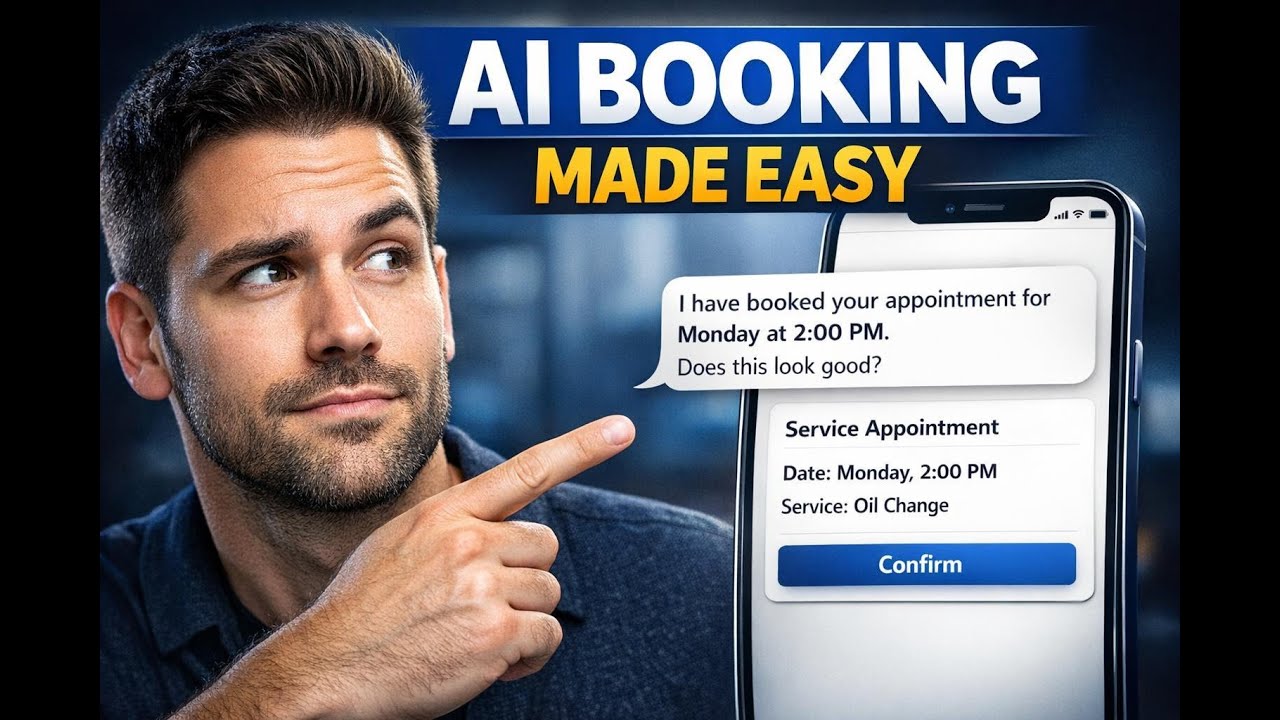
Now we can book service appointments right through chat. That means customers can schedule without filling out forms or dealing with extra steps. With Pinnacle Conversation AI, the assistant can collect the right details, handle the booking, and confirm using a Services Calendar experience across multiple channels.
What’s new in this Pinnacle Conversation AI release
When teams add appointment booking to their chat flows, the goal is simple: fewer back-and-forth messages and fewer failed bookings. This release adds three improvements that make that experience smoother.
- Memory layer: the AI remembers user inputs even if they change their mind mid-conversation.
- Ambiguity detection: when details are missing or unclear, the assistant asks clarifying questions.
- Booking preview: before confirmation, customers can see the booking details like date, time, service, and staff.
All of this is designed to work through chat using conversation AI across supported channels, including SMS, live chat, Facebook, Instagram, and WhatsApp.
How to set up appointment booking in the Services Calendar
Here’s the exact setup flow to enable conversational appointment booking in Pinnacle.
1) Open Conversation AI inside AI Agents
Start by going to the AI agent section, then open the Conversation AI tab.
From there, you can either:
- Edit an existing bot, or
- Create a new bot.
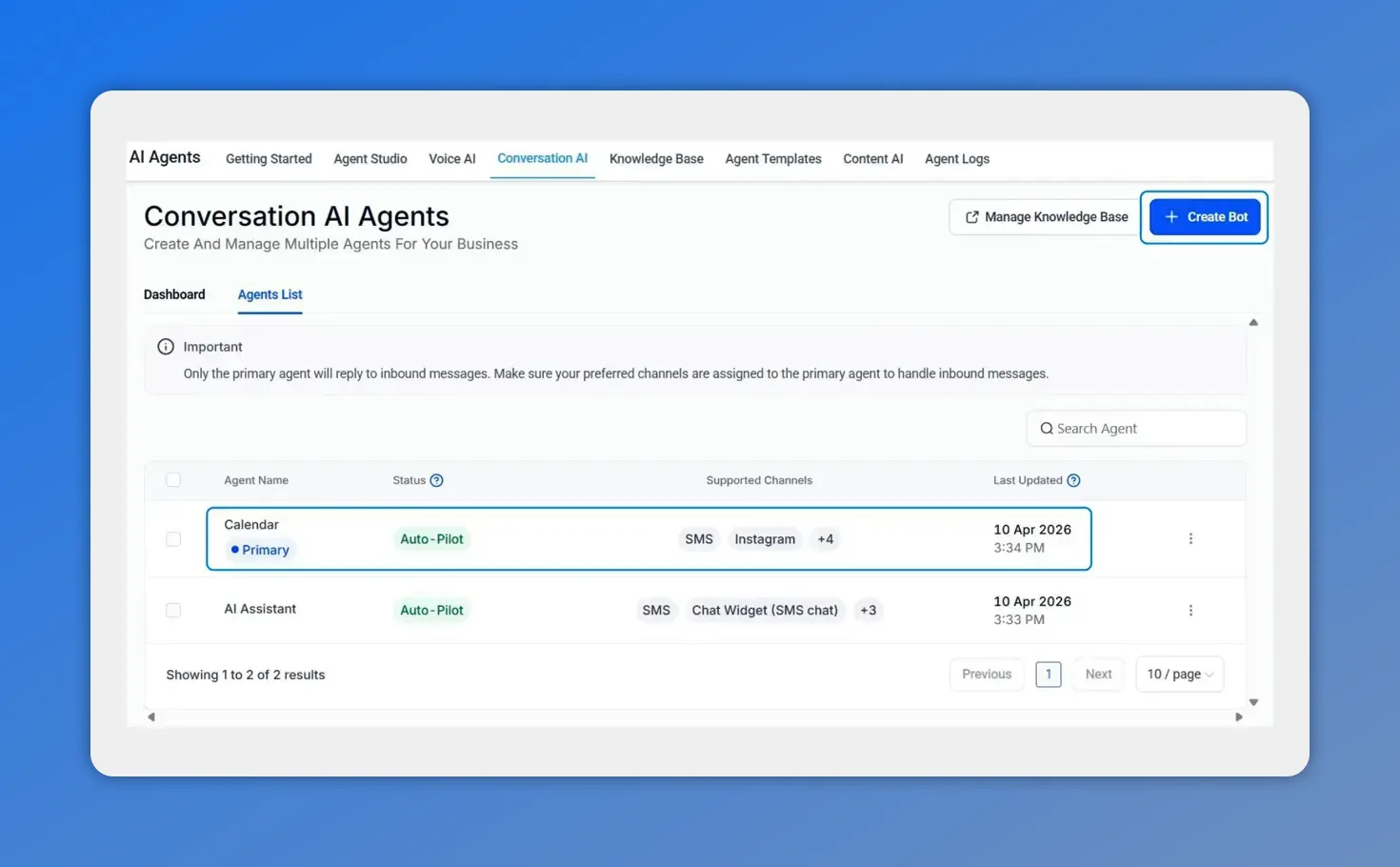
In the AI Agents area, you can select your existing Conversation AI agent (like the Calendar agent) before enabling appointment booking.
2) Enable appointment booking in Bot Goals
Next, head to the bot goals tab and turn on Appointment Booking.
3) Use Services as the calendar type
Choose Services as the calendar type.
Then select which services should be included using the drop-down menu.
4) Add your AI appointment booking instructions
This is where we make the assistant match your business rules. Add AI appointment booking instructions that reflect:
- Your policies
- Your hours
- Your availability rules
This is the conversational-first part. Instead of customers filling out forms, they can describe what they need, and the AI agent handles the booking process.
5) Configure advanced options (if needed) and save
Enable any advanced options you need, then click Save.
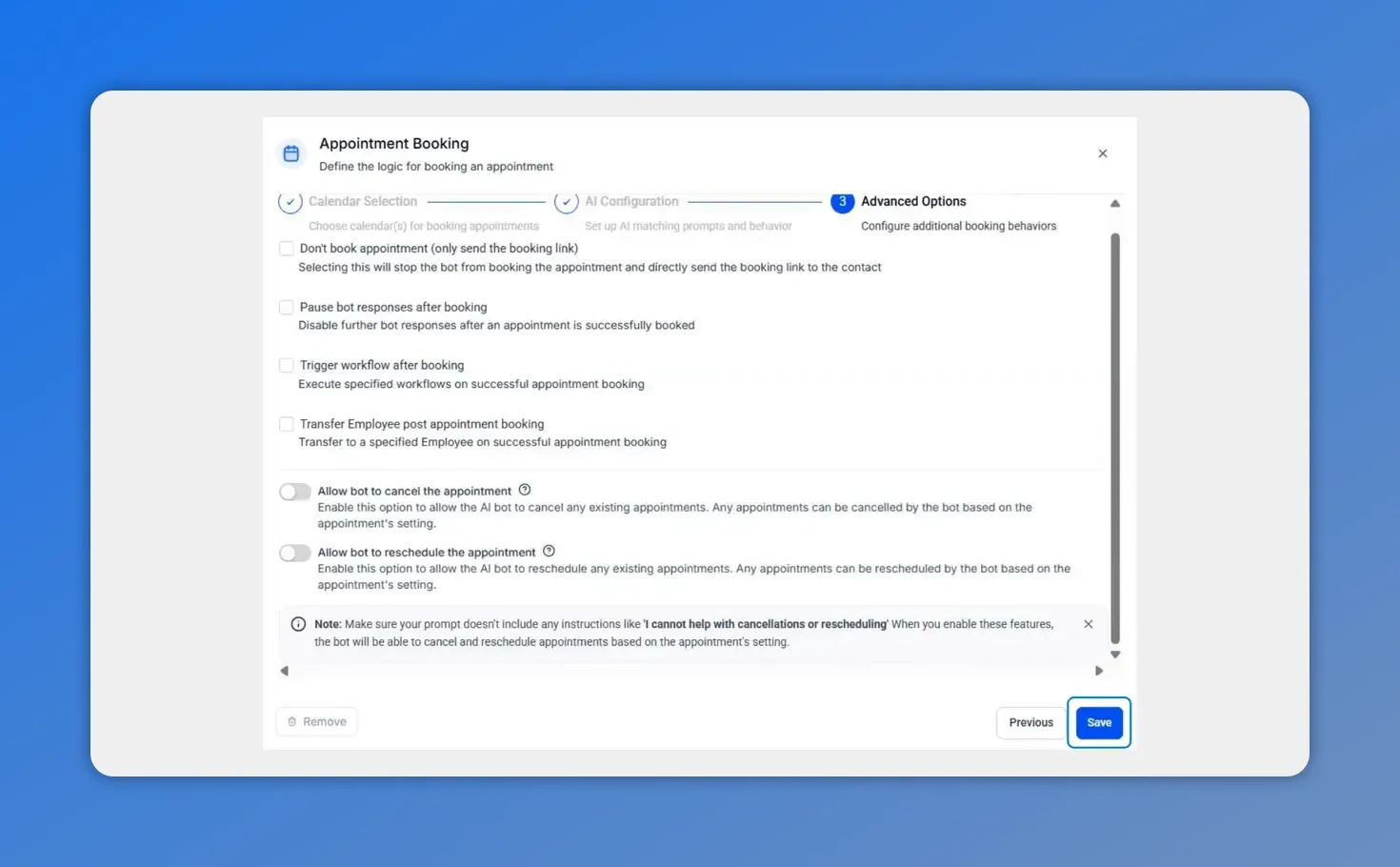
Configure advanced booking behaviors (like cancellation or rescheduling rules) and then click Save when everything looks right.
Why this conversational approach works
Traditional scheduling flows often feel rigid. Customers answer the same questions over and over, and small mistakes can break the process.
With Pinnacle’s appointment booking in Services Calendar, the AI can:
- Support customers describing their needs in chat
- Ask clarifying questions when something is unclear
- Remember user inputs even if their preferences change mid-conversation
- Show a booking preview (date, time, service, staff) before confirmation
The result is less friction and fewer “I’m not sure what to do next” moments. It also removes the need for forms and other rigid, robotic-feeling booking steps.
Practical setup tips for better booking outcomes
Even with smart automation, your configuration matters. These tips help the AI present clear choices and recover gracefully when edge cases happen.
- Use concise service names and durations. Clear service options lead to clearer AI responses and better booking accuracy.
- Include fallback guidance in your instructions. If something unusual happens, such as double-booking situations or holidays, the AI should know what to do next.
- Test in every channel before going live. Make sure the flow behaves correctly across SMS, live chat, Facebook, Instagram, and WhatsApp.
Channels supported for chat-based booking
Appointment booking through chat is designed to work across the channels your customers already use:
- SMS
- Live chat
That makes it easier to keep the same scheduling experience consistent, regardless of where the conversation starts.
Common questions
How does booking preview help customers?
It shows the customer the key booking details, including the date, time, service, and staff, before they confirm. That gives people confidence that the booking is correct.
What happens if a customer changes their mind mid-conversation?
Pinnacle Conversation AI uses a memory layer, so it can remember earlier user inputs even if preferences shift during the chat. This helps keep the conversation on track.
Does the AI ask questions when details are missing?
Yes. It includes ambiguity detection and can ask clarifying questions when required information is missing or unclear.
Where do we enable appointment booking in Pinnacle?
Go to the AI agent section, open the Conversation AI tab, then enable Appointment Booking under bot goals. Set the calendar type to Services, select the services to include, add your booking instructions, and save.
Next step
Open your Pinnacle account, enable Appointment Booking in Conversation AI, and start scheduling service appointments directly through chat.
This article was created from the video AI chat appointment booking: set up in Services Calendar








