





Advanced Filters for Funnel, Website, and Webinar Analytics: Focus on What Matters
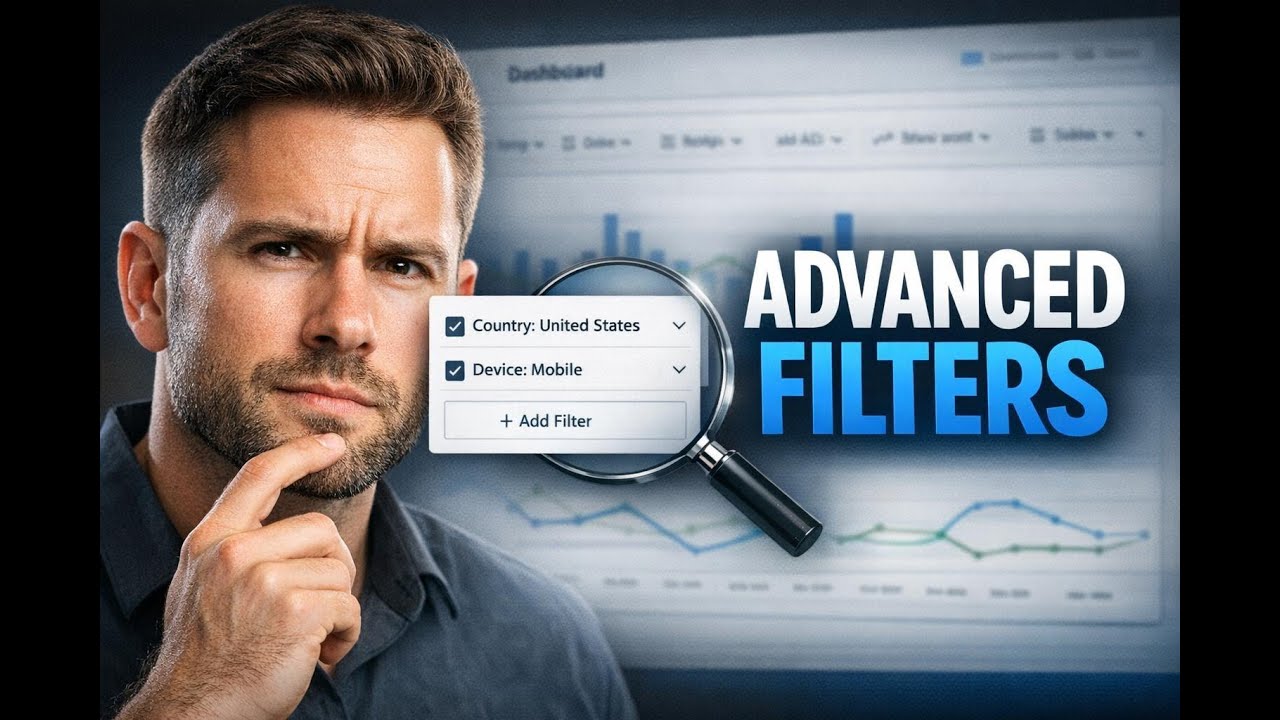
Our analytics in Pinnacle help us understand how performance is developing and how successful our efforts are. The challenge is simple: when results are wide, it is hard to spot what matters most.
Advanced Filters solve that by letting us narrow down analytics using the dimensions that are available in each report. Instead of scanning everything at a high level, we can focus on the exact slices we need, compare segments more easily, and uncover insights without exporting data.
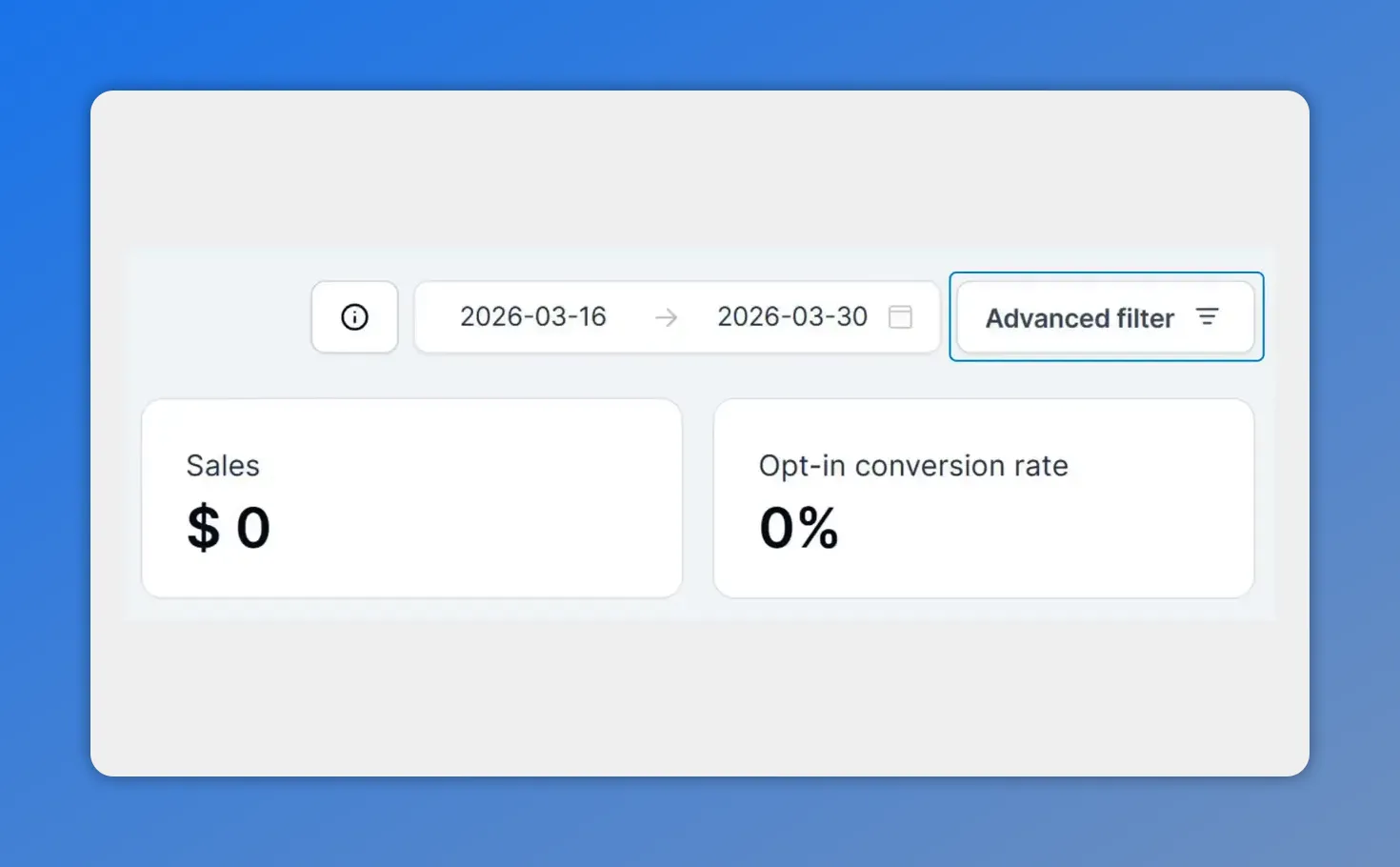
Highlighting Advanced filter makes it clear where you click next to start narrowing your funnel, website, or webinar analytics.
Why advanced filters matter in Pinnacle analytics
When our funnel, website, or webinar analytics show too much at once, the chart becomes more “overview” than “answers.” Advanced Filters give us control over what we are actually looking at.
- More direct insights: narrow the dataset to the audience, pages, or actions that matter.
- Better targeting: use the refined metrics to improve how we market and where we focus.
- Faster comparisons: compare segments without exporting or manually reviewing everything.
Where to find the Analytics area
Start in Pinnacle by going to the Analytics tab inside the Sites section.
From there, select the report type you want to analyze:
- Funnel
- Website
- Webinar
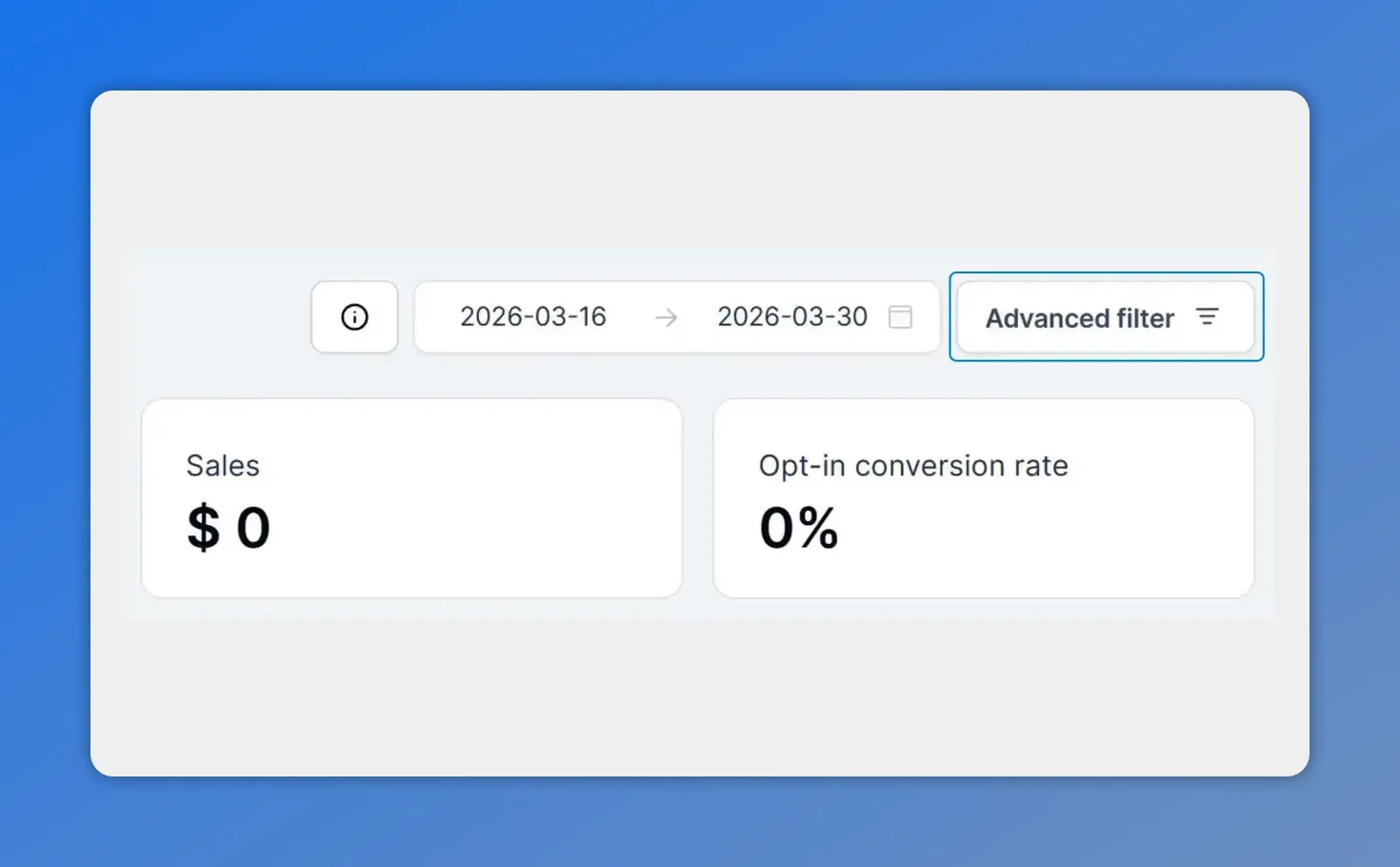
This is the moment you’re ready to add a filter—Advanced filter is selected so the chart can be narrowed down.
Step by step: apply Advanced Filters
Once we have the right funnel, website, or webinar selected, we can build our filters right inside the analytics view.
- Open Advanced filter and add one or more filters.
- Choose your filters from the dropdown menu of available dimensions.
-
Use nested filters when conditions must happen together.
Click plus to add a nested filter, then set the conditions that should be true at the same time. -
Use alternative filters when you want “either/or” logic.
Click add filter to include additional conditions that can be met as alternatives. - Click apply to save the filters and update the charts and KPIs.
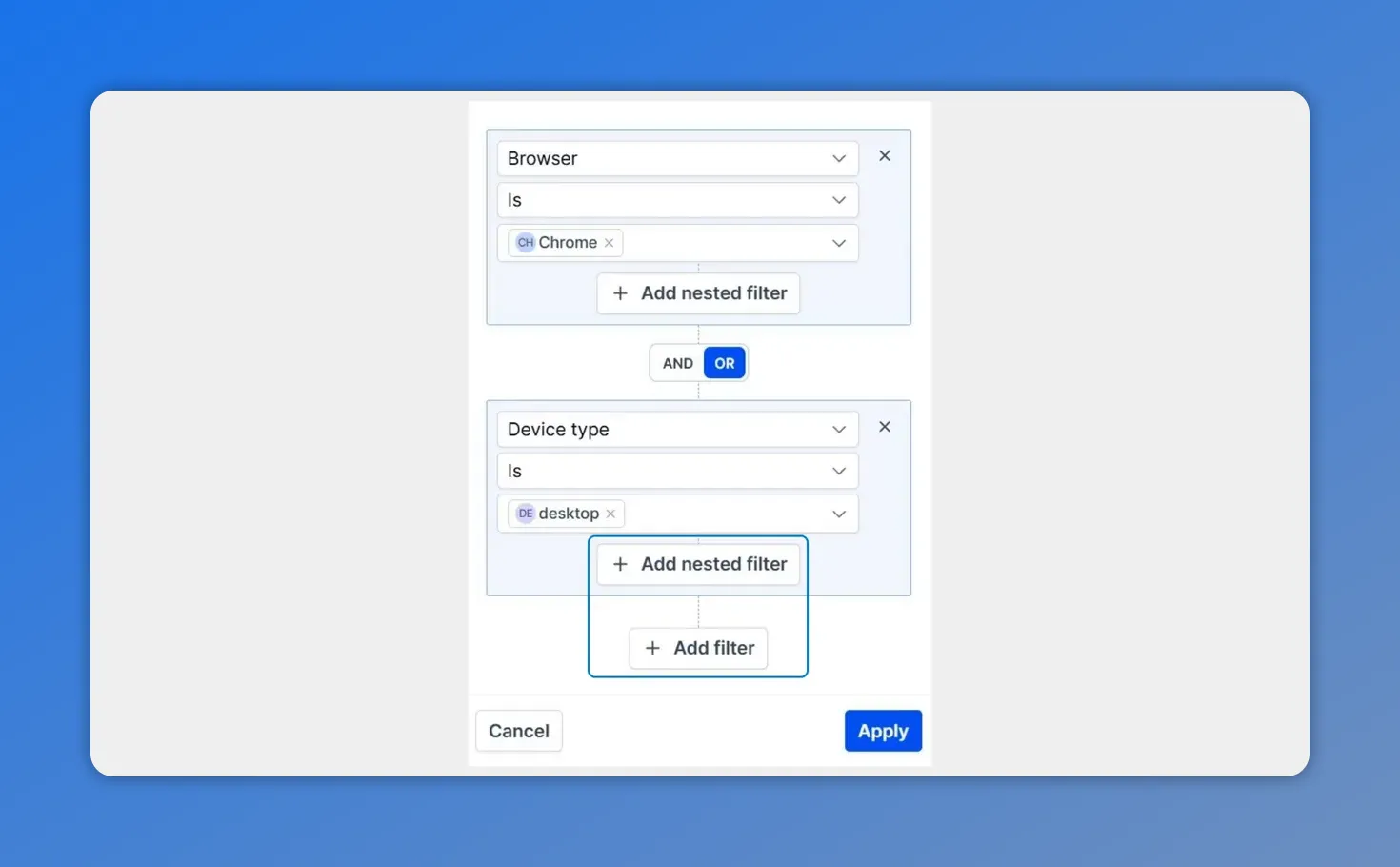
This nested filter configuration illustrates how multiple conditions can be tied together—so results only appear when all required criteria match.
How to think about “nested” vs “alternative” conditions
This is the part that makes Advanced Filters truly useful. We are not just filtering. We are controlling logic.
Nested filter: conditions that must happen together
Use nested filters when we only want results where multiple conditions are true at the same time. For example, if a specific audience segment and a specific action must both occur, nested filtering keeps the dataset precise.
Alternative filter: conditions where either can qualify
Use alternative filters when we are fine with different paths leading to the same outcome. Instead of forcing everything into one strict group, we include additional conditions that can be met independently.
What you get after applying filters
After we apply filters, Pinnacle updates the analytics view immediately. That means we can explore performance and compare segments right away.
- We can explore performance with less noise.
- We can compare segments side by side, using the same filtered logic.
- We can uncover insights without exporting data or reviewing everything at a high level.
This is especially helpful when we need answers quickly, like which segment is responding, which pages are driving results, or which webinar actions correlate with better outcomes.
FAQ
Where do we apply Advanced Filters in Pinnacle?
We apply them from the Analytics tab inside the Sites section. Then we select the funnel, website, or webinar we want to analyze and open Advanced filter.
What is the difference between nested filters and adding another filter?
Nested filters are for conditions that must happen together. Adding another filter is for alternative conditions, where different criteria can qualify without needing to be true at the same time.
Do we need to export data to use filters?
No. One of the main benefits is that filtering updates the charts and KPIs directly, so we can explore and compare without exporting or reviewing the full dataset at a high level.
How do advanced filters help with marketing targeting?
By narrowing analytics to the specific audiences, pages, and actions we care about, we get clearer signals on what is working. That makes it easier to adjust messaging, focus, and campaign strategy based on real performance.
Next step
Pick one report in Pinnacle (funnel, website, or webinar), open Advanced filter, and create your first focused view. Once the noise is gone, the insights get a lot easier to find.
This article was created from the video Advanced Filters: Segment Funnel, Website, and Webinar Analytics








