





How to Add Prospects to Your Pipeline from the Prospecting Tool

Managing leads inside pipelines keeps our CRM organized and our team efficient. Adding prospects directly to a pipeline at creation turns what used to be manual, duplicated work into a single, trackable action. Below we explain the simple steps and practical benefits so you can add leads to the right pipeline stage instantly and start automations and reporting right away.
Why add prospects to a pipeline when you create them?
- Improved handoffs: Marketing hands a prospect to sales consistently by stage.
- Less manual work: No more duplicate entries or manual pipeline updates.
- Immediate automation: New prospects enter workflows and notifications automatically.
- Unified reporting: Measure prospecting ROI and campaign performance from the same dashboards.
Step-by-step: Add a prospect directly into a pipeline
-
Open the Prospecting tab inside the Marketing section and click Add Prospect.
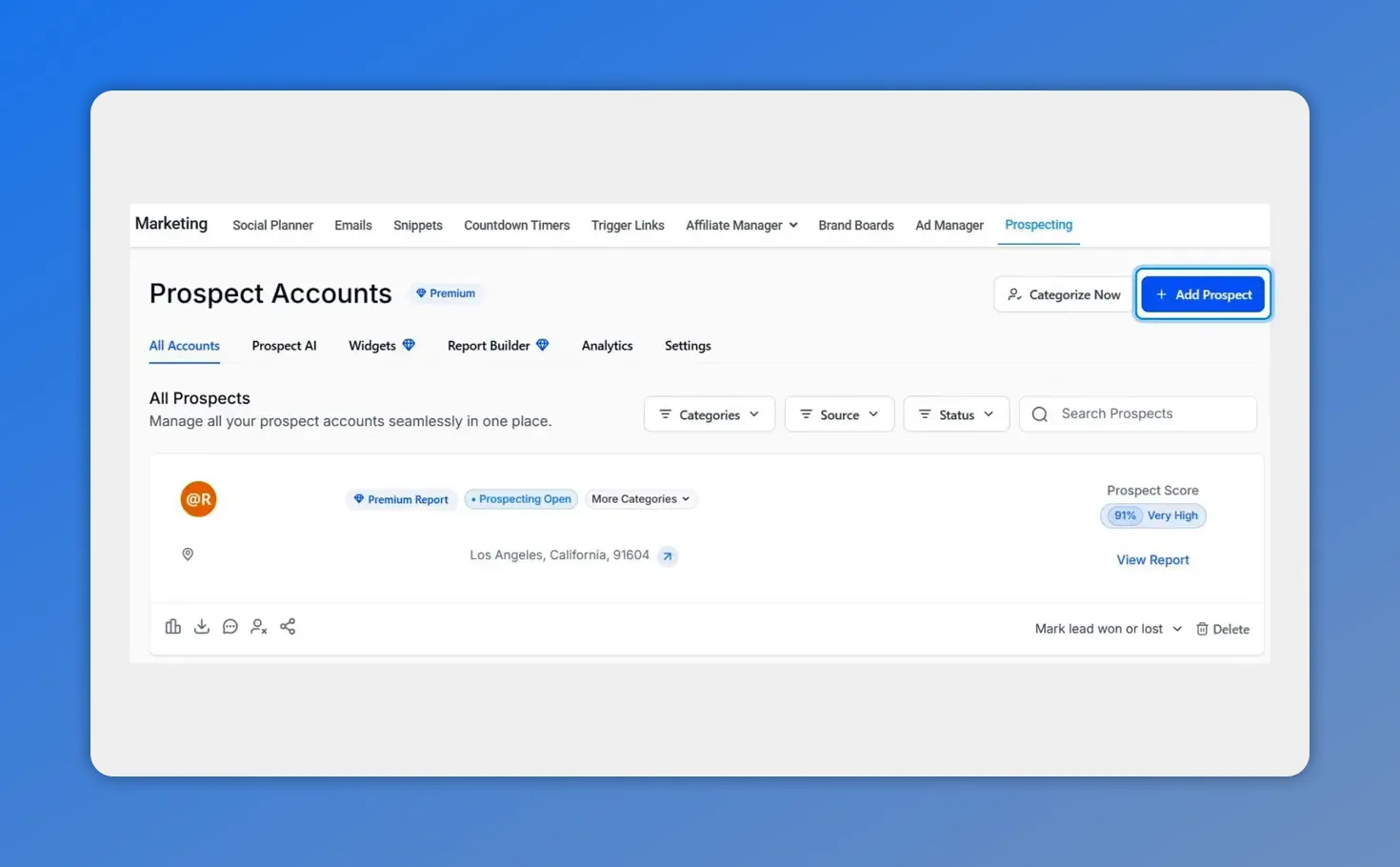
Open Prospecting > Prospect Accounts and click Add Prospect to start creating a prospect.
-
Search for an existing contact or enter the prospect details manually.
This ensures the prospect record is complete before it enters your pipeline.
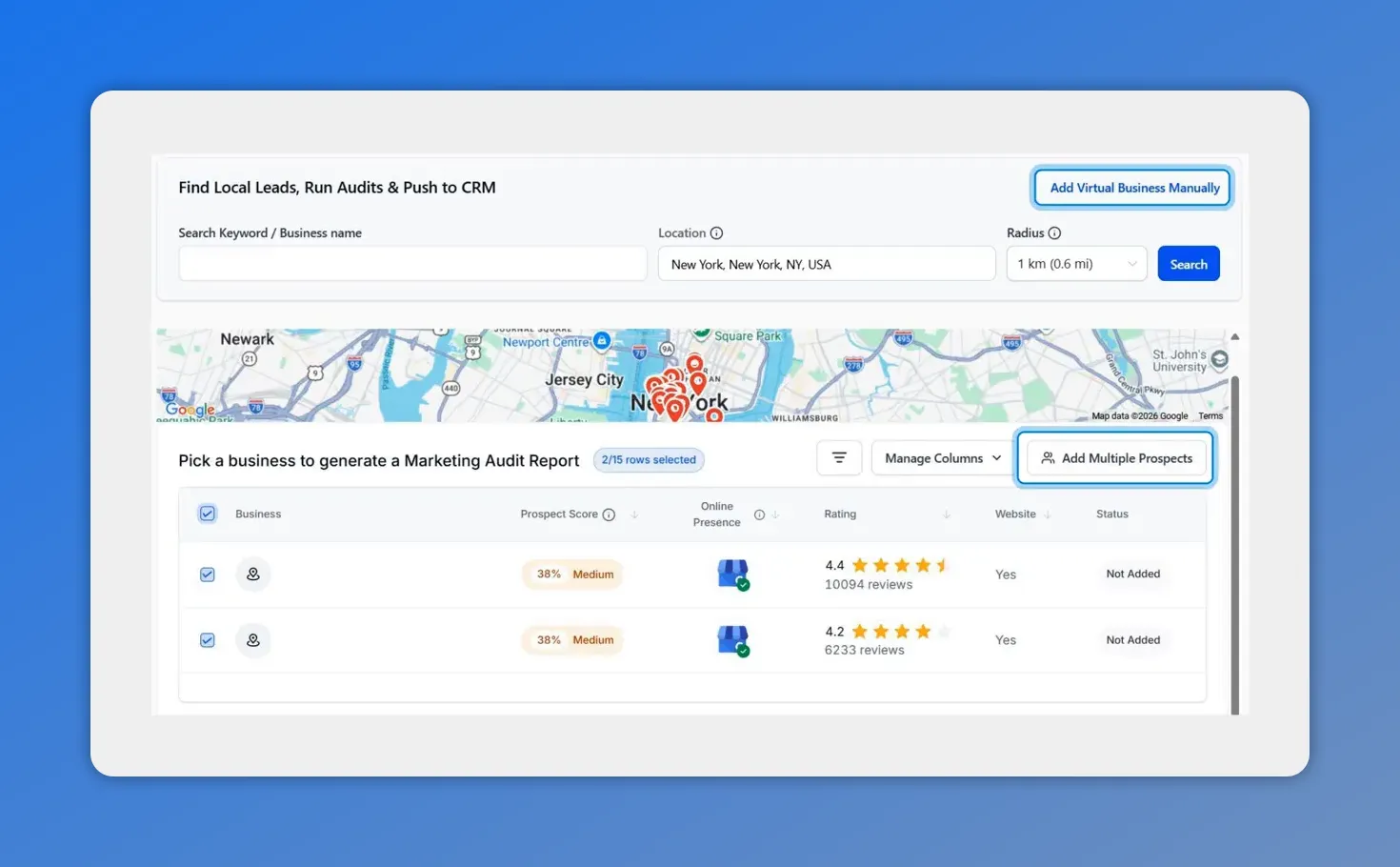
We search for a business or lead using the keyword and location fields before adding them.
-
Check the box labeled Add to pipeline.
Then choose the pipeline and the stage where the prospect should start.
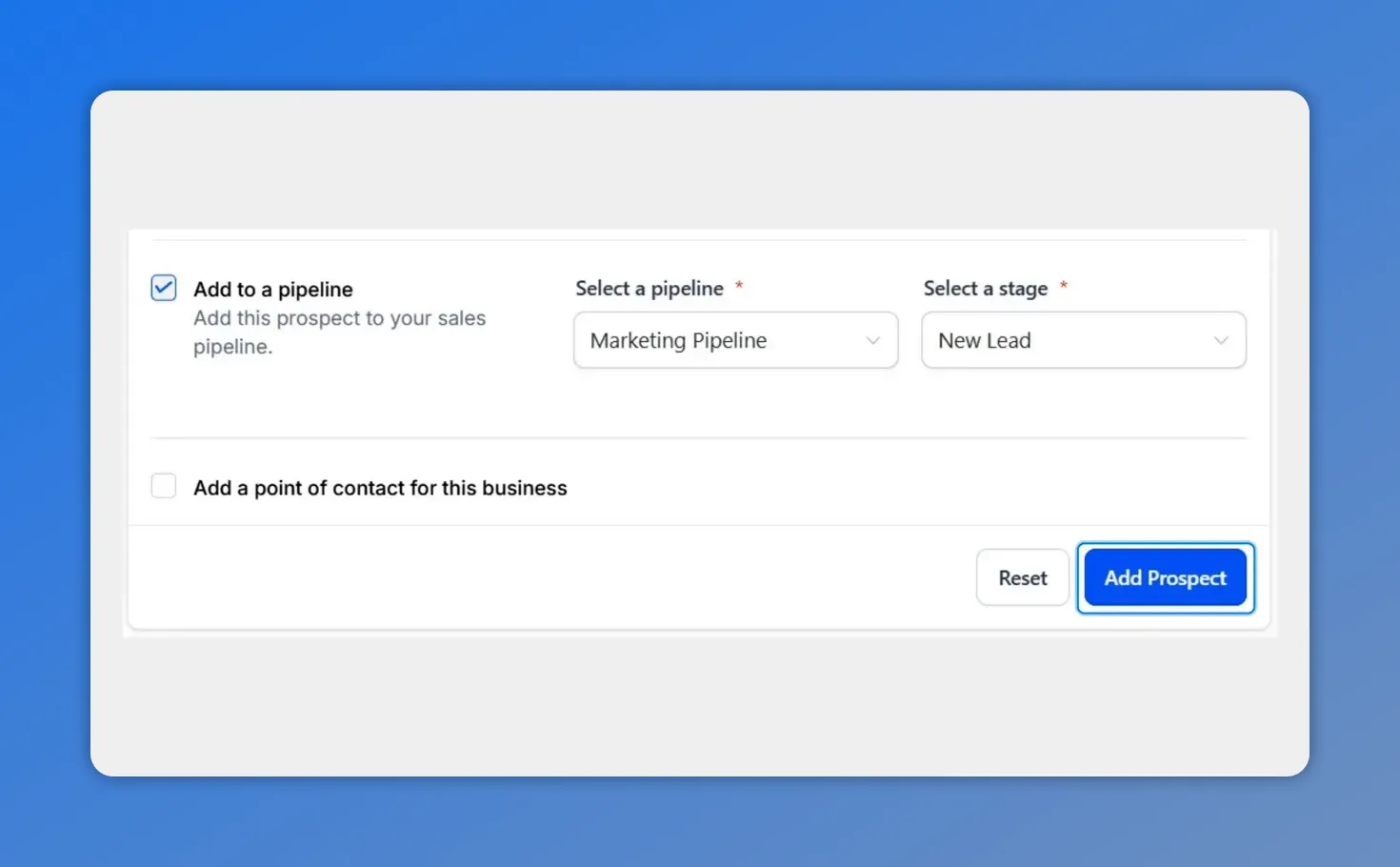
Confirm the pipeline and stage (here: Marketing Pipeline → New Lead) then click Add Prospect to create the record.
-
Click Add Prospect to generate the report and add the prospect to the pipeline.
The prospect will now appear in the chosen pipeline stage, ready for the next steps.
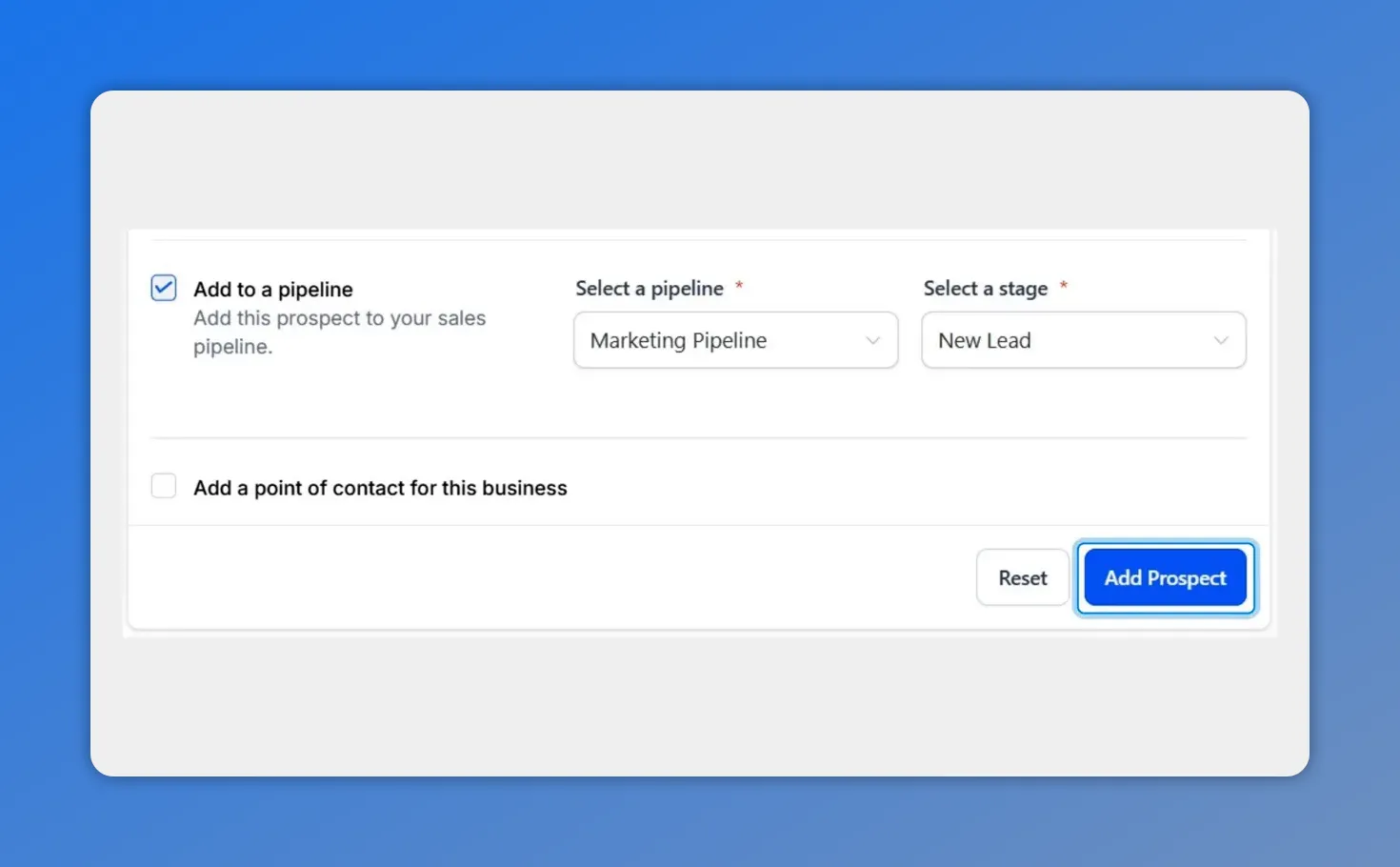
Add Prospect button highlighted after selecting a pipeline and stage — ready to create the prospect in the pipeline.
- Manage progress from within the pipeline. Move prospects between stages, trigger automations, and use reporting widgets to monitor performance.
What changes when prospects live in pipelines
Prospects added at creation become first-class records in the CRM. That means they benefit from the same communication, automation, and reporting features as other leads. We remove manual intervention and keep a clean, auditable path from initial contact to conversion.
Best practices
- Pick the right stage: Assign the stage that reflects the current relationship. This improves routing and reporting.
- Standardize naming: Use consistent pipeline and stage names across teams to reduce confusion.
- Use automations: Attach workflows to entry stages so new prospects receive immediate follow-up and scoring.
- Monitor with dashboards: Add widgets that show prospecting performance so campaigns stay measurable.
Practical takeaways
- Reduce manual work by assigning the correct stage when creating the lead.
- Improve marketing to sales handoffs with consistent pipeline placement.
- Get faster visibility into lead quality and campaign performance through integrated reporting.
FAQ
Can we add prospects manually as well as by search?
Yes. You can search for an existing contact or enter the prospect details manually. Either approach lets you check Add to pipeline and place the prospect in the chosen stage.
Will adding a prospect to a pipeline trigger automations?
Yes. Placing a prospect into a pipeline stage can trigger your existing automations and workflows tied to that stage. That lets follow-up sequences and notifications start automatically.
Can we change the pipeline stage after creation?
Yes. Prospects can be moved between stages inside the pipeline as they progress. Moving stages keeps reporting accurate and preserves the automation history.
How do we track prospecting ROI?
Use the reporting widgets and dashboards to monitor metrics like lead source, conversion rate, and revenue generated. Because prospects created from prospecting are added to pipelines, reporting stays centralized and simple.
What if a prospect was added without a pipeline?
You can still locate the record and add it to a pipeline manually. However, adding prospects to the correct stage at creation reduces extra steps and improves accuracy.
This article was created from the video How to Add Prospects to Your Pipeline from the Prospecting Tool








