





Button Icons in Form Builder: Add Icon to Submission Button with Live Preview
Photo by Joshua Reddekopp on Unsplash
Our forms collect customer information. The final step that gets that information into your system is the submission button. We added a personalizable icon to those buttons to increase appeal and promote more submissions.
What this feature does
The new icon option lets you add a small image to any submission button with a simple toggle. You control which icon to use, where it sits relative to the label, and you see an instant live preview as you make changes. This gives forms more visual polish and useful interaction cues.
Where to find the icon settings
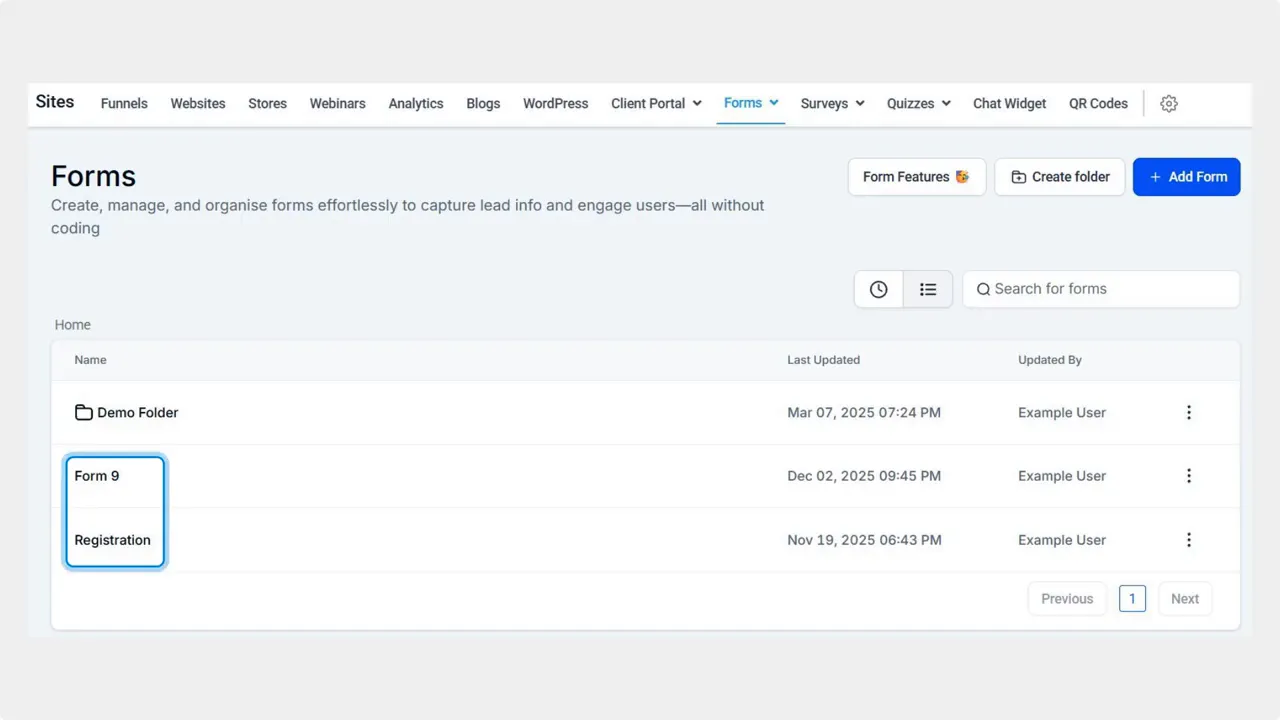
The icon controls live in the Element Settings inside the Forms area of Sites. This keeps the option close to other button settings so you can tweak label, color, and icon in one place.
How to add an icon to your submission button
Follow these steps to enable an icon and preview it live.
Open the Forms tab inside the Sites section and edit the form you want to update.
Click the button element to open Element Settings.
Toggle Enable icon to add a small image to the button.
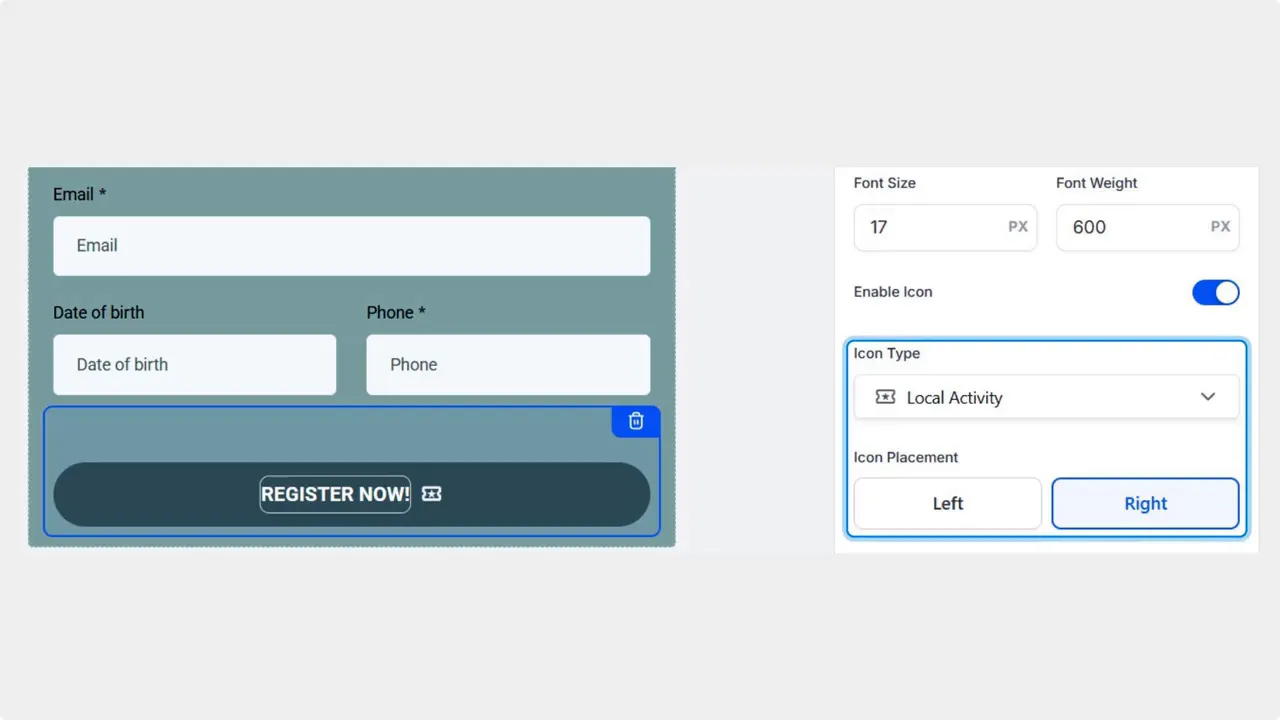
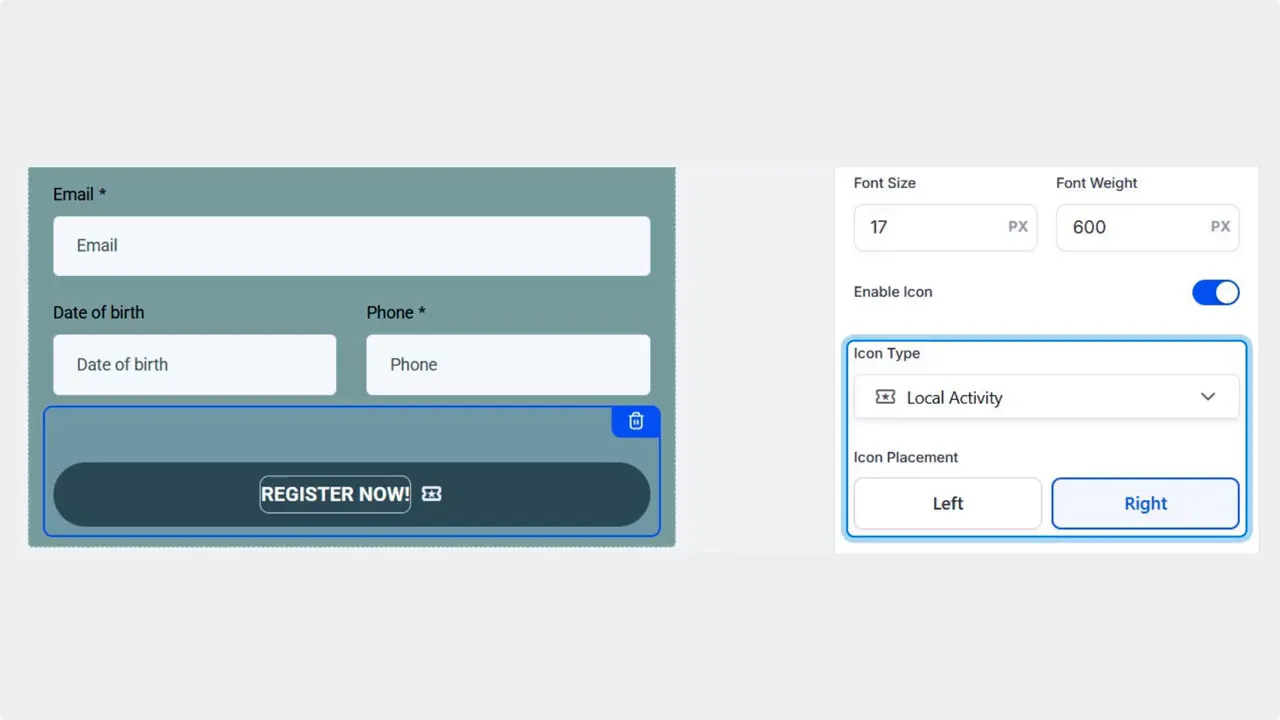
Pick an icon and placement from the dropdown. You can place the icon on the left or the right of the label and see it instantly in the live preview.
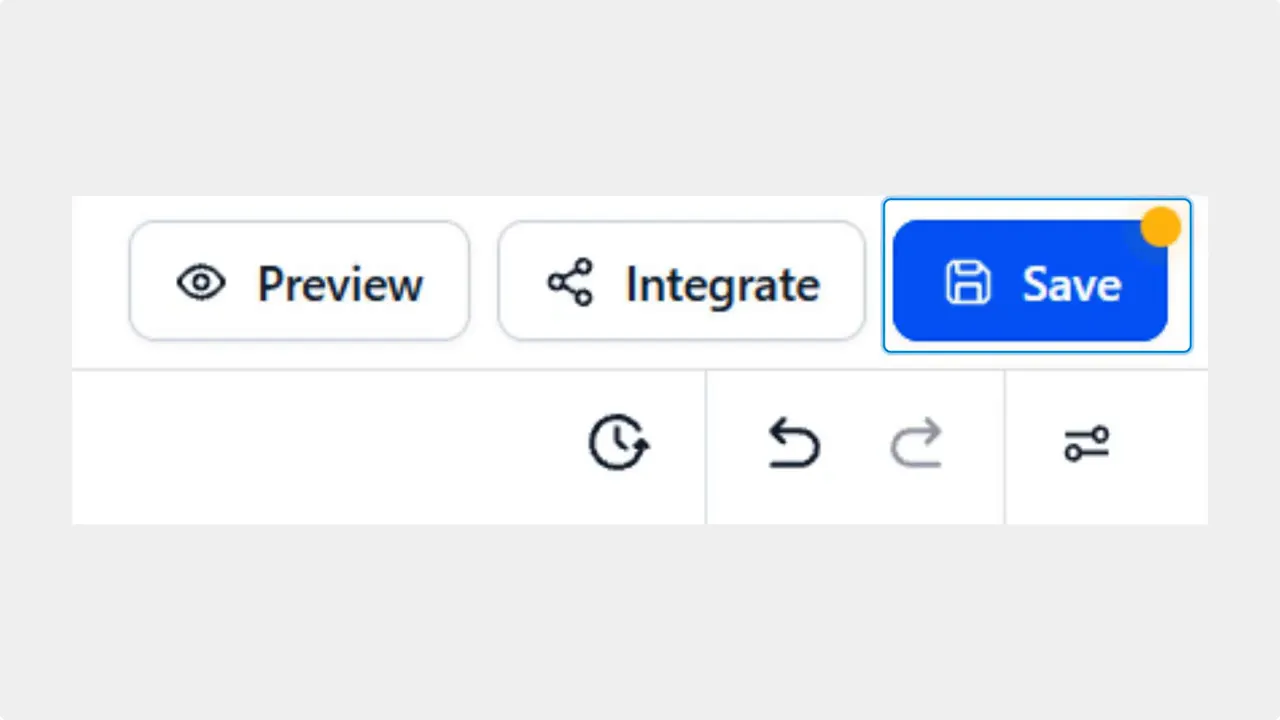
Click Save at the top right corner of the builder to apply changes.
Design tips and best practices
Match icon to the action. Use a familiar symbol such as an arrow for submission or a lock for secure forms.
Keep icons subtle. They should support the label, not distract from it.
Test placement. Left or right placement can change how quickly users notice the button. Try both and use the live preview to compare.
Check mobile. Make sure the icon and label stay readable on smaller screens.
Use the live preview to validate spacing and alignment before saving.
Why this matters
Small visual cues like icons improve clarity and encourage interaction. A well-designed submission button helps reduce friction at the final step of a form and can support higher completion rates. This enhancement adds a bit of delight while keeping the form functional and clear.
Frequently asked questions
Where do we enable the button icon?
Open the Form Builder in Sites, select the button element, and toggle Enable icon in the Element Settings.
Can the icon be placed on either side of the label?
Yes. Choose left or right placement from the dropdown and view changes instantly in the live preview.
Will adding an icon affect form performance?
No. The icon is a small image element and is optimized for quick rendering. It should not impact form load time.
Does the icon appear on mobile devices?
Yes. The icon and label scale with the button so they remain visible on mobile. Use the live preview to confirm spacing and size on different screen widths.
This article was created from the video Button Icons in Form Builder: Add Icon to Submission Button with Live Preview








